> For AI agents: the complete documentation index is available at /llms.txt, the full documentation bundle is available at /llms-full.txt.
# How to Get Started with Node.js App in cPanel
**Node.js** is a runtime environment for building server-side applications using JavaScript. cPanel allows you to deploy and manage Node.js applications through the **Setup Node.js App** interface.
## Access cPanel
### Open Setup Node.js App
Log in to your cPanel account.
Navigate to the **Software** section and click **Setup Node.js App**.
 ## Set Up the Node.js Application
### Create an application
On the **Node.js Application** page, you can view existing applications and create a new application.
Click **Create Application** to start the setup process.
 ## Configure Application Settings
### Configure the application
Configure the following settings:
- **Node.js version:** Select the Node.js version required by your application.
- **Application root:** Enter the directory where your Node.js application files will be stored. You can use an existing directory or create a new one.
- **Application URL:** Specify the URL path where your Node.js application should be accessible.
Click **Create** to create the application.
 :::note
The available Node.js versions and application settings may vary depending on the cPanel server configuration.
:::
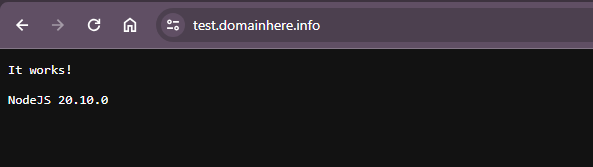
Open the application URL in your browser. You should see a page similar to the following, showing the selected Node.js version.
## Manage the Node.js Application
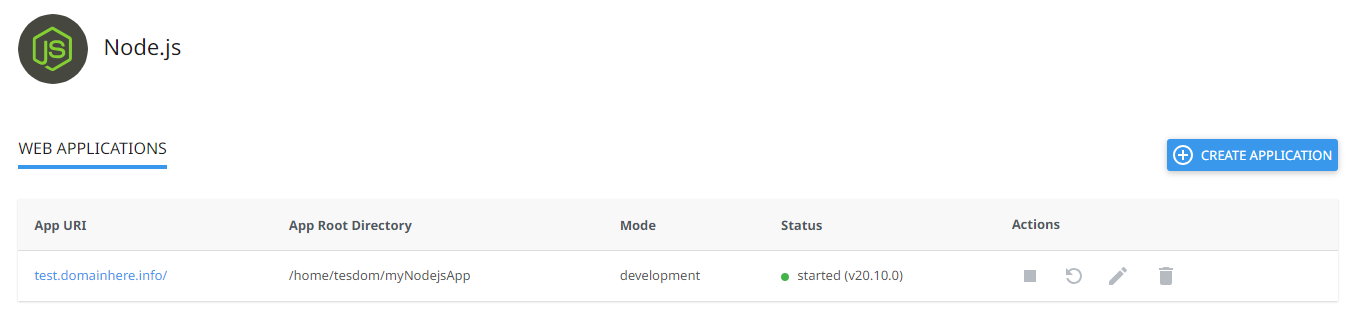
Once the application is created, it will be listed in the **Node.js Application** interface.
From here, you can start, stop, or restart the application. You can also view application logs to monitor activity and troubleshoot issues.
## Deploy the Node.js Application
### Upload application files
Upload your Node.js application files to the **Application root** directory specified during setup.
 Make sure all required application files, dependencies, and configuration files are uploaded.
:::info
Ensure that your application files are uploaded to the correct application root directory before accessing the application URL.
:::
Once the files are uploaded, access your Node.js application through the configured URL.
## Additional Configuration
If your Node.js application requires additional configuration or environment variables, you can configure them through the **Setup Node.js App** interface.
You can also configure startup scripts or cron jobs if required by your application.
## Monitor and Troubleshoot
Monitor your Node.js application's performance and resource usage using the available cPanel tools.
If you encounter any issues, check the application logs for error messages and use them to troubleshoot the application.
For additional assistance, you can contact us by opening a [support ticket](https://crowncloud.net/clients/submitticket.php).