> For AI agents: the complete documentation index is available at /llms.txt, the full documentation bundle is available at /llms-full.txt.
# How to Check Complete Usage Statistics in DirectAdmin
:::info
If you are using the Standard theme on DirectAdmin, switch to the Refreshed theme as shown in [How to change theme or layout on DirectAdmin](https://wiki.crowncloud.net/?How_to_change_theme_or_layout_on_DirectAdmin).
:::
## In the Refreshed Theme
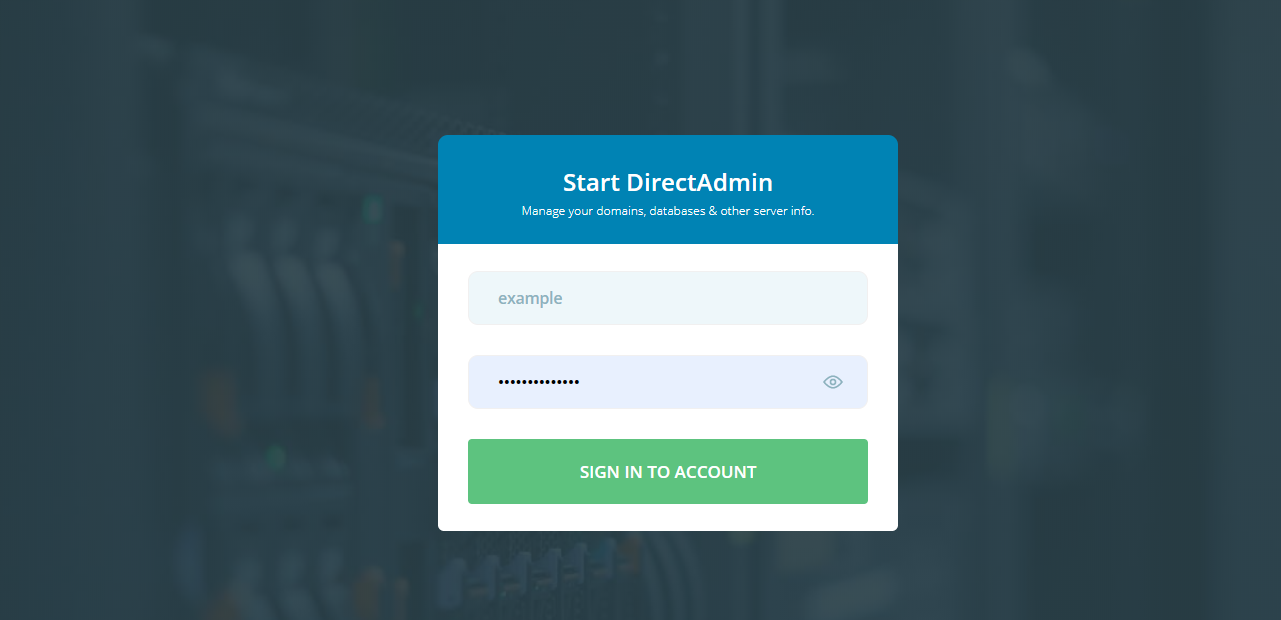
First, log in to the DirectAdmin Web Control Panel.
### DirectAdmin VPS (Admin Level)
If you have a **DirectAdmin VPS** with us, which includes full root/admin access, you can use the **Admin Level**.
### Open Complete Usage Statistics
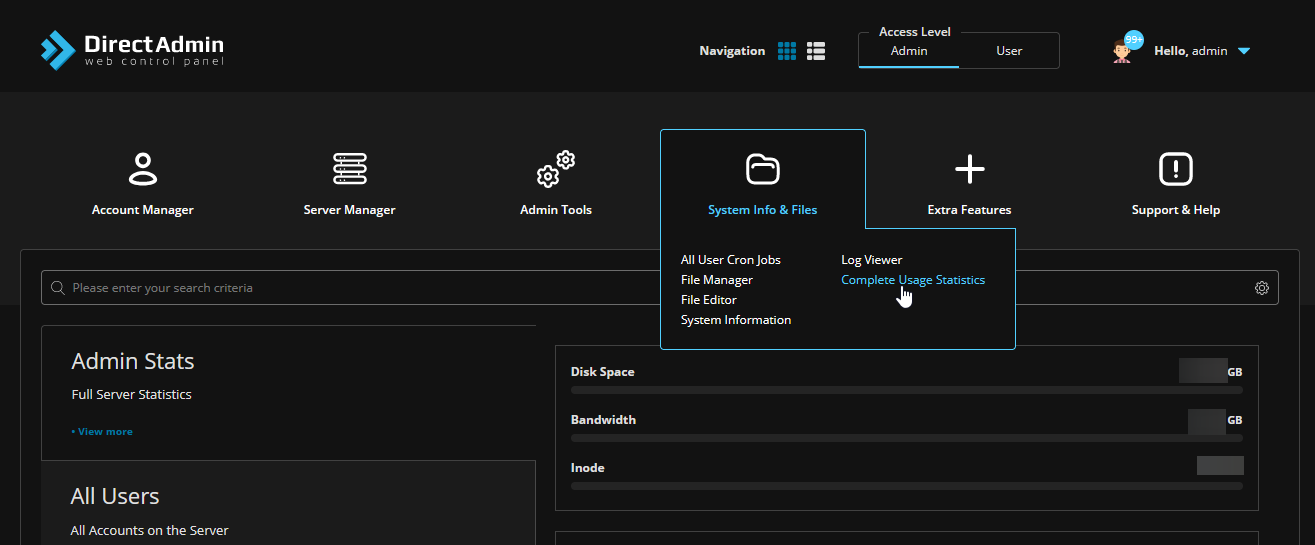
Navigate to the **Menu** option and select **Complete Usage Statistics** under **System Info & Files**.
 ### View the statistics
The Complete Usage Statistics page is displayed.
 ### Reseller/Shared Hosting (User or Reseller Level)
If you have a **Reseller/Shared Hosting** account with us based on **DirectAdmin**, you will have **User Level** or **Reseller Level** access.
### Open Site Summary / Statistics / Logs
Navigate to the **Menu** option and select **Site Summary / Statistics / Logs** under **System Info & Files**.
 ### Select Usage Statistics
Select **Usage Statistics**.
 ### View the statistics
The Complete Usage Statistics page is displayed.
 ## In the Standard Theme
Click here to show the steps
First, log in to the DirectAdmin Web Control Panel.
 ### DirectAdmin VPS (Admin Level)
If you have a **DirectAdmin VPS** with us, which includes full root/admin access, you can use the **Admin Level**.
### Open Complete Usage Statistics
Once logged in, select **Complete Usage Statistics** under **System Info & Files**.
 ### View the statistics
The Complete Usage Statistics page is displayed.
 ### Reseller/Shared Hosting (User or Reseller Level)
If you have a **Reseller/Shared Hosting** account with us based on **DirectAdmin**, you will have **User Level** or **Reseller Level** access.
### Open Site Summary / Statistics / Logs
Select **Site Summary / Statistics / Logs** under **System Info & Files**.
 ### Select Usage Statistics
Select **Usage Statistics**.
 ### View the statistics
The Complete Usage Statistics page is displayed.
