> For AI agents: the complete documentation index is available at /llms.txt, the full documentation bundle is available at /llms-full.txt.
# Recover Data from a Crash by Mounting Rescue CD on a VPS
## Mount the Rescue CD on Your VPS
### Select the VPS
Log in to your CrownPanel account and select the VPS you need to recover data from.
### Mount the Rescue CD
From the **CD-ROM** tab, select **SystemRescueCD** and mount it.
 ### Launch the VNC Console
Launch the VNC console after mounting the Rescue CD and wait for the Rescue CD boot screen to appear.
You should see a screen similar to the following:
**Select Default boot options**
 Press **Enter** to continue.
 You have now entered the Rescue CD environment.
## Verify the Network
The network should be configured automatically. Use the following commands to verify the network details and connectivity.
```bash
nmcli
```
To view the network connections, run:
```bash
nmcli connection show
```
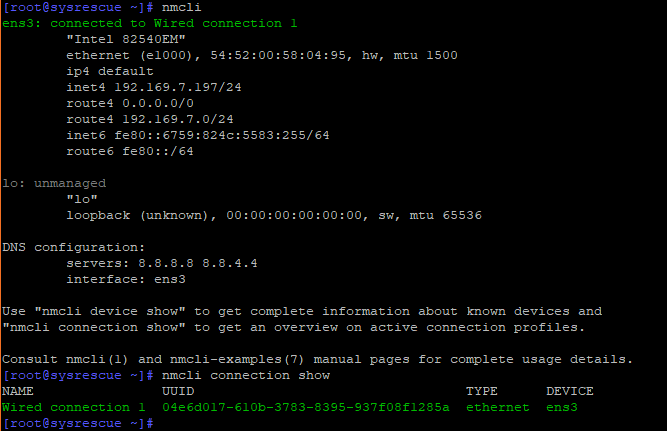
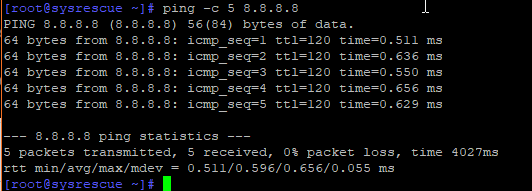
To verify that the network is up, run:
```bash
ping 8.8.8.8
```
:::note
If the ping is successful, the network connection is working correctly.
:::
## Disable iptables
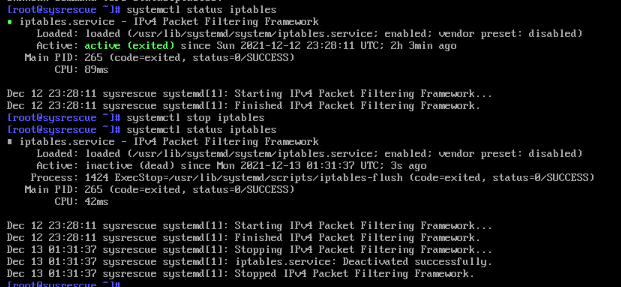
SystemRescueCD may have the iptables firewall enabled. Stop the iptables service with:
```bash
systemctl stop iptables
```
## Mount the Disk
### Set the Root Password
To connect to the VPS using SSH, set a root password with:
```bash
passwd root
```
 :::warning
Keep the root password secure, as it will be used to access the Rescue CD environment through SSH.
:::
### Identify the Disk and Partitions
To identify the disks and partitions available on the VPS, use the following command:
```bash
fdisk -l
```
 **Output of Linux Operating System Partition:**
 From the output, identify the partition containing the data you need to recover.
For example:
```bash
/dev/vda1 | Type "Linux"
```
Or:
```bash
/dev/vda2 | HPFS/NTFS/exFAT
```
:::note
The largest partition generally contains the main filesystem and user data. Verify the partition details carefully before mounting it.
:::
### Create a Mount Point
Create a directory to use as the mount point:
```bash
mkdir hdd
```
### Mount the Required Partition
Mount the required partition:
```bash
mount /dev/vda1 hdd
```
:::warning
Replace `/dev/vda1` with the correct partition identified using `fdisk -l`.
:::
### Access the Mounted Filesystem
You can now enter the `hdd` directory and list the files:
```bash
cd hdd
ls
```
**Output of files contained in the Linux Operating System:**
 **Output of files contained in the Windows Operating System:**
 You can now access the filesystem and recover the required files.
## Recover the Data
Once the partition is mounted, you can connect to the VPS using SSH with the VPS IP address and recover the required files.