

How to Configure PHP Settings on Linux
Configuring PHP settings on a LEMP/LAMP server involves modifying the php.ini file. This guide explains how to locate, edit, and apply PHP configuration changes.
Prerequisites
Make sure you have root privileges on the server and basic knowledge of working with terminal commands.
Configure PHP Settings
Locate the php.ini file
Find the location of the PHP CLI configuration file with the following command:
Example output on Ubuntu:
Example output on AlmaLinux:
Open php.ini in an editor
Use your preferred text editor to open the php.ini file. The examples below use nano.
For Ubuntu / Debian:
Replace {version} with your installed PHP version, such as 7.4 or 8.0.
For AlmaLinux / CentOS / Rocky Linux:
Adjust the settings
Within the php.ini file you will find many settings. Change the values according to your requirements. The most common ones are explained in Common PHP Settings below.
Here is an example of how these settings might look in your php.ini file:
Save and exit
After making the necessary changes, save the file and exit the text editor.
Restart the service
To apply the changes, restart the web server or PHP-FPM service. The command depends on your operating system and setup.
To restart Apache:
To restart Nginx:
To restart PHP-FPM:
If you have a specific PHP-FPM version installed, include the version in the service name. For example: systemctl restart php8.3-fpm.
Verify the changes
After restarting the service, verify that the changes took effect by creating a PHP file that calls the phpinfo() function:
Save this file in your web server's document root directory and open it in a browser. You should see the updated PHP configuration reflected in the output.
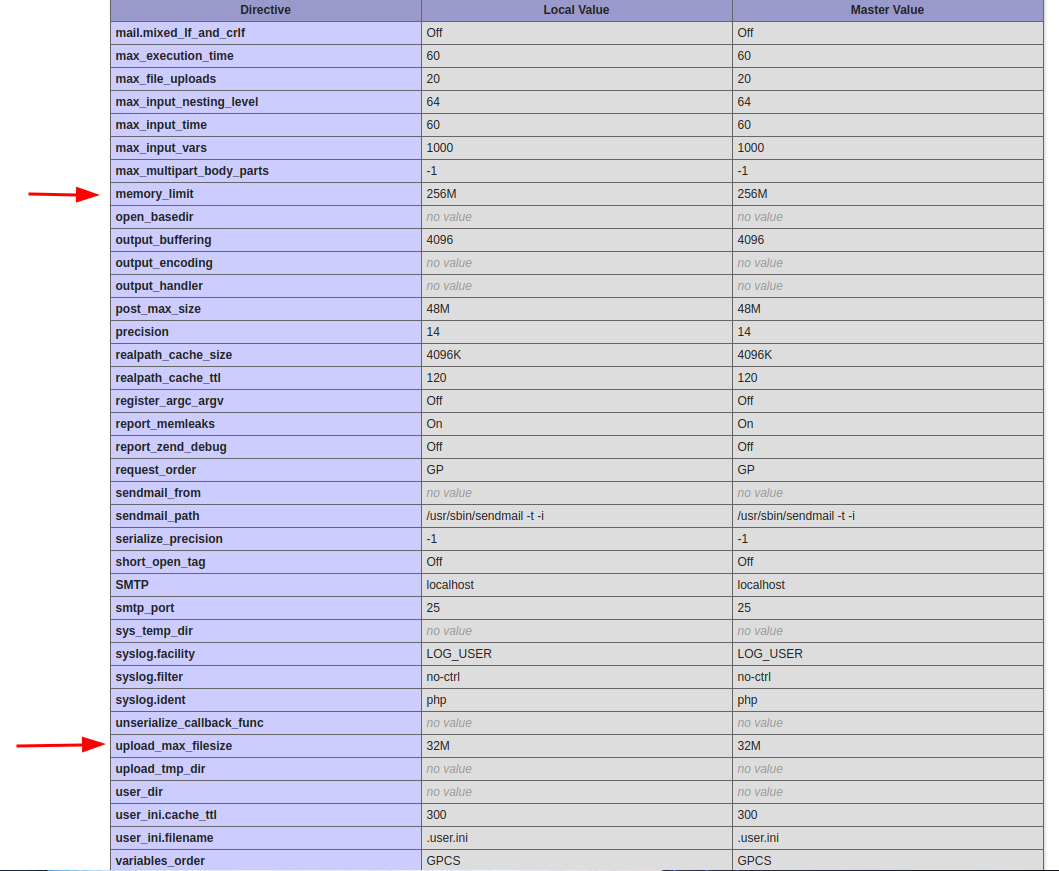
Warning: the phpinfo() page can expose detailed information about your server and PHP configuration. Remove the file after you have verified the changes.
You have now configured the PHP settings on your LEMP/LAMP server.
Common PHP Settings
memory_limit: the maximum amount of memory a script is allowed to allocate.upload_max_filesize: the maximum size of files that can be uploaded.max_execution_time: the maximum time in seconds a script is allowed to run before it is terminated.post_max_size: the maximum size of POST data that PHP will accept.error_reporting: which PHP errors are reported.display_errors: whether errors are displayed on the screen.date.timezone: the default timezone used by PHP.