How to Install a Desktop (GUI) Graphical Interface on Your Ubuntu Server
By default, Ubuntu Server does not include a graphical user interface (GUI). A GUI uses system resources (memory and processor) that would otherwise go to server tasks. For some tasks and applications, though, a GUI environment is easier to manage. This guide shows how to install a desktop environment on an Ubuntu server.
Install the Desktop
Update the system
Check for system updates and install them:
Install Tasksel
Install the Tasksel manager:
Tasksel is a Debian/Ubuntu tool that installs multiple related packages as a coordinated "task". For more information, see the Tasksel page on the Ubuntu community help site.
Launch Tasksel and choose the desktop
Launch tasksel to install GNOME:
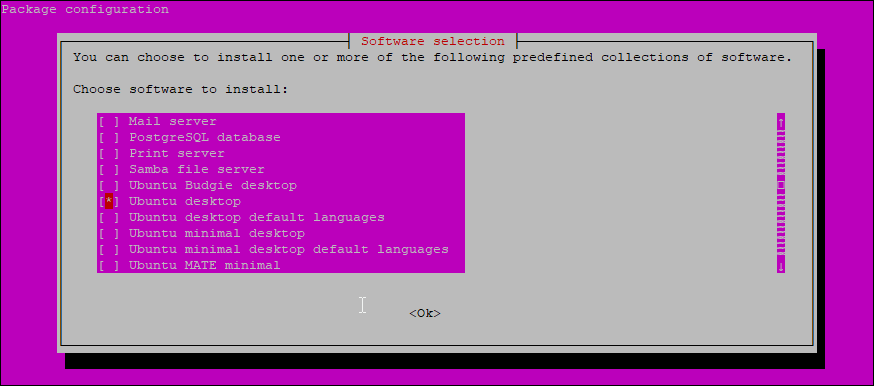
A text-based interface opens. Use the arrow keys to scroll down the list and find the Ubuntu desktop or other Desktop option. Press Space to select it, press Tab to move to OK at the bottom, then press Enter.
Reboot the server
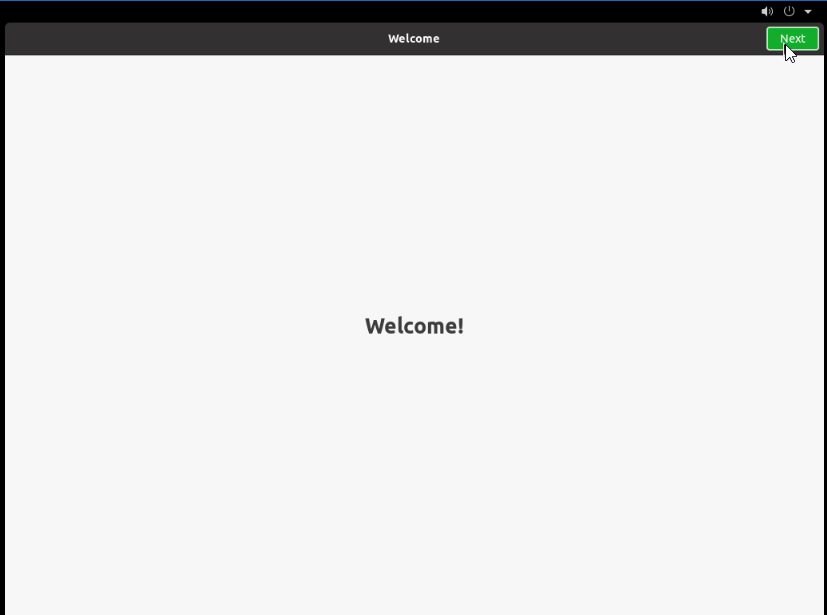
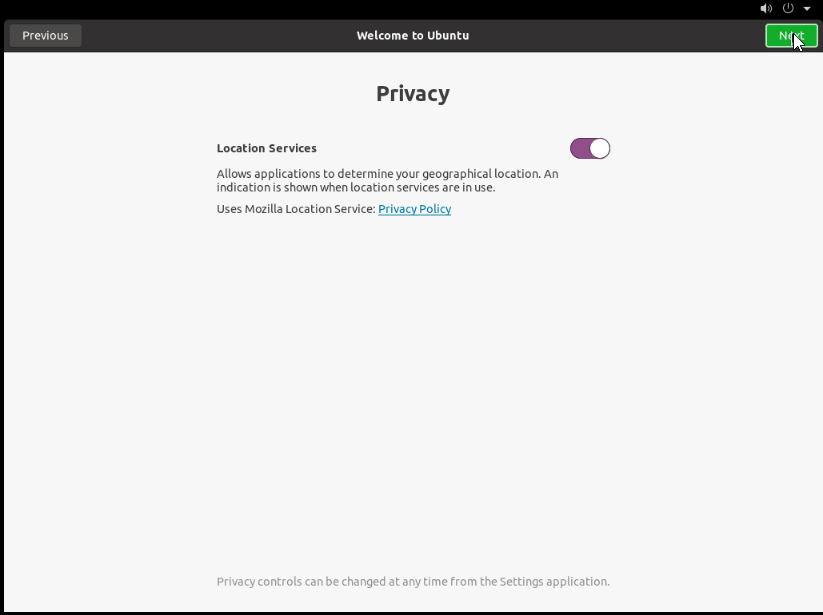
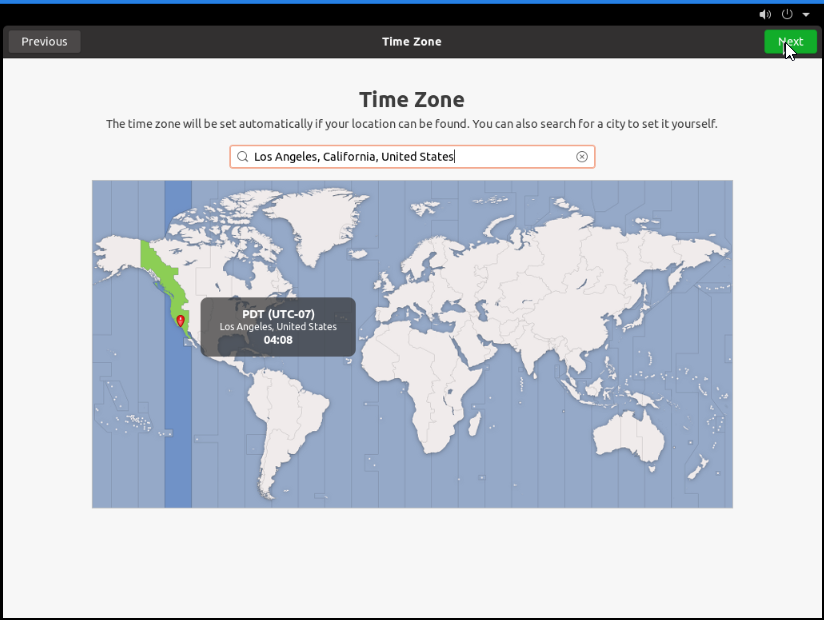
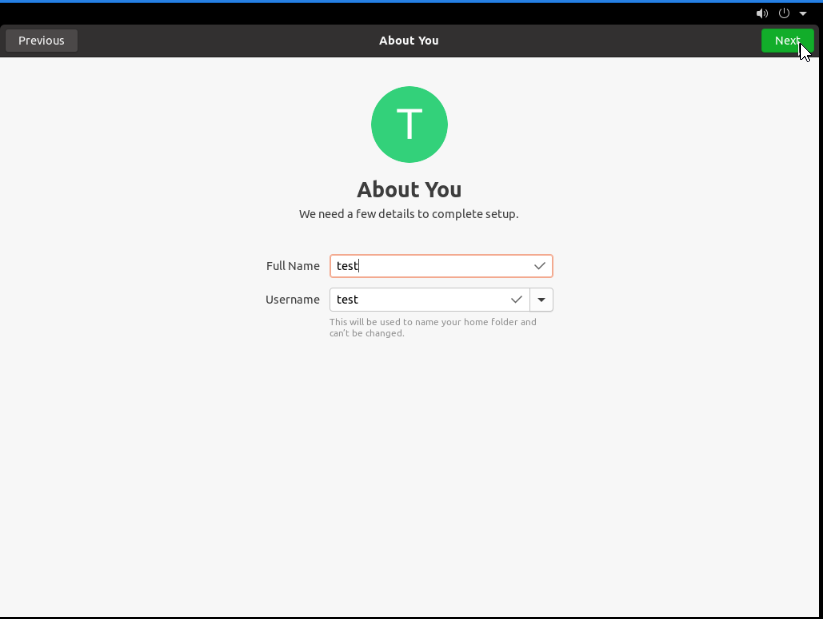
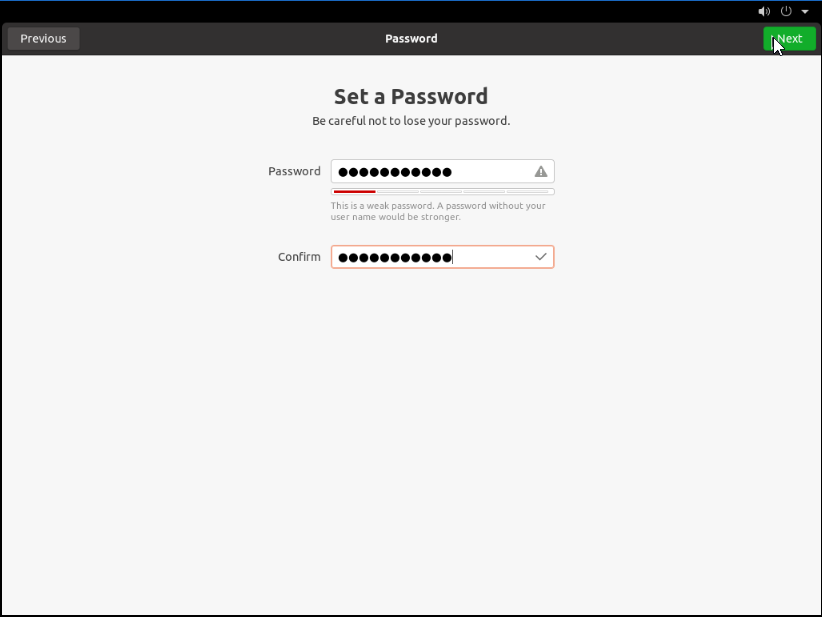
After the packages are installed, reboot the server. You will see the Welcome page.
Use VNC to complete the remaining setup steps.
Complete the desktop setup
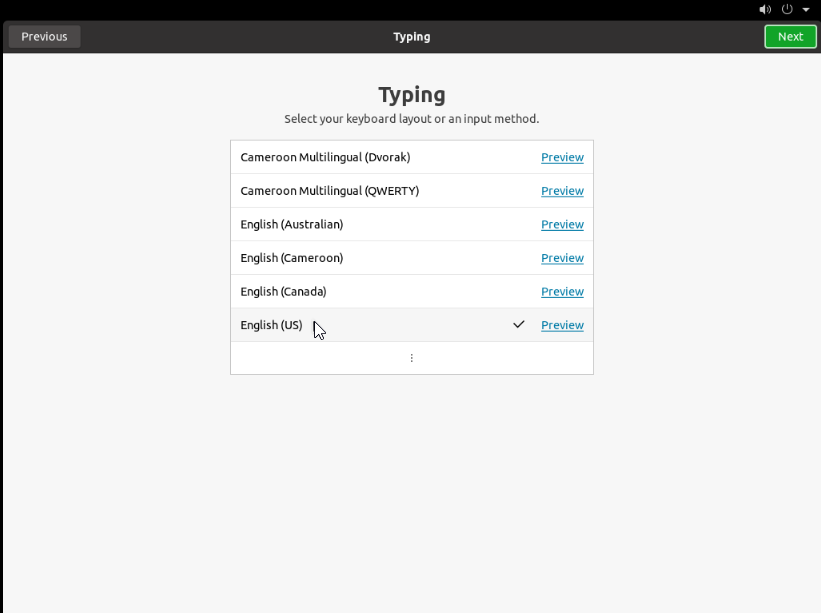
Proceed with the GUI setup screens.
Open the desktop
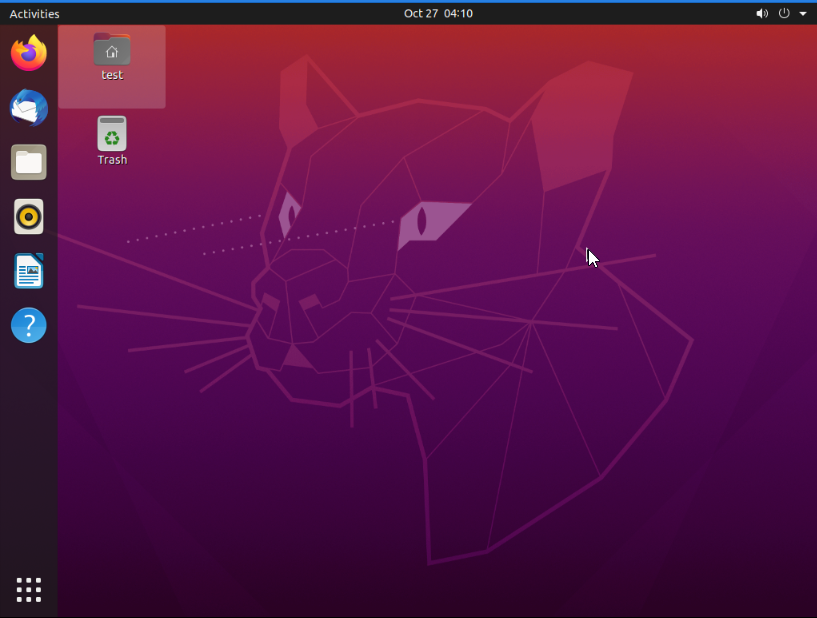
Once the GUI setup is complete, you will see the Ubuntu Desktop home screen.