

How to SSH into the Server Using PuTTY
PuTTY is open-source software used as an SSH and Telnet client.
Connect to the Server
Download and install PuTTY
Download the latest version from the PuTTY download page, then run the installer once the download is complete.
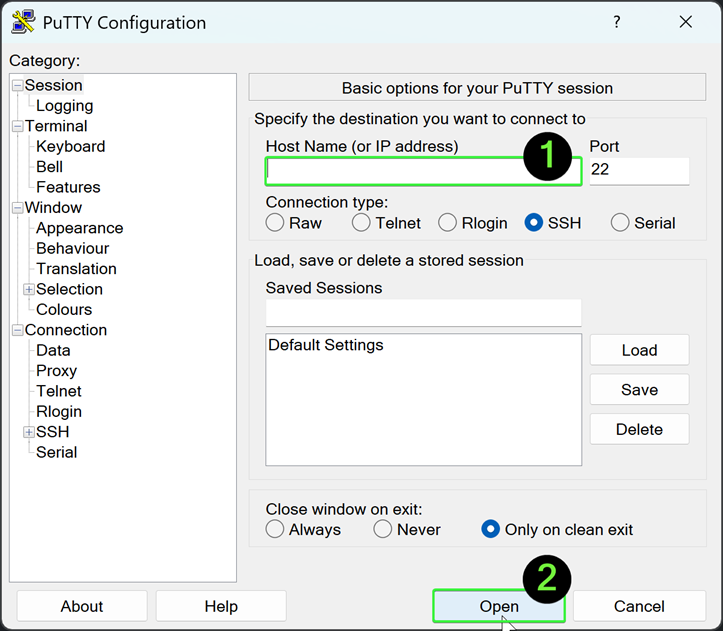
Open PuTTY and enter the server address
Open the PuTTY application. Enter the Host Name or IP address of the server you want to connect to, and click Open.
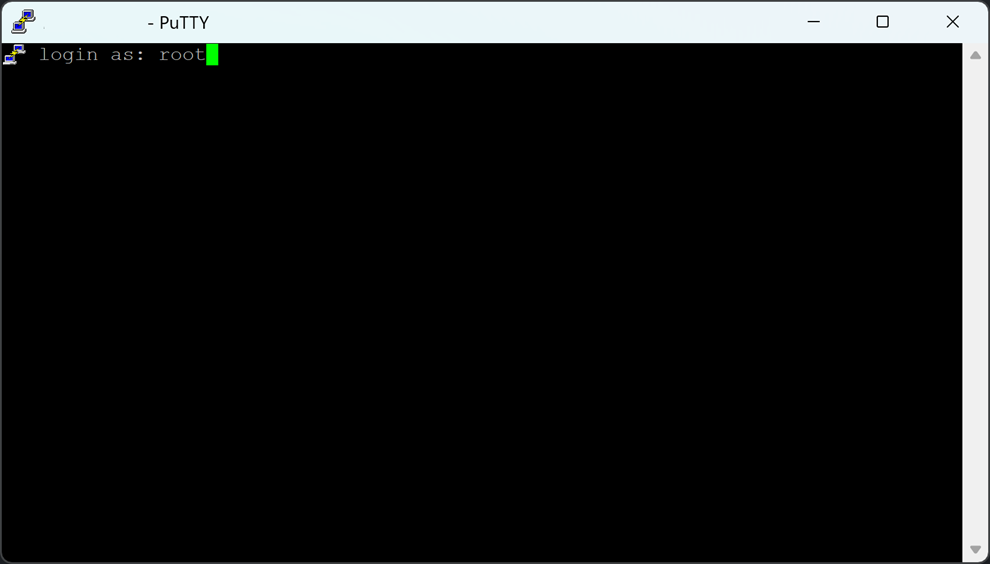
Enter your username
Enter the username for the server. This can be root or any other custom username that has been set up.
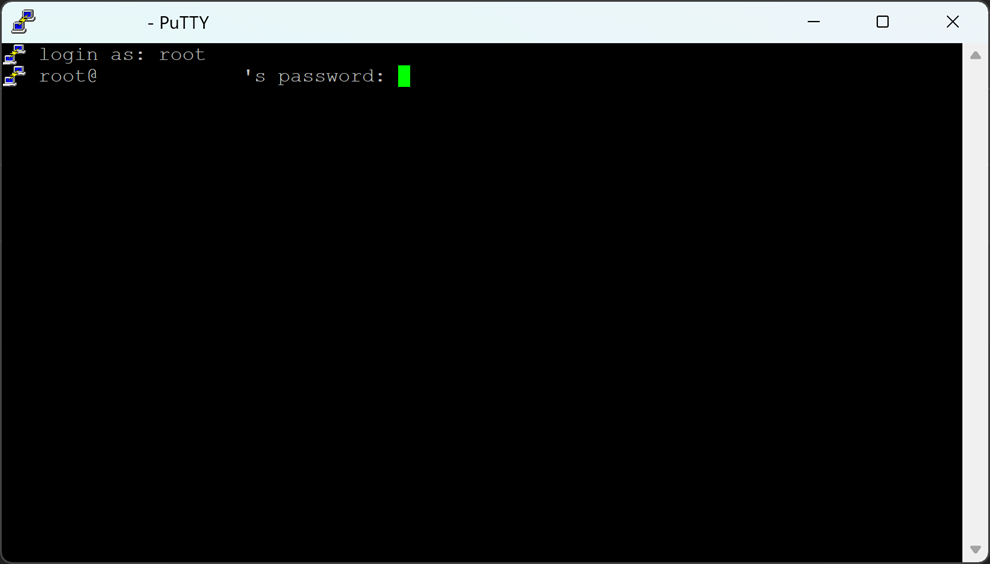
Enter your password
Enter the server password and press Enter. Passwords are hidden when you type them in PuTTY, for security reasons.
Check that you are logged in
Once authentication is successful, you are logged in to the server over SSH.
If the connection fails, check that the server IP address, SSH port, username and password are correct.
Basic Linux Commands
If you are new to Linux, some basic knowledge of Linux commands is useful for managing and accessing your Linux VPS. For a list of common commands, see the Linux commands cheat sheet on Tecmint.