How to Connect WireGuard
This guide shows how to connect to a WireGuard VPN on Windows and on phones.
Connect WireGuard on Windows
Download WireGuard
Download WireGuard for Windows from the WireGuard download page.
Add an empty tunnel
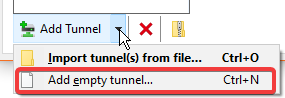
Open WireGuard and click Add empty tunnel in the bottom-left corner.
Enter the tunnel details
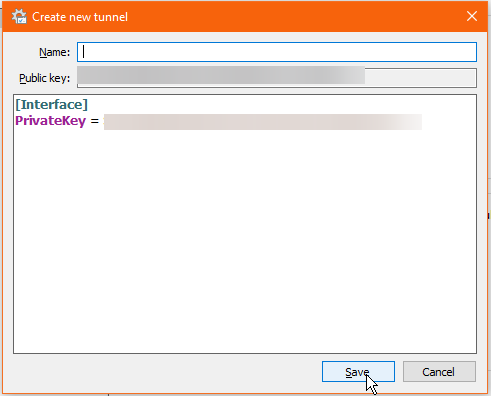
Set a name to identify the tunnel. The public key is generated automatically. In the box below, add the Interface and Peer details.
Activate the tunnel
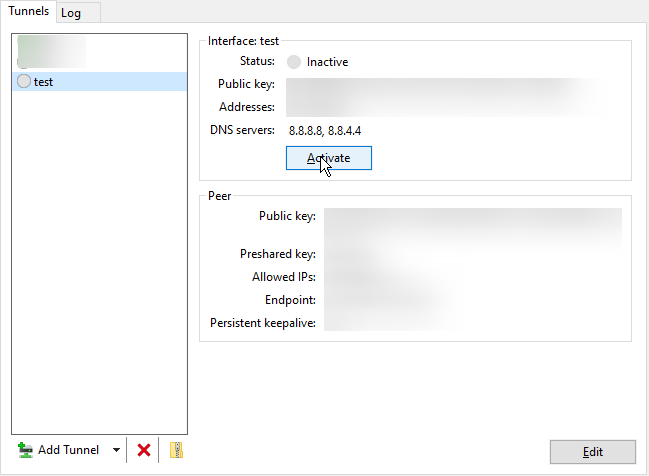
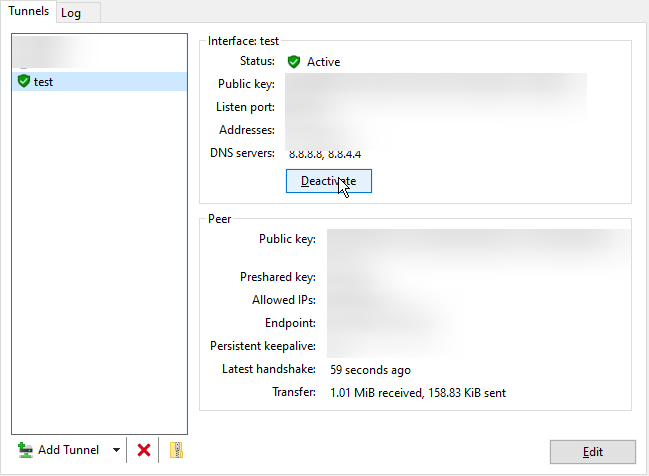
Once the configuration is saved, click Activate to connect to the VPN.
Disconnect from the VPN
To disconnect from the VPN, click Deactivate.
Connect WireGuard on Phones
The screenshots in this section are from an Android device.
Install the WireGuard app
Download the app for your phone:
Add a tunnel
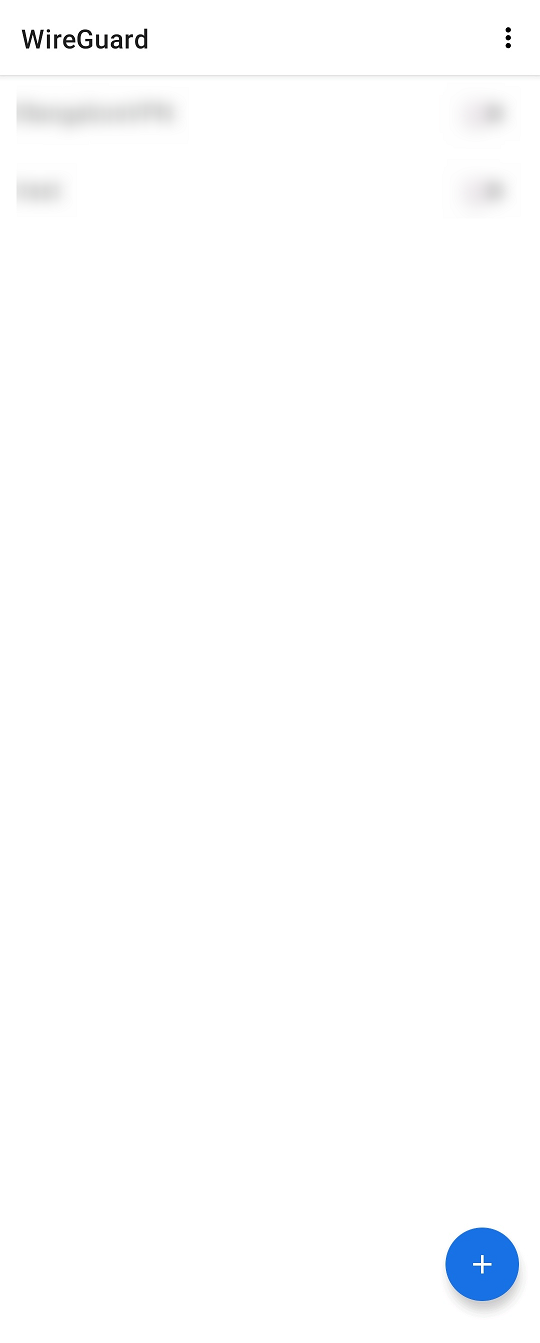
Open the WireGuard app and click the + button in the bottom corner.
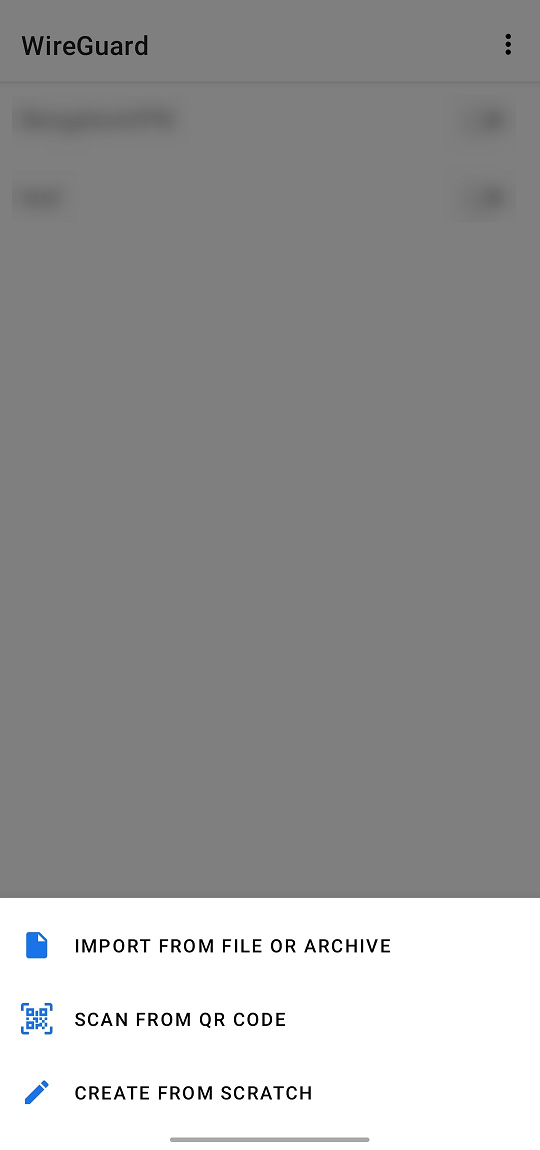
Choose how to add the tunnel. If you have a QR code, you can scan it to add the tunnel. In this example, we use the Create from scratch option.
Fill in the interface details
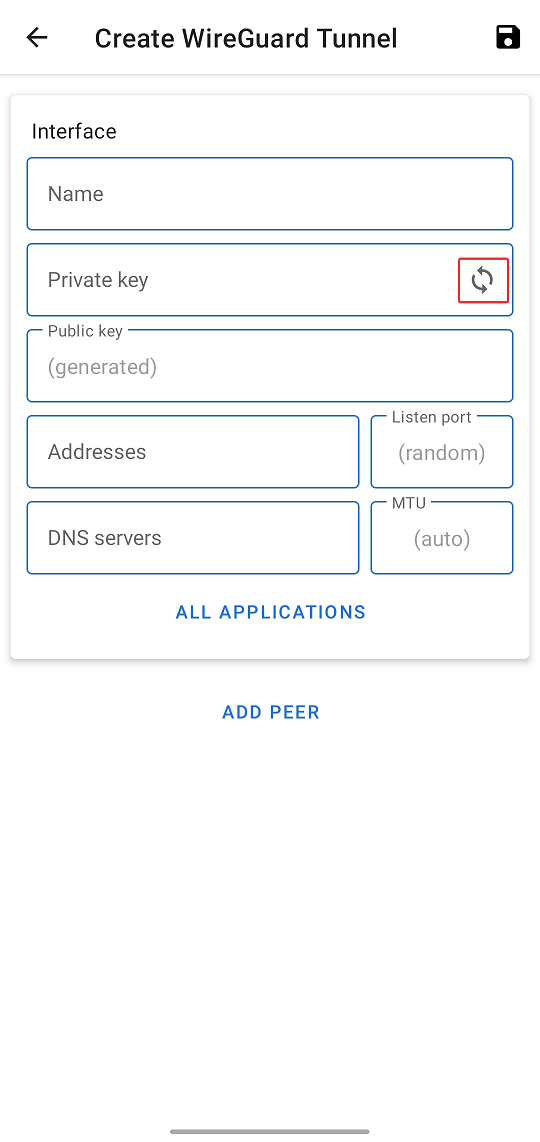
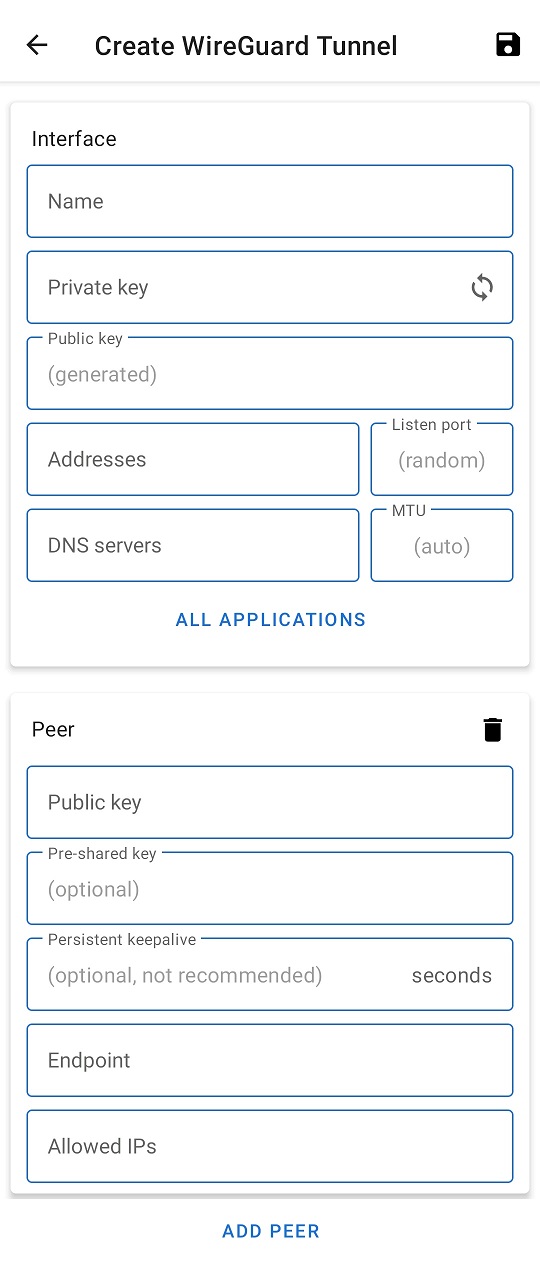
When you select Create from scratch, a form appears. Fill in the details:
- Set a name to identify the tunnel.
- Click the reload button to generate the private key and public key.
- Add the Address and DNS details under Interface.
Add the peer
Click Add Peer and enter the Peer details.
Save the tunnel
Once the details are filled in, click the Save button in the top-right corner.
Activate the tunnel
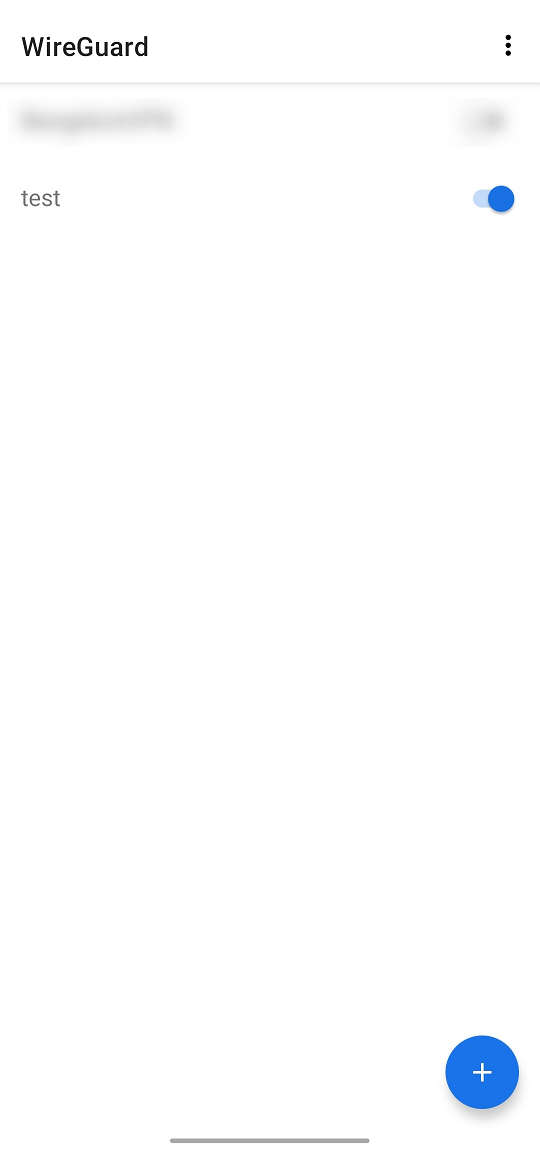
Once the tunnel is saved, click the toggle button beside the tunnel name to activate the VPN.