

How to Enable CPU Passthrough / Host Passthrough
- Your VPS will be shut down/rebooted during this process. It is recommended to shut down the VPS from inside the VPS before using this option.
- This guide applies only to KVM-based VPSes. OpenVZ-based VPSes have CPU Passthrough/Host Passthrough enabled by default.
Enabling CPU Passthrough "passes through" the host-node CPU to your VPS. This is required when a program needs a specific CPU flag or an identifiable CPU to run.
Enabling CPU Passthrough also allows you to identify the actual CPU available on the host node.
Enabling CPU Passthrough
Open the VPS Settings
Click on Manage on the VPS for which you wish to enable CPU Passthrough.

Switch to the Settings tab.
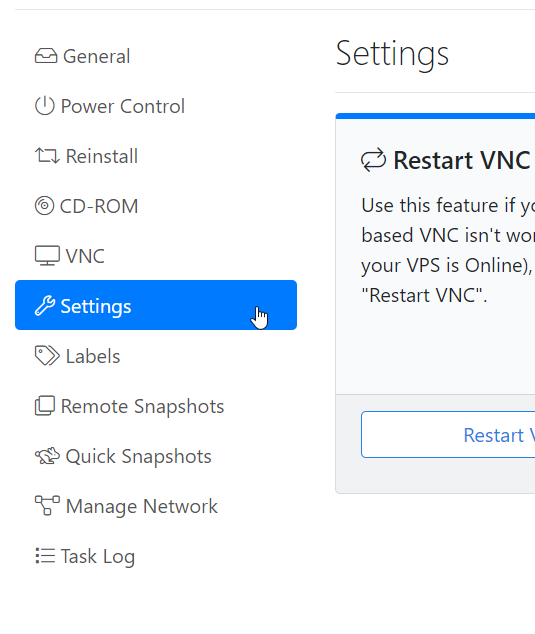
Change the CPU Mode
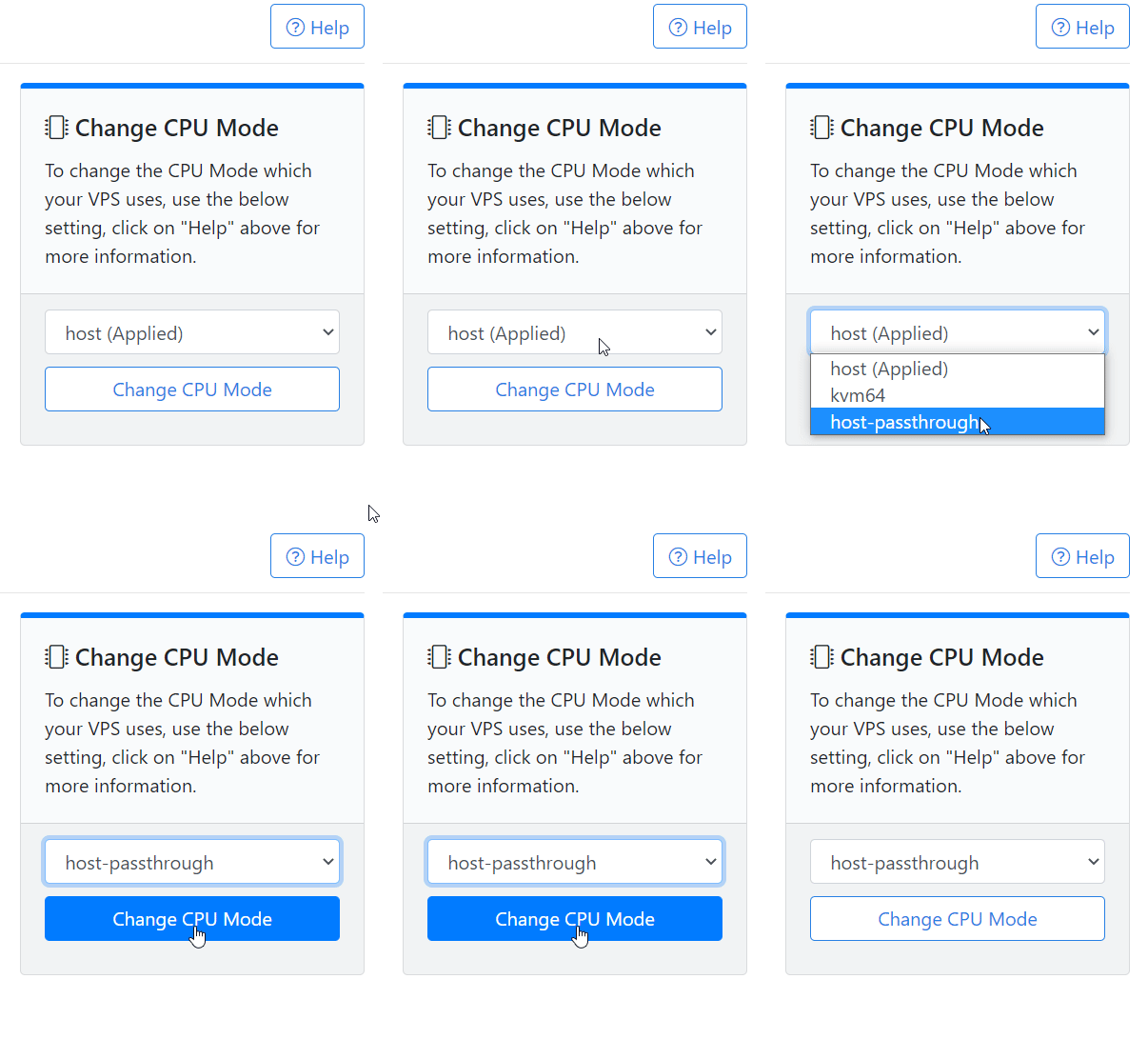
Under the Change CPU Mode dropdown, select host-passthrough, then click on Change CPU Mode.
Confirm the CPU Mode Change
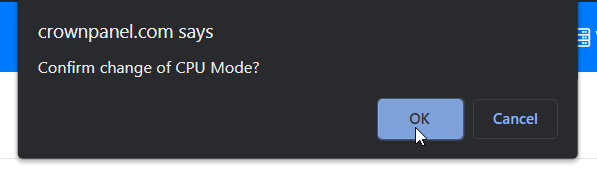
Confirm the change of CPU Mode when prompted.
Wait for the Task to Complete
The panel will then confirm the task. Please wait 2–3 minutes for the task to complete.

Verify the CPU Mode
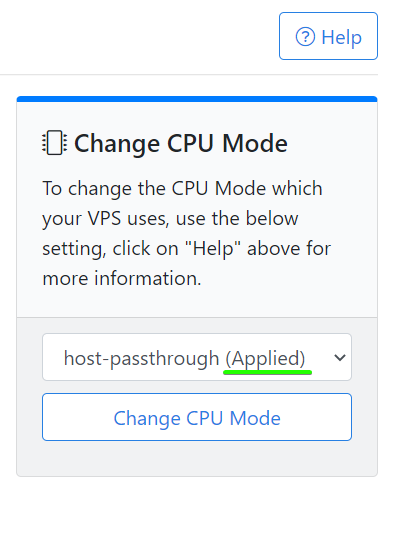
You can find your current CPU Mode setting on the Settings tab. The applied setting is marked with (Applied).
Check the CPU Information Inside the VPS
Inside the VPS, you can use the following command to find the CPU model, flags, and other CPU information: