

Installing an Operating System Using an ISO
This allows you to mount an ISO/CD-ROM to your KVM VPS and use it to install a custom operating system or create custom partitions as required.
Mounting a CD-ROM or ISO
Log in to CrownPanel
Log in to CrownPanel at https://crownpanel.com.
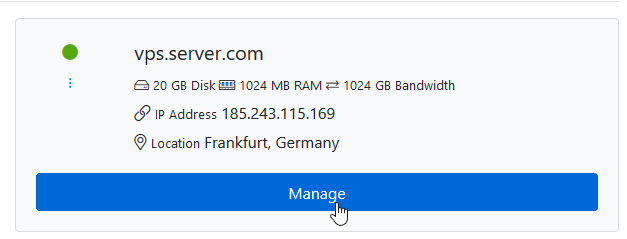
Click Manage
Click on the Manage button beside the VPS you wish to manage.
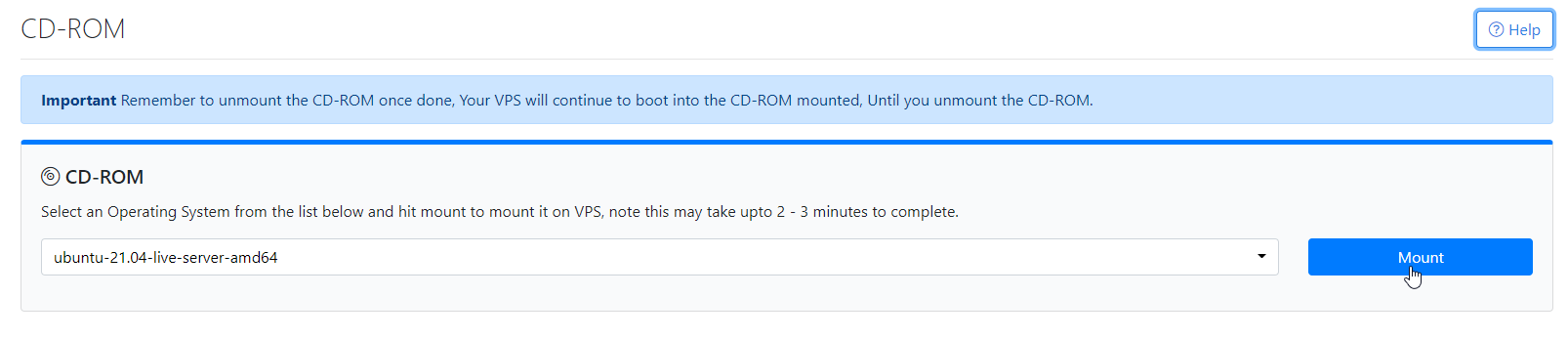
Mount the ISO
Switch to the CD-ROM tab, select the ISO/CD-ROM you wish to mount from the dropdown list, and click the Mount button.
Wait for the task to complete
Wait up to 60 seconds for the task to complete.
The ISO is also live-mounted, like a CD-ROM inserted into your PC while it's running. You can also boot into the ISO by following the instructions below.
Booting into the ISO
Launch the VNC console
Switch to the VNC tab and click the Launch VNC button. This will open the VNC console.
Expand the VNC control bar
Click on the small arrow icon on the left of the VNC console. This will expand the VNC control bar.
Send Ctrl-Alt-Del
Click the Send Ctrl-Alt-Del button on the VNC console. This will perform a soft reboot and should boot into the ISO.

If you're running a Windows Server, please reboot from within the server.