

How to Manage/Use Snapshots in CrownPanel
Creating a Snapshot
If your VPS is KVM-based, it must be powered off (shut down) before a snapshot can be created.
Open the Snapshot tab
Click Manage beside the VPS for which you want to create a snapshot.
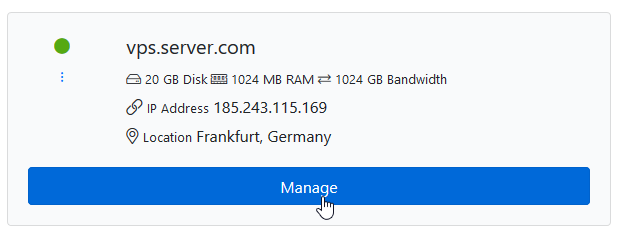
Then click on the Snapshot tab.
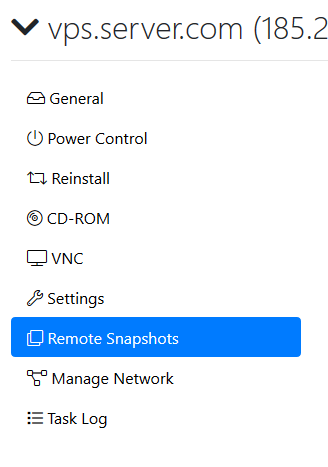
Create the snapshot
Click Create Snapshot and wait for the process to complete. Once built, your VPS will automatically boot up.
This process may take at least 5 minutes or longer, depending on the size of your VPS.

Monitor the progress
The snapshot is transferred to the backend snapshot store in the background. You can monitor its progress by clicking Refresh.
Once the snapshot is created, you will see its UUID (Universally Unique Identifier), file size, and the timestamp of when it was built.
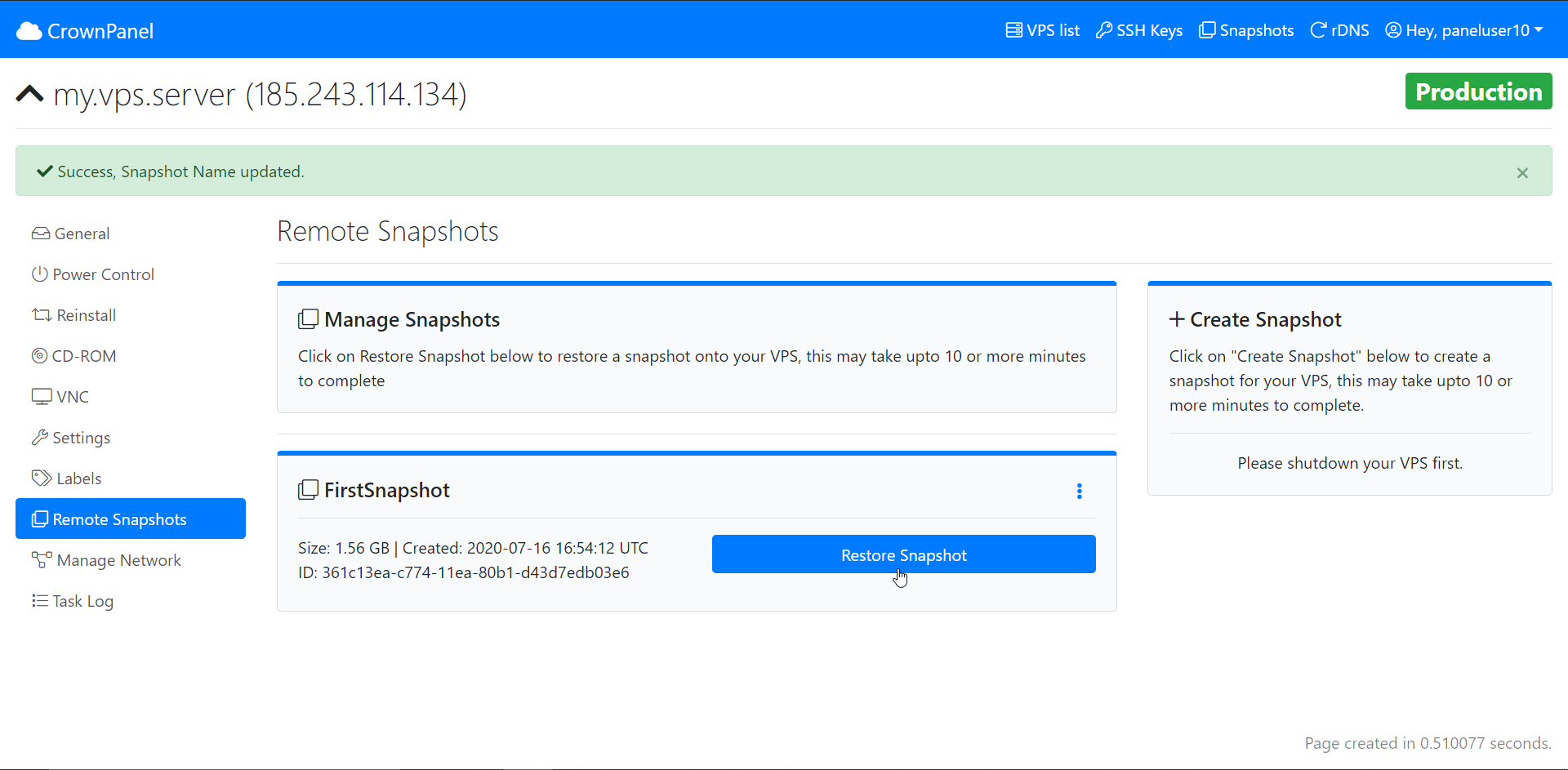
You can reference the UUID as the snapshot name when contacting our support team for assistance.
To name your snapshots, follow this guide.
The snapshot size will generally be close to the total size of your VPS. If the snapshot appears significantly smaller than expected, contact our Support for assistance. In many cases a smaller size is due to temporary data stored in /tmp, which is not included in the snapshot.
Restoring a Snapshot
Restoring a snapshot will revert the system to the state it was in when the snapshot was taken.
Once the snapshot is created, you can restore it at any time.
Open the Remote Snapshot section
Navigate to the Remote Snapshot section and click Restore Snapshot.
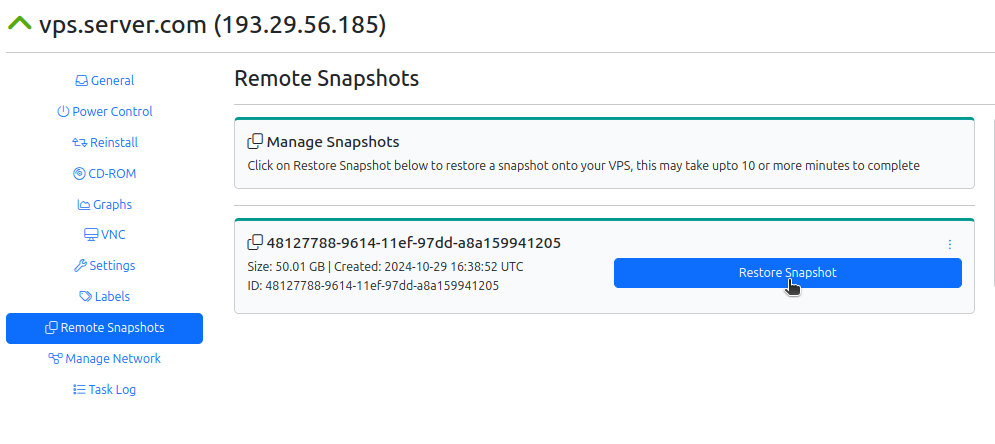
Wait for the restore to complete
The restoration process will begin and may take a few minutes. Once done, the system will be back to the state it was in when the snapshot was taken.
Removing a Snapshot
Removing a snapshot permanently deletes it and cannot be undone.
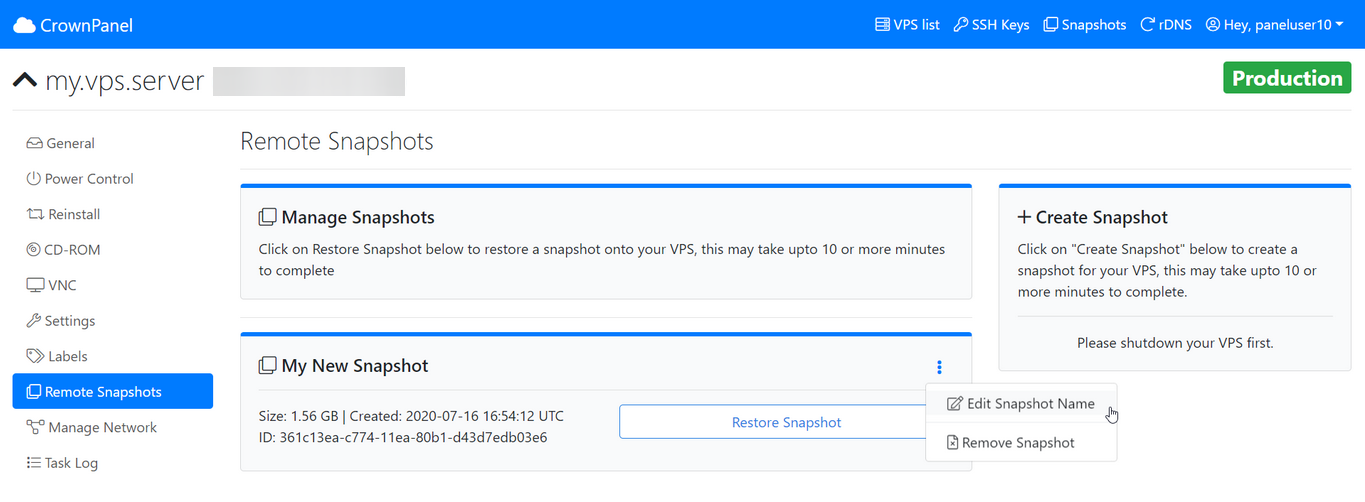
Select Remove Snapshot
Click on the three-dot dropdown menu and select the Remove Snapshot option.
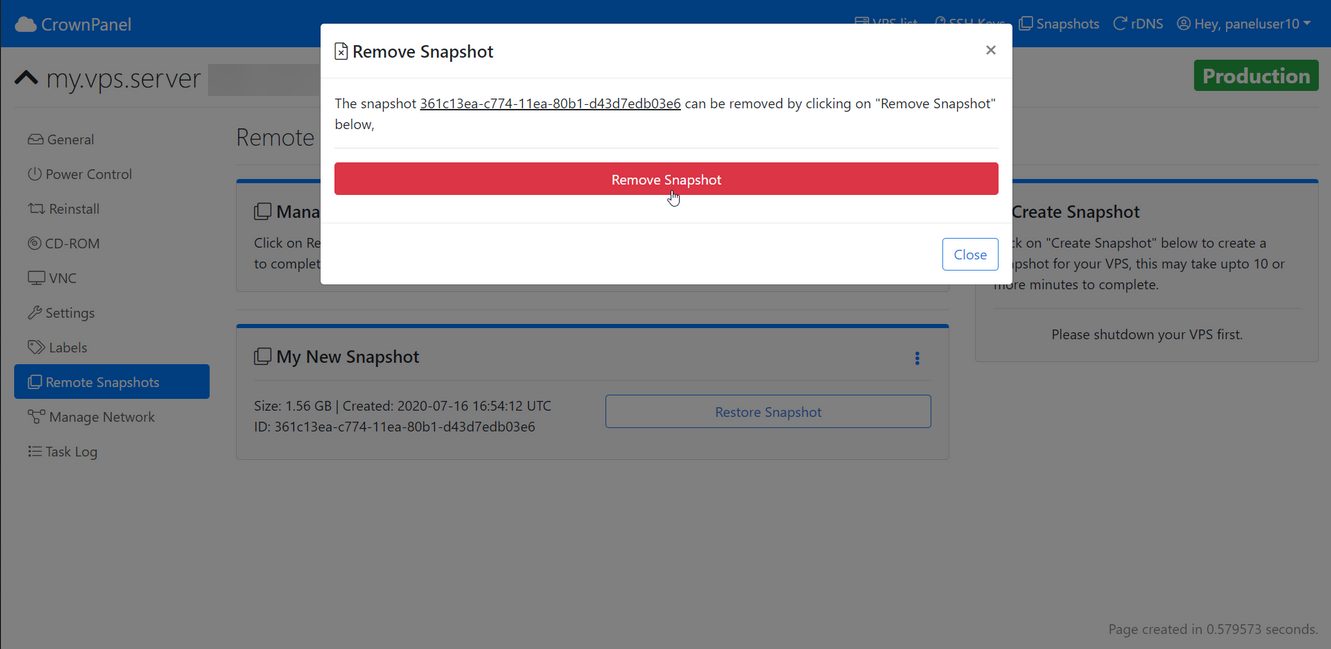
Confirm the removal
Click the Remove Snapshot button to permanently delete the snapshot.
Conclusion
Managing snapshots in CrownPanel is simple and effective. Whether you're backing up your VPS before making changes or restoring it to a previous state, snapshots give you full control and peace of mind.
By default, each VPS includes one snapshot slot. If you require additional snapshots beyond the default limit, we're happy to help.
Please contact our Support Team to request additional snapshot slots or for any assistance with managing your current snapshots.