

Managing Credits with CrownPanel
Why Use the Credit Manager?
By default, any credit added to your Client Area is automatically applied to your invoices. While this is convenient for many users, some prefer more control over how and when their credits are used, especially when managing multiple services.
With CrownPanel's Credit Manager, you can allocate your credits manually. Transferring your credit from the Client Area to CrownPanel lets you move funds back to the Client Area only when required, so they are not applied to invoices automatically.
This feature is not enabled by default. To enable it free of charge, please contact our support team.
How to Transfer Credit to CrownPanel
Add credit to your Client Area
Make sure your Client Area account has the credit balance you want to move.
Open a support ticket
Contact our support team via a support ticket and request to transfer the available credit to your CrownPanel account.
Once completed, your credit will appear in CrownPanel, ready to be managed manually.
How to Transfer Credit Back to the Client Area
If you have credit in CrownPanel and want to use it for a specific invoice or service:
Open the Reseller Panel
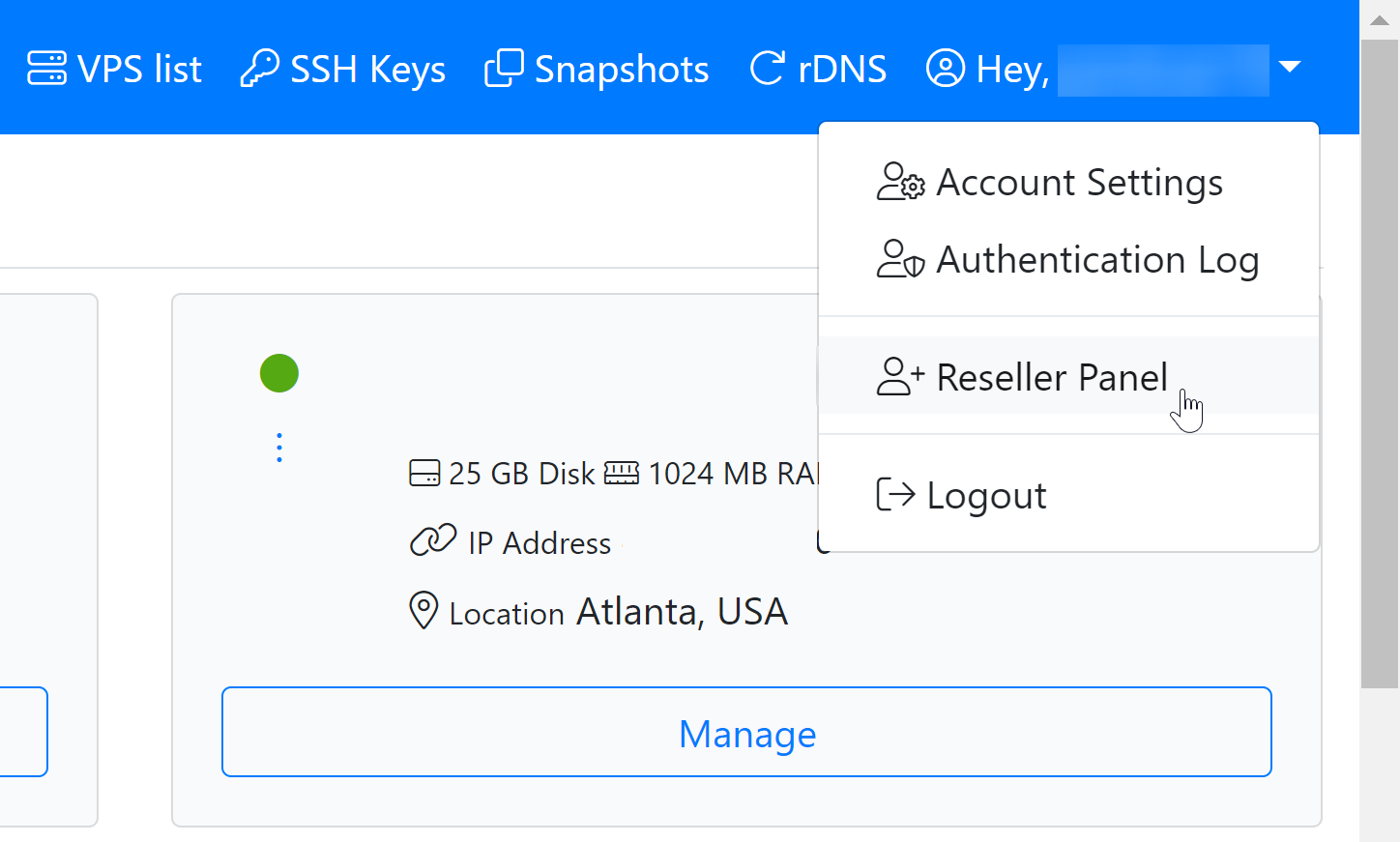
Log in to CrownPanel and click on the Reseller Panel link.
Open Account Credit Management
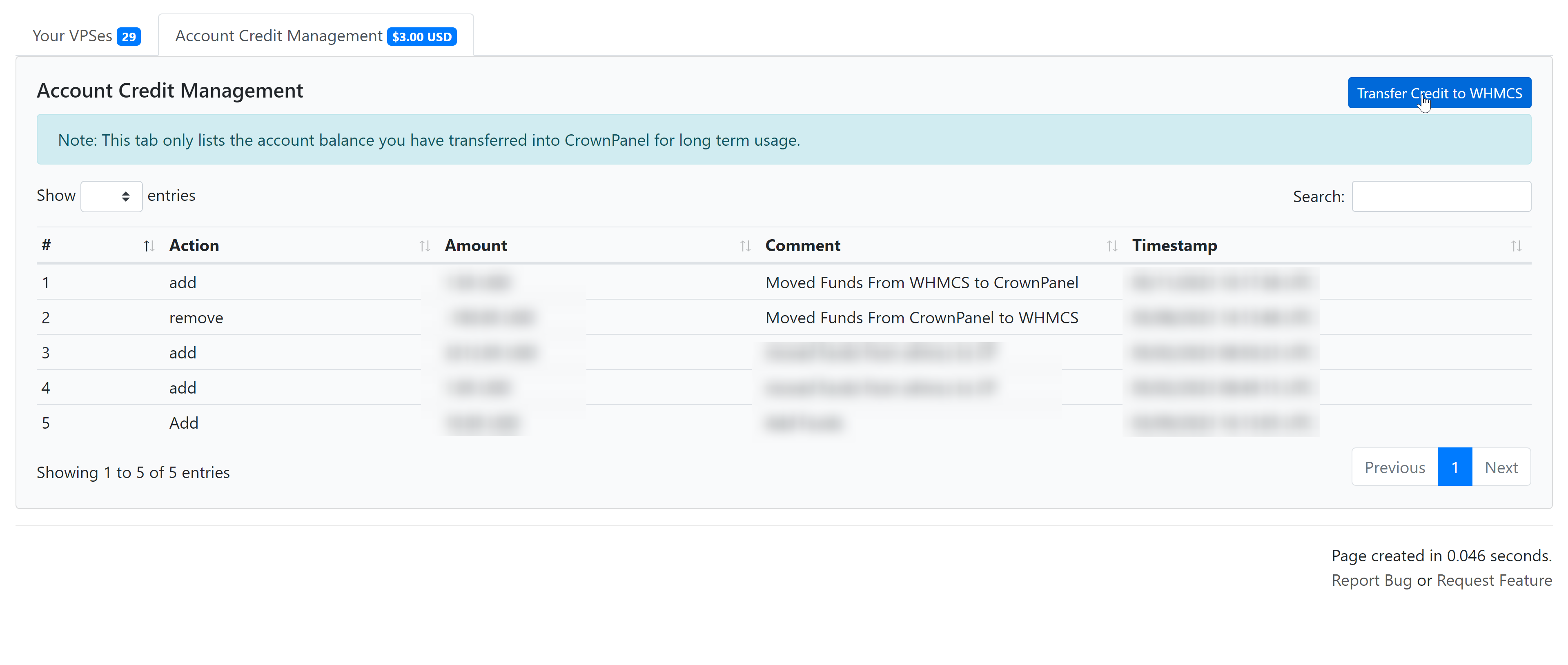
Navigate to Account Credit Management from the menu.
Transfer the funds
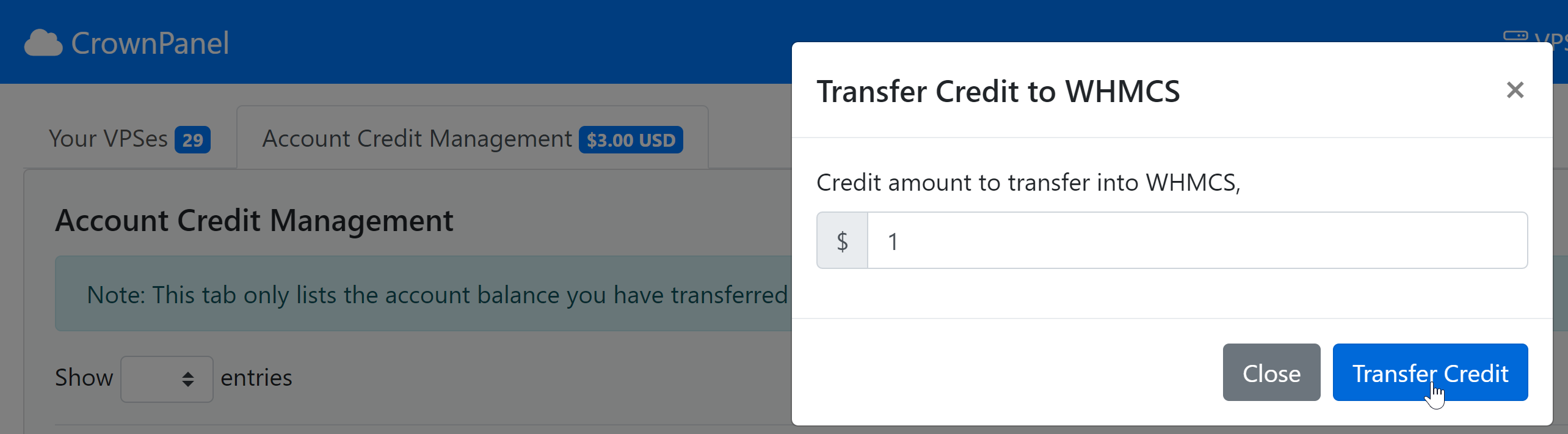
Click on Transfer Credit to WHMCS, enter the desired amount, and confirm the transfer. Make sure you enter the correct amount before confirming.
Check the confirmation
The amount will now be available in your Client Area balance.
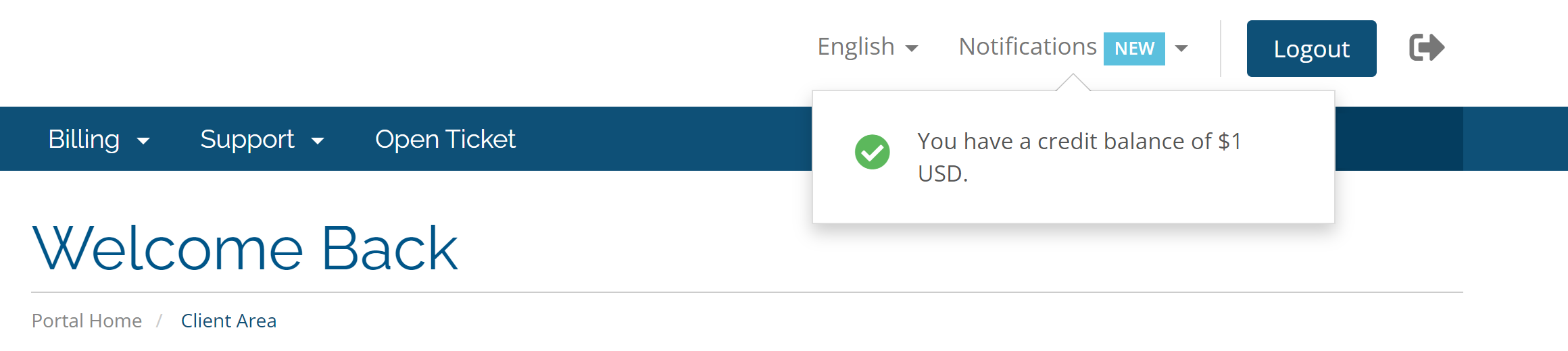
You can now apply the credited amount to any invoice or use it toward the purchase of a new service.