

Using VNC Console on CrownPanel
Virtual Network Computing (VNC) is a remote access technology that allows you to view and control your VPS through a graphical console, even when SSH or RDP access is unavailable.
This is applicable only to KVM-based VPSes on CrownPanel. You can also set up a VNC server inside your VPS and/or enable RDP (if using Windows) as needed.
Accessing the VNC Console
Log in to CrownPanel
Log in to CrownPanel at https://crownpanel.com.
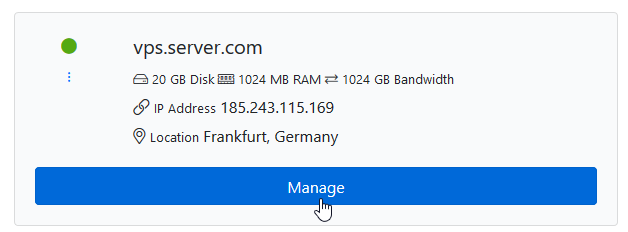
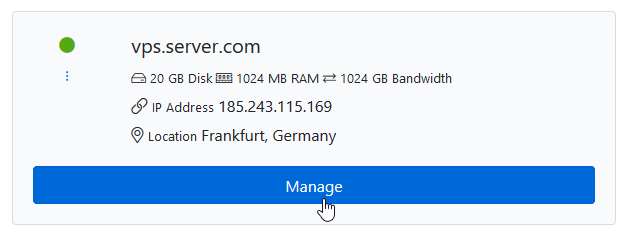
Click Manage
Click on the Manage button beside the VPS you wish to manage.
Open the VNC tab
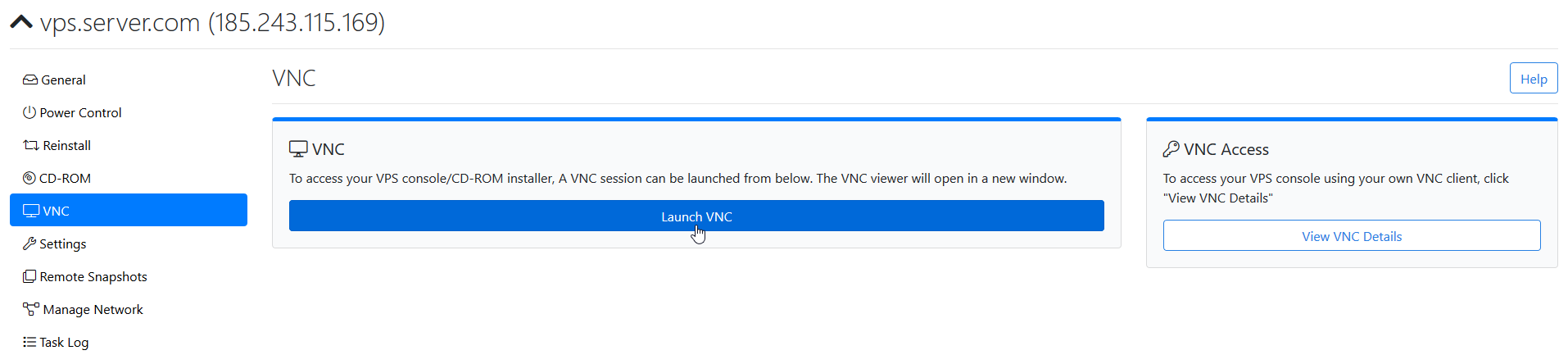
Switch to the VNC tab. You have the following options:
- Click the Launch VNC button to launch a browser-based VNC session.
- If you wish to use a desktop-based VNC client, click the View VNC Details button to view the VNC connection details.
Use the console
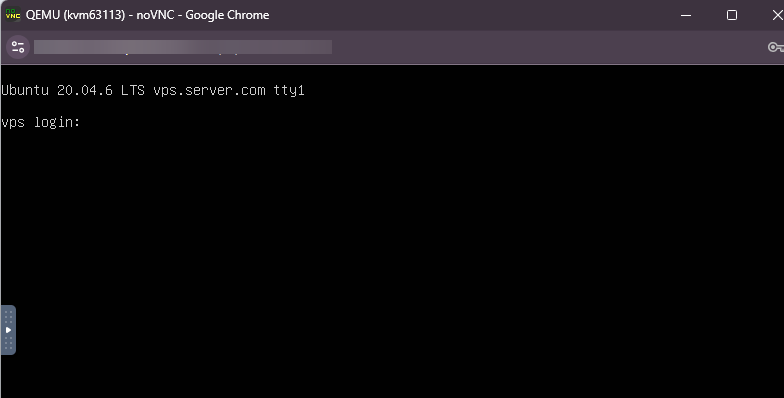
Once VNC is launched, it will look like this.
Restarting the VNC Console
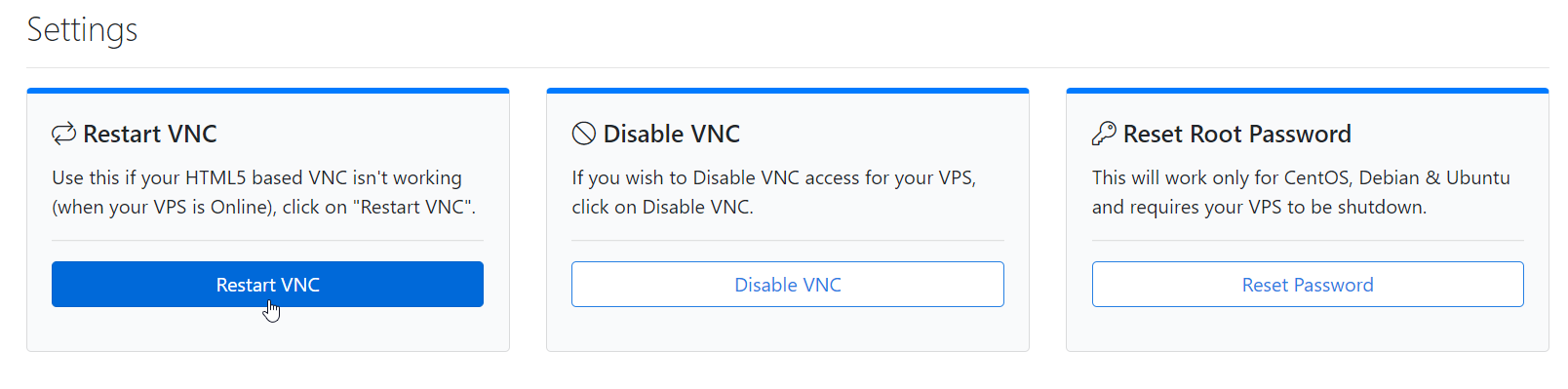
Use this option to relaunch or restart the VNC service if the VNC console becomes unresponsive or whenever required.
Open the Settings tab
Switch to the Settings tab and click the Restart VNC button to relaunch/restart the VNC.
Wait for the restart
Wait a few seconds until the VNC service is restarted.
Launch VNC again
Switch back to the VNC tab and click the Launch VNC button again.
Troubleshooting
If you are still unable to access the VNC console after restarting it, try the following:
- Refresh the browser and launch the VNC console again.
- Try using a different web browser or an Incognito/Private window.
- Verify that the VPS is in the Running state.
- If you are using a desktop VNC client, ensure you are using the correct VNC connection details.
If the issue persists, please contact our support team for further assistance.