

How to Manage VPS Power Operations in CrownPanel
This article explains how to boot, reboot, shut down, or hard reboot your VPS from CrownPanel using the available power control options.
Open the Power Control Tab
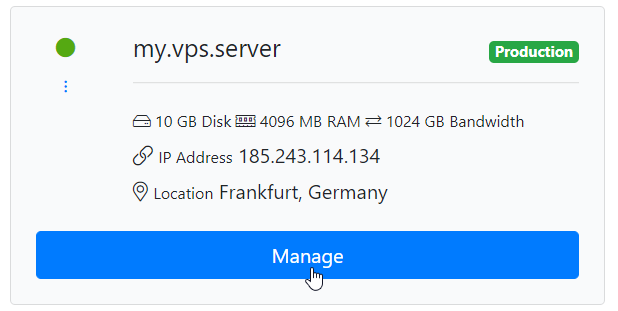
Click Manage
Click on the Manage button beside the VM you wish to manage.
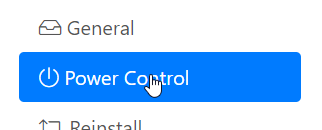
Open the Power Control tab
Switch to the Power Control tab.
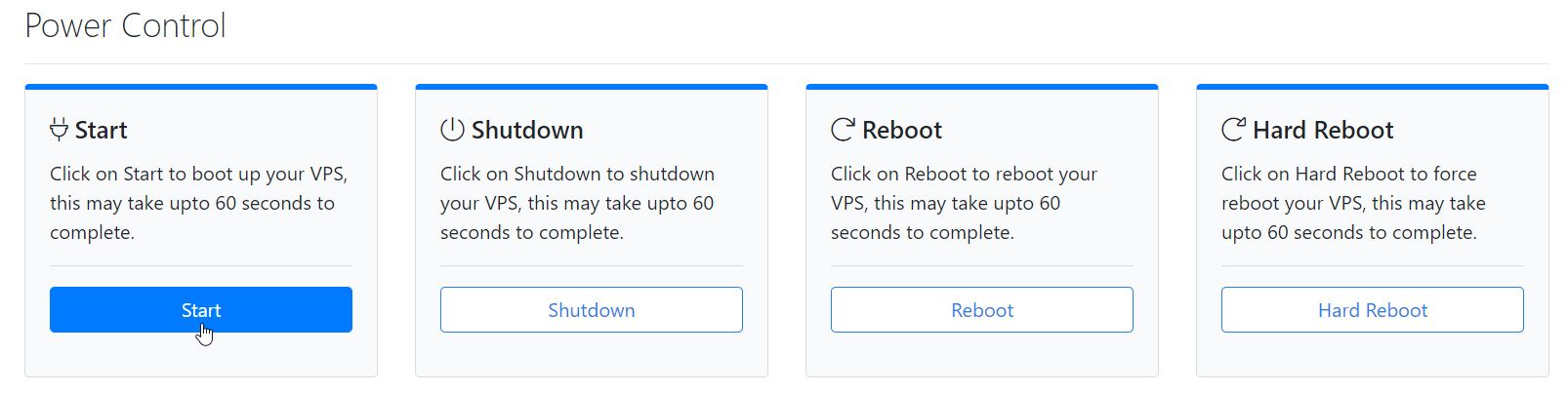
Starting/Booting the VPS
Use this if your VPS is powered off and you need to bring it back online. Click on Start to boot up your VPS.
Shutting Down the VPS
Use this to gracefully power off your VPS, for example before making changes that require the server to be off.
Always use Shutdown when you want to safely power off your VPS and allow the operating system to shut down gracefully.
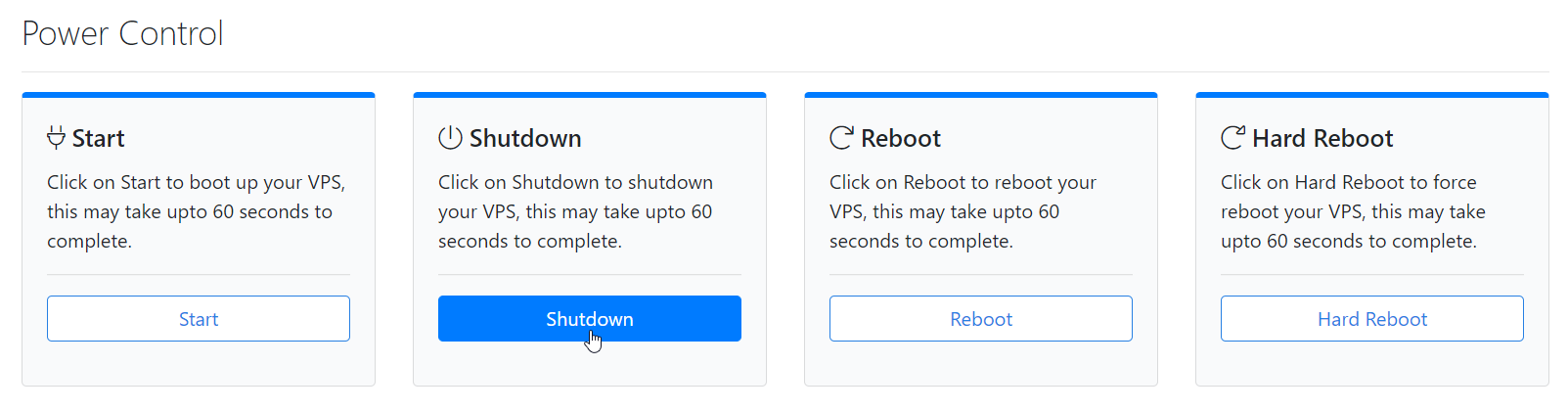
Click Shutdown
Click on Shutdown.
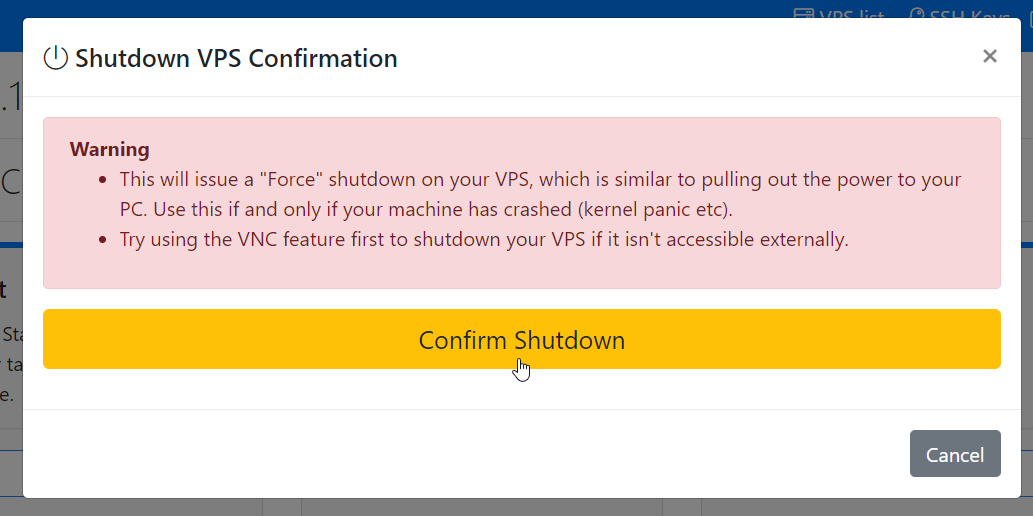
Confirm the shutdown
Click on Confirm Shutdown.
Rebooting the VPS
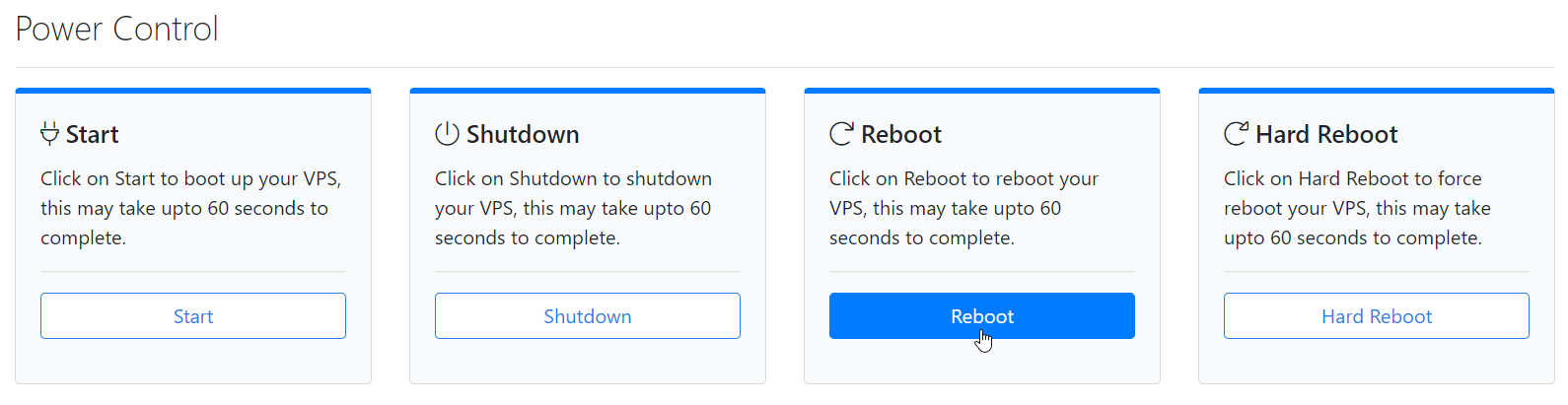
Use this for a normal restart, such as after applying updates or configuration changes that need a reboot to take effect. This performs a graceful restart of the operating system.
Click on Reboot to restart your VPS.
Hard Rebooting the VPS
Use this only if your VPS is unresponsive and a normal reboot doesn't work. A hard reboot forcefully power-cycles the VM, similar to pressing the reset button on a physical server, and should be used as a last resort because it doesn't shut down the OS gracefully.
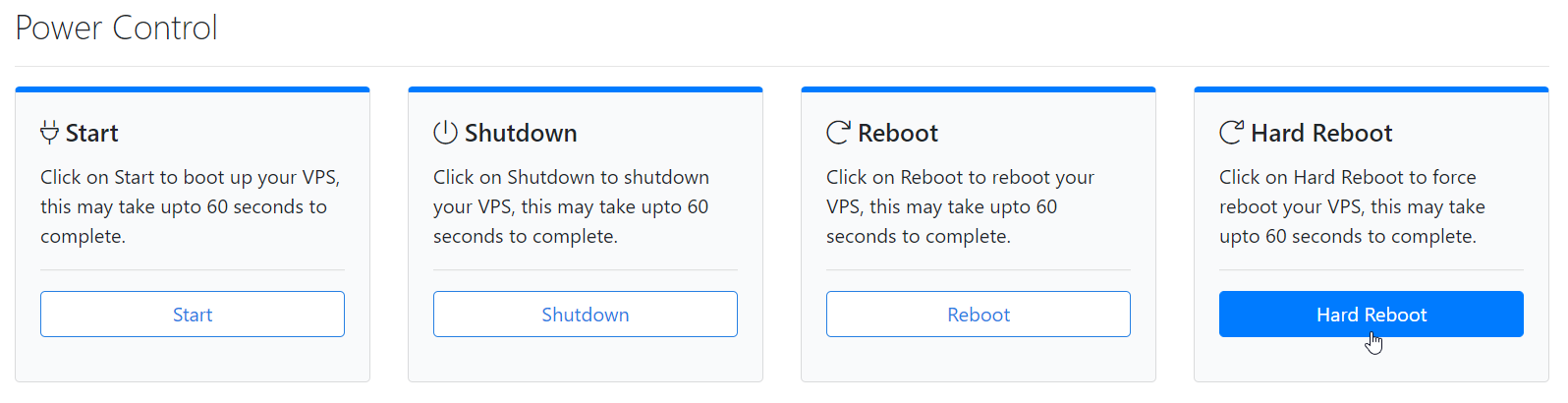
Click Hard reboot
Click on Hard reboot.
Confirm the hard reboot
Click on Confirm Hard reboot.
If you face technical difficulties, please reach out to us via a Support Ticket.