

How to Download a Website Backup in cPanel
You can generate and download a full backup of your website from cPanel using the Backup feature.
Generate a Fresh Backup
Open the Backup feature
In cPanel, go to the Files section and click Backup.
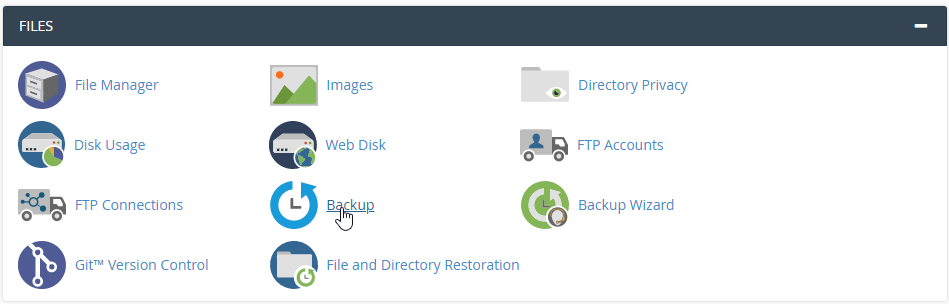
Choose Full Backup
Under Full Backup, click Download a Full Website Backup.
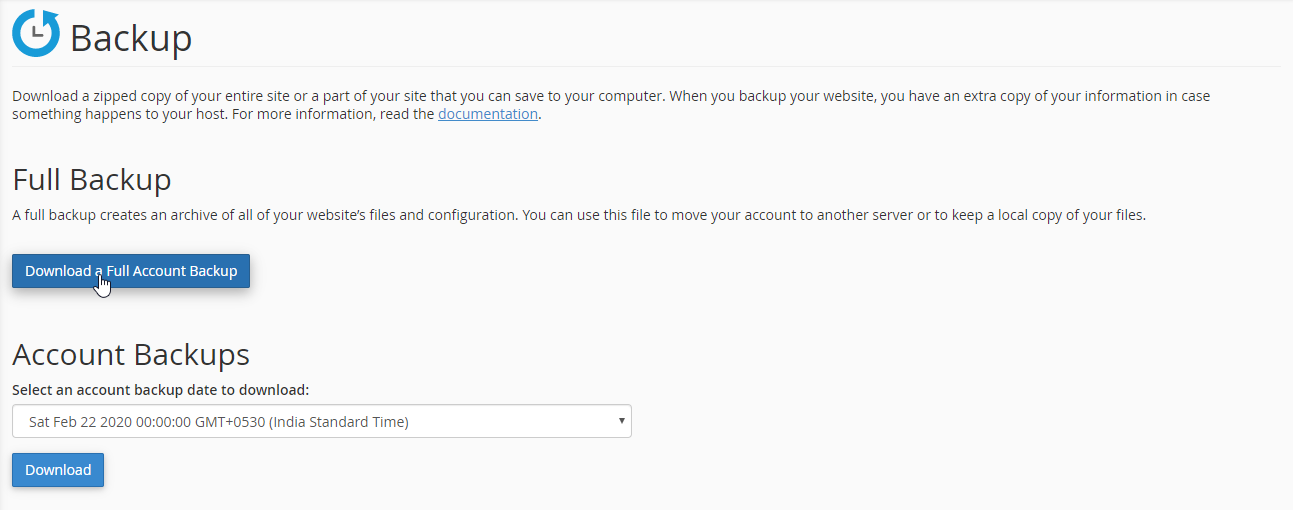
Select the backup destination
By default, the full cPanel backup is saved in your account's home directory. If you want to save it to a different location, select the required Backup Destination.
Then click Generate Backup to start the backup process.
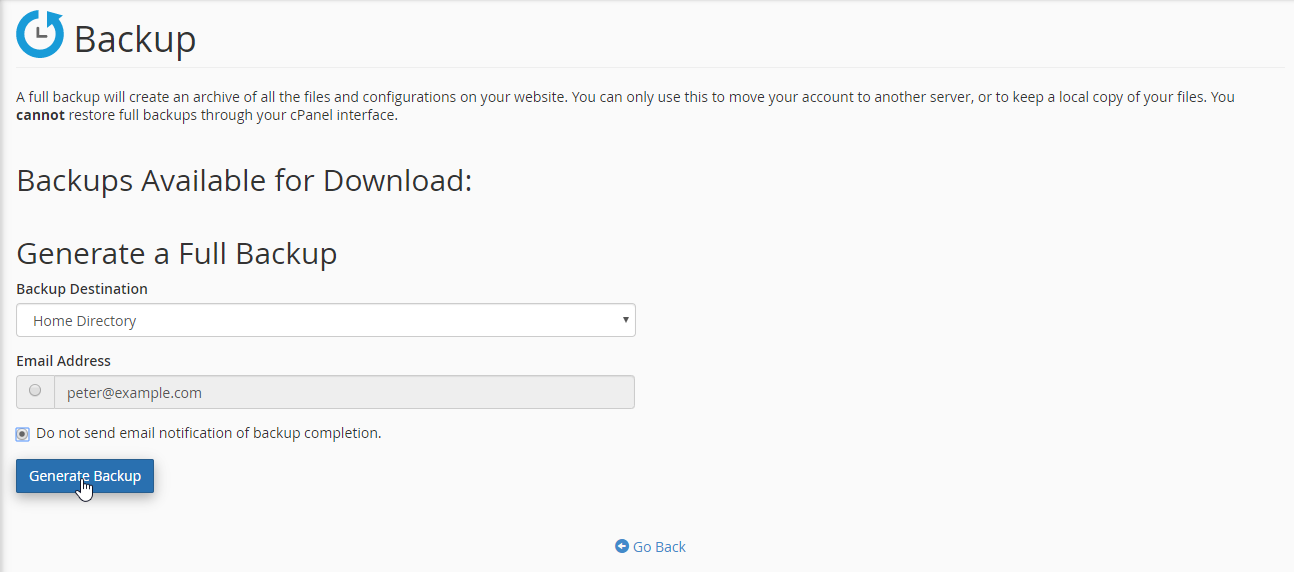
Check the confirmation message
A message will be displayed indicating that the backup generation process has started. The time required depends on the size of your account and the amount of data being backed up.
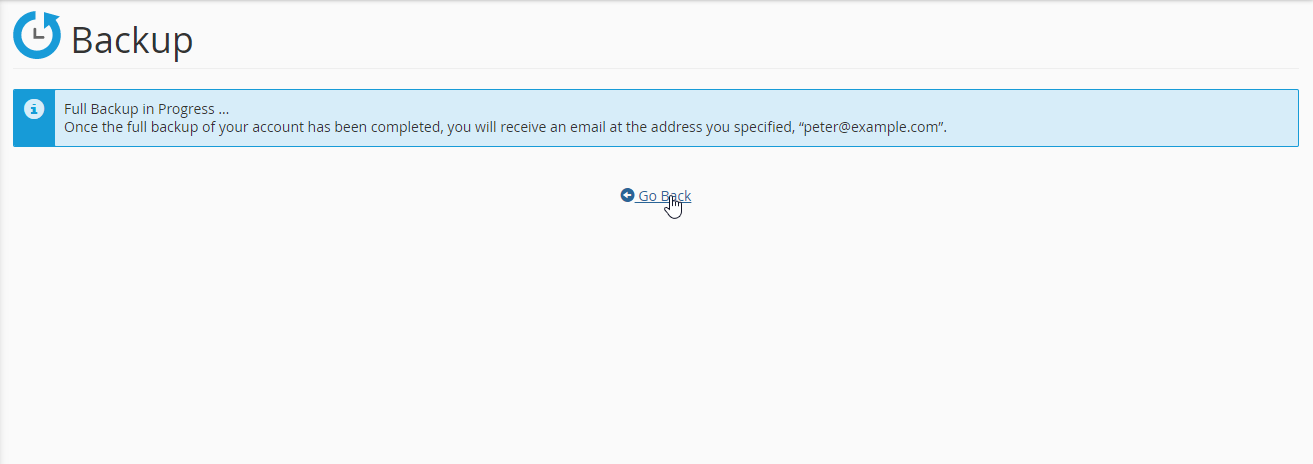
Download the Generated Backup
Return to the backup page
Click Go Back to return to the backup page.
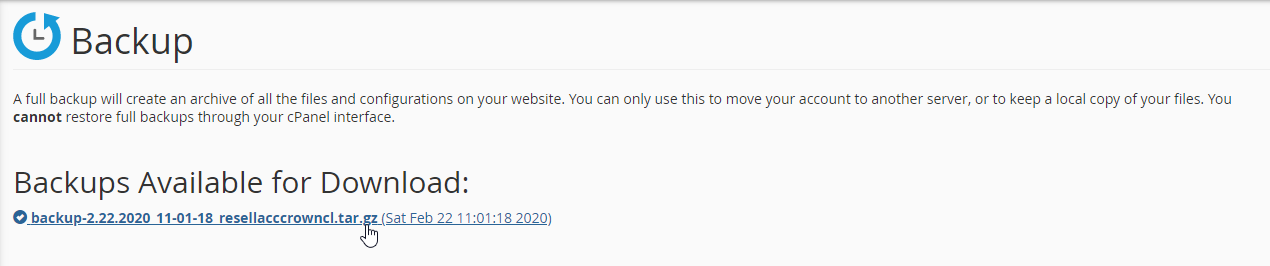
Download the backup file
Monitor the backup generation status. Once the backup is complete, download the generated backup file from the Full Backup section.
Store the downloaded backup securely. A full cPanel backup may contain website files, databases, email data, and other account information.