

How to Create a Database and Database User in cPanel
You can create a MySQL database, create a database user, and assign privileges to the user using the Manage My Databases section in cPanel.
Access Manage My Databases
Log in to cPanel
Log in to your cPanel account.
Open Manage My Databases
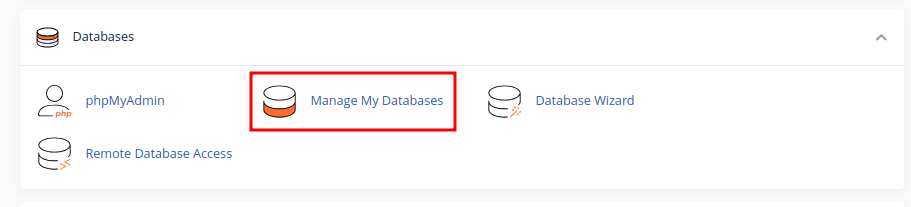
In the Databases section, click Manage My Databases.
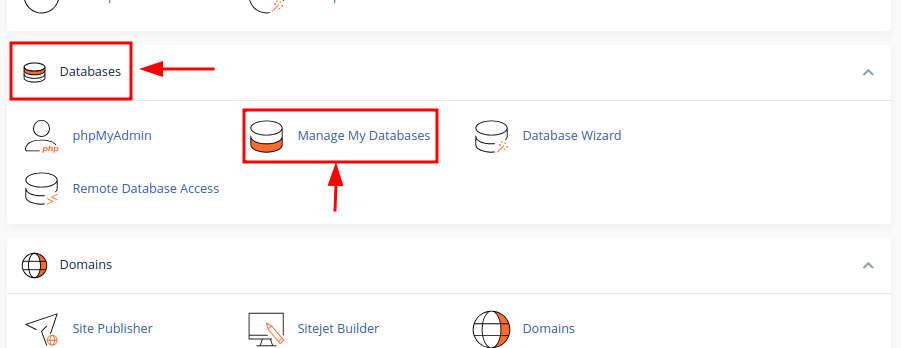
Create a Database
Enter the database name
In the Create New Database field, enter a name for the database.
Create the database
Click Create Database.
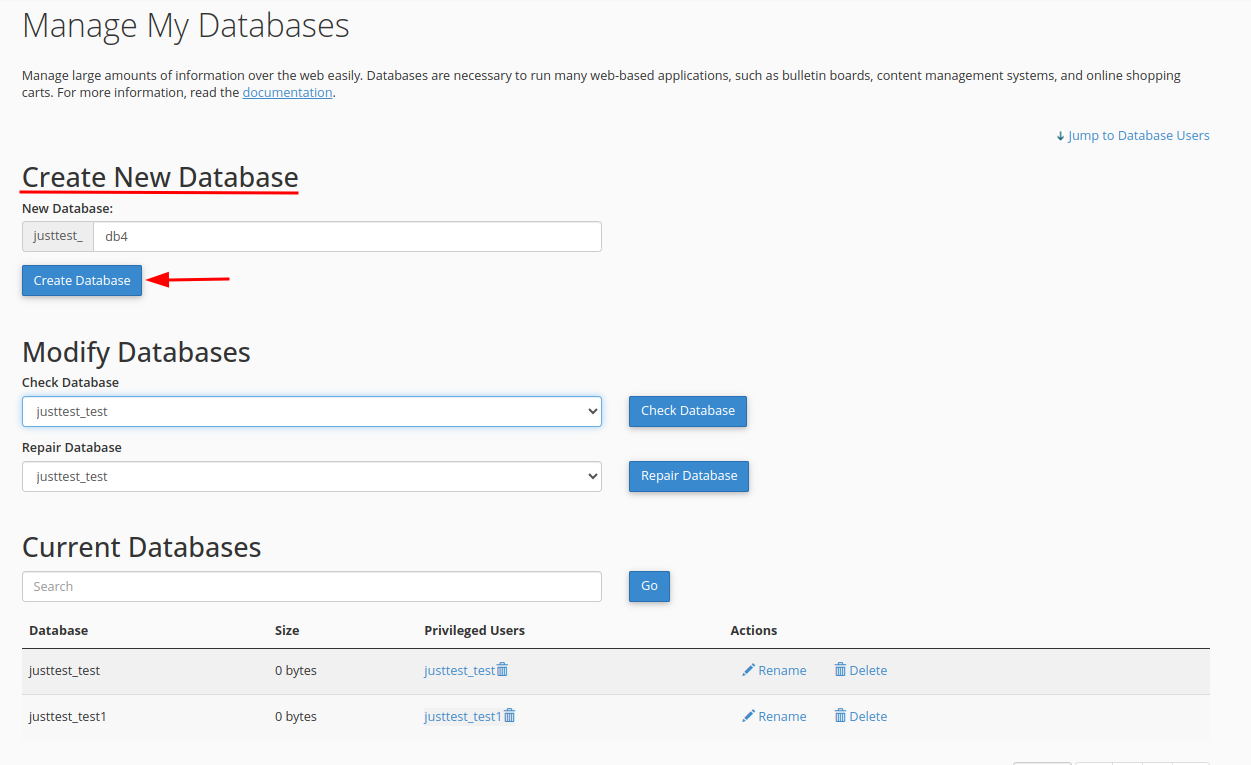
A confirmation message will appear after the database is created successfully.
Create a Database User
Open the Database Users section
On the Manage My Databases page, scroll down to the Database Users section.
Enter the user credentials
Enter a username and a secure password in the Username and Password fields.
Create the user
Click Create User.
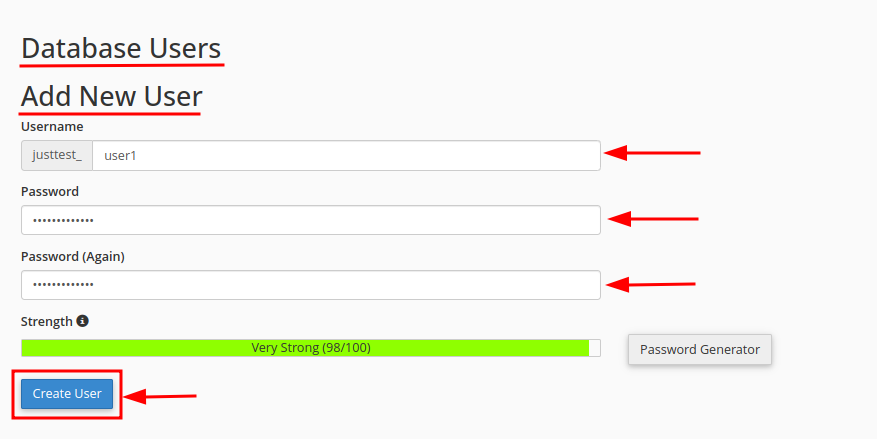
A confirmation message will appear after the user is created successfully.
Use a strong and unique password for the database user and keep the credentials secure.
Add the User to the Database
Open the Add User to Database section
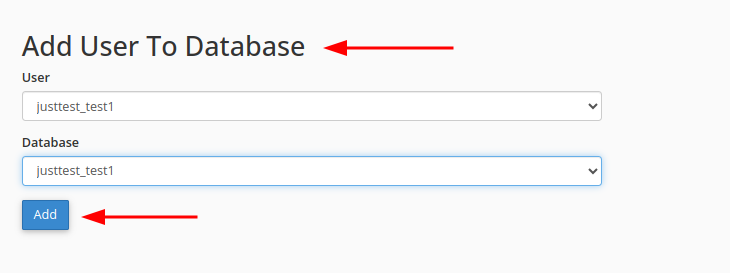
Scroll down to the Add User to Database section.
Select the user and database
Select the database user and database you created from the respective dropdown menus.
Add the user
Click Add.
Assign database privileges
You will be redirected to the Manage User Privileges page.
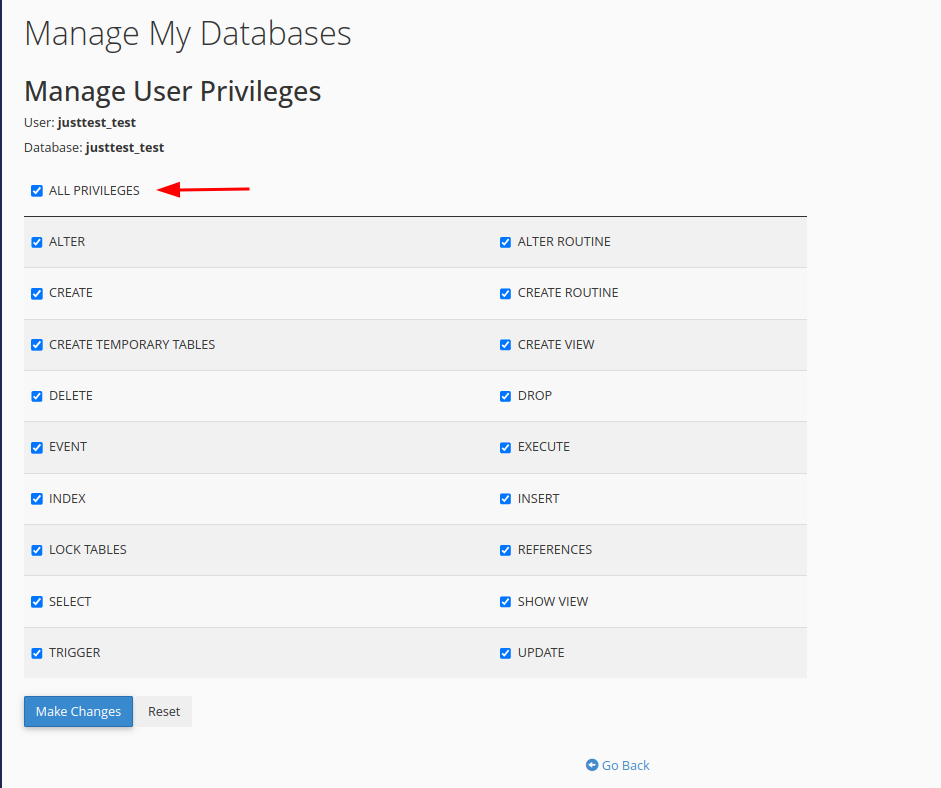
Select ALL PRIVILEGES to grant the user full access to the database, or select only the required privileges.
Save the privileges
Click Make Changes to save the changes.
Grant only the privileges required by the application whenever possible.
Manage User Privileges
Locate the existing database
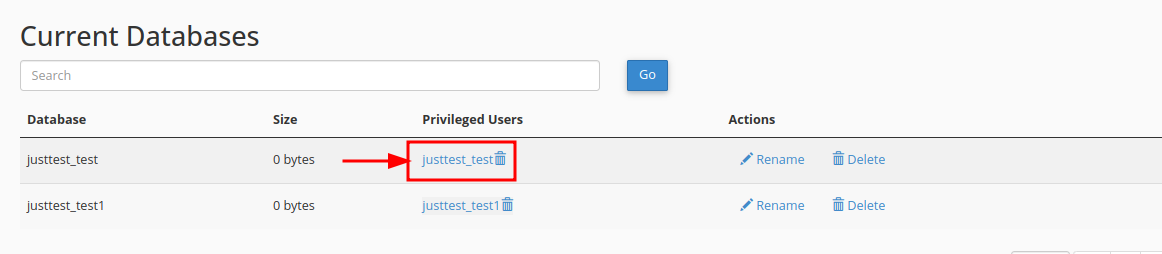
To modify the privileges of an existing database user, scroll to the Current Databases section on the MySQL Databases page.
Open the user's privileges
Under the Privileged Users column, click the name of the user you want to modify.
Update the privileges
Select or deselect the privileges you want to assign or remove.
Save the changes
Click Make Changes to save the updated privileges.
Your database, database user, and user privileges have now been configured successfully in cPanel.