

Managing Users in WHM/cPanel
In WHM/cPanel, a cPanel account is an individual hosting account that uses the cPanel control panel. Each account provides a separate hosting environment for a domain or website.
cPanel users can manage website files, email accounts, databases, security settings, and other hosting features through the cPanel interface.
WHM allows administrators and authorized resellers to create, manage, and remove cPanel accounts.
Create a New cPanel Account from WHM
Root and reseller users with the required privileges can create cPanel accounts from WHM.
Log in to WHM
Log in to WHM using the following URL:
https://VPS_IP_Address:2087
Open Create a New Account
Use the WHM search bar to search for Create a New Account.
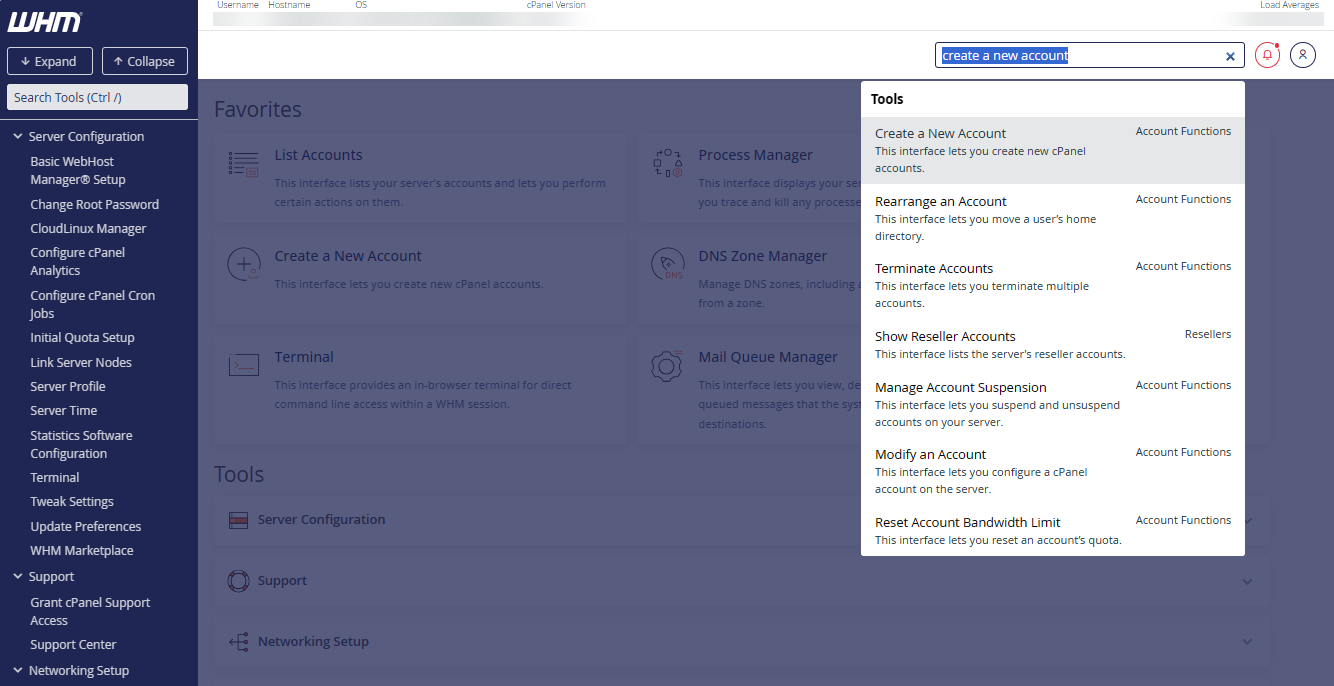
Click Create a New Account.
You will be taken to the account creation page where you can enter the details for the new cPanel account.
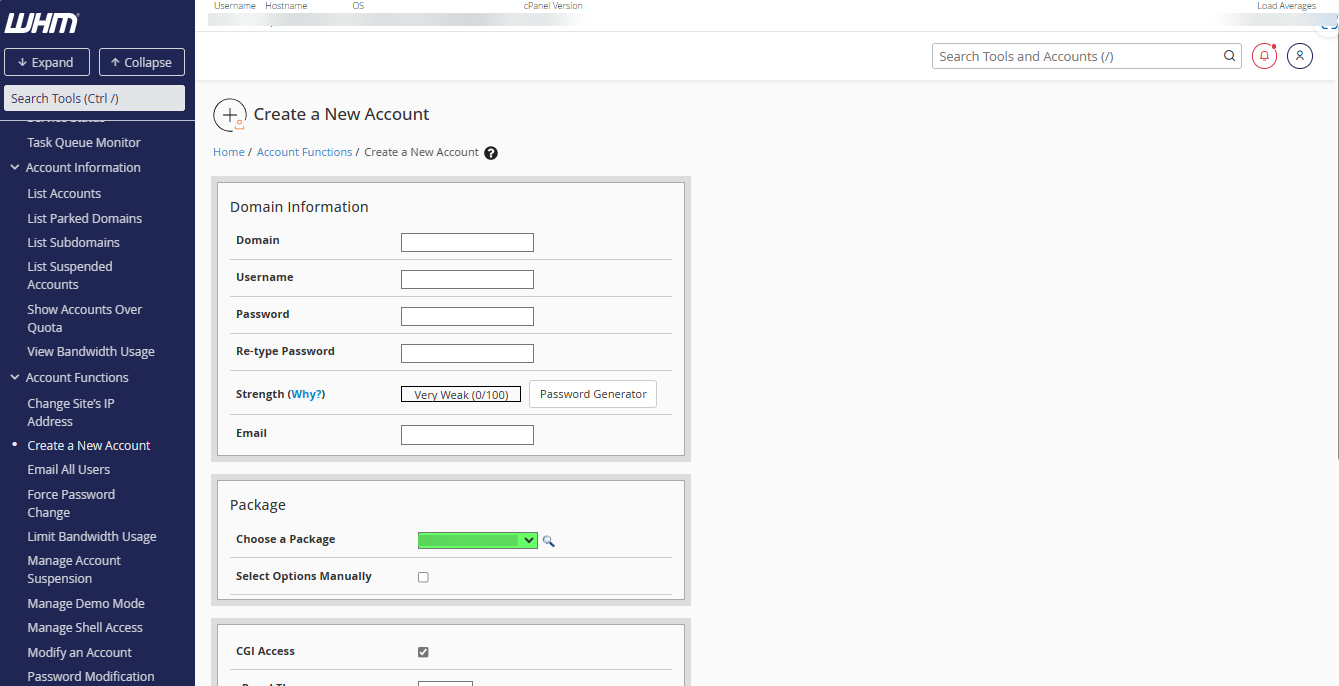
Make sure you have created a hosting package before creating the cPanel account. If you have not created one, see How to Create a Package in WHM.
Configure Domain Information
Enter account details
Enter the required account information.
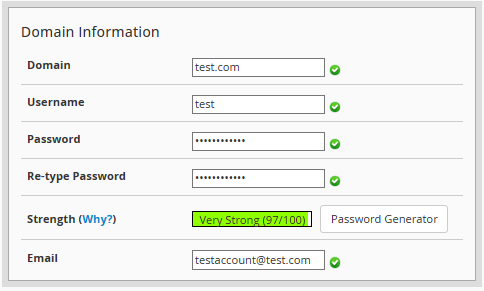
- Domain: Enter the primary domain name associated with the account.
- Username: Enter the username that will be used to access the cPanel account.
- Password: Enter a secure password for the account.
- Email Address: Enter the email address associated with the account. This address may be used for important hosting account notifications.
Check username requirements
The username must meet the following requirements:
- It must be unique and contain 16 characters or fewer.
- It can contain only letters and numbers.
- It cannot start with a number or the string
test. - If you plan to use MySQL or PostgreSQL, the first eight characters must be unique on the system to prevent issues with database prefixing and account transfers. This restriction does not apply to servers running MariaDB.
Use a unique username and a strong password to help protect the cPanel account.
Configure the Package
Select the hosting package and options
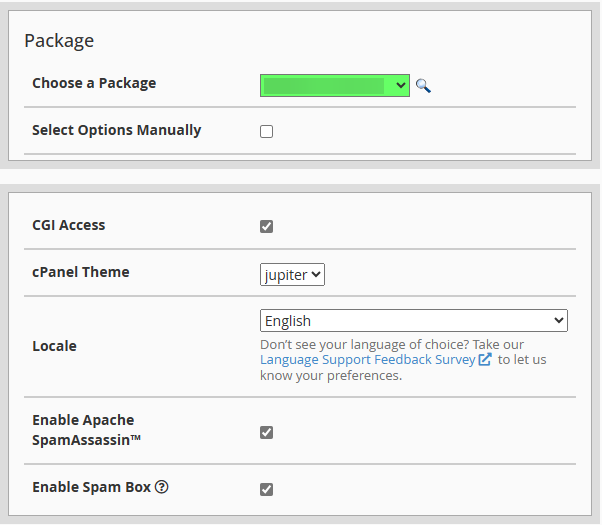
Configure the following options:
- Choose a package: Select the hosting package you want to assign to the account.
- Select Options Manually: Use this option if you want to configure the account resources manually.
- cPanel Theme: Select the cPanel theme for the account.
- Locale: Select the language for the cPanel account.
Configure Mail Routing
Select the mail routing configuration
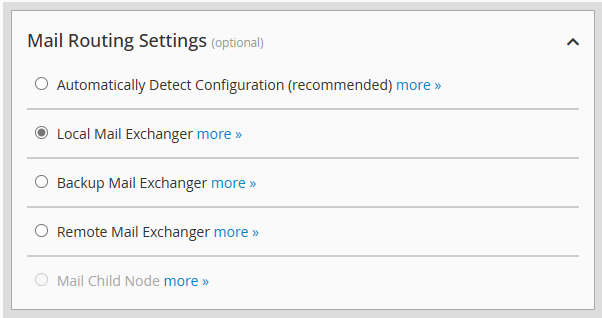
Mail routing determines how email for the domain is handled.
The available options include:
- Automatically Detect Configuration: Allows cPanel to automatically determine the appropriate mail routing configuration.
- Local Mail Exchanger: Delivers email locally to the server hosting the account.
- Backup Mail Exchanger: Routes email through a backup mail server when the primary mail server is unavailable.
- Remote Mail Exchanger: Routes email to a remote mail server specified by the domain's MX records.
If you are using a third-party email service, select Remote Mail Exchanger when appropriate for your mail configuration.
Configure Reseller Settings
Set reseller options
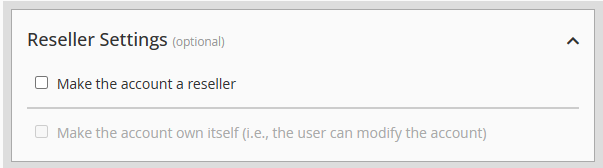
If you are creating a standard cPanel account, you can skip the reseller settings.
If you want to create a reseller account, configure the reseller options as required.
Configure DNS Settings
Configure DNS and email authentication
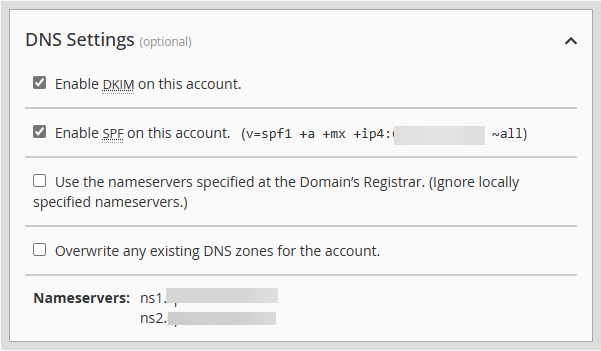
Configure the DNS settings according to your requirements.
You can enable DKIM and SPF during account creation to configure these email authentication records for the domain.
DKIM and SPF help improve email authentication and deliverability and help protect against email spoofing.
Create the cPanel Account
Review and create the account
Review the account settings and click Create.
After the account is created, you can access cPanel using the username and password configured during account creation.
Keep the cPanel username and password secure. Make sure the account details are correct before creating the account.
The cPanel account has now been successfully created from WHM.
Delete an Existing cPanel Account from WHM
You can delete an existing cPanel account from WHM.
Deleting a cPanel account permanently removes its associated files, databases, email accounts, and settings. Make sure you have a backup of any data you may need before terminating the account.
Log in to WHM
Log in to WHM using the following URL:
https://VPS_IP_Address:2087
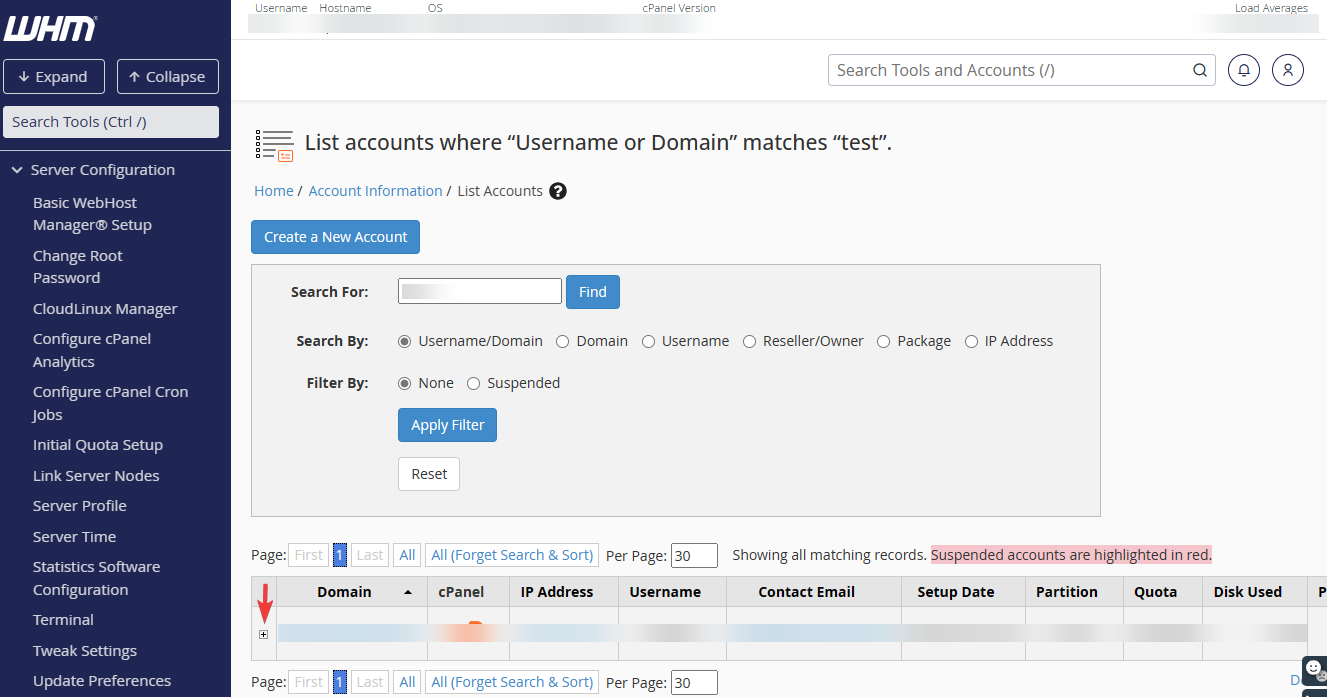
Open List Accounts
Use the WHM search bar to search for List Accounts.
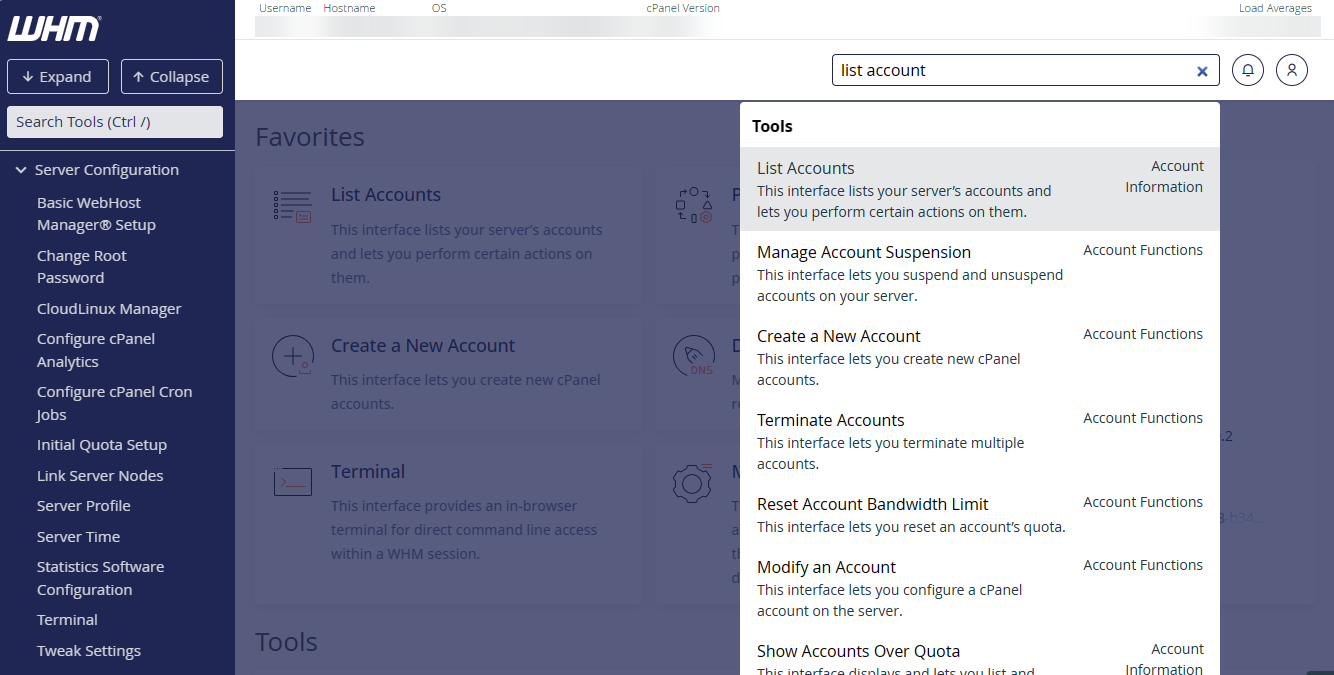
You will see a list of cPanel accounts. You can search for a specific account using its domain name or username.
Expand the account details
Click the + sign next to the account you want to remove.
Terminate the account
Click Terminate Account to remove the cPanel account.
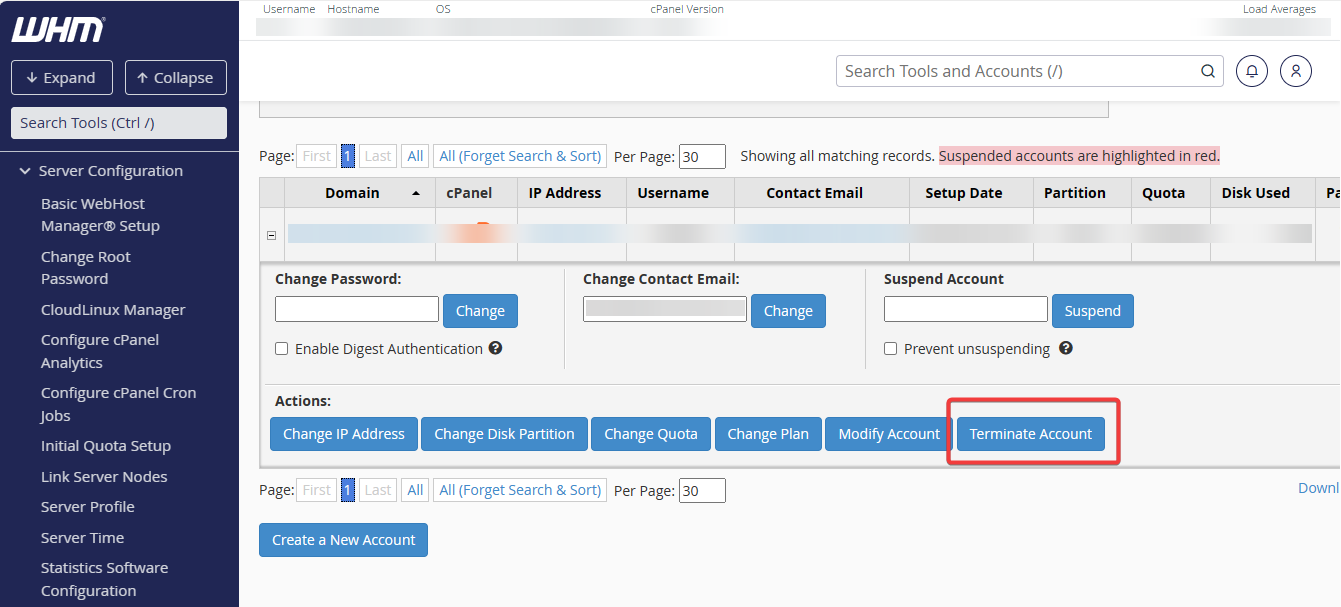
WHM will display a confirmation prompt.
Confirm account deletion
Click Yes, remove this account to permanently delete the cPanel account.
Account termination cannot be undone through WHM. Verify that you have selected the correct account and have any required backups before confirming the deletion.