

How to Add a New Domain to cPanel
You can add a new domain to your cPanel account using the Domains section.
Access the Domains Section
Log in to cPanel
Log in to your cPanel account.
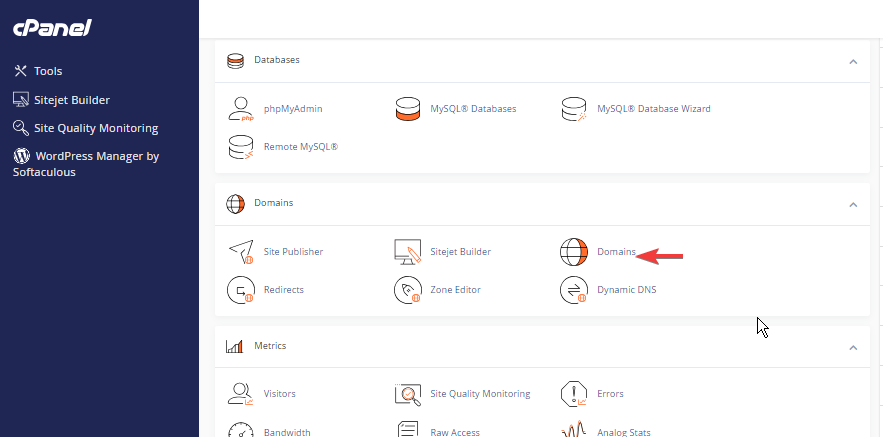
Open the Domains section
In the Domains section, click Domains.
Create a New Domain
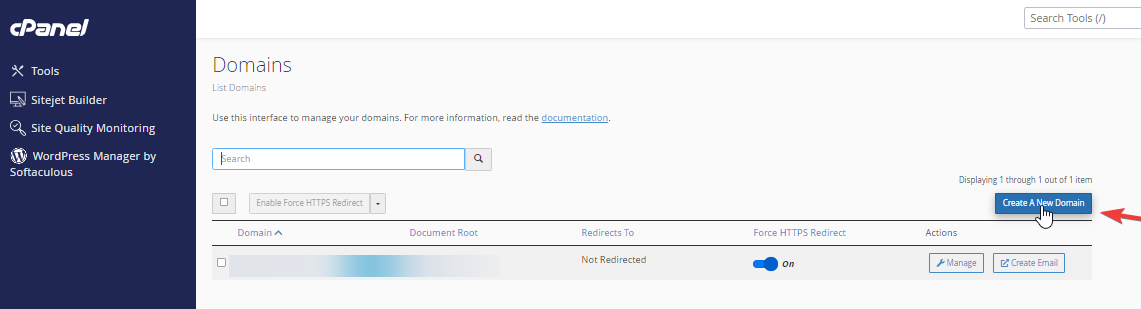
Start creating a domain
Click Create A New Domain.
Enter the Domain Details
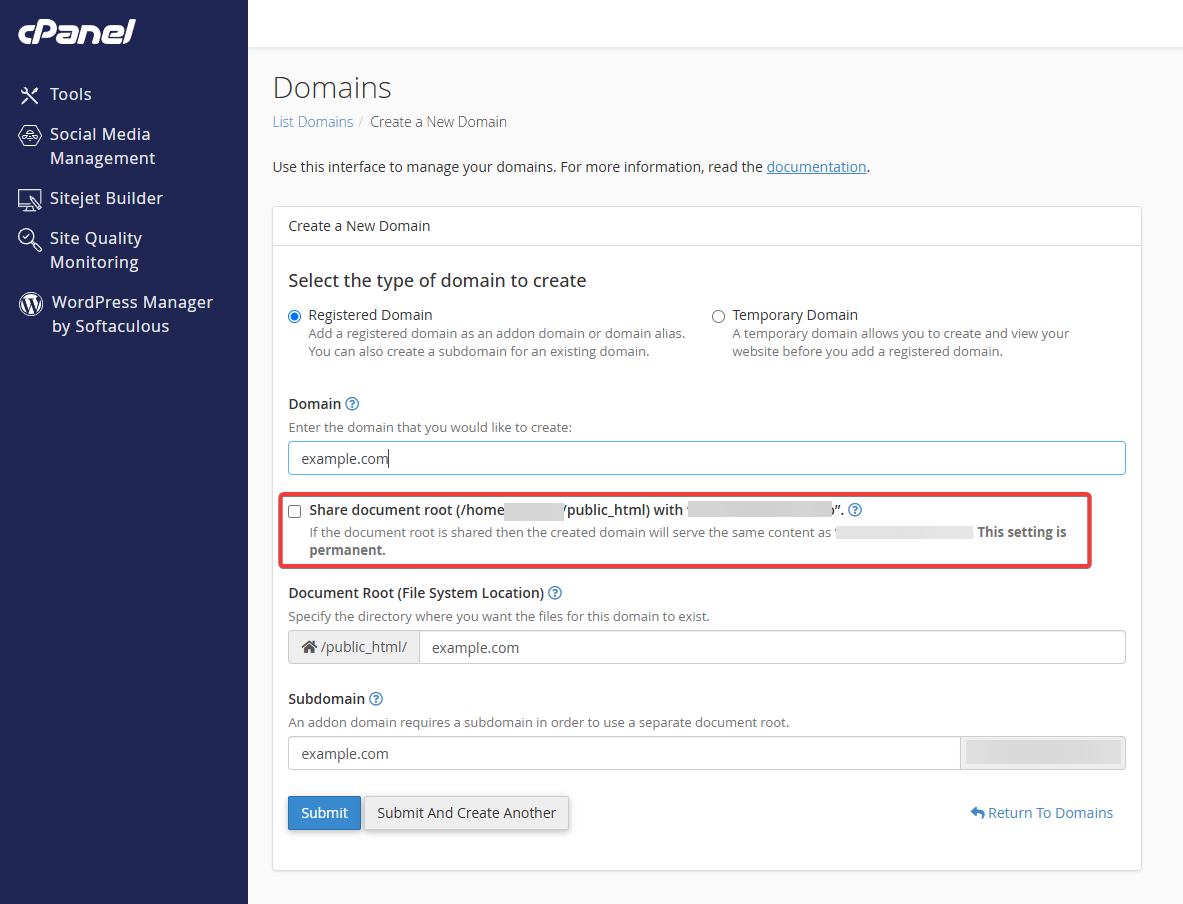
Enter the domain name
Enter your newly purchased domain name.
Configure the document root
If you do not want the new domain to share the same document root as your primary domain, make sure to uncheck Share document root.
Warning
Review the domain and document root settings before submitting the form.
Add the Domain
Submit the domain settings
Once you have configured the domain settings, click Submit.
Wait for cPanel to process the changes
Wait a few seconds for cPanel to process the changes.
Your new domain has now been added to your cPanel account.