

How to Install WordPress in cPanel
Open the WordPress Installer
Access Softaculous
Log in to your cPanel account.
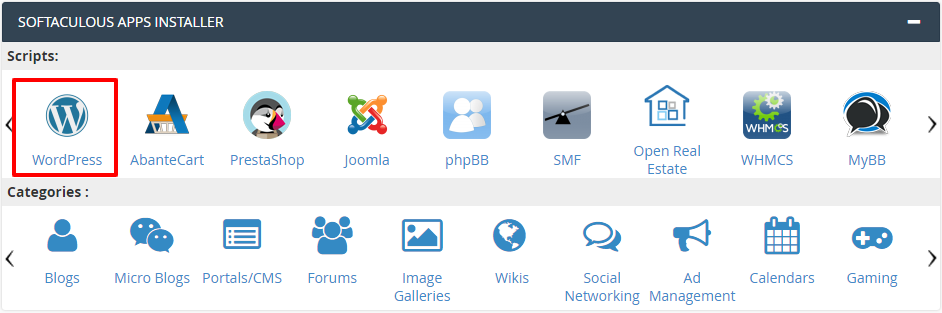
Under SOFTACULOUS APPS INSTALLER, click WordPress.
Start the installation
On the WordPress installation page, click Install.
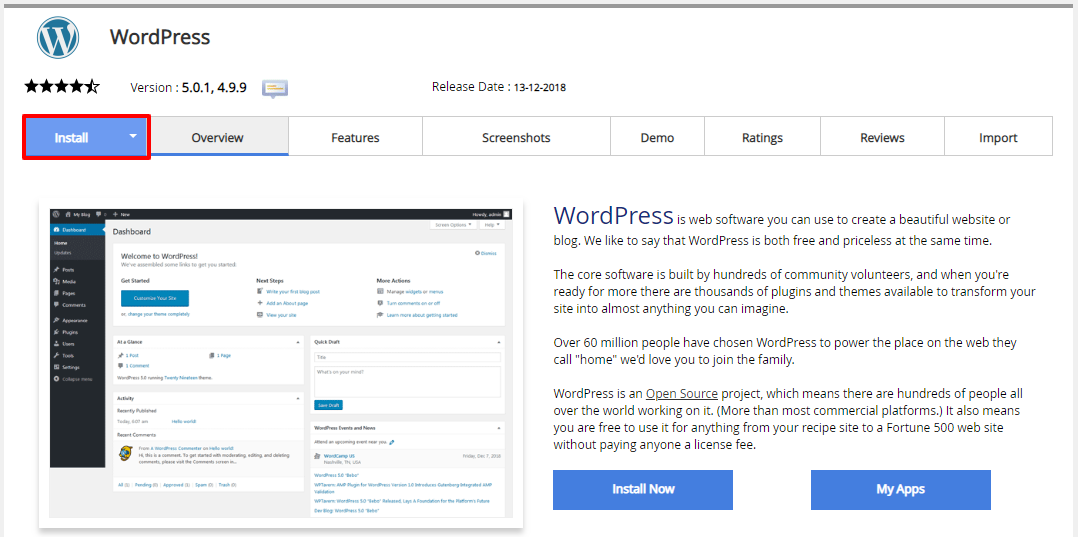
The options shown in Softaculous may vary depending on the installed WordPress and Softaculous versions.
Software Setup
Configure software settings
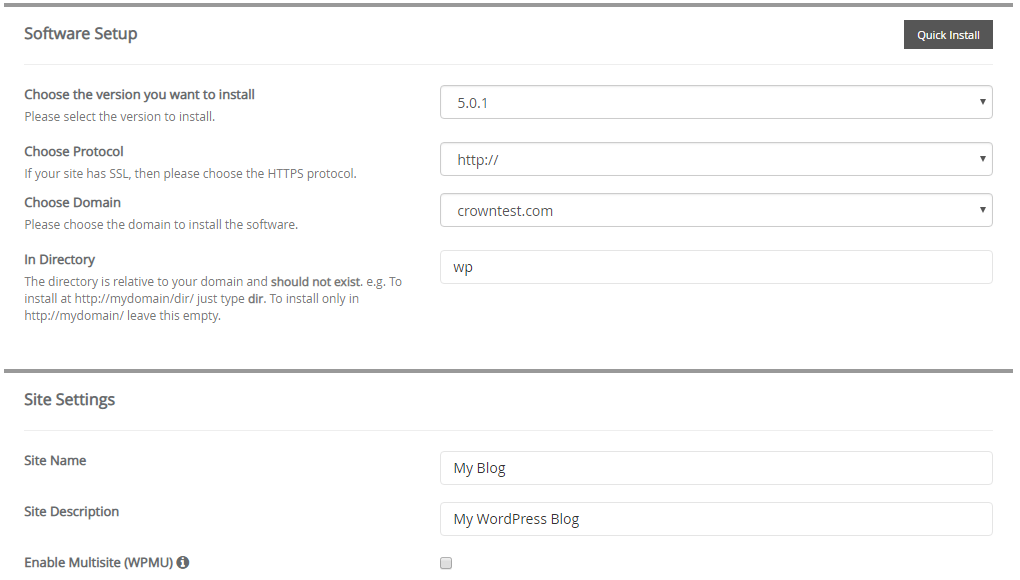
Configure the following options:
- Choose the version you want to install: Select the WordPress version you want to install. We recommend using the default version unless you have a specific requirement.
- Choose Protocol: Select the appropriate protocol for your website.
- Choose Domain: Select the domain on which you want to install WordPress.
- In Directory: Remove
wpif you want to install WordPress in the root directory of your domain. You can also specify a different directory name to install WordPress in a subdirectory.
Site Settings
Configure site details
Configure the following options:
- Site Name: Enter the name of your website.
- Site Description: Enter a description for your website.
- Enable Multisite (WPMU): Enable this option if you want to manage multiple websites from a single WordPress installation.
Admin Account
Configure administrator details
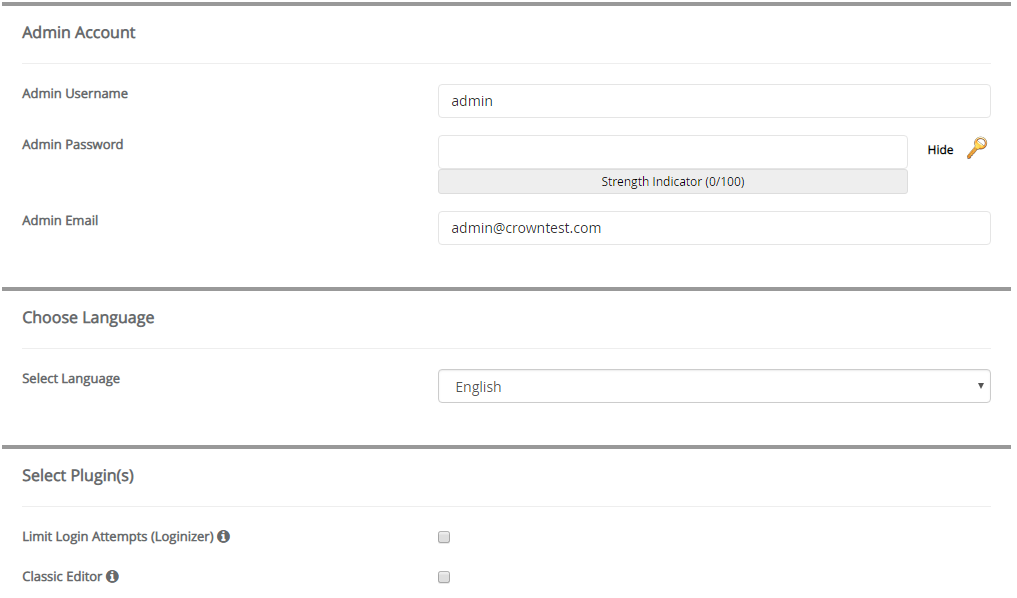
Configure the WordPress administrator account:
- Admin Username: Enter an administrator username. Avoid using common usernames such as
admin. - Admin Password: Enter a strong password.
- Admin Email: Enter the email address where you want to receive WordPress notifications.
Use a strong and unique password for the WordPress administrator account.
Choose Language
Select the language
Select the language you want to use for your WordPress installation.
Select Plugin(s)
Configure plugins
- Limit Login Attempts (Loginizer): This plugin limits the number of login attempts for your WordPress installation.
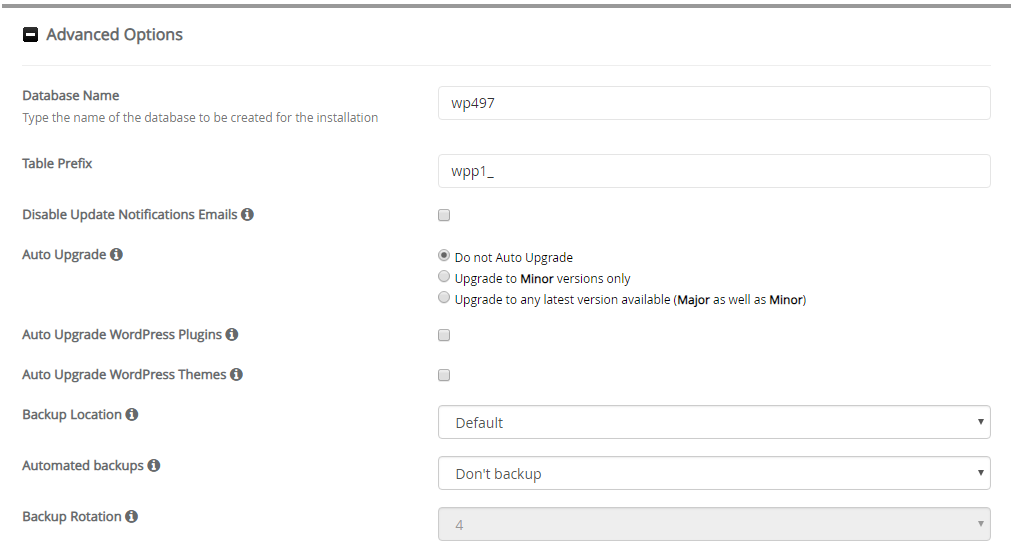
Advanced Options
Configure database and upgrade options
Configure the following options:
- Database Name: Enter the database name for the installation. The database will be created automatically.
- Table Prefix: You can keep the default table prefix.
Softaculous also provides additional options such as automatic upgrades and automatic backups. Enable these options if required.
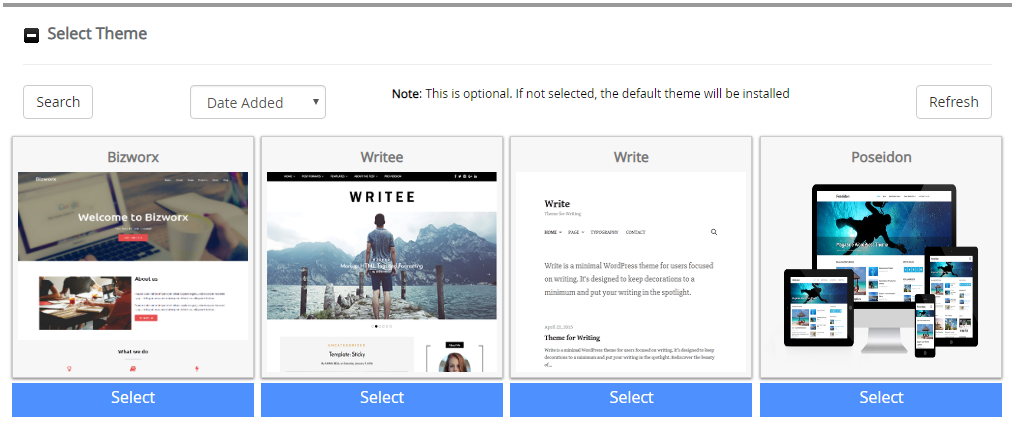
Select Theme
Choose a theme
Select a theme based on your preference. You can also install or change the theme after completing the WordPress installation.
Install WordPress
Review and install
Review all the installation details and click Install.
The WordPress installation may take a few minutes to complete.
Verify the domain, installation directory, administrator username, email address, and other settings before starting the installation.