

How to Connect to an FTP Account in cPanel Using FileZilla and WinSCP
You can connect to an FTP account in cPanel using an FTP client such as FileZilla or WinSCP.
FTP Connection Details
Use the following details when configuring your FTP client:
- Hostname:
cpanel-atl.kxe.iofor Atlanta orcpanel-de.kxe.iofor Germany - Port:
10500 - Username: The username specified when creating the FTP account
- Password: The password specified when creating the FTP account
Important: Use the hostname corresponding to the location where your cPanel account is hosted.
Connect Using FileZilla
Download FileZilla
Download and install the FileZilla FTP client from the official website.
Enter the FTP connection details
Open FileZilla and enter the FTP connection details provided above.
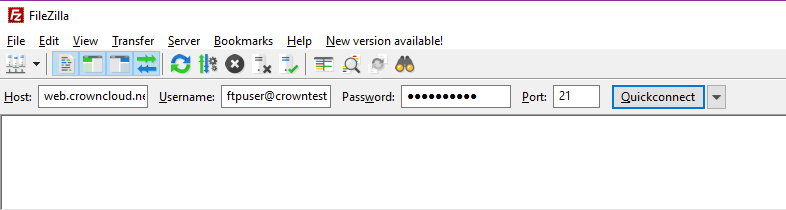
Connect to the FTP server
Press Enter to connect to the FTP server.
Transfer files
Once connected, the remote FTP account directory will be displayed. You can drag and drop files and directories between your local computer and the remote server to transfer files.
Make sure the username, password, hostname, and port are entered correctly before connecting.
Connect Using WinSCP
Download WinSCP
Download and install WinSCP from the official website.
Enter the FTP connection details
Open WinSCP and enter the required FTP connection details.
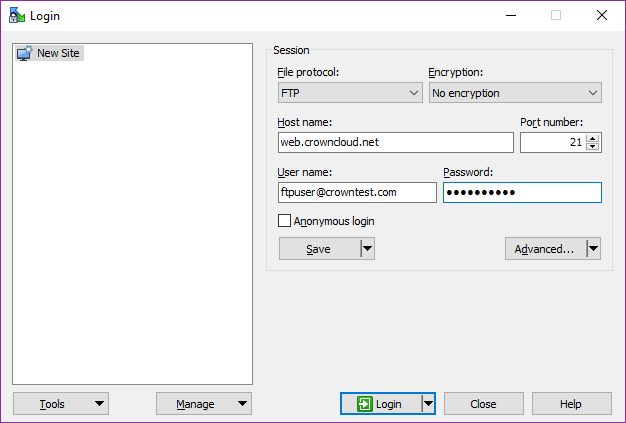
Connect to the FTP server
Click Login to connect to the FTP server.
Transfer files
Once connected, the remote FTP account directory will be displayed. You can drag and drop files and directories to transfer files between your local computer and the server.
WinSCP provides a similar file transfer experience to FileZilla and can be used to upload and download files through FTP.