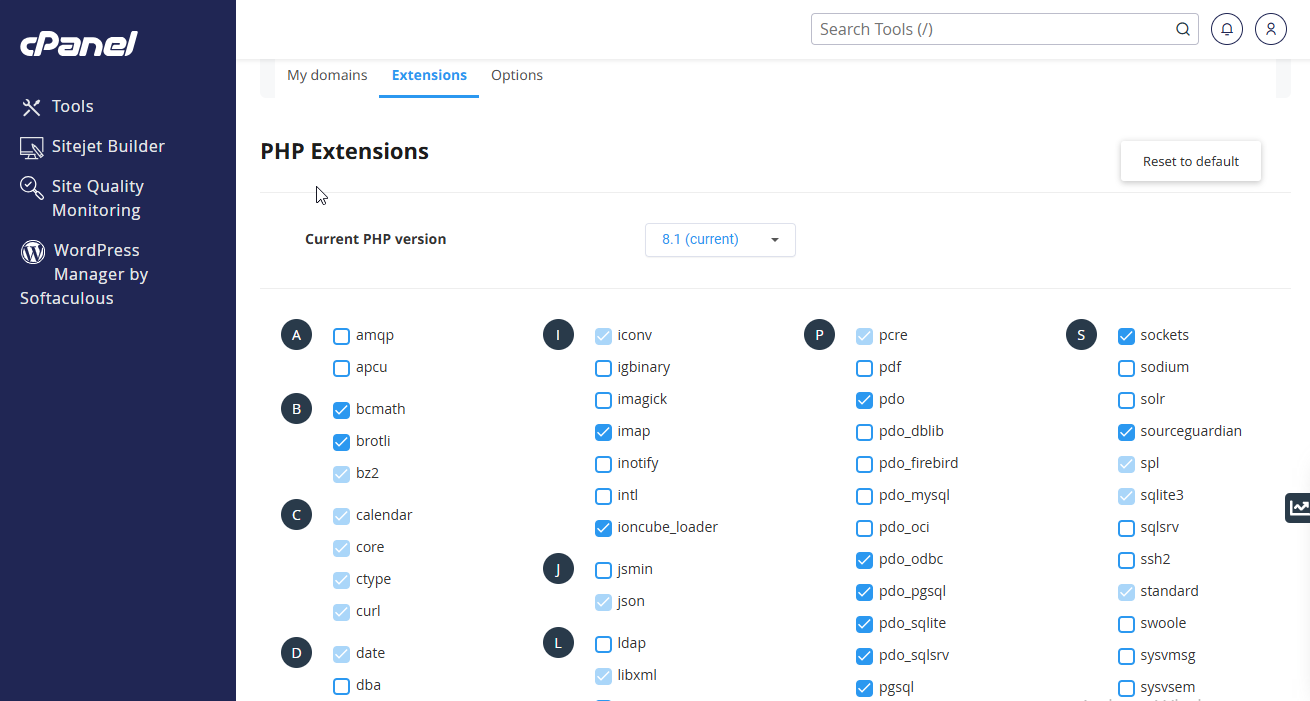
How to Enable PHP Modules in CloudLinux on cPanel
PHP modules add extra features to PHP, such as database support, encryption, and image processing. On CloudLinux with cPanel, you can enable the required modules for your websites and applications.
Access PHP Selector
Log in to cPanel
Log in to your cPanel account.
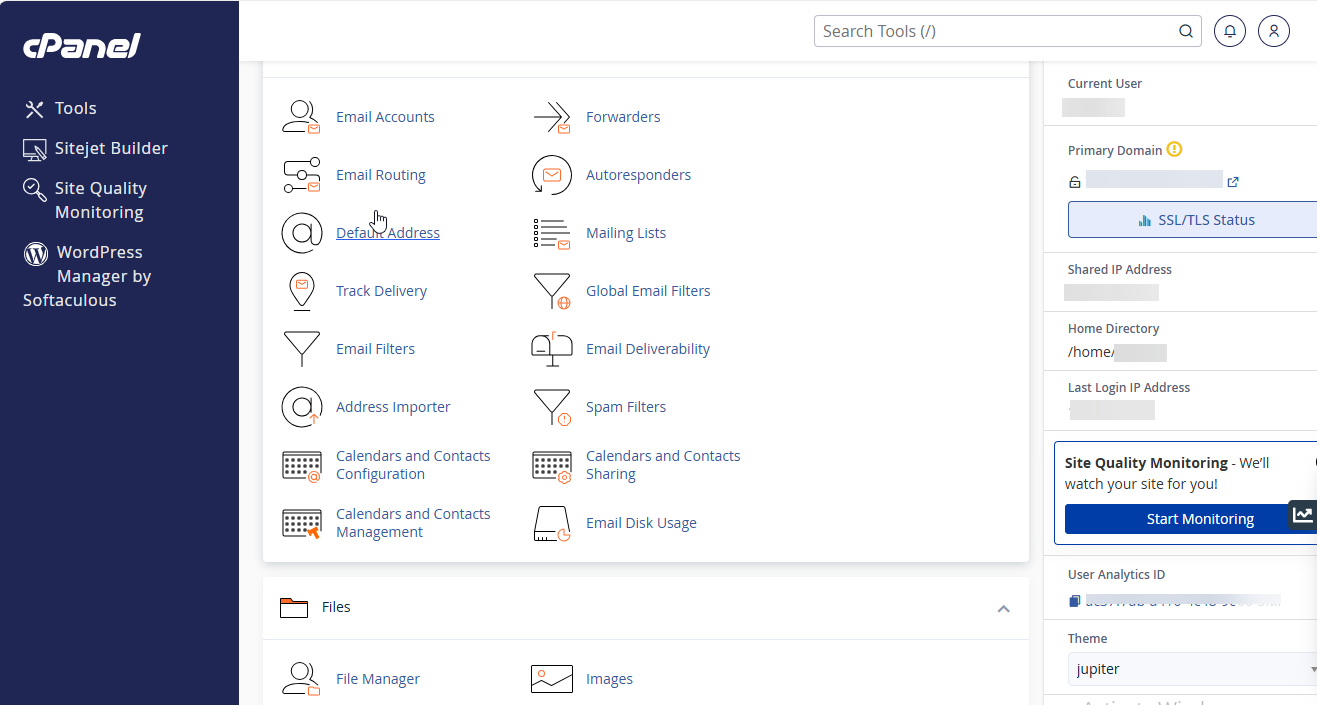
Locate the Software section
Once logged in, scroll down to the Software section.
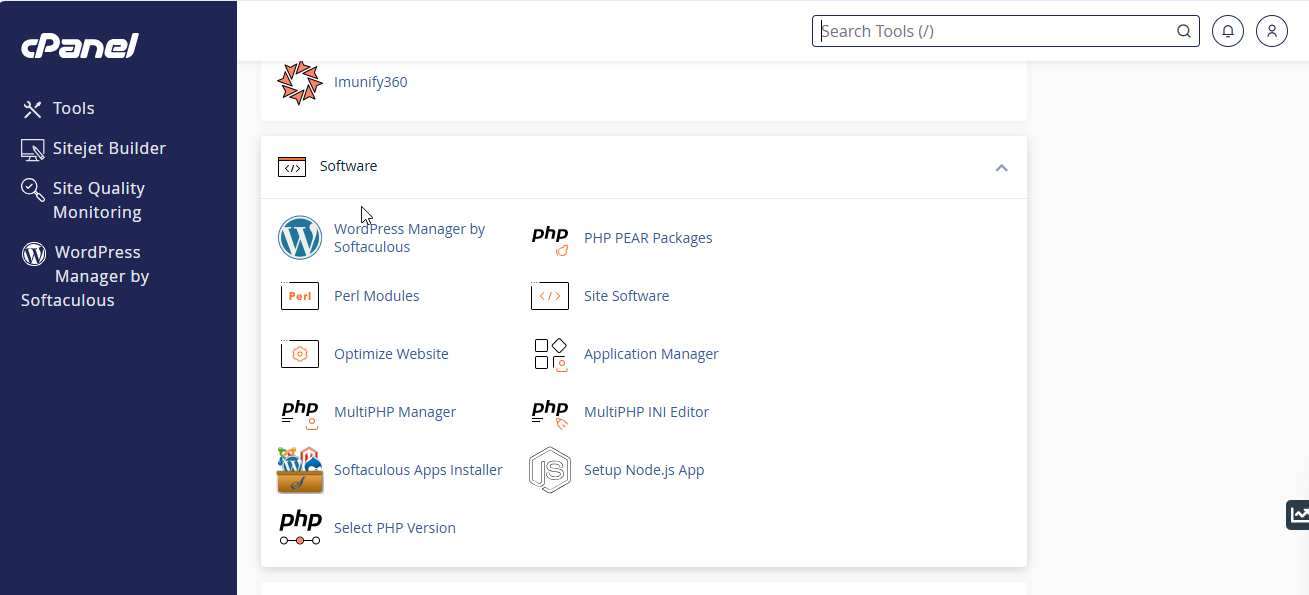
Open Select PHP Version
Click Select PHP Version. This CloudLinux tool allows you to manage PHP versions and modules.
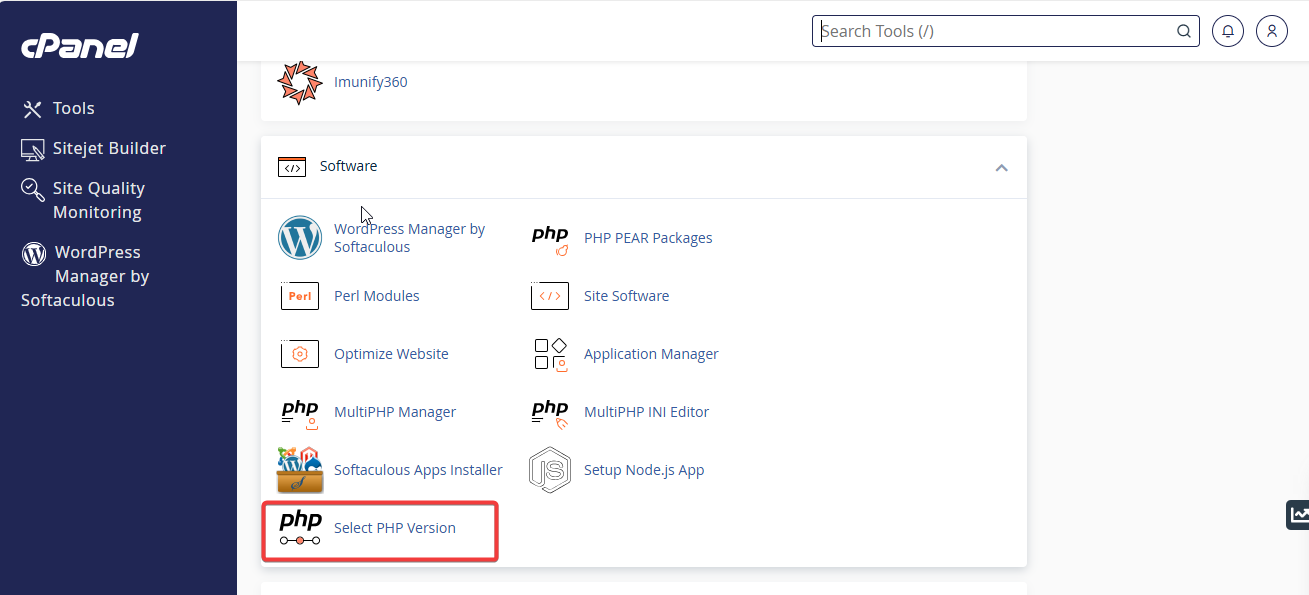
The Select PHP Version tool is powered by CloudLinux and allows you to manage PHP versions and modules.
Select the PHP Version
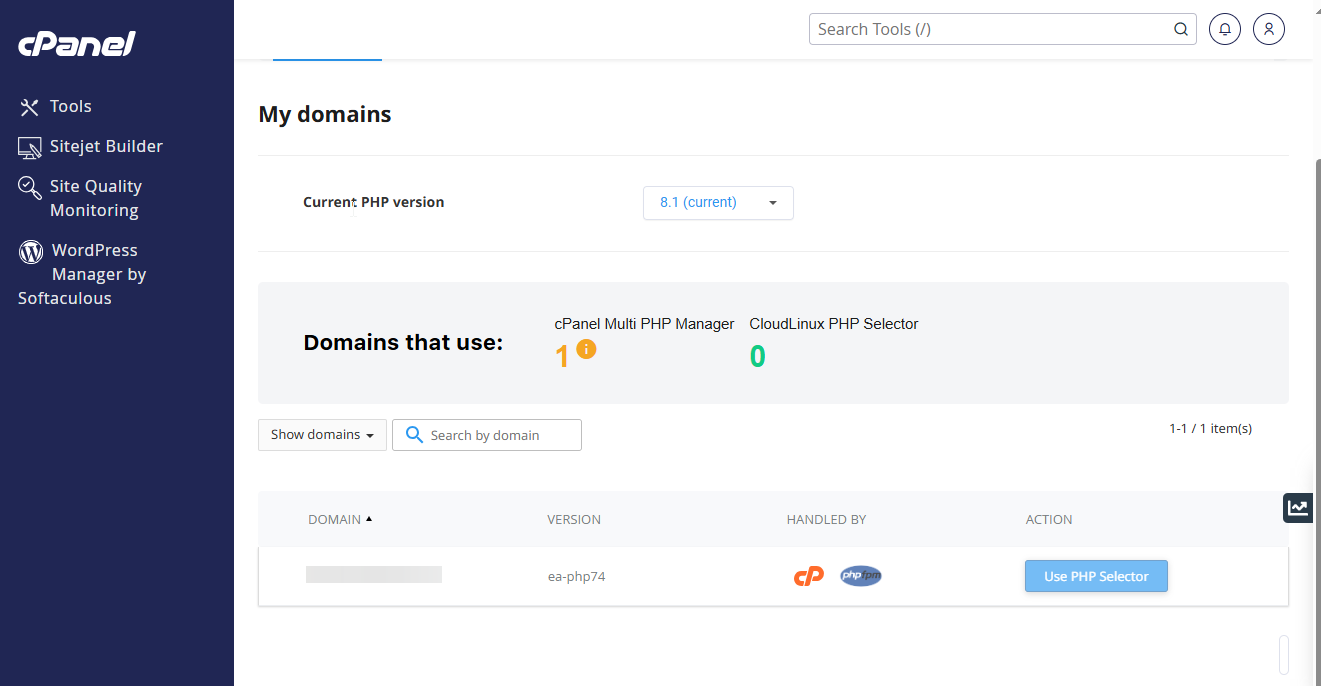
Check the current PHP version
In the Select PHP Version interface, review the PHP version currently selected for your account.
Choose a PHP version
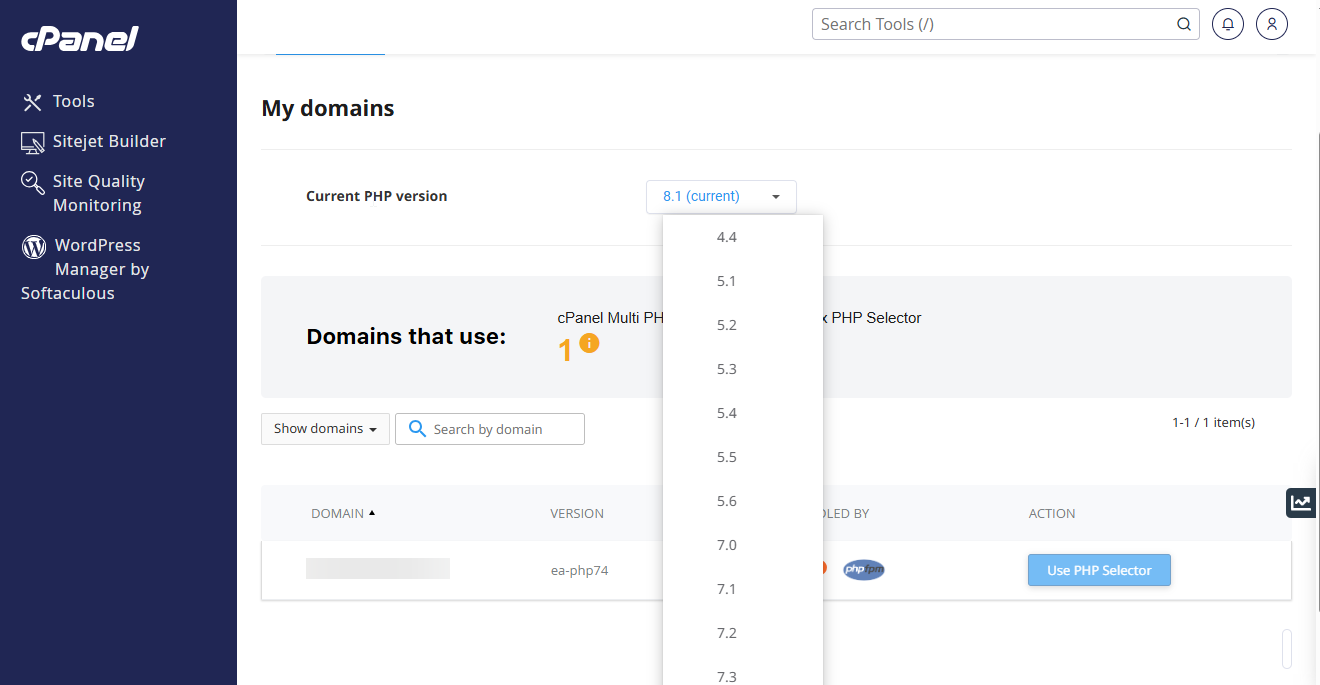
If you need to change the PHP version, click the dropdown menu and select the desired version.
Apply the selected version
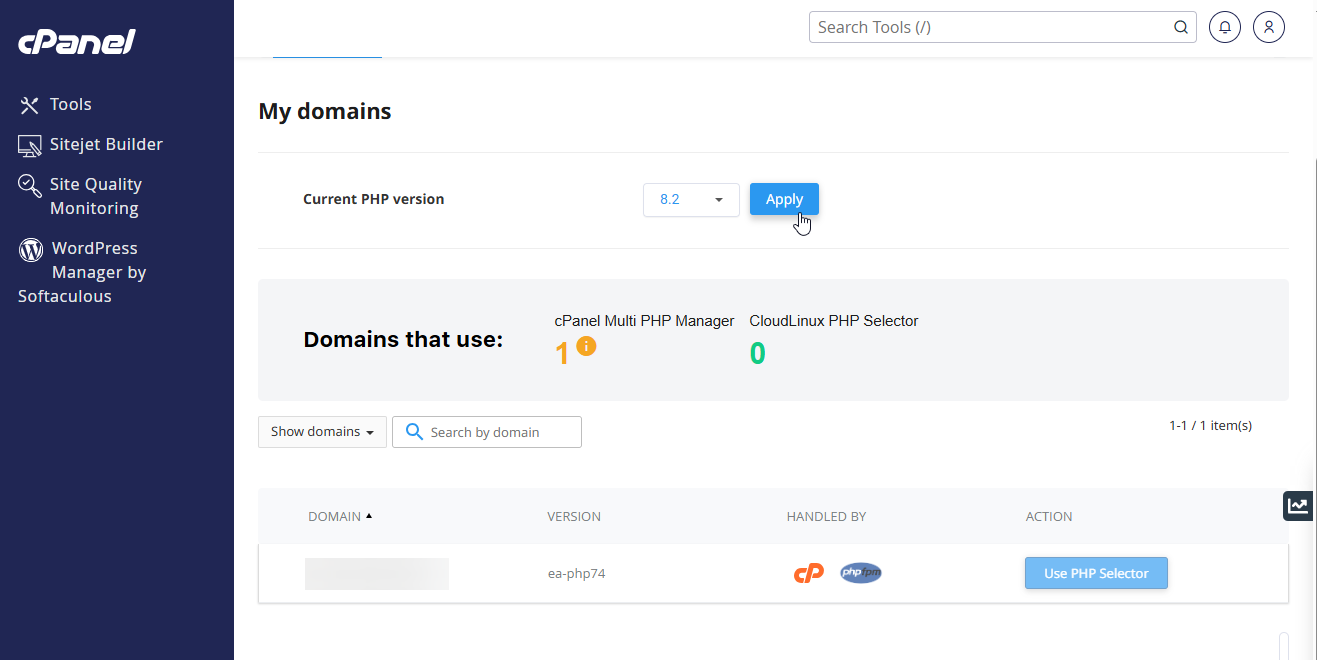
Click Set as current to apply the change.
Enable PHP Modules
Select the required modules
To enable a PHP module, check the box next to the module you need.