

How to Generate a Certificate Signing Request (CSR) in cPanel
Generating a Certificate Signing Request (CSR) in cPanel allows you to request an SSL/TLS certificate from an external Certificate Authority (CA) to secure your website.
Prerequisites
Before generating a CSR, make sure you have:
- A registered domain name.
- Access to the cPanel account with the domain configured.
- DNS records for the domain pointing to the appropriate server.
Access the CSR Page
Open SSL/TLS
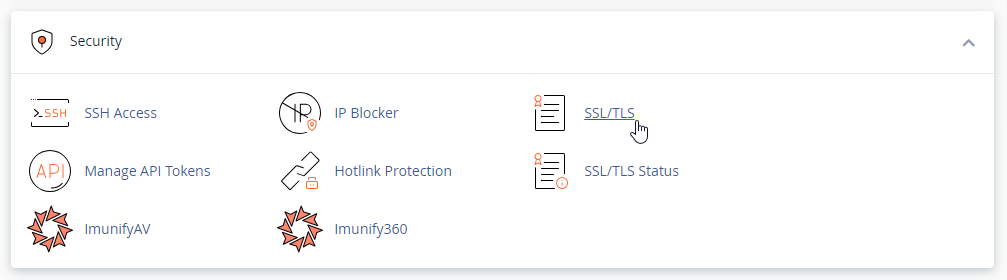
In cPanel, navigate to the Security section and click SSL/TLS.
Open the CSR management page
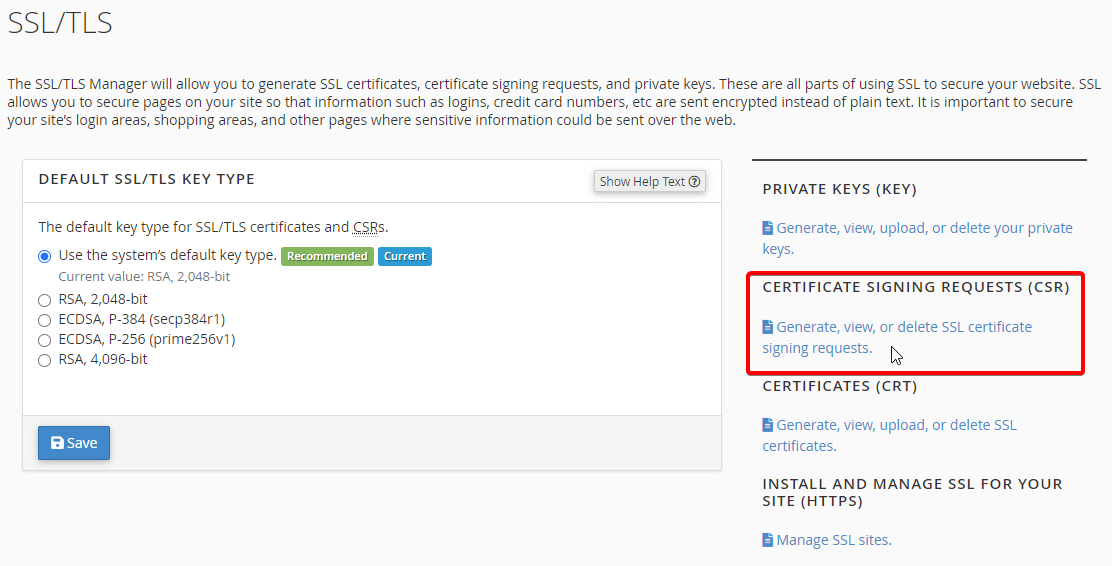
Click Generate, view, or delete SSL certificate signing requests.
Generate the CSR
Select the key type
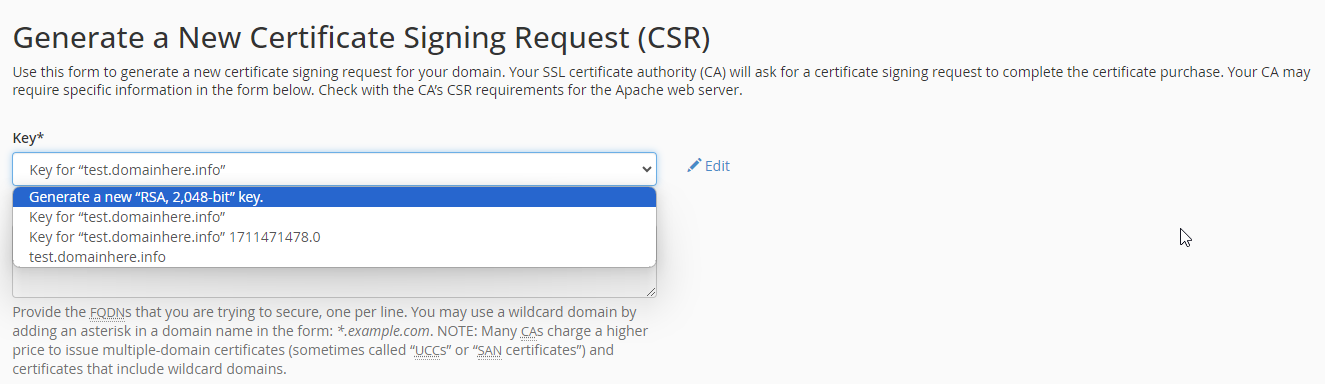
On the CSR page, select the required key type under Key.
Enter the domain names
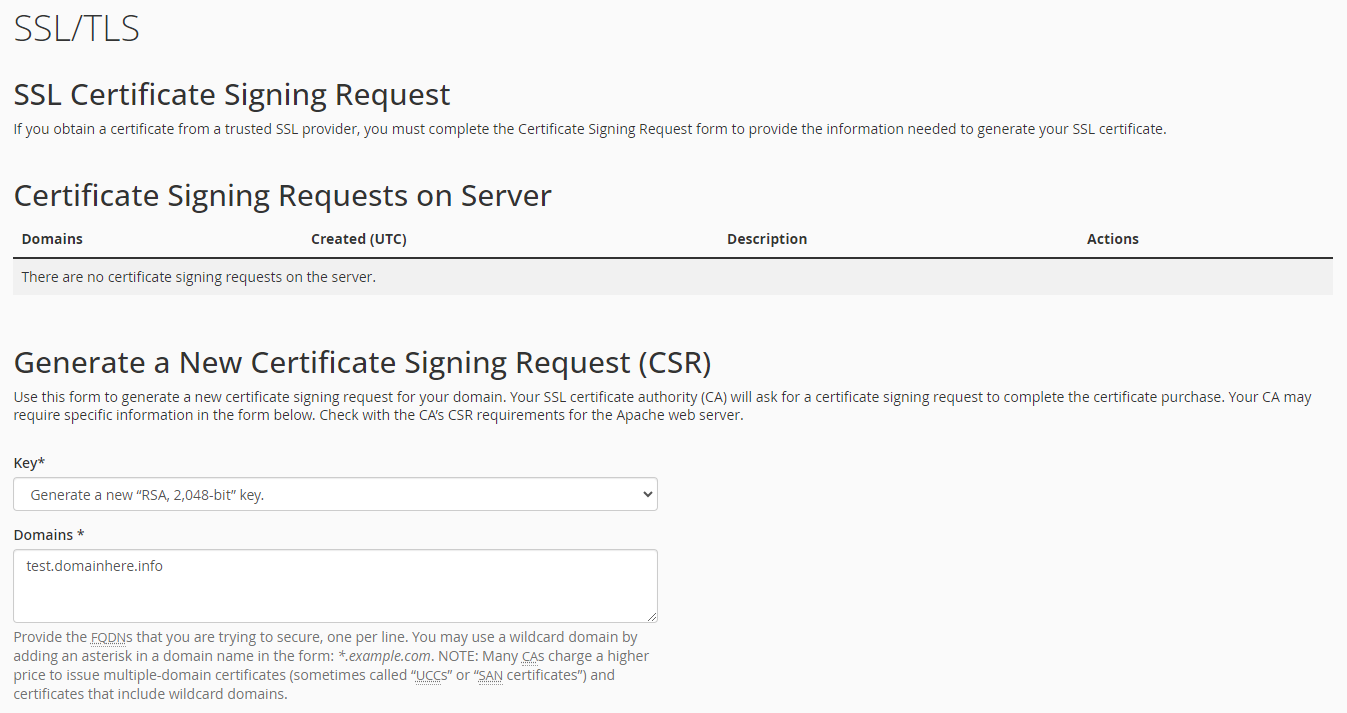
Enter the required domain names in the Domains field.
Enter contact and organization details
Enter the requested contact and organization information. Provide your email address and create a strong passphrase if required.
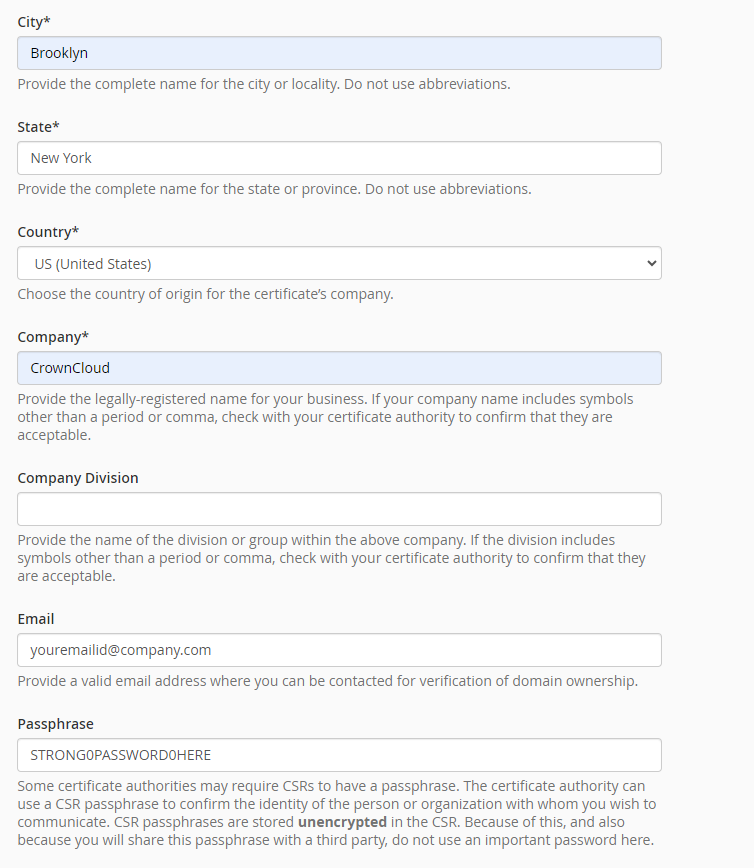
Generate the CSR
Submit the form to generate the CSR.
cPanel will display the generated CSR and associated private key.
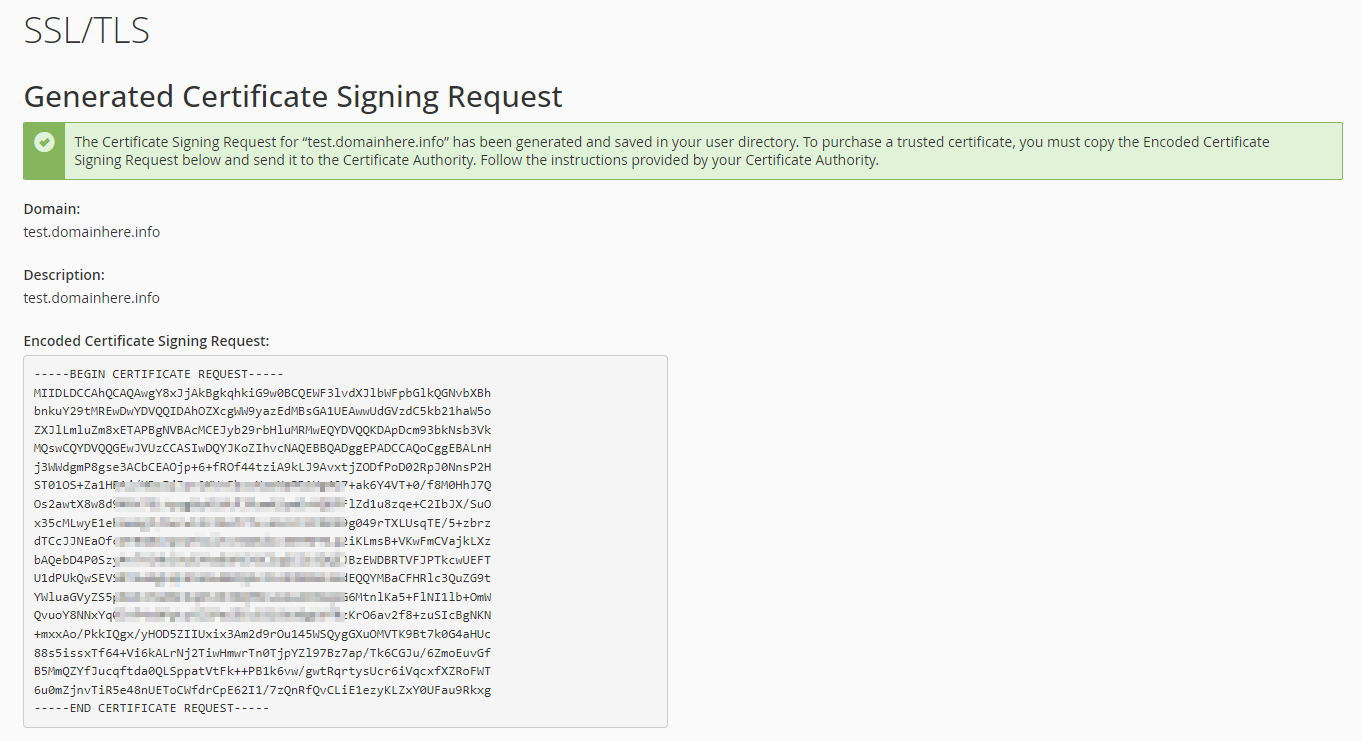
Store the private key securely and do not share it with anyone. You will need it when installing the issued certificate. Keep a secure backup of the CSR and private key.
You can provide the CSR to your Certificate Authority (CA) when requesting the SSL/TLS certificate.
Exclude the Domain from AutoSSL
If you are installing an SSL/TLS certificate from an external Certificate Authority, you may need to exclude the domain from AutoSSL to prevent AutoSSL from managing the certificate.
Open SSL/TLS Status
In cPanel, navigate to the Security section and click SSL/TLS Status.
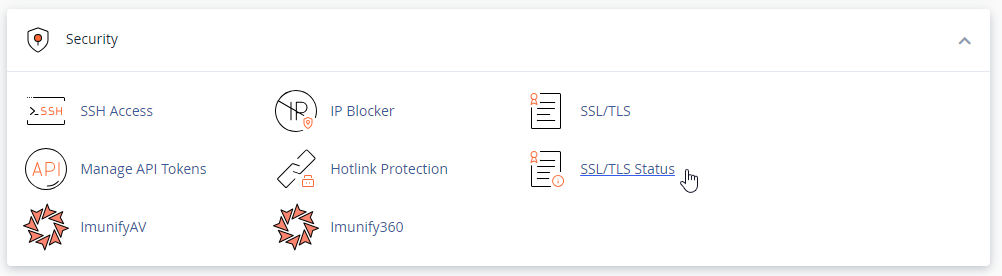
Exclude the domain
Find the domain you want to exclude from AutoSSL and click Exclude from AutoSSL.
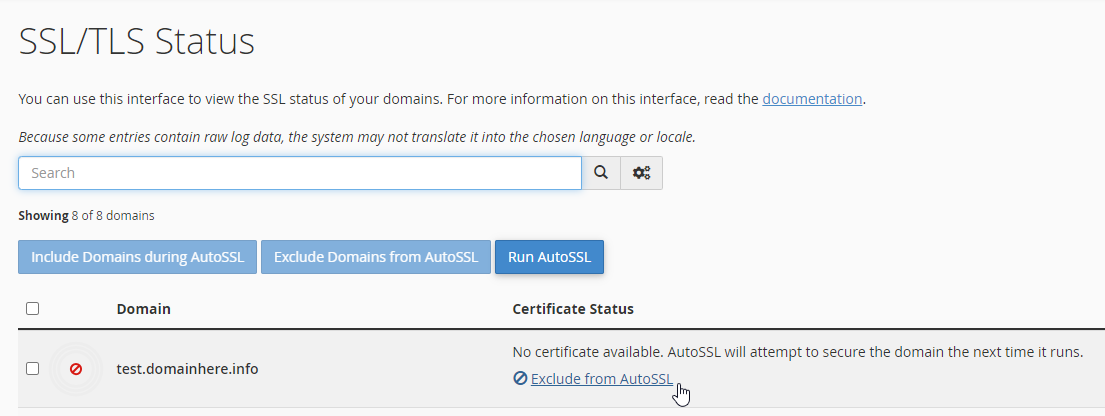
Excluding a domain from AutoSSL prevents cPanel's AutoSSL process from automatically issuing or renewing a certificate for that domain.
Submit the CSR to the Certificate Authority
Submit the CSR
Send the generated CSR to your Certificate Authority to request the SSL/TLS certificate.
Complete validation and installation
Follow the Certificate Authority's instructions to complete domain validation and obtain the issued certificate.
Once the certificate has been issued, you can install it in cPanel using the certificate installation options under SSL/TLS.