

How to Change the Password of an Email Account in cPanel
Access Email Accounts
Log in to cPanel
Log in to your cPanel account.
Open Email Accounts
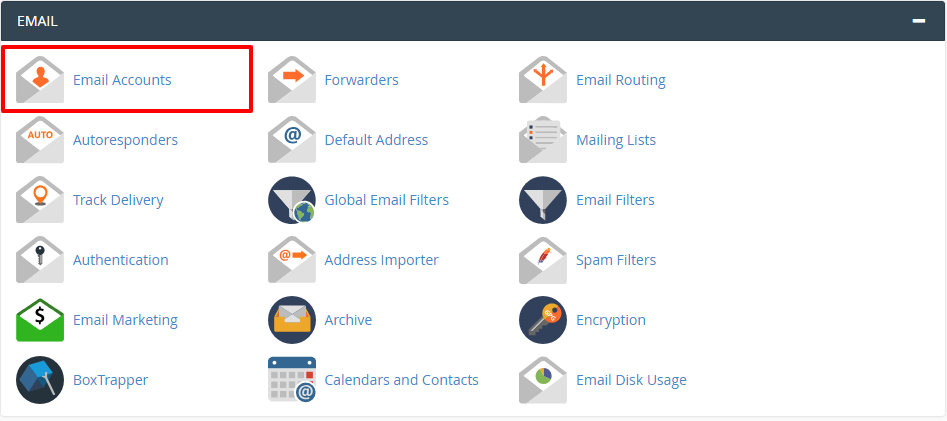
In the Email section, click Email Accounts.
Open the email account settings
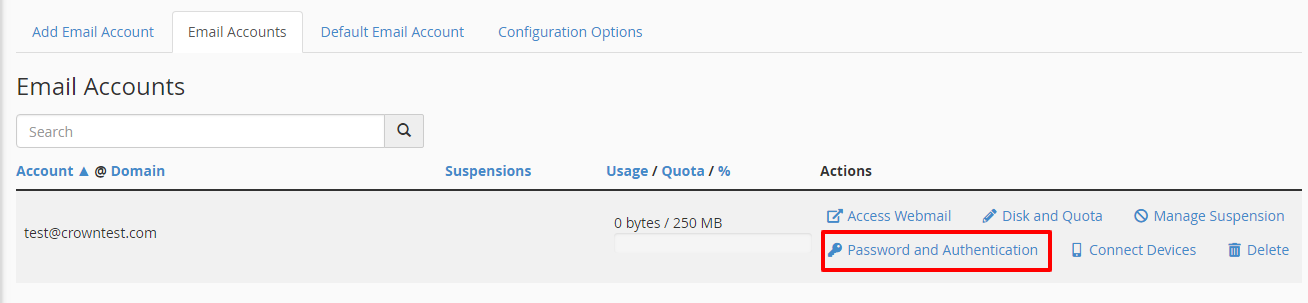
In the Email Accounts window, locate the email account whose password you want to change.
Click Password and Authentication.
Change the Email Password
Enter a new password
Enter the new password in the Password field and re-enter it in the Password (Again) field.
Save the new password
Click the Change Password button.
Confirm the password change
The password has now been changed.
Tip
Use a strong, unique password to help keep your email account secure.