

How to Change the Password of Your cPanel Account
Info
Changing your cPanel account password may also change the password for the default FTP, email, MySQL, and system user, depending on your hosting configuration.
Log in to cPanel
Open Password & Security
Log in to your cPanel account using your current password.
In the Preferences section, click Password & Security.

Change the Password
Enter the password details
On the Change Password page, enter the following details:
- Old Password: Enter your current password.
- New Password: Enter the new password you want to use.
- New Password (Again): Re-enter the new password.
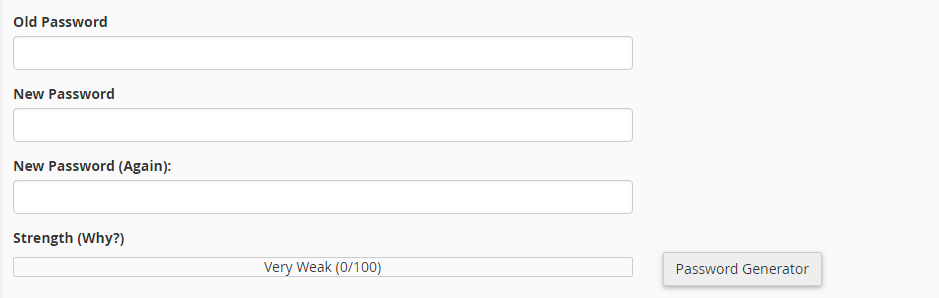
Save the new password
Click Change your password now!
Warning
Use a strong password and make sure you have access to the new password before signing out.
Your cPanel password has now been changed. You can log in to cPanel using your new password.