How to Change User Password in DirectAdmin
If you are using the Standard theme on DirectAdmin, switch to the Refreshed theme as shown in How to change theme or layout on DirectAdmin.
In the Refreshed Theme
Log in to DirectAdmin
Log in to your DirectAdmin account.
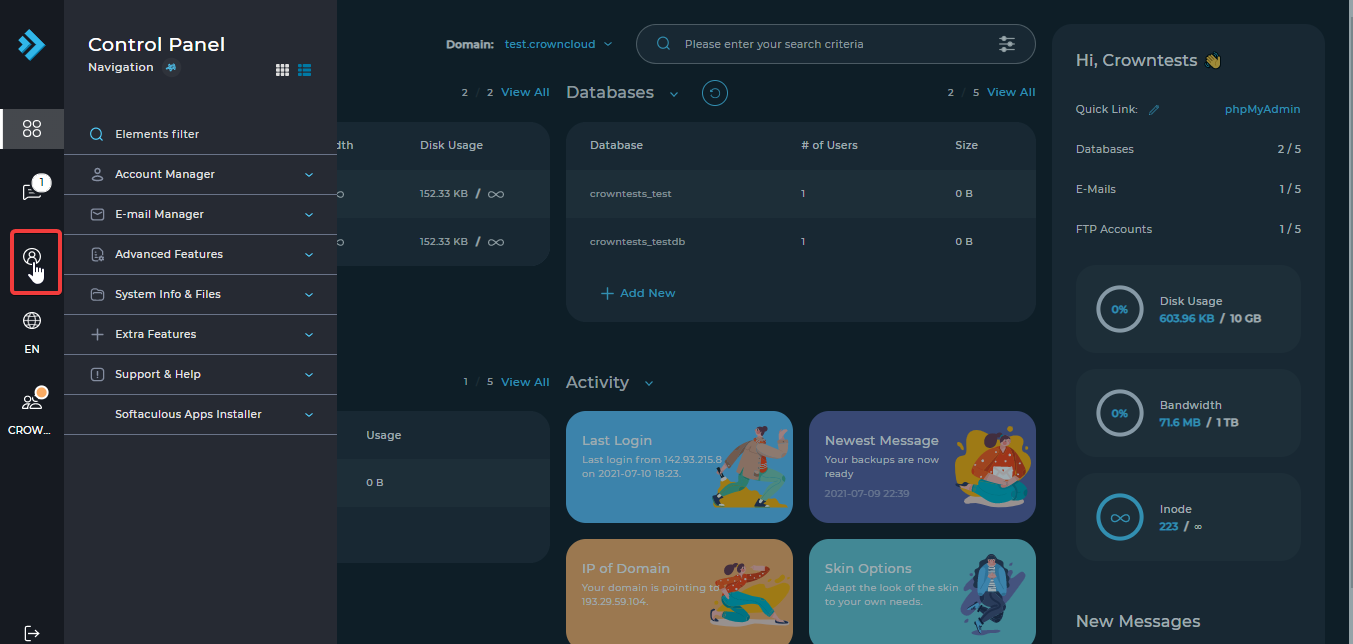
Open the Profile
Select Menu and click on the Profile icon to change your password.
Enter the new password
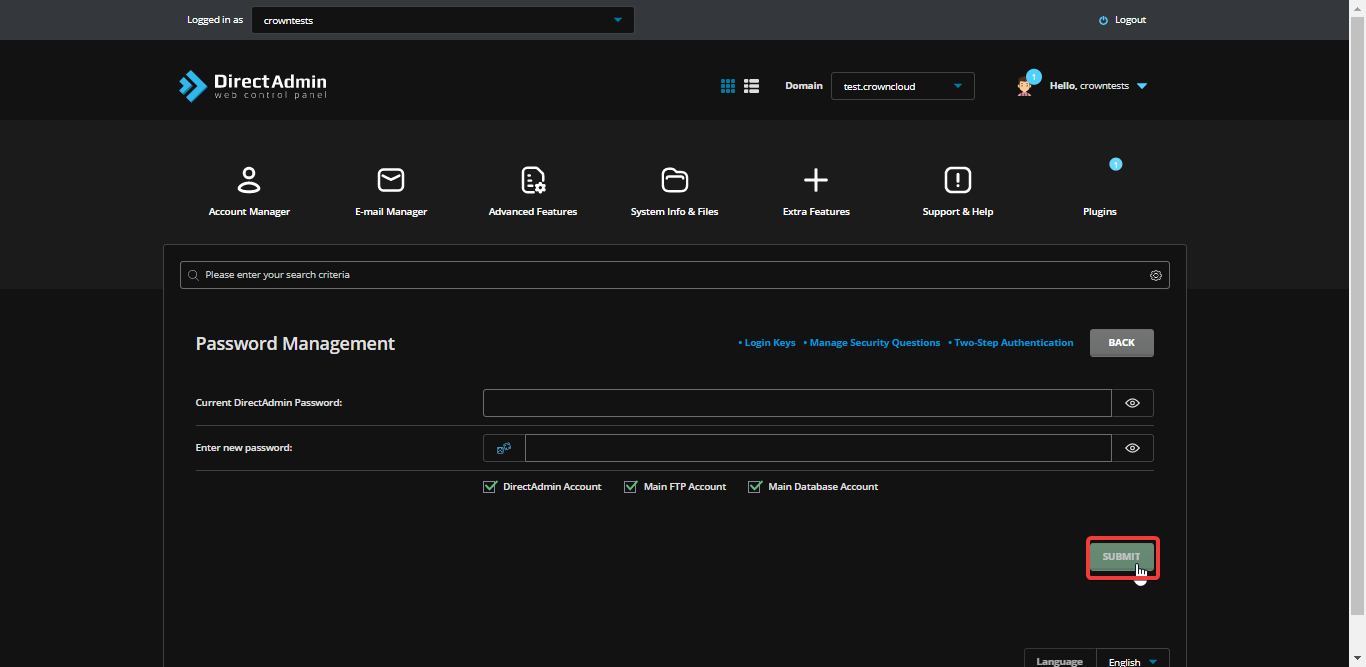
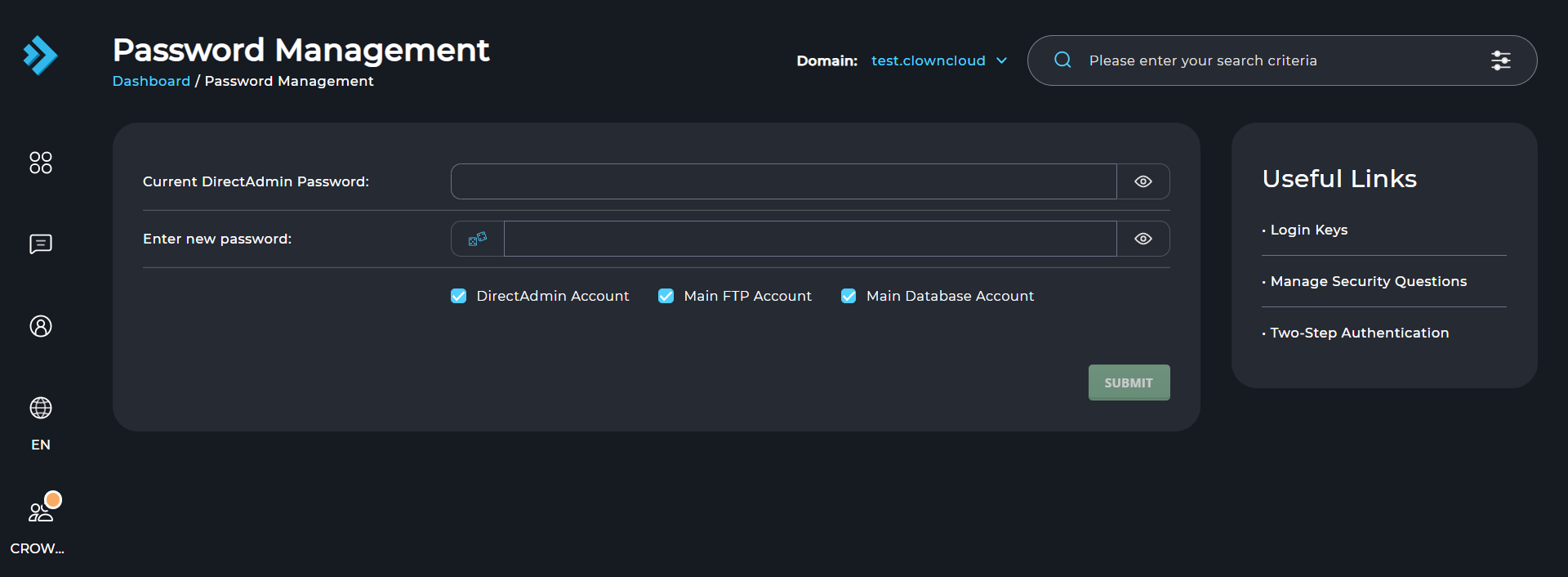
Enter your current password and then your new password. Click Submit, and your password is updated.
You can untick the Main Database Account or Main FTP Account boxes if you do not wish to change the database or FTP account password.
In the Standard Theme
Click here to show the steps
Log in to DirectAdmin
Log in to your DirectAdmin account.
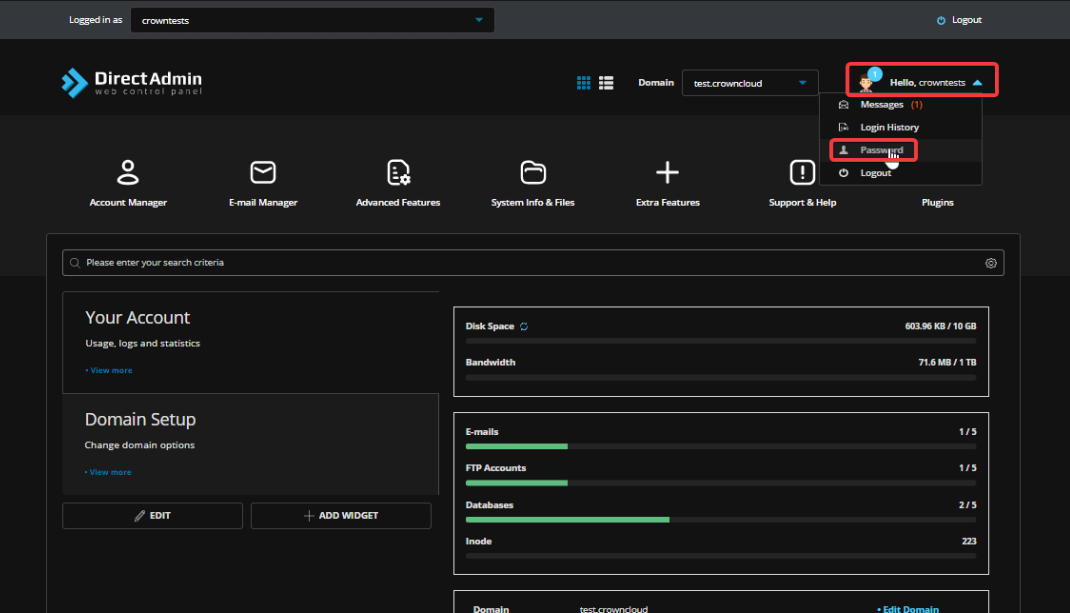
Open the Password page
Navigate to the User Menu in the top-right corner of the panel, open the dropdown and select Password.
Enter the new password
Enter your current password and then your new password. Click Submit, and your password is updated.
You can untick the Main Database Account or Main FTP Account boxes if you do not wish to change the database or FTP account password.