How to Create a User Under a Reseller Account in DirectAdmin
Info
If you are using the Standard theme on DirectAdmin, switch to the Refreshed theme as shown in How to change theme or layout on DirectAdmin.
In the Refreshed Theme
Log in to DirectAdmin
Log in to your DirectAdmin reseller account.
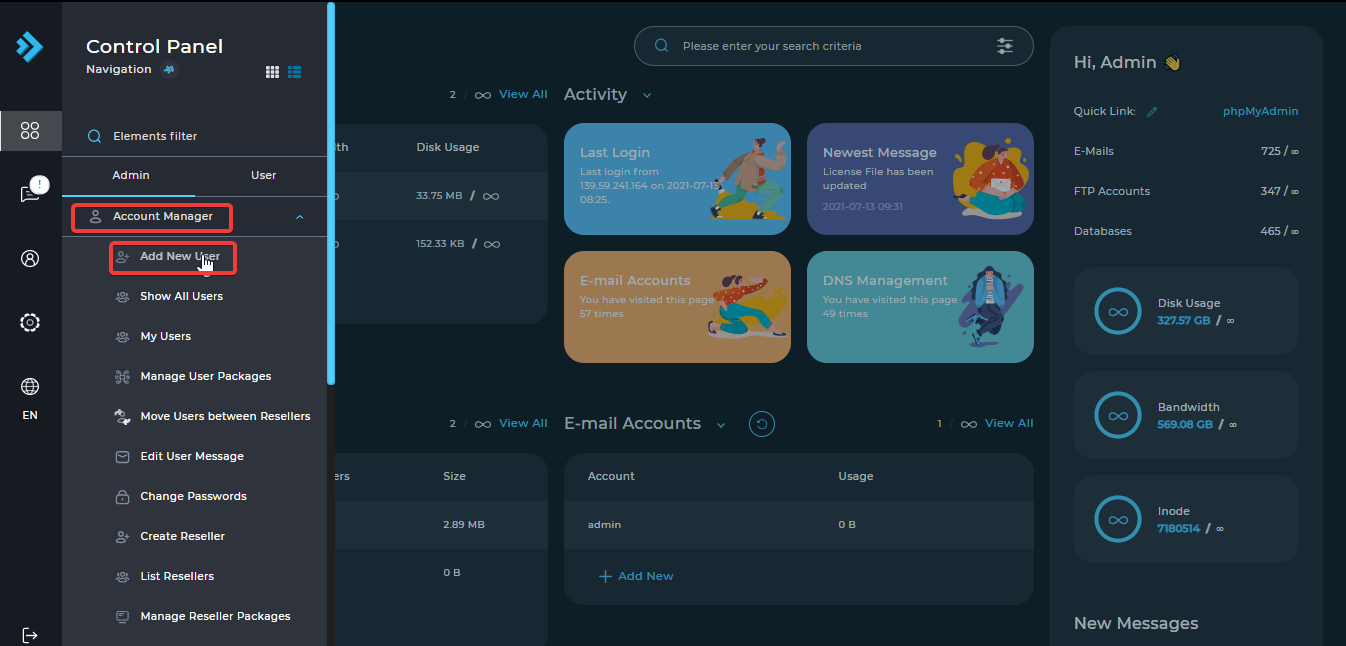
Click Add New User
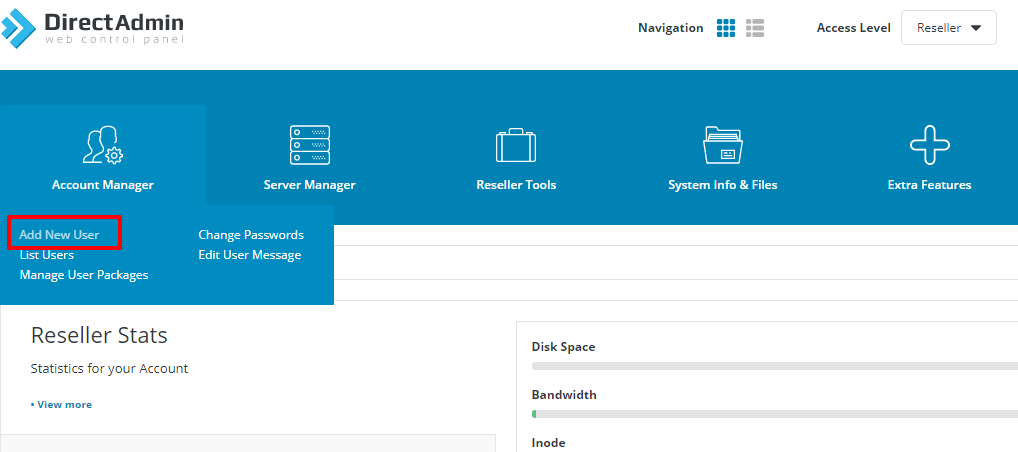
Click on Add New User under Account Manager.
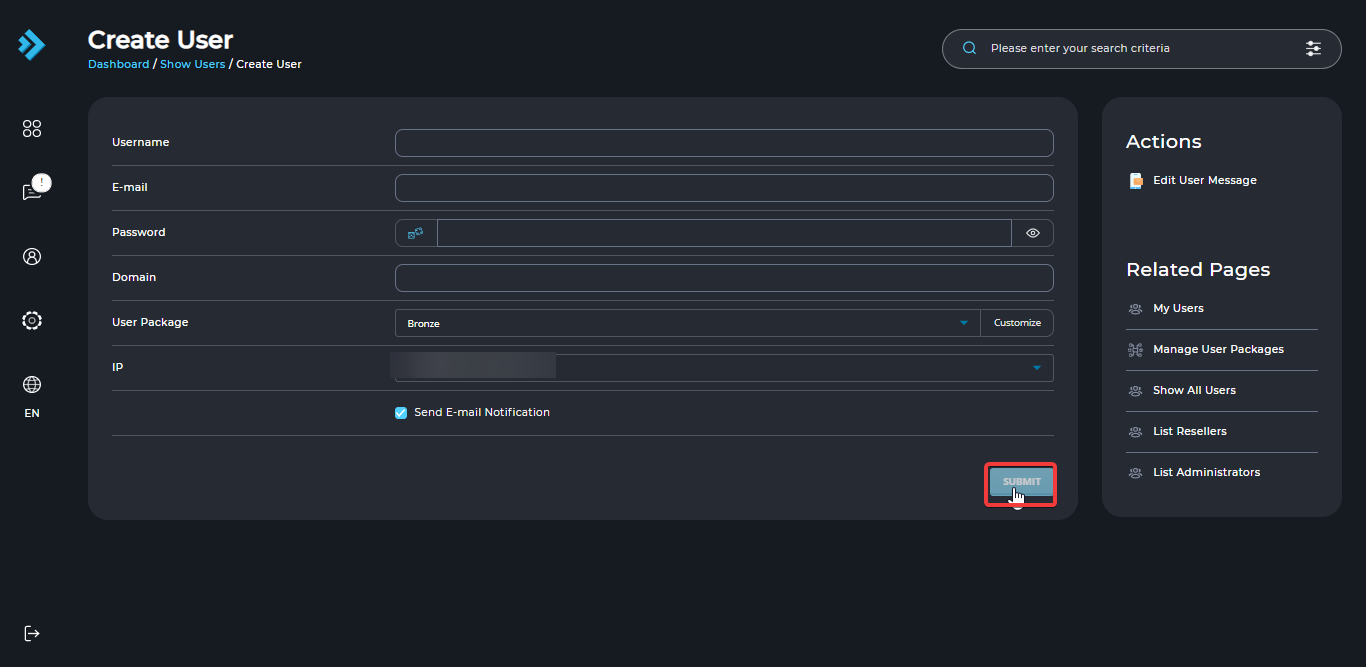
Enter the user details
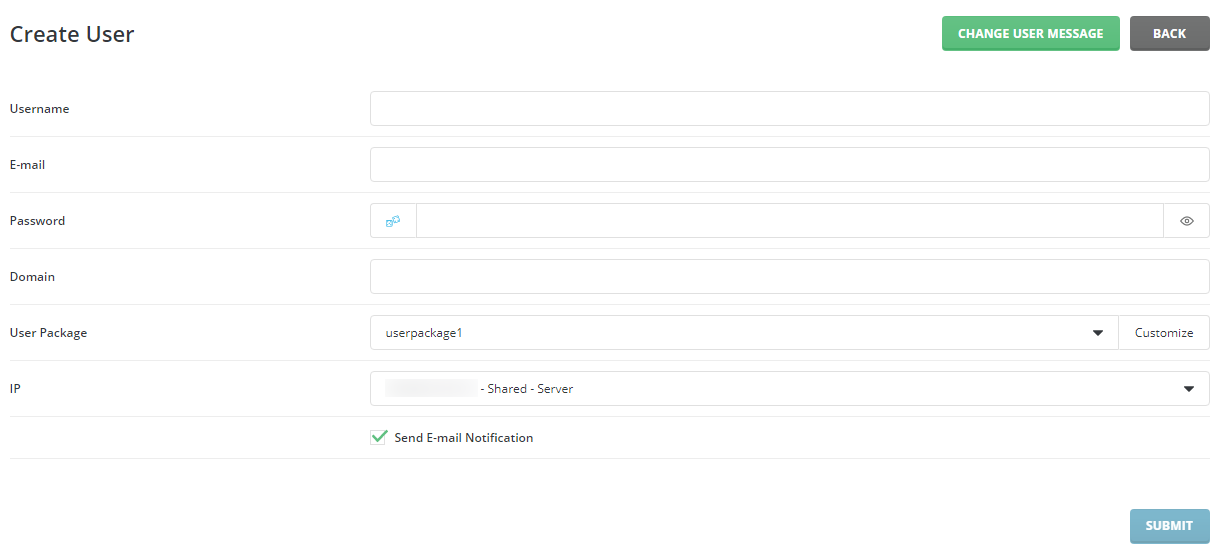
Enter all the information and click the Submit button.
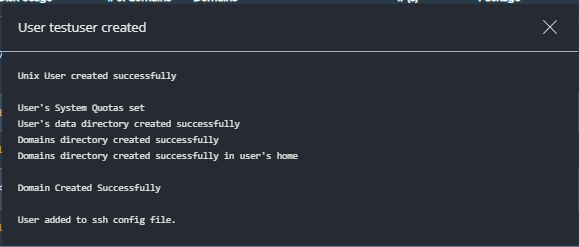
Check the confirmation
After you click Submit, the following window is displayed.
In the Standard Theme
Click here to show the steps
Log in to DirectAdmin
Log in to your DirectAdmin reseller account.
Click Add New User
Click on Add New User under Account Manager.
Enter the user details
Enter all the information and click the Submit button.
Check the confirmation
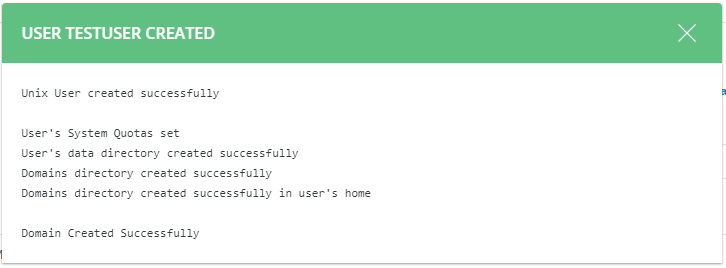
After you click Submit, the following window is displayed.