

How to Manage DNS Records in DirectAdmin
Managing DNS records through DirectAdmin helps ensure your domain resolves to the correct destinations and that services such as websites and email work properly.
Open DNS Management
Log in to DirectAdmin
Log in to your DirectAdmin control panel.
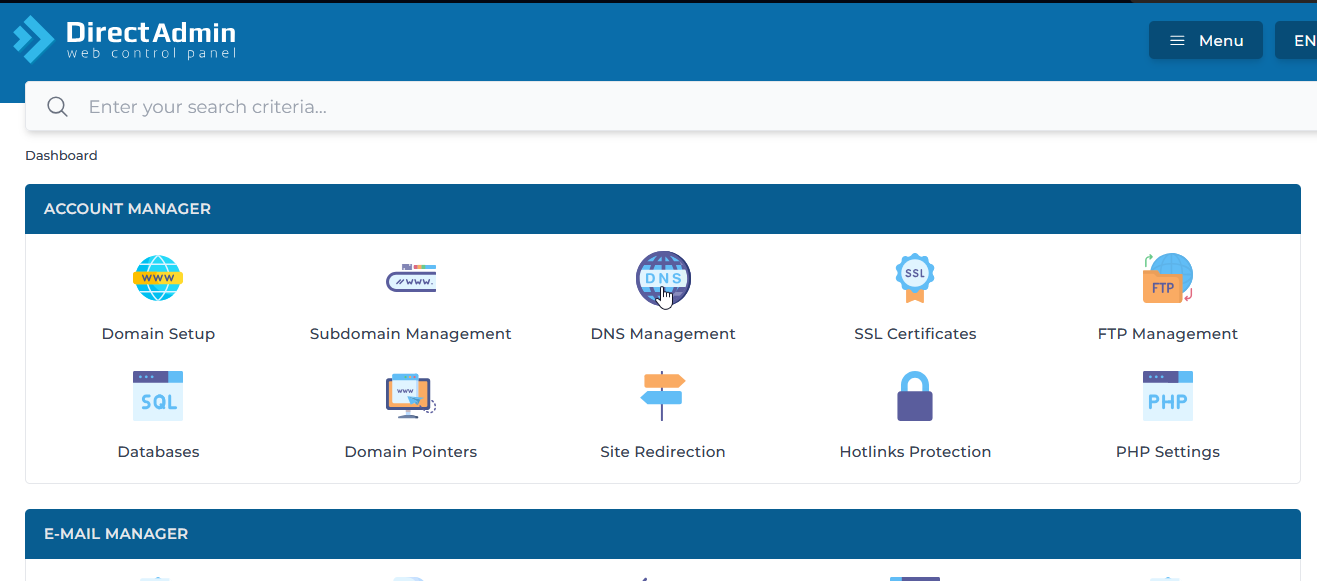
Open DNS Management
Navigate to Account Manager → DNS Management.
Add an A Record
An A record points your domain or subdomain to an IPv4 address.
Open Add Record
In DNS Management, click Add Record.
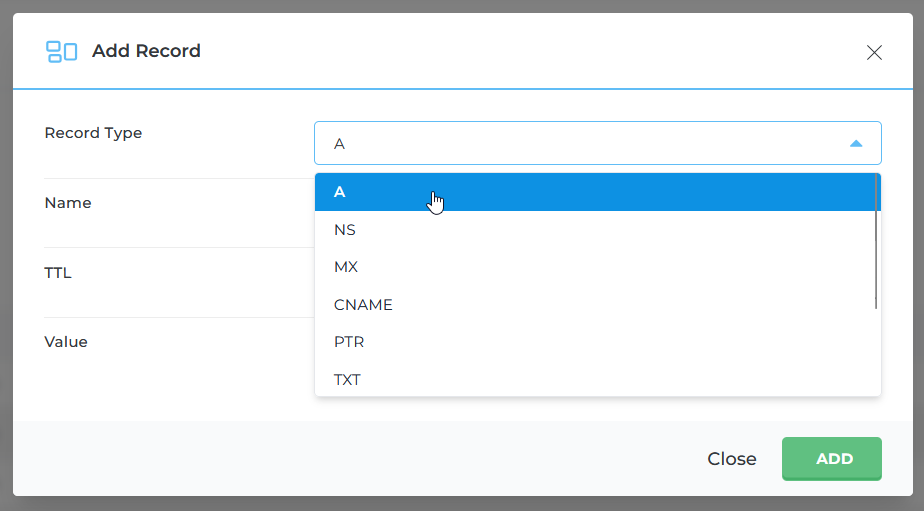
Select A Record
Select A Record from the dropdown.
Enter the domain or subdomain name, such as example.com or sub.example.com, and provide the IP address where it should point.
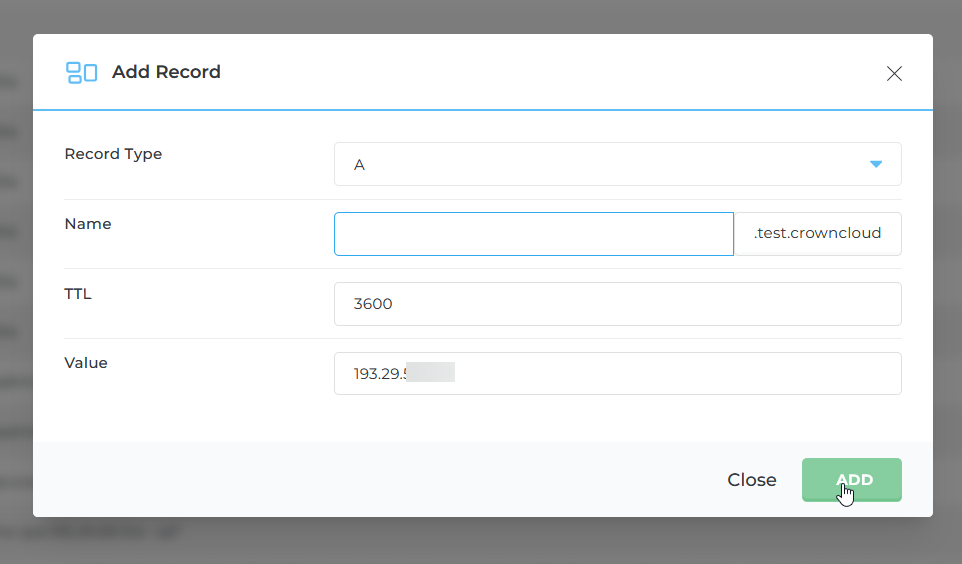
Save the Record
Click Add to save the record.
Add a Nameserver Record
An NS record specifies the nameservers responsible for a domain's DNS records.
Open Add Record
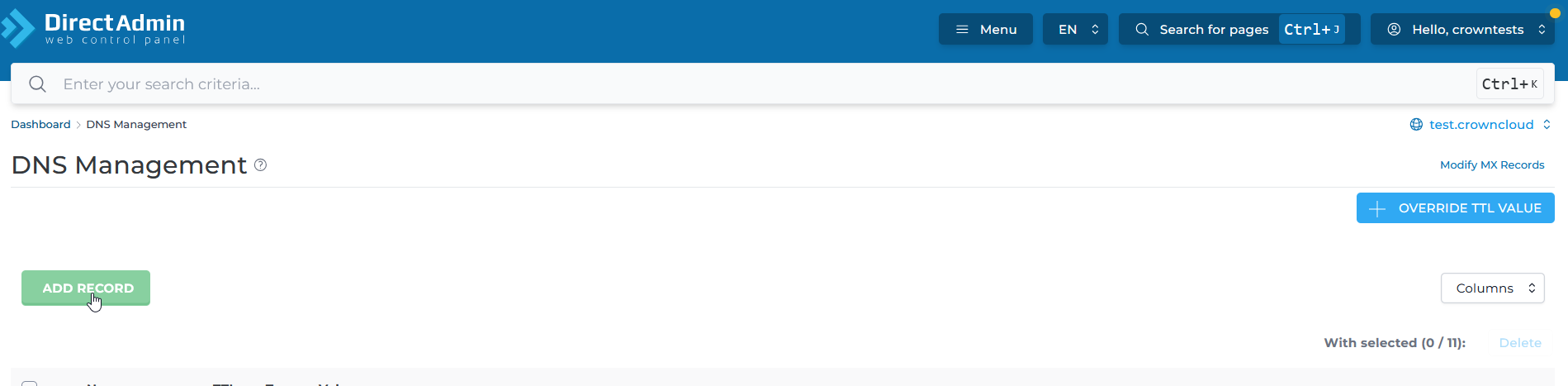
In DNS Management, click Add Record.
Select NS Record
Select NS Record from the dropdown.
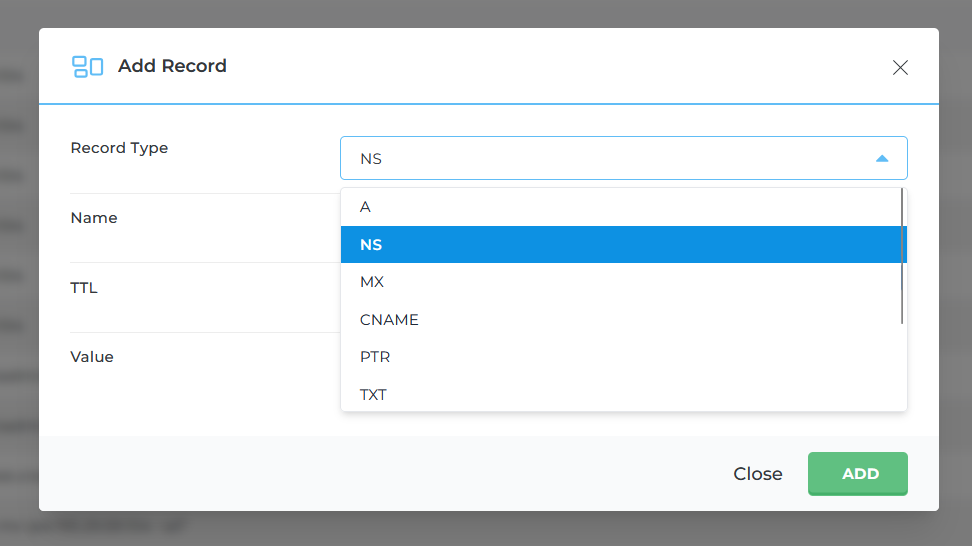
Enter Nameserver Details
Add the required nameserver records, such as:
ns1.example.comns2.example.com
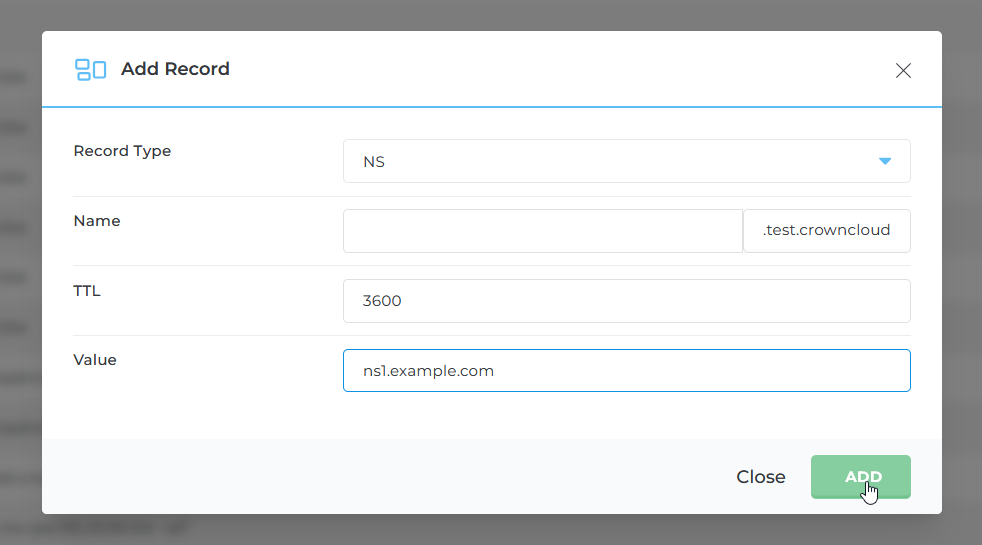
Save the Records
Save the changes after adding the nameserver records.
Add an SPF Record
An SPF (Sender Policy Framework) record helps prevent unauthorized mail servers from sending emails on behalf of your domain.
Open Add Record
In DNS Management, click Add Record.
Select TXT Record
Choose TXT Record as the record type.
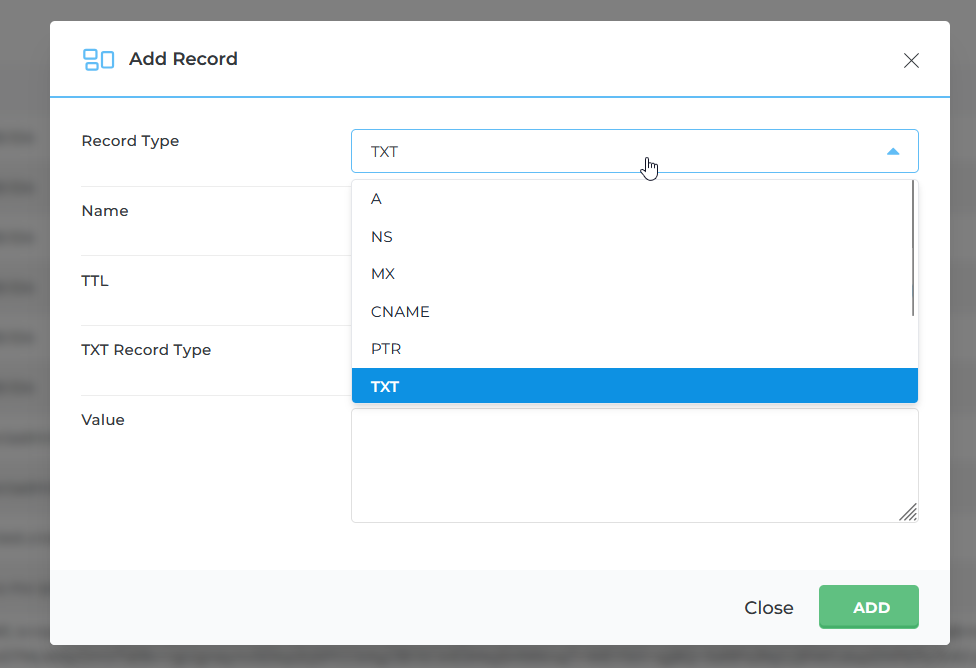
Select SPF Record Type
Choose SPF under TXT Record Type.
Add the IP Address
Enter the IP address that is authorized to send email for your domain.
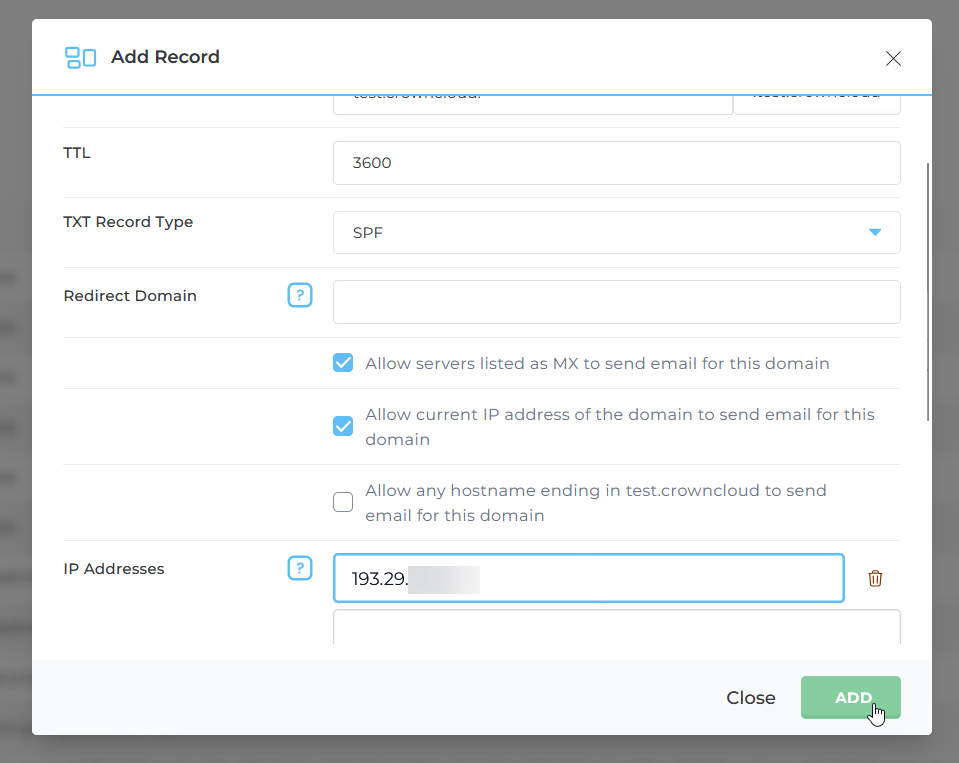
Save the Record
Save the SPF record.
Add an MX Record
An MX (Mail Exchange) record directs incoming email for your domain to the appropriate mail server.
Open Add Record
In DNS Management, click Add Record.
Select MX Record
Choose MX Record as the record type.
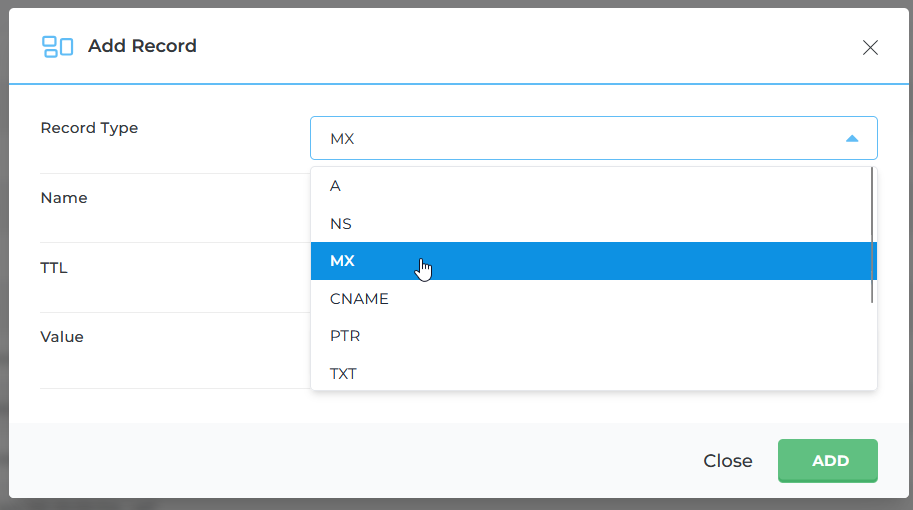
Enter Mail Server Details
Enter the mail server hostname, such as mail.example.com, and assign a Priority value. Lower numbers indicate higher priority.
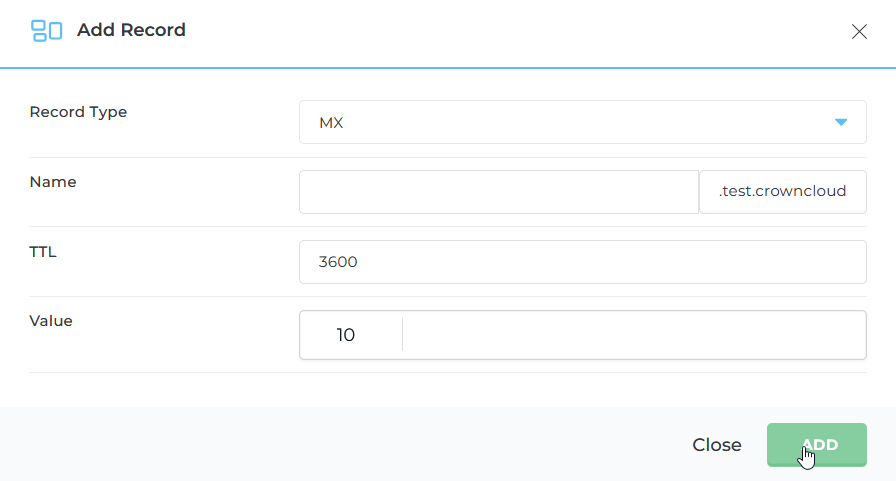
Save the Record
Click Add to save the record.
Confirm DNS Changes
Once all required records have been added, click Save to confirm the changes.