

How to Check Email Account Disk Usage in DirectAdmin
Every mailbox on a DirectAdmin server consumes disk space from the hosting package. Checking usage regularly shows which mailboxes are close to their quota, which ones are consuming space they do not need, and where the account disk space is actually going.
A mailbox that reaches its quota stops accepting new mail, so monitoring usage is the simplest way to avoid unexpected bounces.
This guide covers checking the disk usage of email accounts from the User level of DirectAdmin.
DirectAdmin offers two interface themes: the Standard theme (the traditional interface) and the Refreshed theme (a newer, more modern interface). Steps for both are below. To switch themes, see How to Change Theme or Layout in DirectAdmin.
Requirements
- A DirectAdmin User account, or a Reseller or Admin account switched into the User level.
- At least one email account created on the domain.
- SSH access to the server, only if you want to verify usage on disk. This is optional and not required for the panel steps.
In the Refreshed Theme
Log in to DirectAdmin
Log in to the DirectAdmin panel.
Open E-Mail Accounts
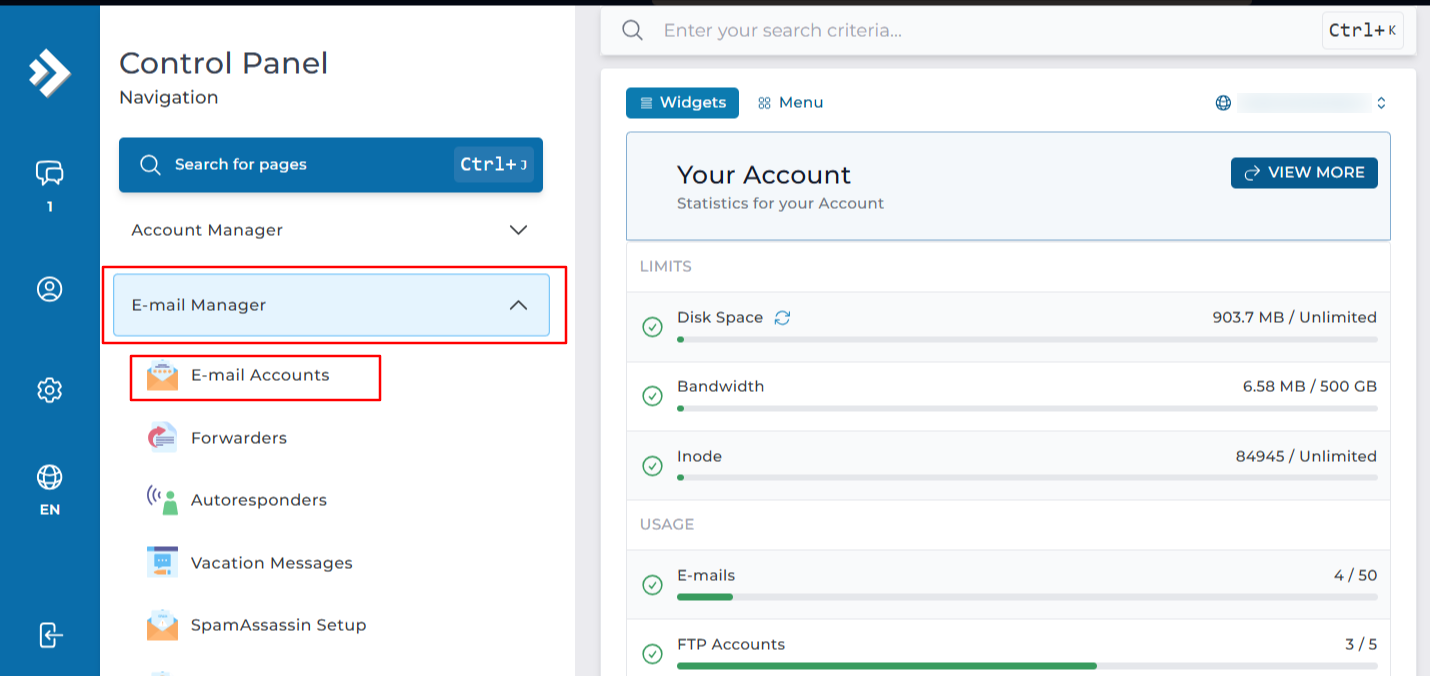
Click on E-Mail Accounts under E-Mail Manager. You can also type E-Mail Accounts in the navigation filter box to jump straight to the page.
Select the domain
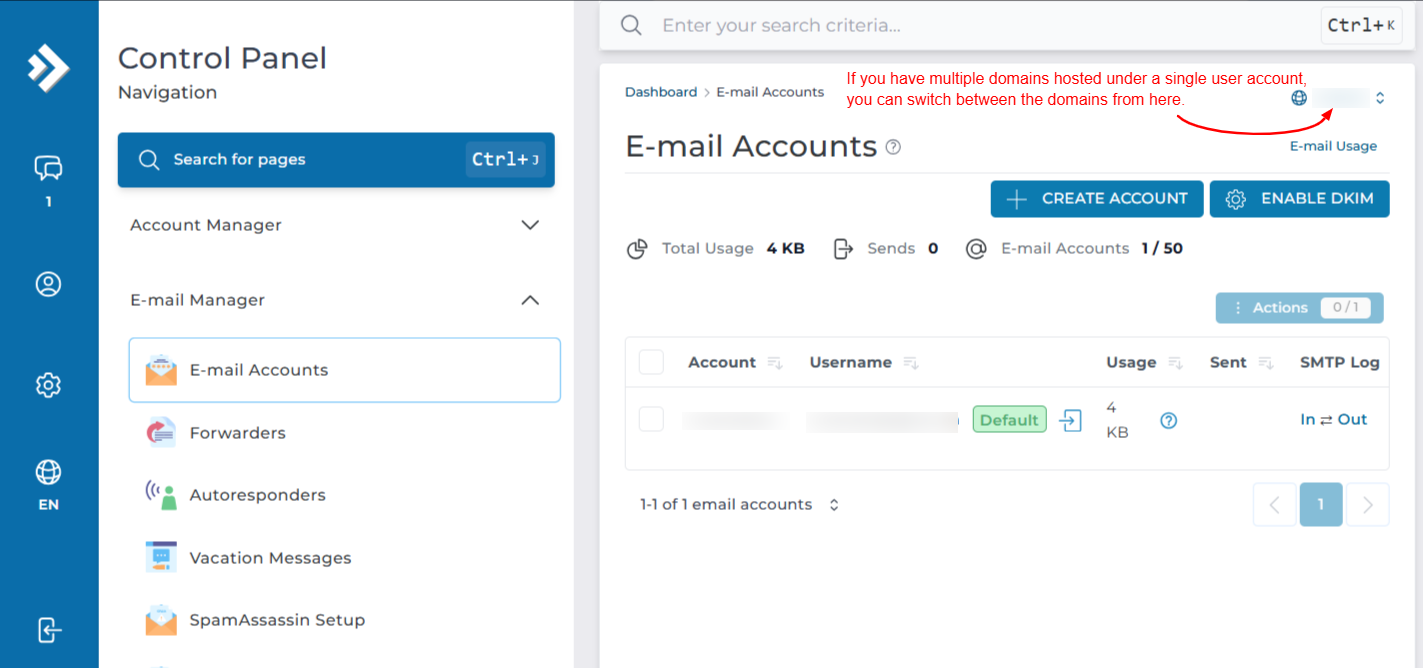
If your account holds more than one domain, check the domain shown at the top of the page and switch it if needed. The list only shows mailboxes belonging to the selected domain.
Read the Usage column
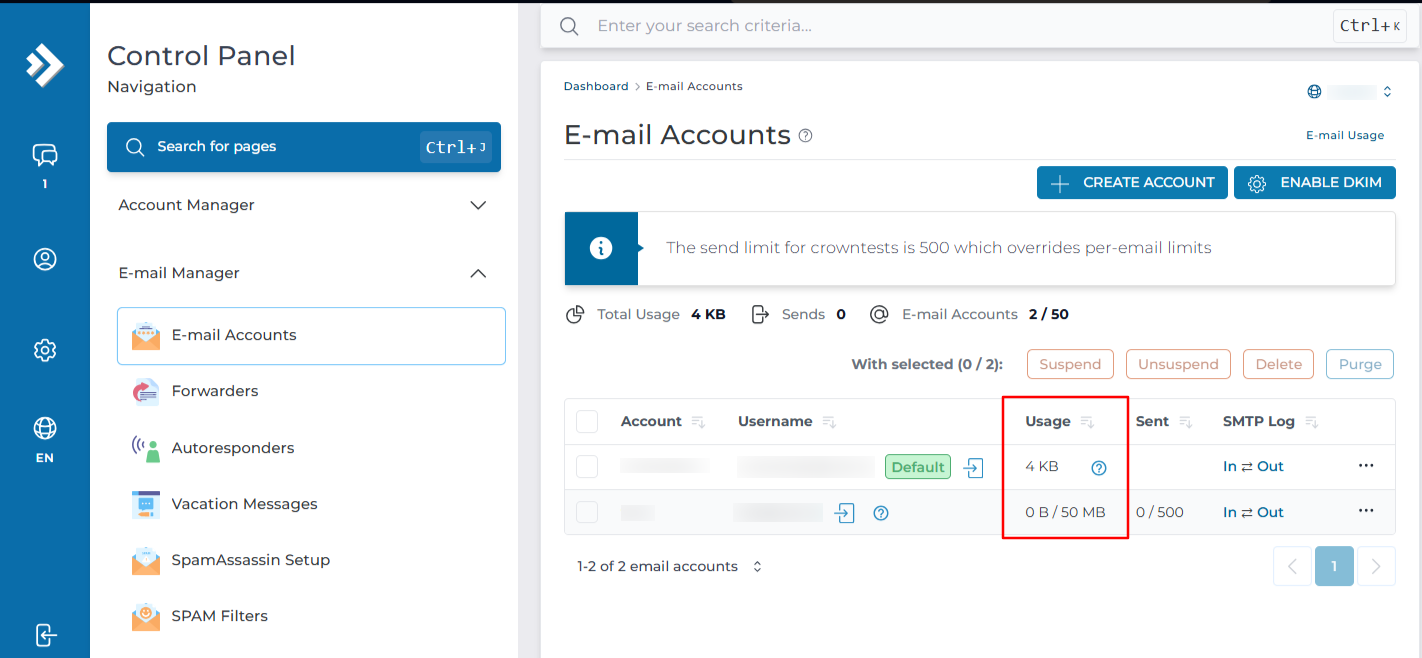
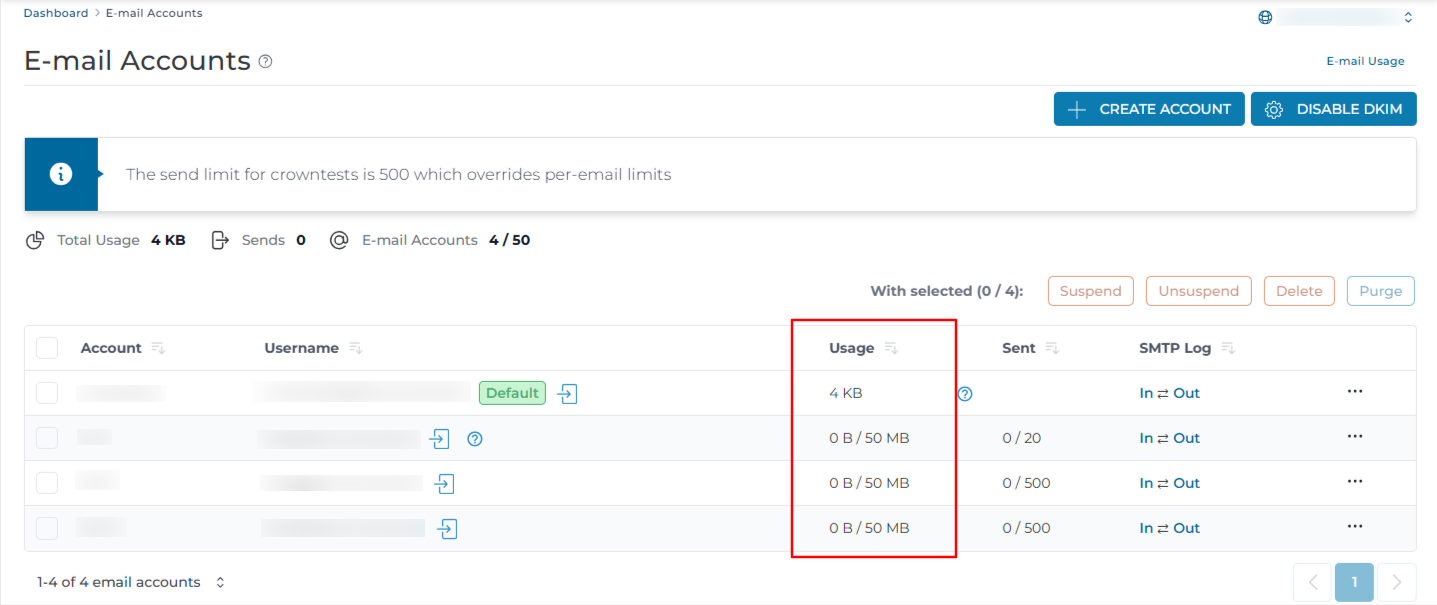
Look at the Usage column against each mailbox. It shows the space used and the quota assigned, along with a percentage or progress indicator.
Click the column heading to sort the list by usage. This puts the largest mailboxes at the top and is the quickest way to find what is consuming the account disk space.
Check the whole account usage
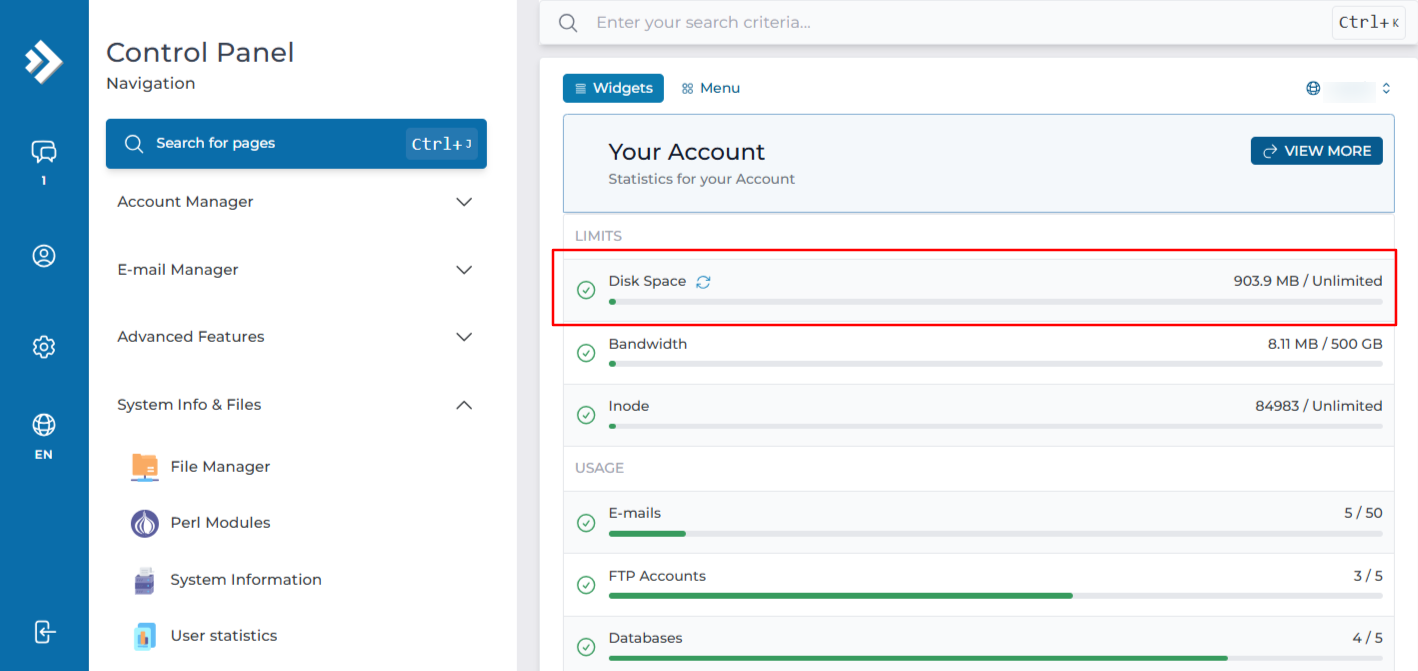
For the disk usage of the whole hosting account, including mail, go to the main dashboard and check the Disk Usage figure in the account statistics.
In the Standard Theme
Click here to show the steps
Log in to DirectAdmin
Log in to the DirectAdmin panel.
Open E-Mail Accounts
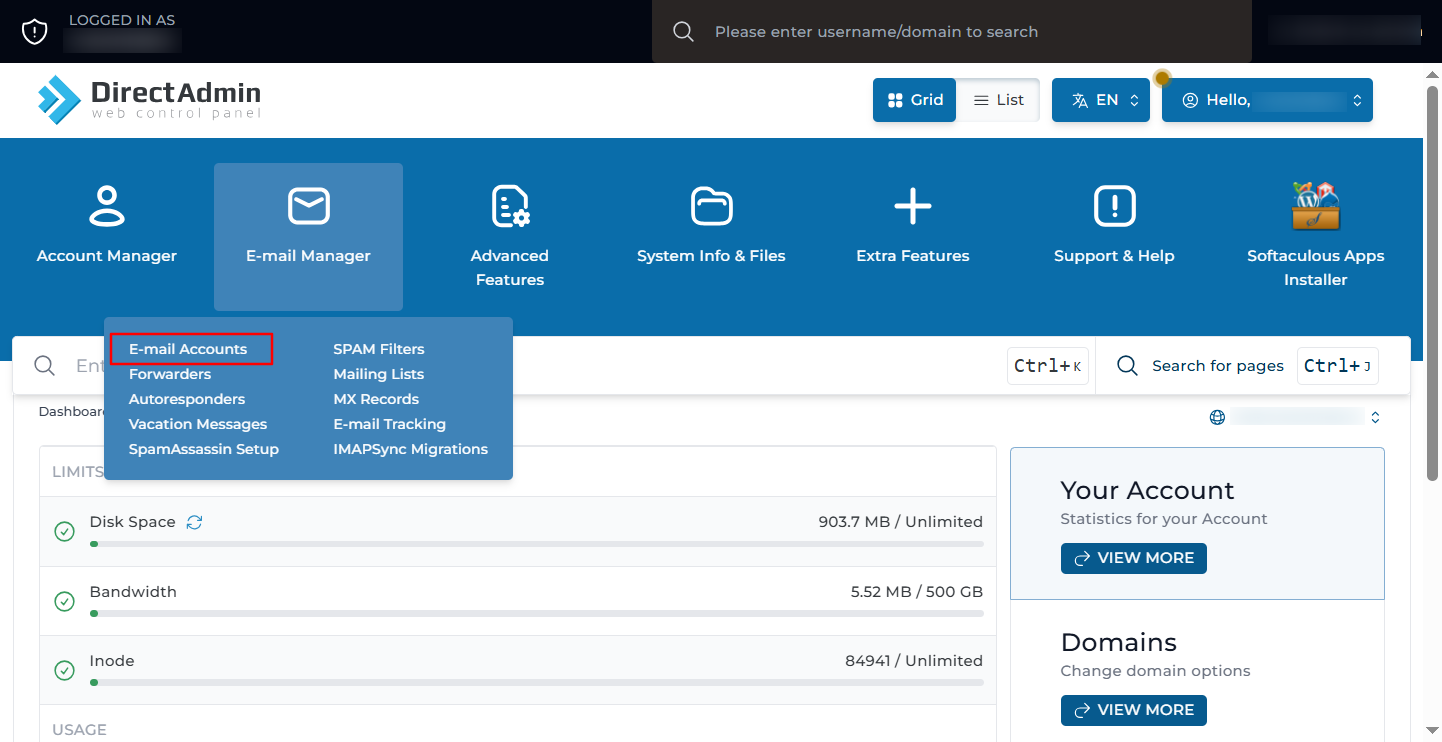
On the dashboard, go to E-Mail Manager and click E-Mail Accounts.
Select the domain
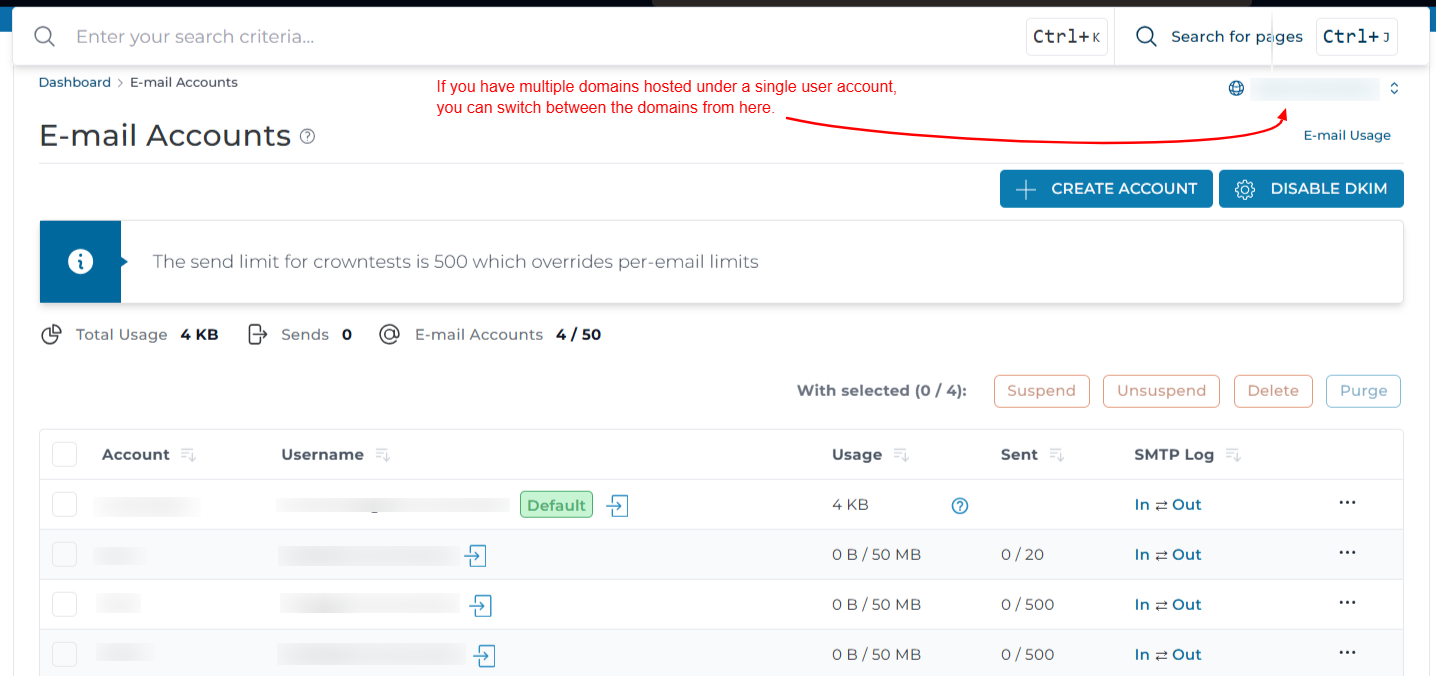
The account list shows the current usage and the assigned quota for every mailbox on the domain.
If you have multiple domains hosted under the same user account, the page opens with the main domain selected by default. Change the domain from the selector at the top of the page to see mailboxes on another domain.
Read the Usage column
Read the Usage column. It shows the space consumed against the limit, for example 412 / 2048 MB. Accounts close to their quota should be cleared or given a larger limit.
Check the whole account usage
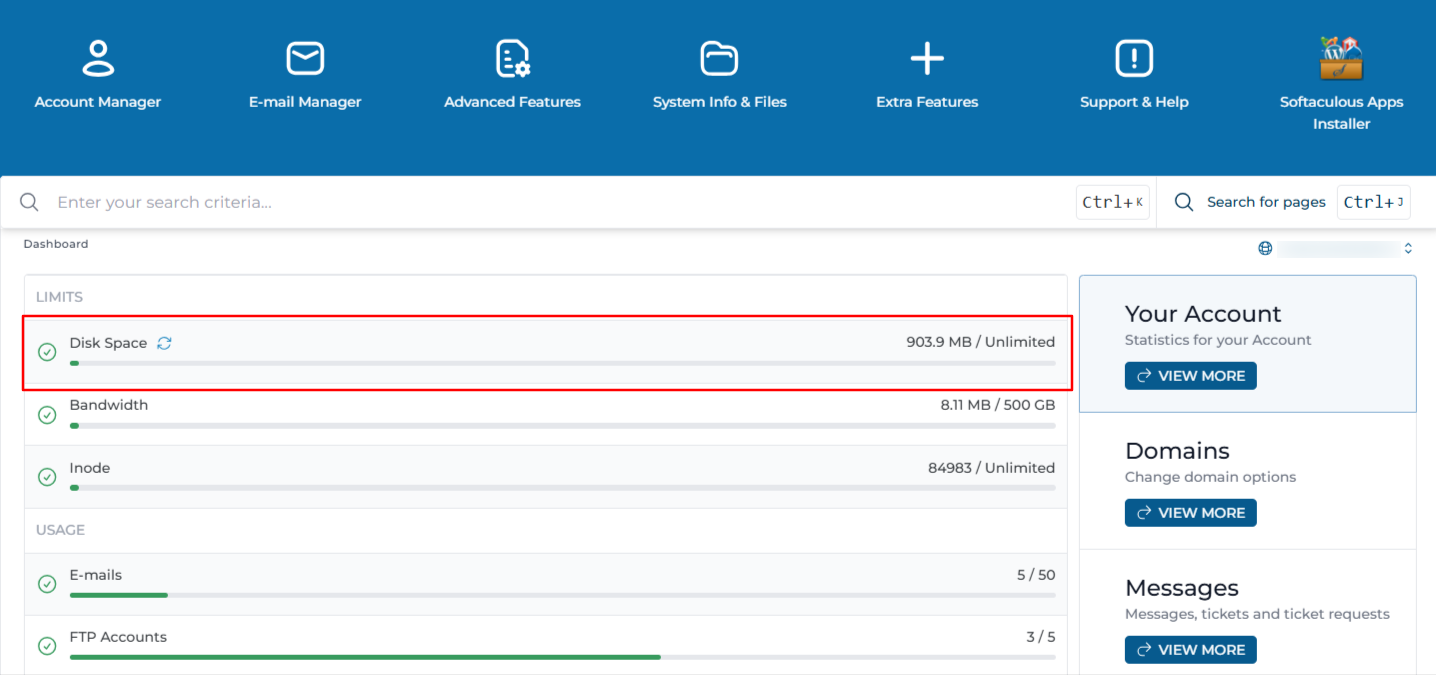
For the disk usage of the whole hosting account, including mail, go to the main dashboard and check the Disk Usage figure in the account statistics.
Checking Usage Over SSH
If you have shell access to the server, these commands confirm exactly what is stored on disk. Replace USERNAME with the DirectAdmin username, YOUR_DOMAIN with the domain, and MAILBOX with the mailbox name.
Show the size of a single mailbox:
Show the size of every mailbox on a domain, smallest first:
Show total mail storage for the whole account across all domains:
Show the quota Dovecot is enforcing and the current value it has recorded:
List the largest folders inside a single mailbox, which usually identifies the Trash or Junk folder as the cause:
Count the messages in a mailbox, useful when the mailbox is near an inode limit rather than a size limit:
Understanding the Figures
- Usage is the mail currently stored on the server for that address, including every IMAP folder, not just the Inbox.
- Quota is the limit set on the mailbox. Unlimited means no per-mailbox ceiling, but the hosting package disk limit still applies.
- Mail left on the server by an IMAP client counts towards usage. Mail downloaded and removed by a POP3 client does not.
- Trash, Junk, Sent, and Archive folders all count. A mailbox reporting high usage with an empty-looking Inbox usually has a large Sent or Trash folder.
- The panel figure may lag slightly behind the real size on disk, because it is cached and refreshed periodically.
Reducing Mailbox Usage
If a mailbox is close to its quota, work through these in order:
- Empty the Trash and Junk folders in webmail. Emptying Trash in most clients only marks messages for deletion, so use Empty or Purge to remove them fully.
- Delete or archive old messages with large attachments. Sorting by size in webmail finds these quickly.
- Clear the Sent folder if outgoing mail with attachments has accumulated there.
- Move mail that must be kept into a local archive on the workstation using the mail client.
- Raise the quota if the mailbox genuinely needs more space and the package has room.
Troubleshooting
Important Notes
- Mailbox storage counts towards the total disk quota of the hosting package, alongside website files, databases, and logs.
- Usage figures shown in the panel are cached and may be a few minutes behind actual disk usage.
- A mailbox at its quota rejects new mail and the sender receives a bounce. Mail is not lost silently, but it is not delivered either.
- Checking usage does not change anything on the server, so it is safe to do at any time.
- Setting all mailboxes to unlimited does not add disk space. It only removes the per-mailbox limit and makes it easier for one mailbox to fill the whole account.
Conclusion
You can now check disk usage for individual mailboxes and for the hosting account as a whole, both from the DirectAdmin interface and over SSH. Reviewing the Usage column regularly lets you clear or resize mailboxes before they reach their quota and start rejecting mail.