

How to Change an Email Account Password in DirectAdmin
An email account password can be reset at any time from the DirectAdmin User level. This is needed when a password is forgotten, when a member of staff leaves, or when a mailbox has been compromised and is being used to send spam.
The password applies to IMAP, POP3, SMTP, and webmail together, so a single change affects every way the mailbox is accessed.
This guide covers changing the password of an existing email account from the User level of DirectAdmin.
DirectAdmin offers two interface themes: the Standard theme (the traditional interface) and the Refreshed theme (a newer, more modern interface). Steps for both are below. To switch themes, see How to Change Theme or Layout in DirectAdmin.
Requirements
- A DirectAdmin User account, or a Reseller or Admin account switched into the User level.
- An email account that already exists on the domain.
- The new password, prepared in advance. DirectAdmin does not display the old password at any point.
- A list of the devices and applications using the mailbox, since each one has to be updated after the change.
In the Refreshed Theme
Log in to DirectAdmin
Log in to the DirectAdmin panel.
Open E-Mail Accounts
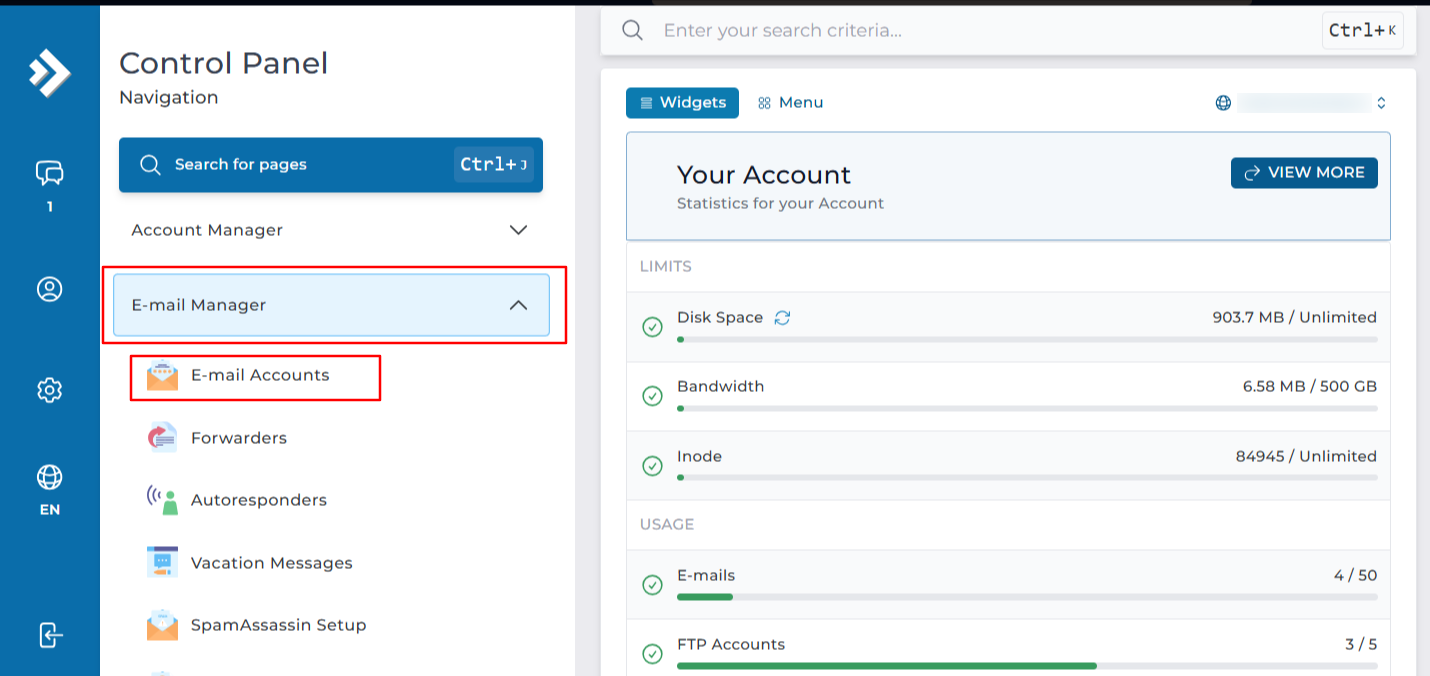
Click on E-Mail Accounts under E-Mail Manager. You can also type E-Mail Accounts in the navigation filter box to jump straight to the page.
Select the domain
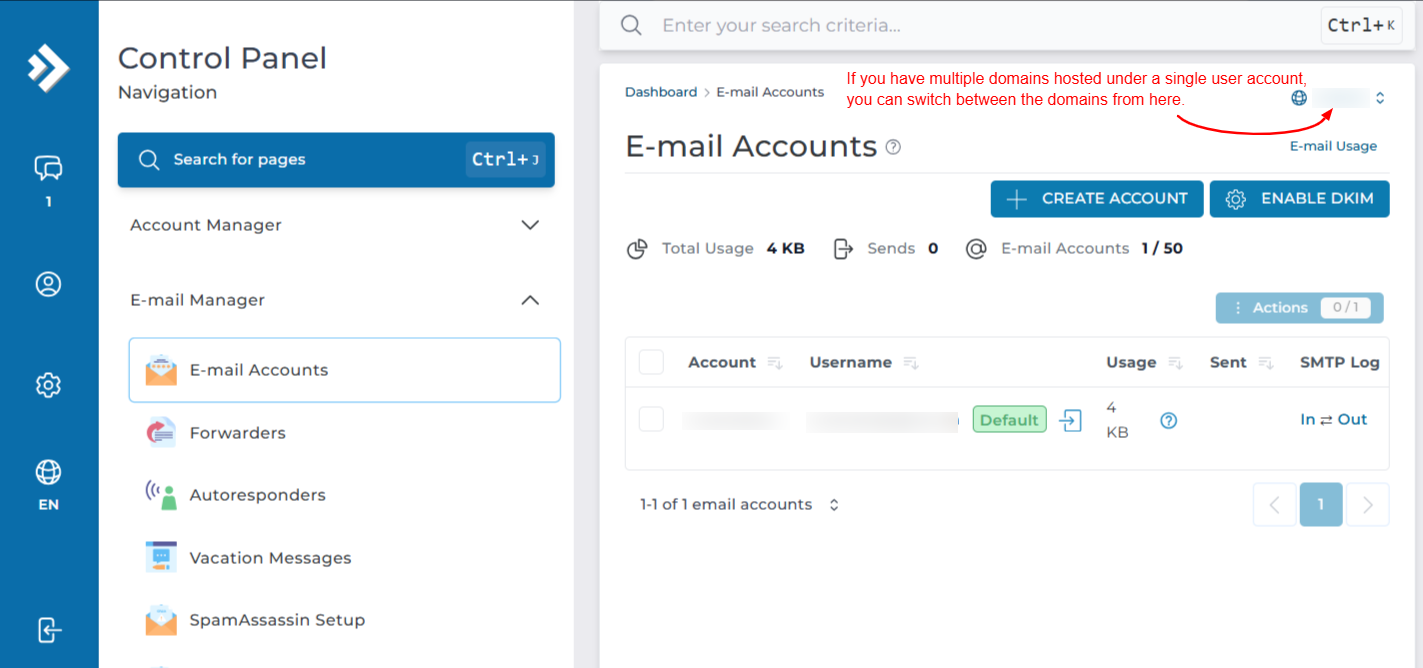
If your account holds more than one domain, check the domain shown at the top of the page and switch it if needed. The list only shows mailboxes belonging to the selected domain.
Open Change Password
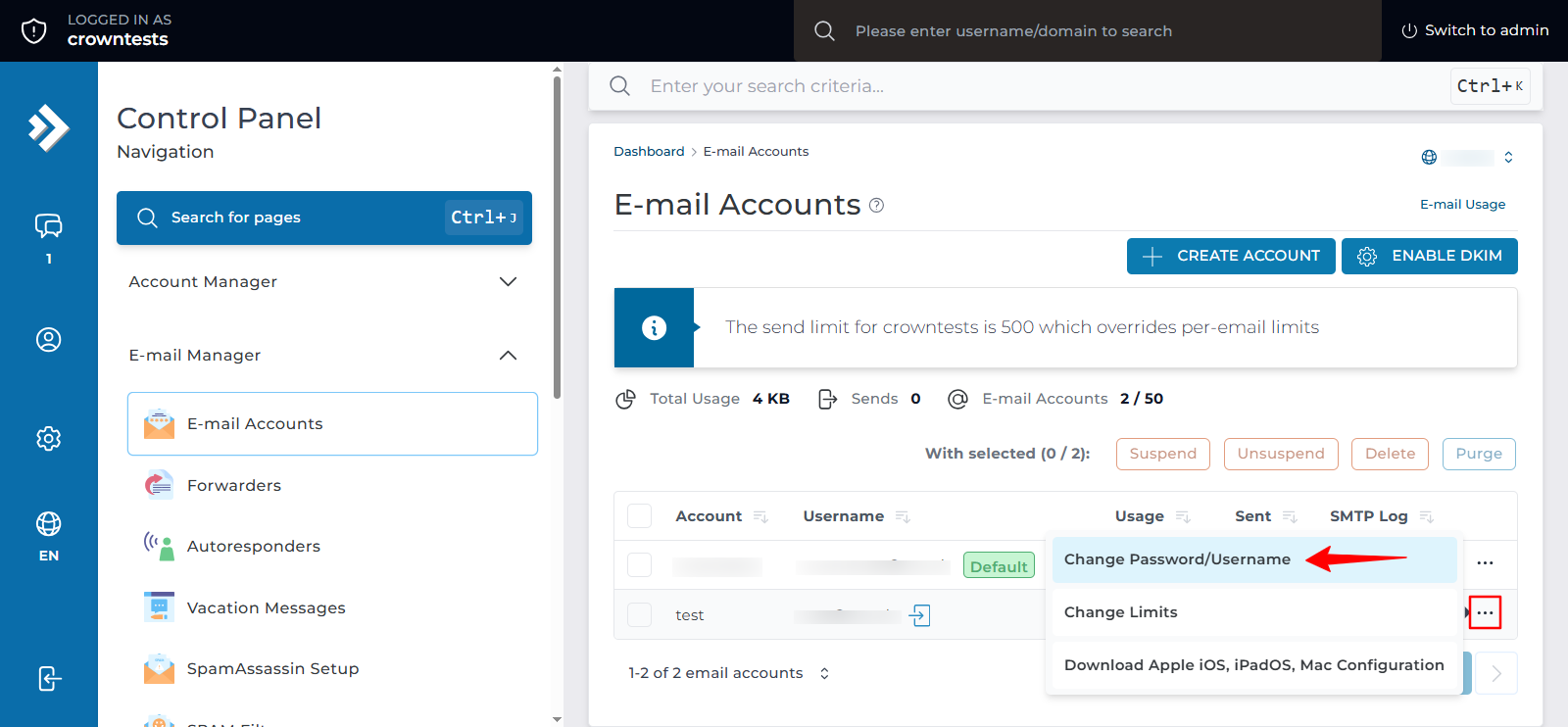
Find the email account in the list, click the ... icon on the right side of the row to expand its options, and click Change Password.
Enter the new password
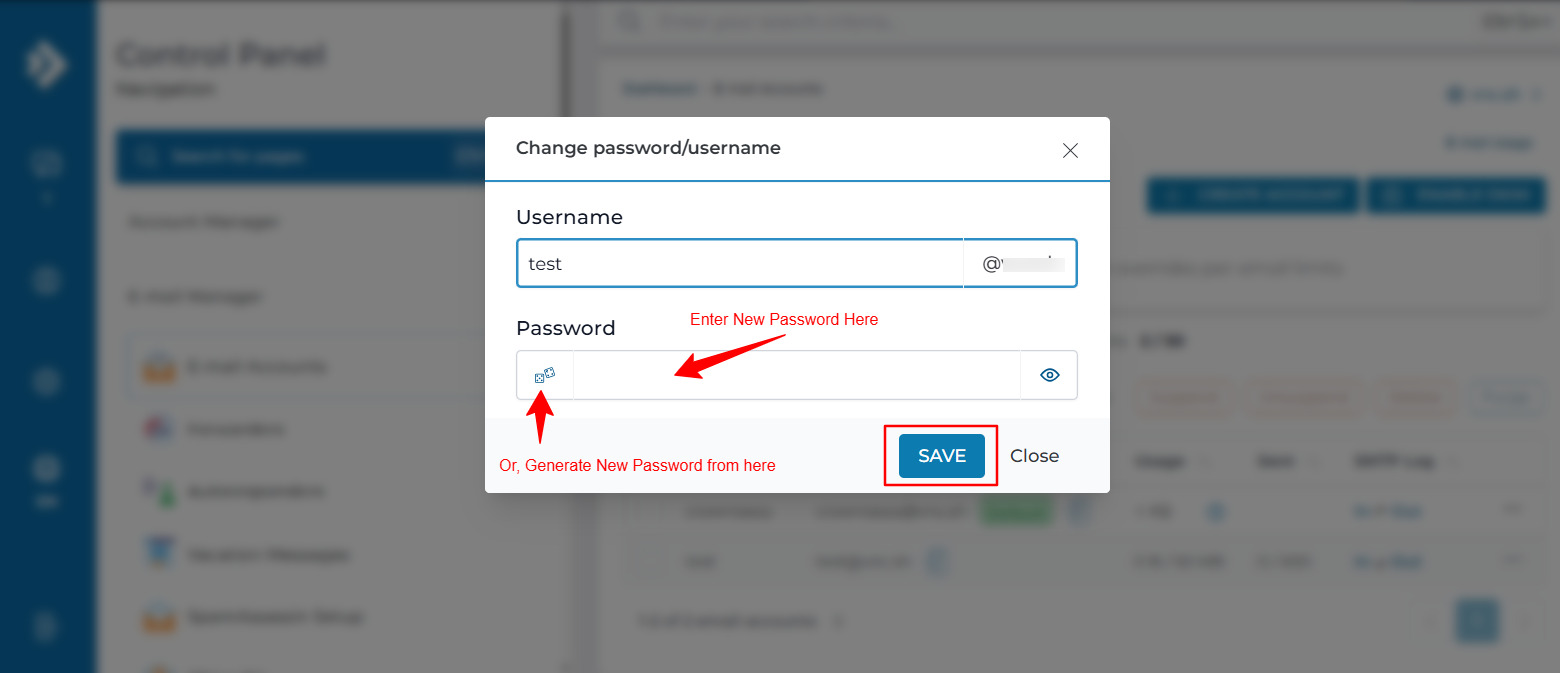
Verify the username and enter a new password in the Password fields. You can use the Random button to generate a strong password. Then click Save.
Copy the new password
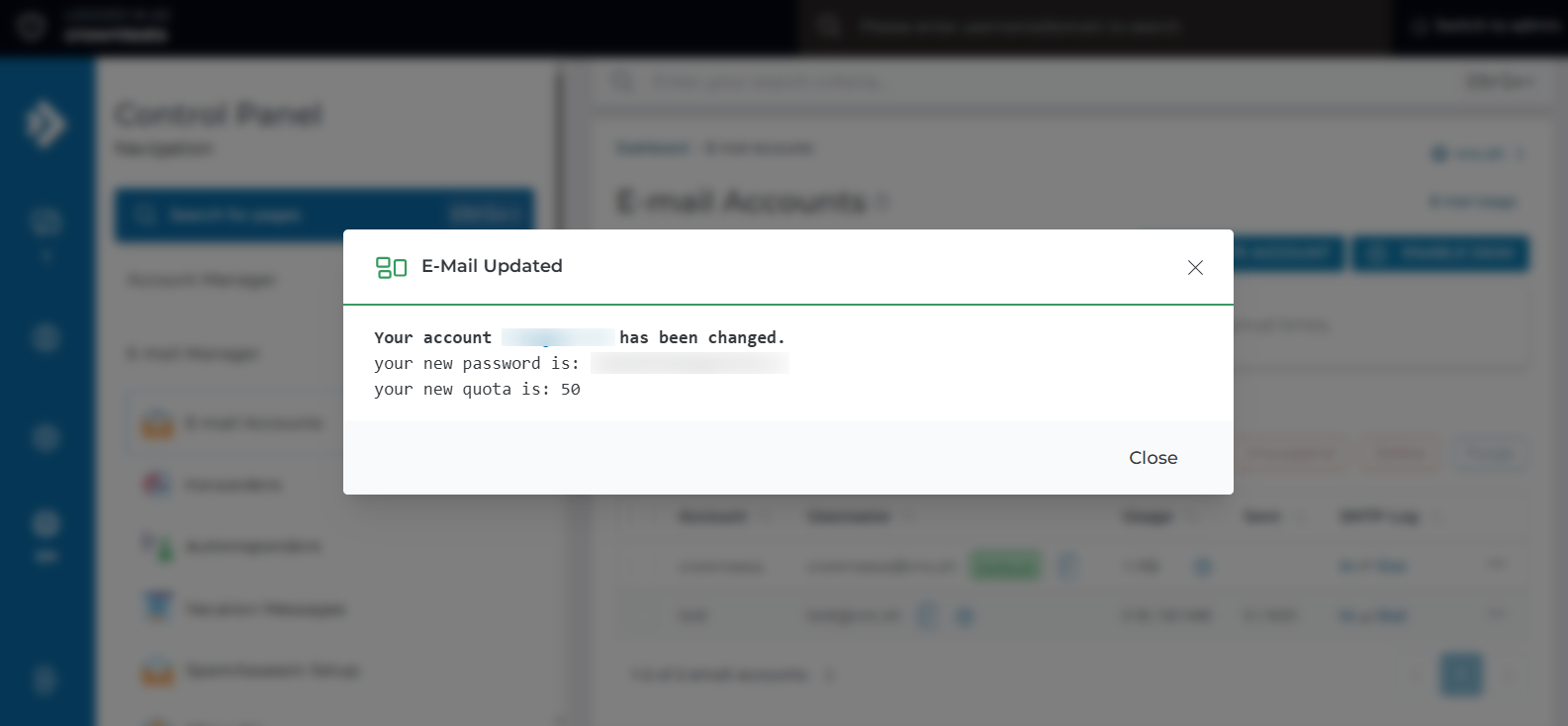
After you click Save, the new password takes effect immediately. The updated password is displayed in a pop-up dialog box only once.
If you need to keep the password, copy the details or take a screenshot and store them in a secure location. Once you close the dialog box, the password will not be displayed again.
In the Standard Theme
Click here to show the steps
Log in to DirectAdmin
Log in to the DirectAdmin panel.
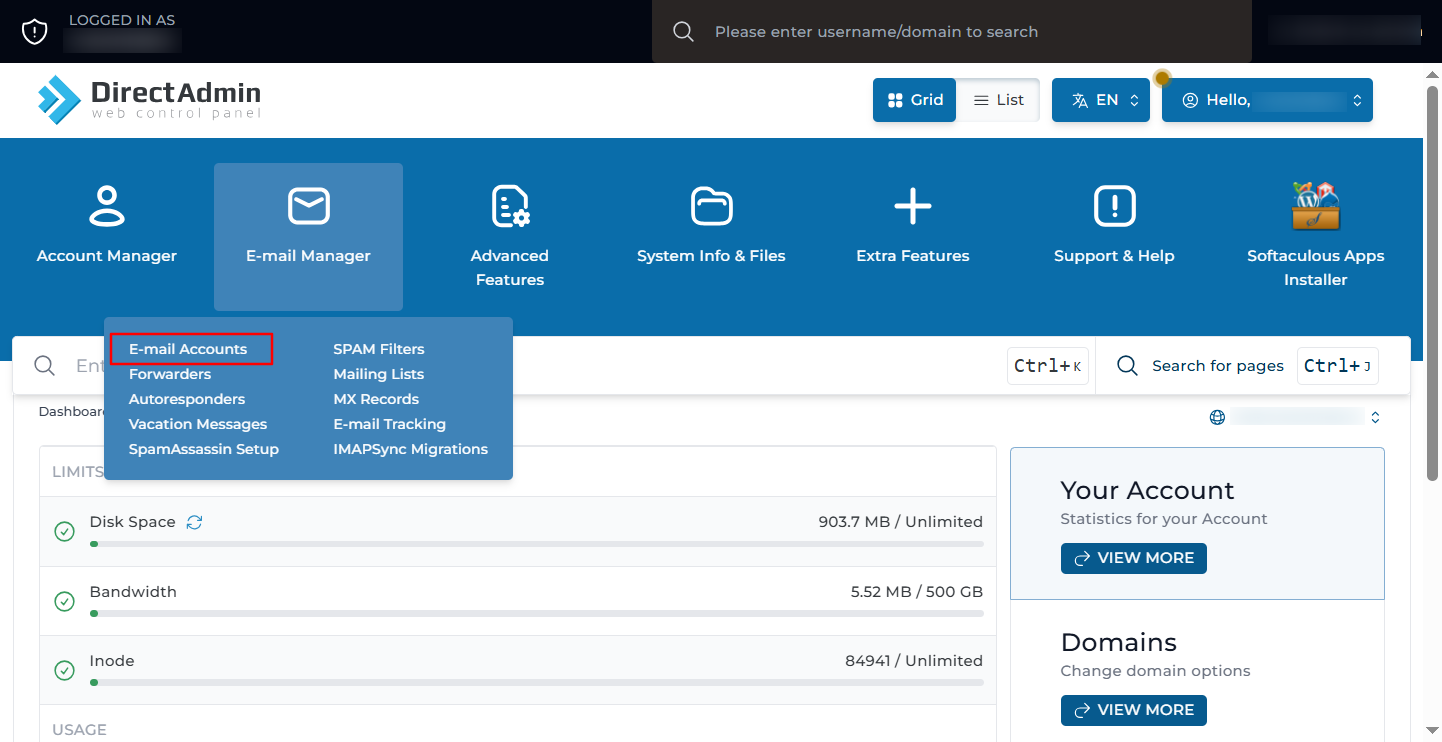
Open E-Mail Accounts
On the dashboard, go to E-Mail Manager and click E-Mail Accounts.
Find the account
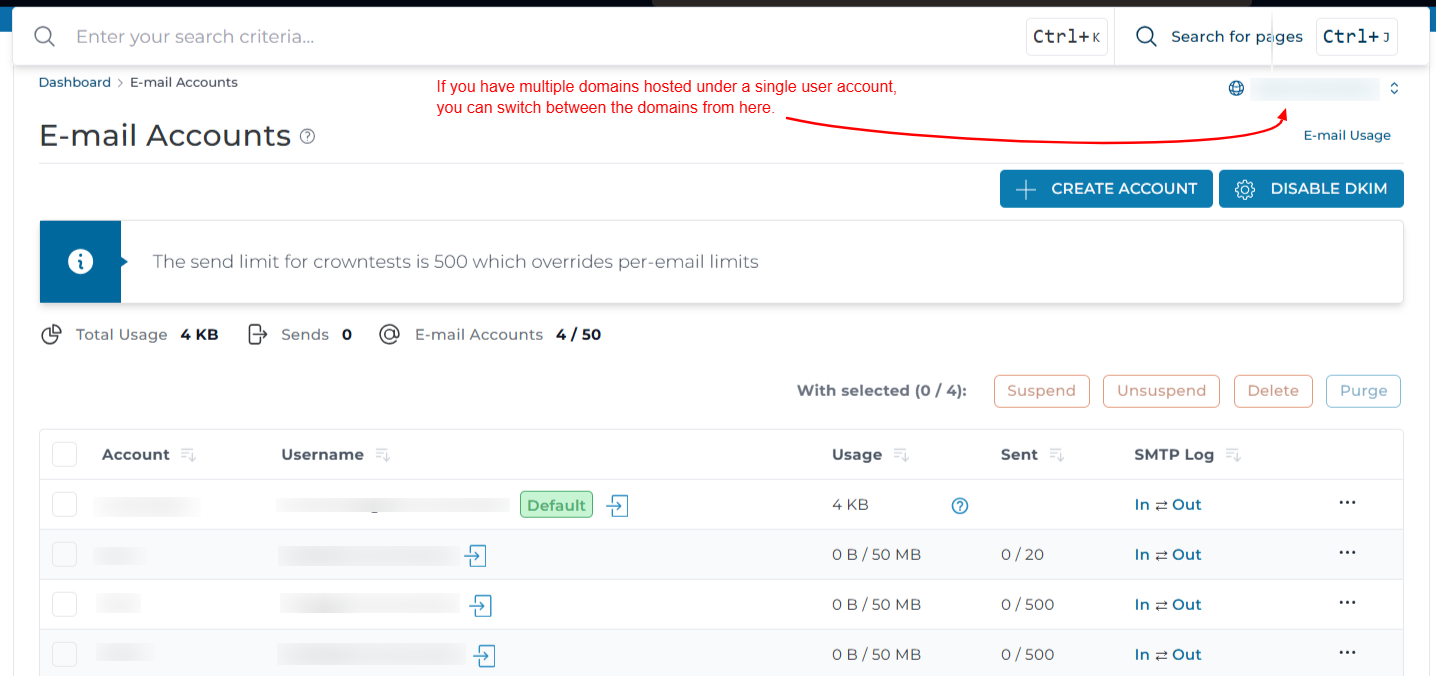
All email accounts on the domain are listed here. Locate the account whose password you want to change.
If you have multiple domains hosted under the same user account, the page opens with the main domain selected by default. Change the domain from the selector at the top of the page if the mailbox belongs to another domain.
Open Change Password
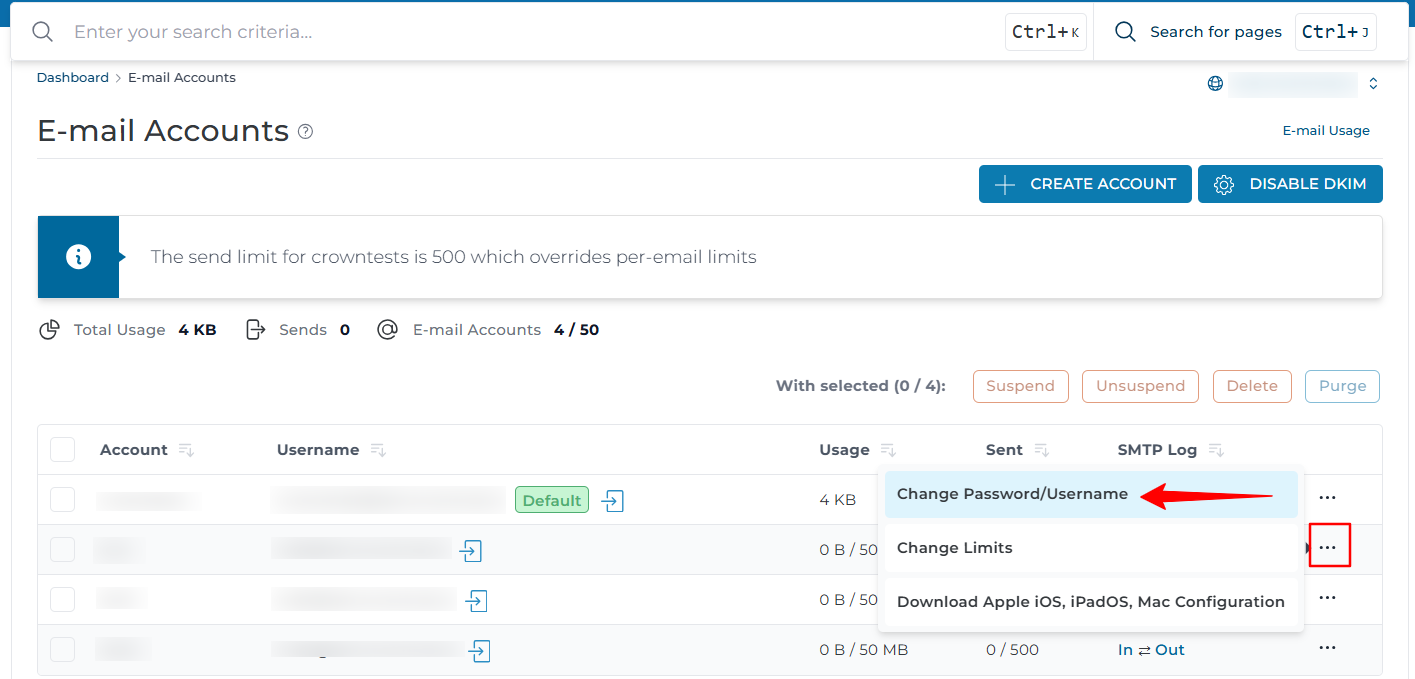
Click the ... icon on the right side of the account row to expand the available options, then click Change Password.
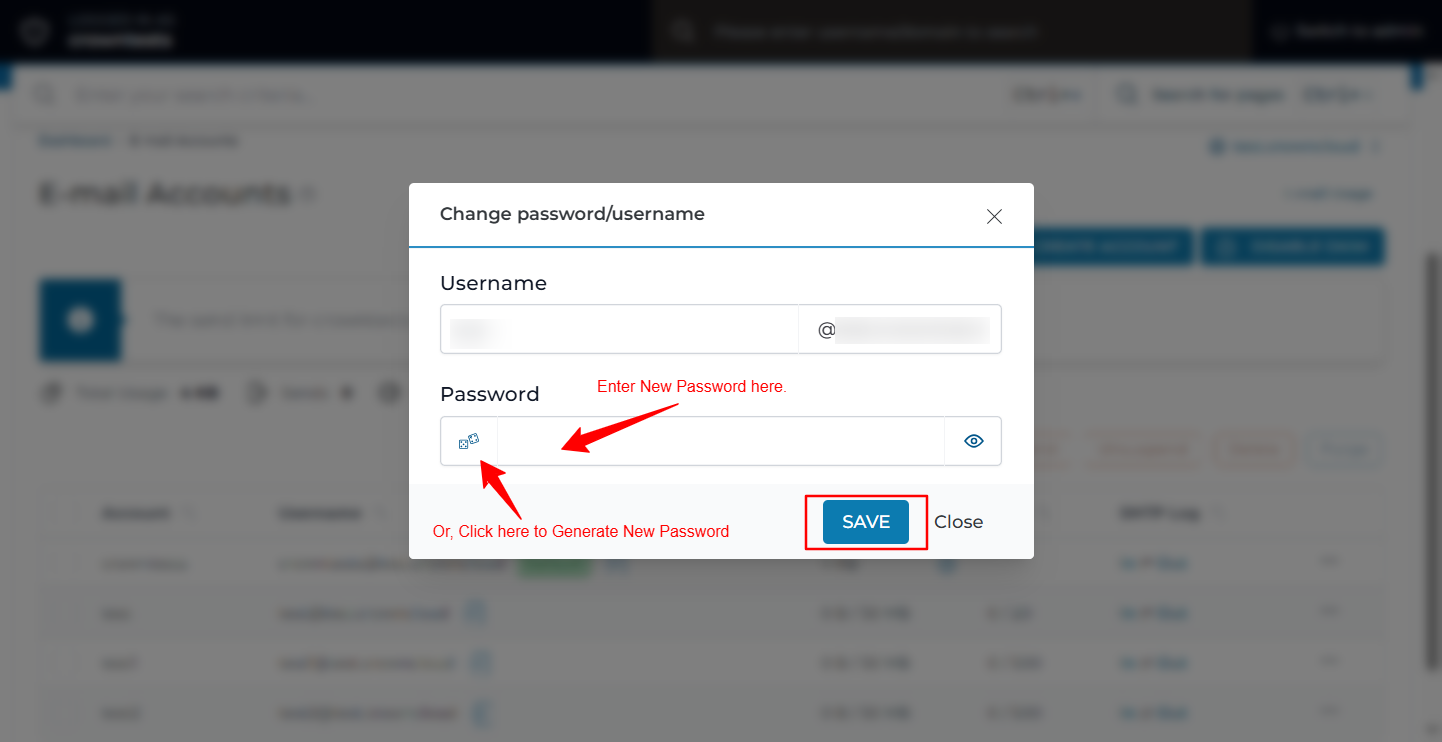
Enter the new password
Verify the username and enter a new password in the Password fields. You can use the Random button to generate a strong password. Then click Save.
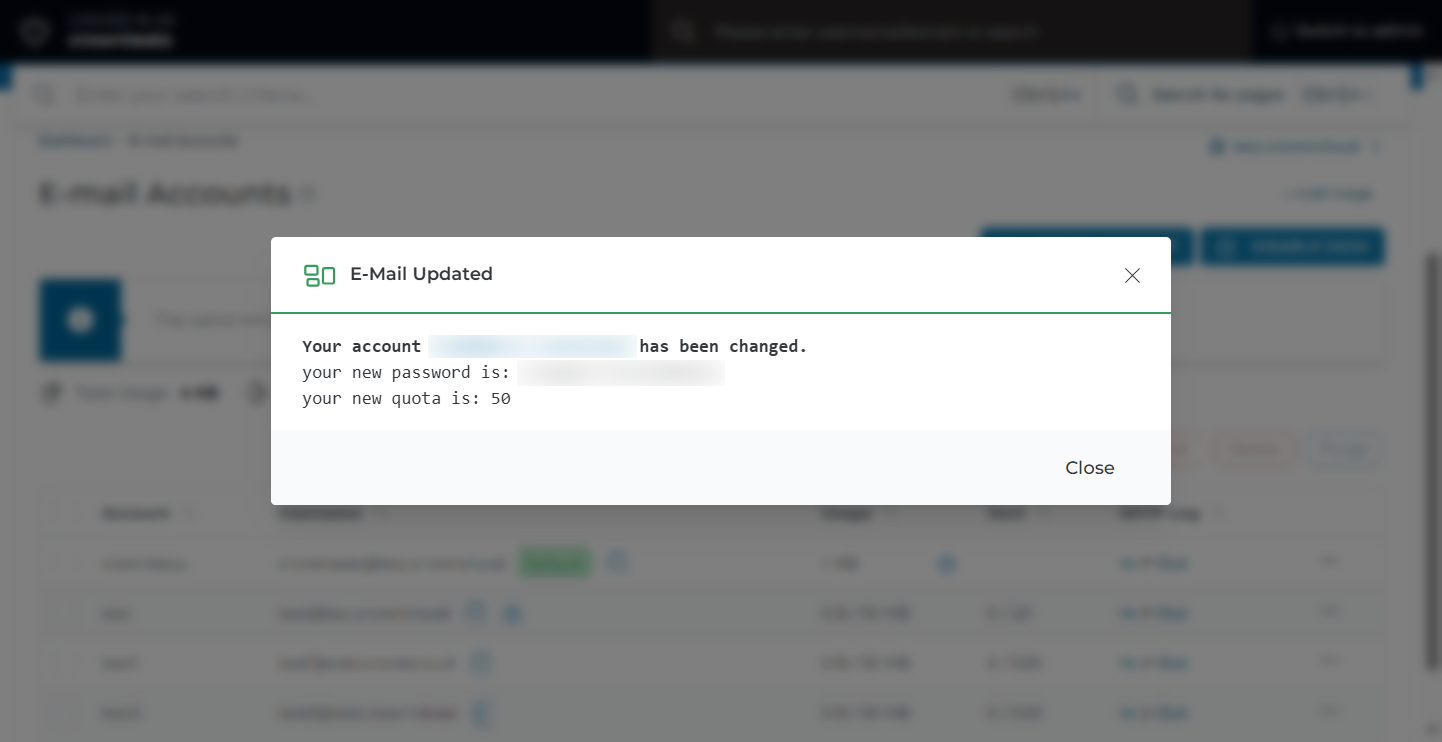
Copy the new password
After you click Save, the new password takes effect immediately. The updated password is displayed in a pop-up dialog box only once.
If you need to keep the password, copy the details or take a screenshot and store them in a secure location. Once you close the dialog box, the password will not be displayed again.
Verification
Sign in to webmail using the full email address and the new password:
A successful login confirms the change. Send a test message from webmail to an outside address to confirm that sending also works with the new credentials.
If you have shell access, you can test the login against Dovecot directly. Replace MAILBOX and YOUR_DOMAIN with the mailbox name and domain:
The command prompts for the password and reports auth succeeded when the credentials are correct.
Failed login attempts from a device still using the old password appear in the mail log:
After Changing the Password
The old password stops working the moment the change is saved. Update it everywhere the mailbox is used:
- Outlook, Thunderbird, Apple Mail, or any other desktop mail client.
- The Mail app on Android and iPhone.
- Website contact forms, order notifications, and any application configured to send through SMTP with this account.
- Password managers and shared credential stores.
- Any external mailbox collecting mail from this account over POP3 or IMAP.
The server settings do not change when the password changes. Only the password field needs updating in each client.
Troubleshooting
Important Notes
- Changing the password does not delete any mail. Messages stored on the server remain untouched.
- There is no way to view an existing password in DirectAdmin. If it is lost, resetting it is the only option.
- If the mailbox has been compromised, change the password and then check the queue for outgoing spam. Clearing the queue may be needed before delivery returns to normal.
- Use a unique password for each mailbox. Reusing one password across several accounts means one compromise affects them all.
- The DirectAdmin login password and the email account password are separate. Changing one does not change the other, even for the default mailbox that matches your DirectAdmin username.
Conclusion
The email account password is now updated and active for webmail and all mail protocols. Update every device and application that uses the mailbox with the new password to avoid repeated failed login attempts.