

Add Your SSH Key to DirectAdmin for Secure Access
Using SSH key authentication adds a layer of security to your server login. This guide helps you generate an SSH key on your local computer and add it to your DirectAdmin panel for secure access.
If you are using the Standard theme on DirectAdmin, expand the Standard theme section below and follow those steps. To switch to the Refreshed theme, see How to change theme or layout on DirectAdmin.
Prerequisites
Before you start, make sure you have:
- DirectAdmin access: access to your DirectAdmin control panel with appropriate permissions.
- Server access via terminal: you can access your server using the built-in terminal in DirectAdmin. To open it, see How to Access the Terminal in DirectAdmin.
- If you prefer to connect via SSH, follow the steps in the same guide.
Generate an SSH Key on Your Local System
Whether you're using Linux or Windows, you can generate an SSH key to securely access your server. To generate the key, follow the instructions in Secure Server Access.
Follow Step 1 of that guide, depending on your local system (Linux-based or Windows-based).
In the Refreshed Theme
Log in to DirectAdmin
Log in to the DirectAdmin Web Control Panel.
Open SSH Keys
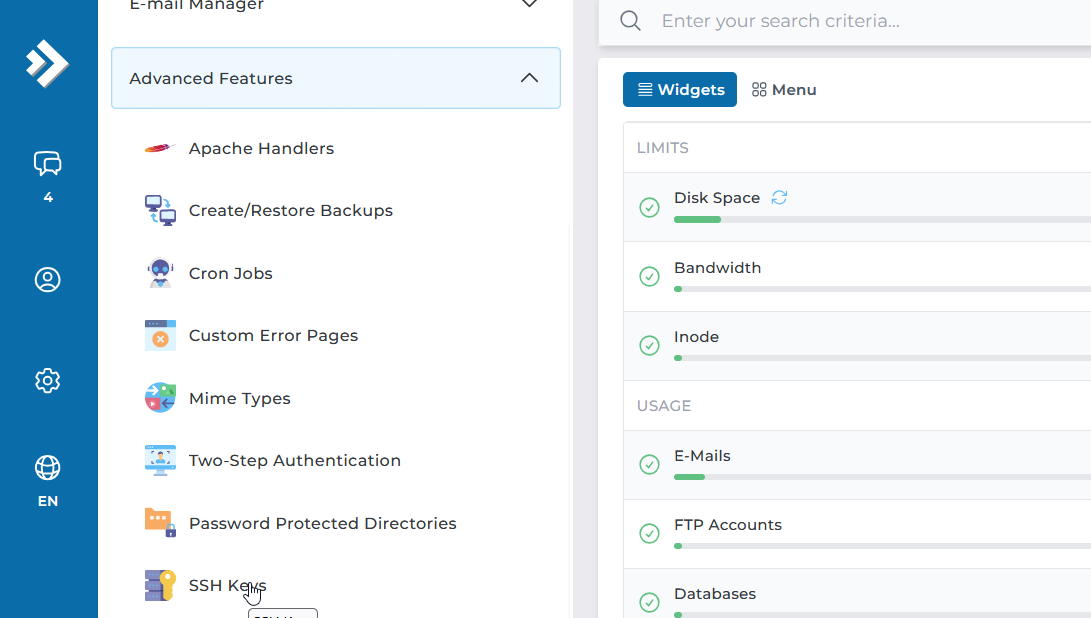
Navigate to Advanced Features > SSH Keys.
Click Paste Key
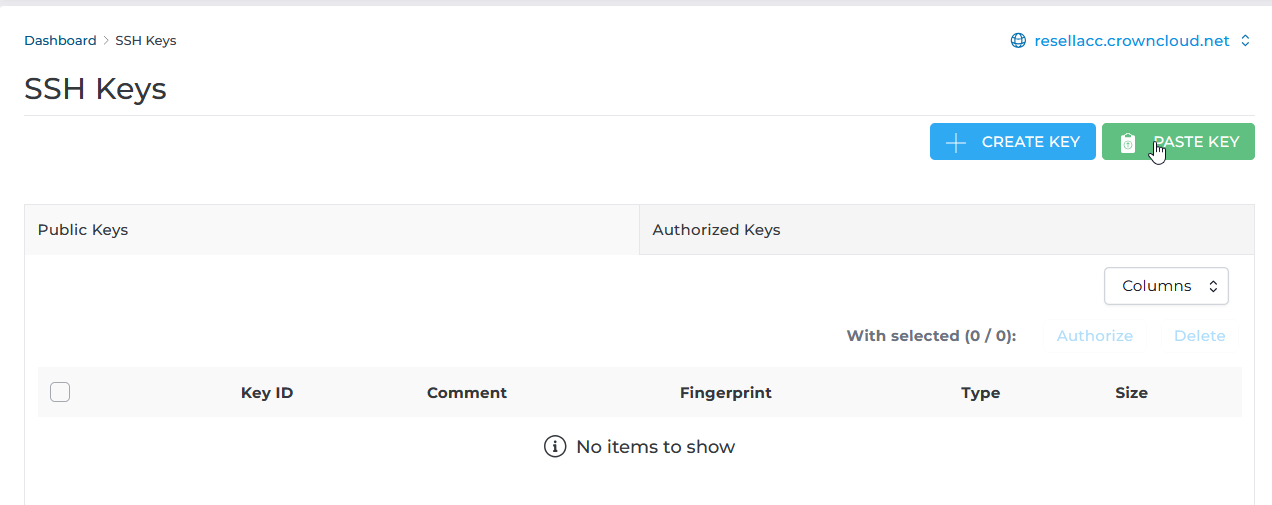
Click on Paste Key.
Paste your public key
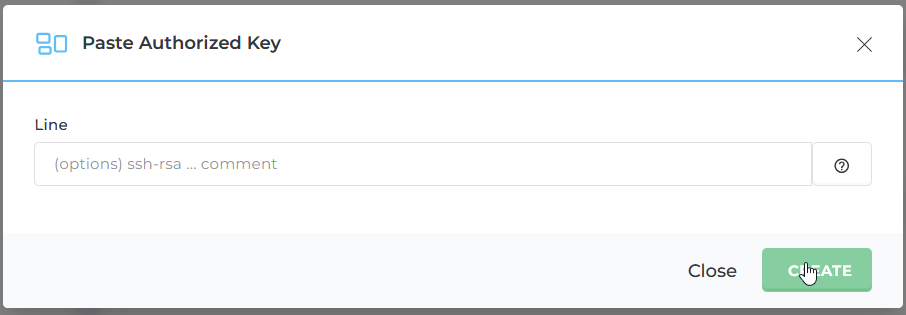
Paste your public key in the text field provided. You can optionally add a comment to label the key for future reference. For example:
ssh-rsa AAAAB4xew...9x5Cg==is your public key (truncated here for clarity).user@your_machineis the comment, typically indicating which device or user the key belongs to.
Create the key
Click Create to complete the setup. Your server will now accept SSH logins using your key instead of a password.
In the Standard Theme
Click here to show the steps
Log in to DirectAdmin
Log in to the DirectAdmin Web Control Panel.
Open SSH Keys
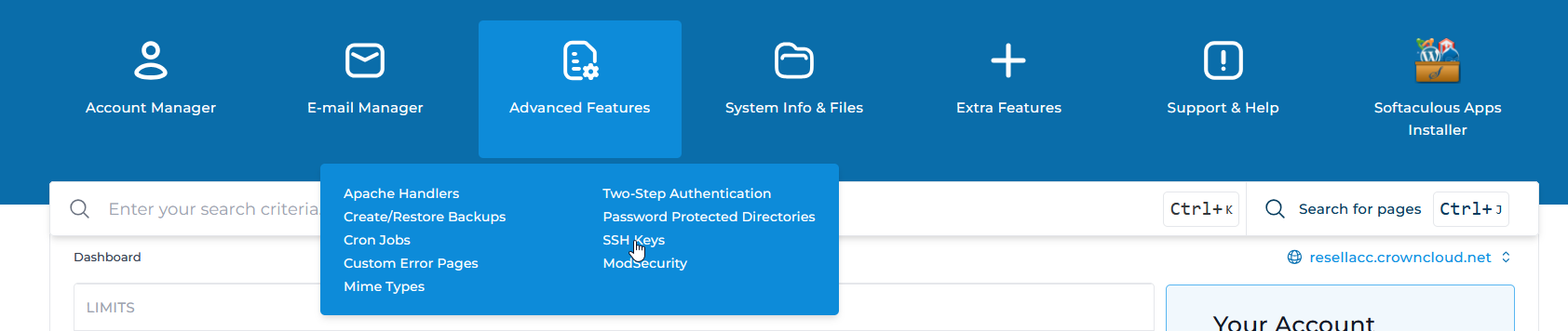
Navigate to Advanced Features > SSH Keys.
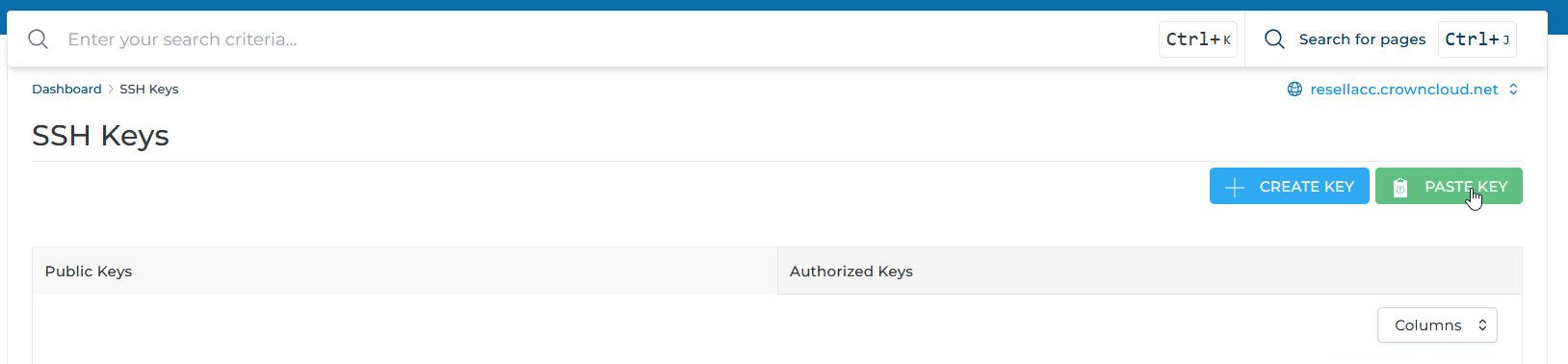
Click Paste Key
Click on Paste Key.
Paste your public key
Paste your public SSH key in the box provided. You can optionally add a comment to label the key for future reference. For example:
ssh-rsa AAAAB4xew...9x5Cg==is your public key (truncated here for clarity).user@your_machineis the comment, typically indicating which device or user the key belongs to.
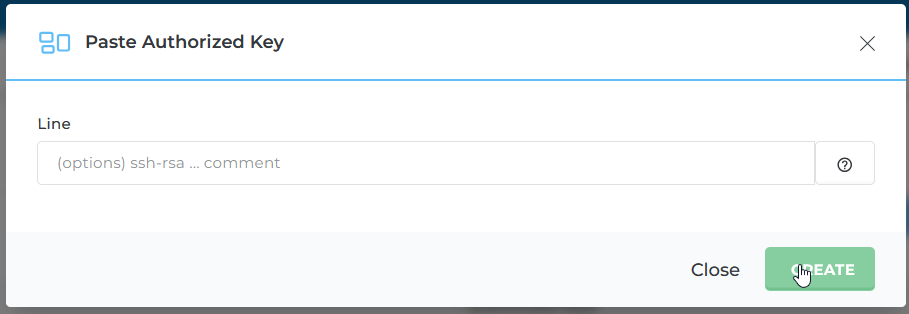
Create the key
Click Create to save the SSH key. DirectAdmin will now allow SSH logins using your key.