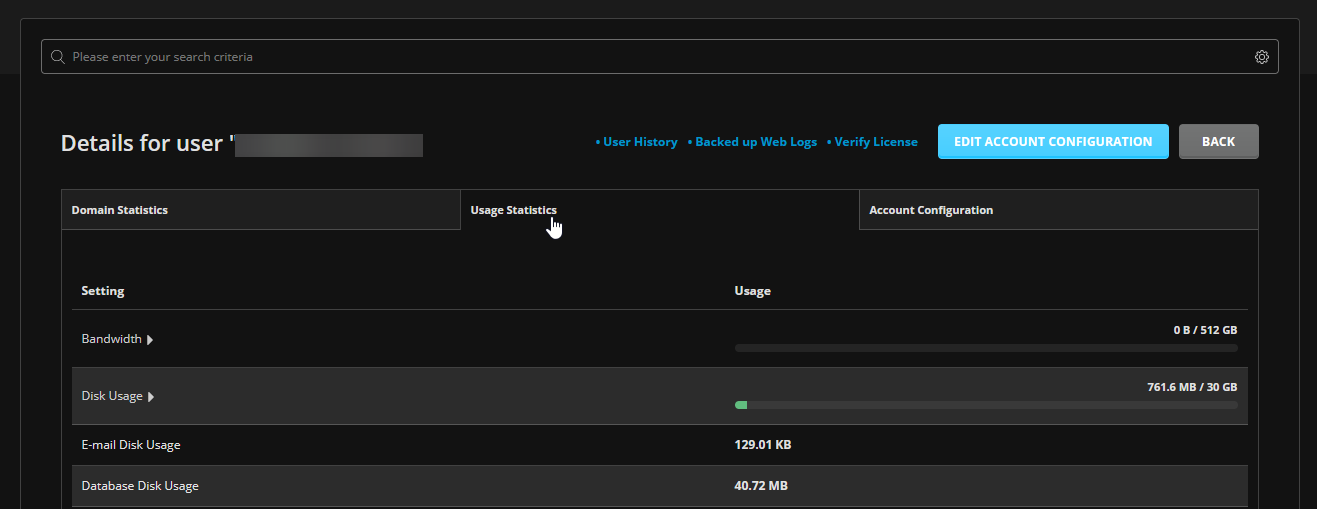
How to Check Complete Usage Statistics in DirectAdmin
If you are using the Standard theme on DirectAdmin, switch to the Refreshed theme as shown in How to change theme or layout on DirectAdmin.
In the Refreshed Theme
First, log in to the DirectAdmin Web Control Panel.
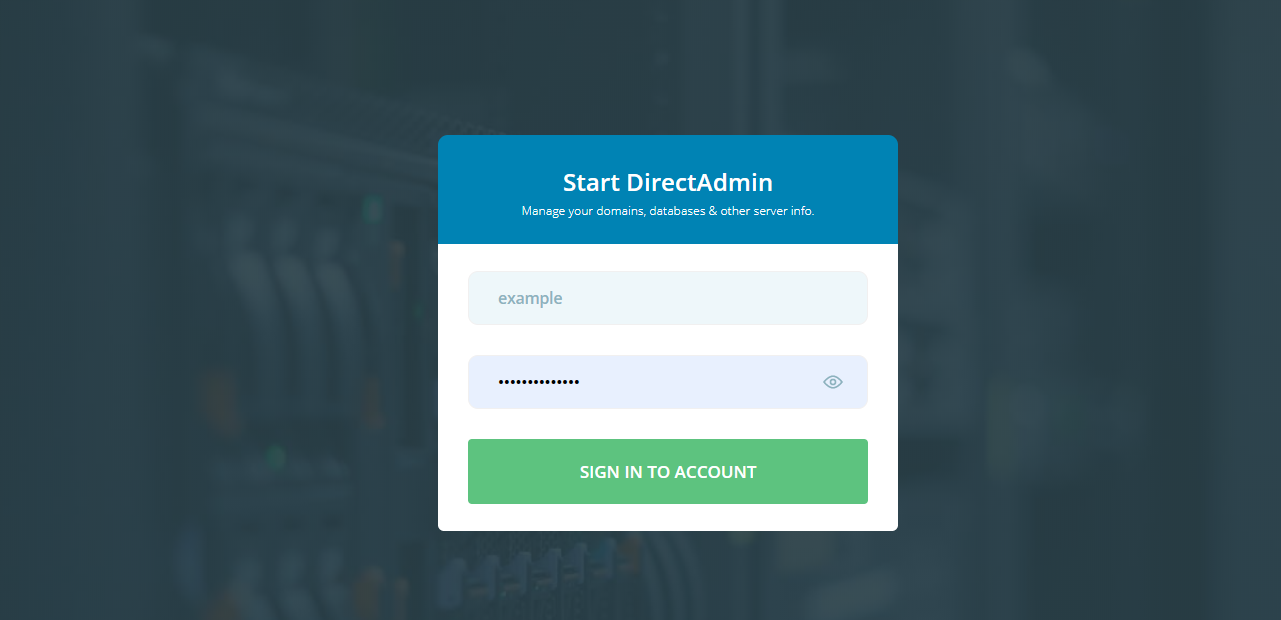
DirectAdmin VPS (Admin Level)
If you have a DirectAdmin VPS with us, which includes full root/admin access, you can use the Admin Level.
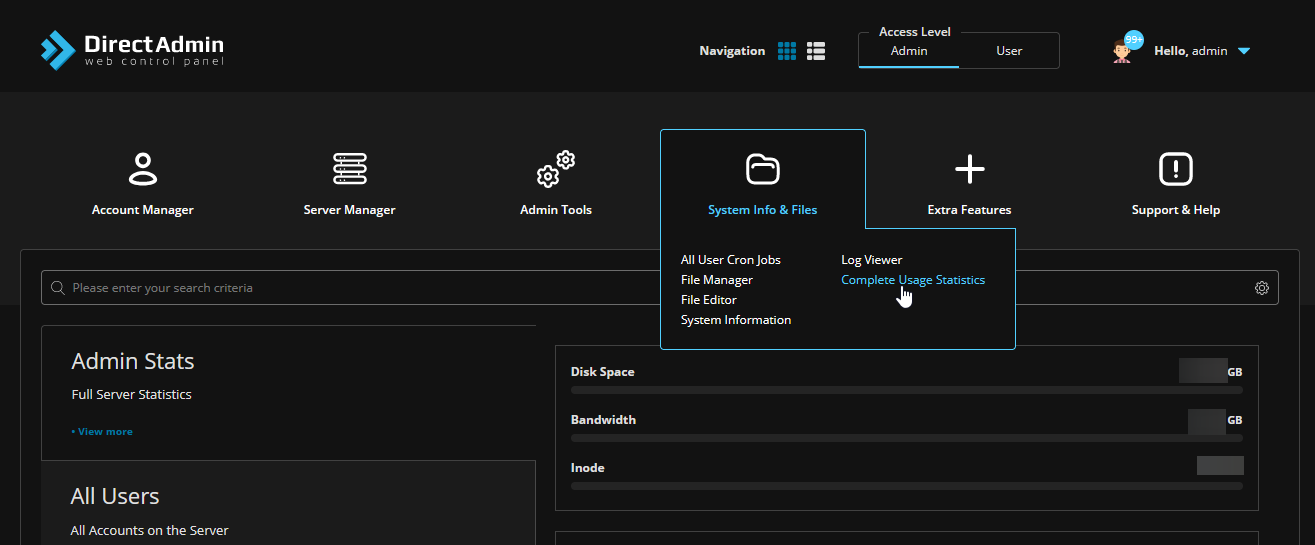
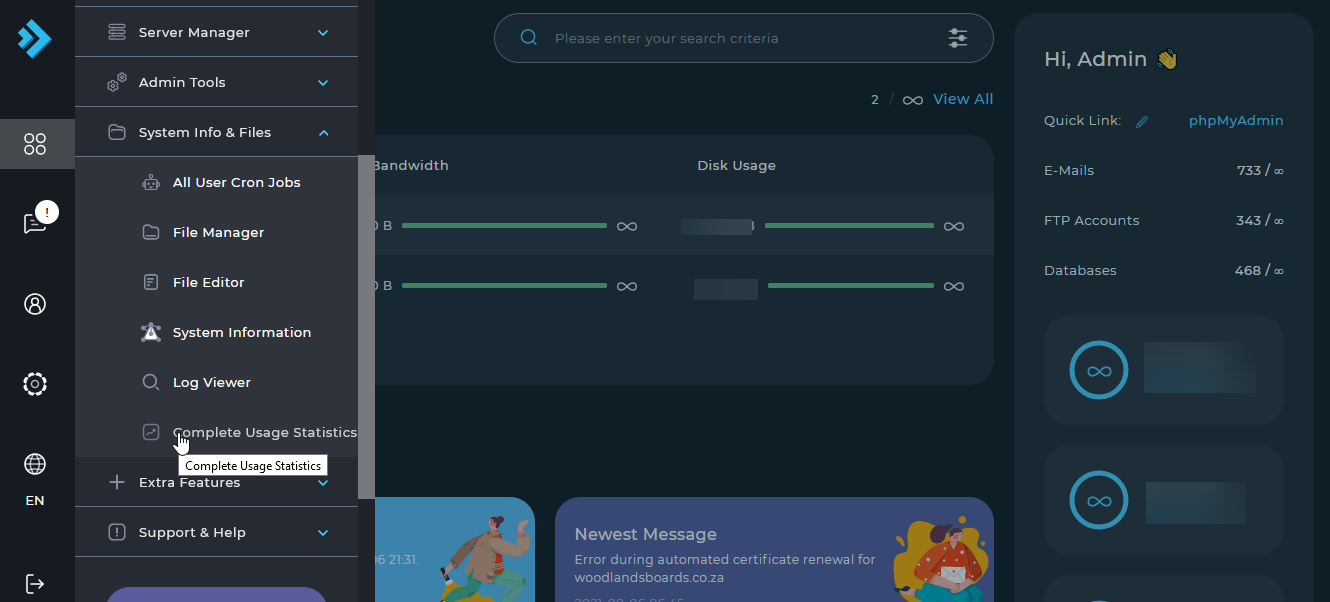
Open Complete Usage Statistics
Navigate to the Menu option and select Complete Usage Statistics under System Info & Files.
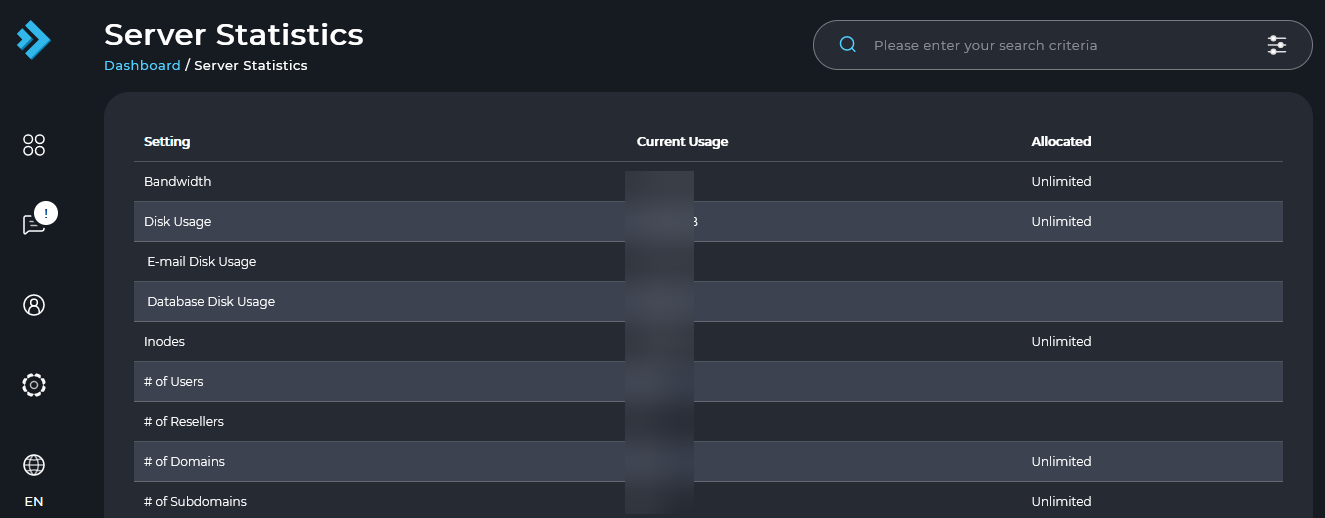
View the statistics
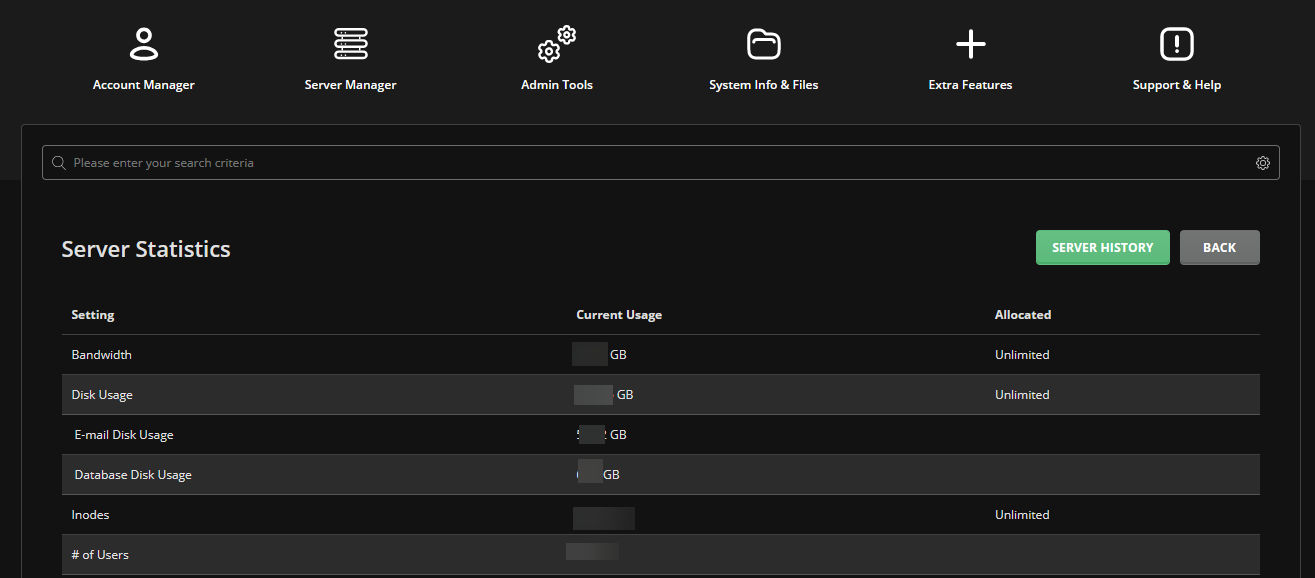
The Complete Usage Statistics page is displayed.
Reseller/Shared Hosting (User or Reseller Level)
If you have a Reseller/Shared Hosting account with us based on DirectAdmin, you will have User Level or Reseller Level access.
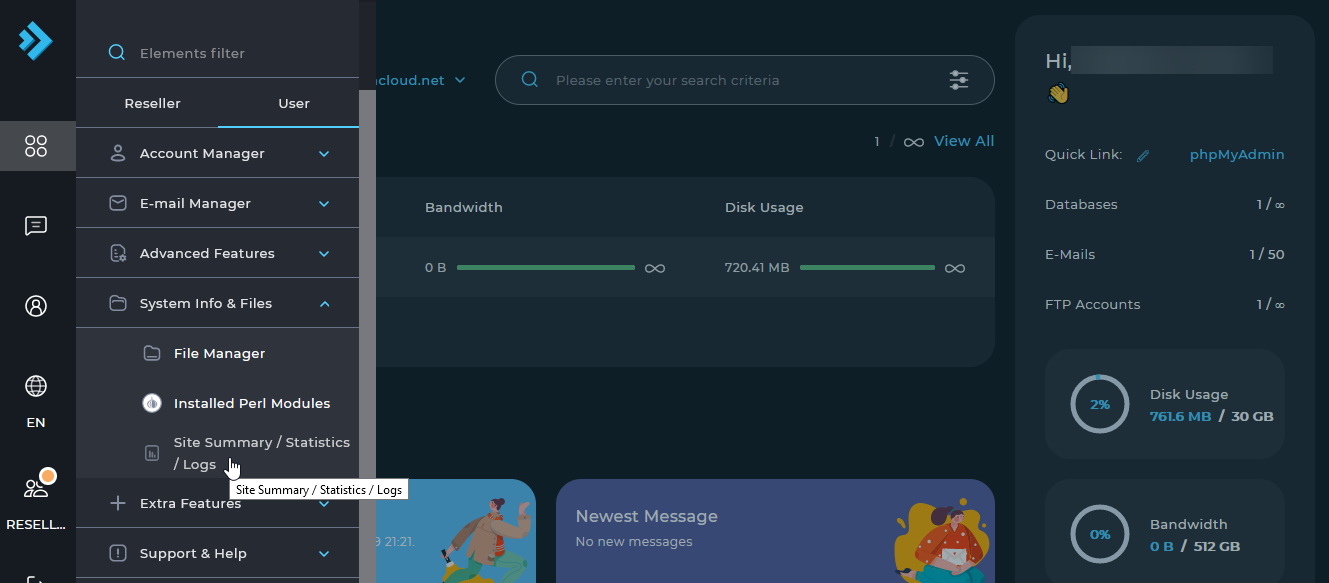
Open Site Summary / Statistics / Logs
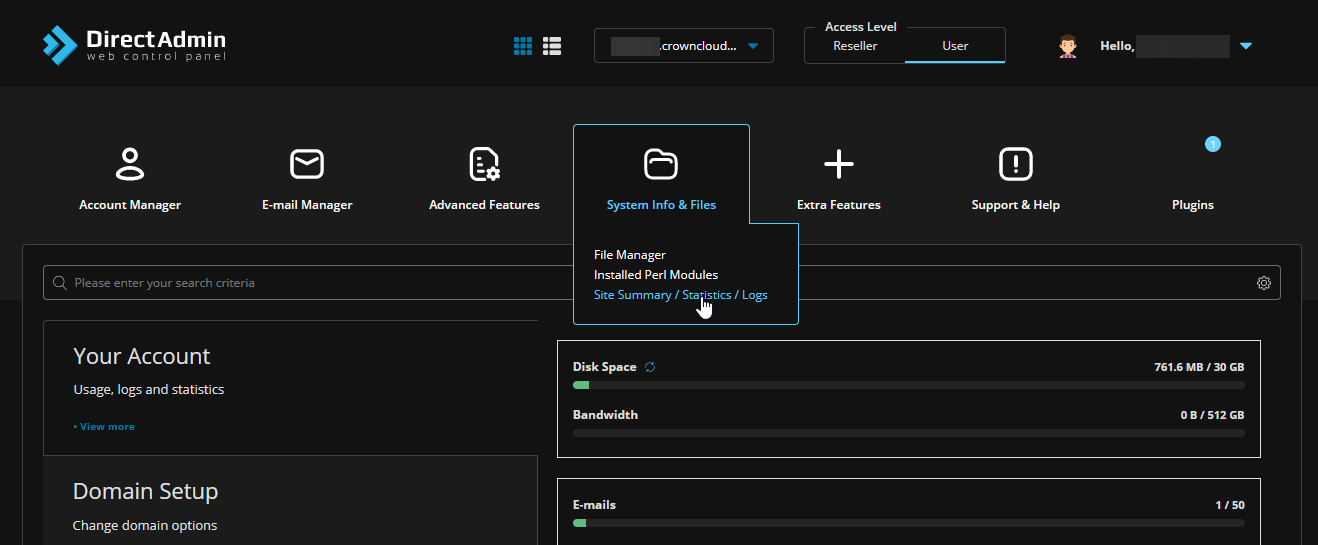
Navigate to the Menu option and select Site Summary / Statistics / Logs under System Info & Files.
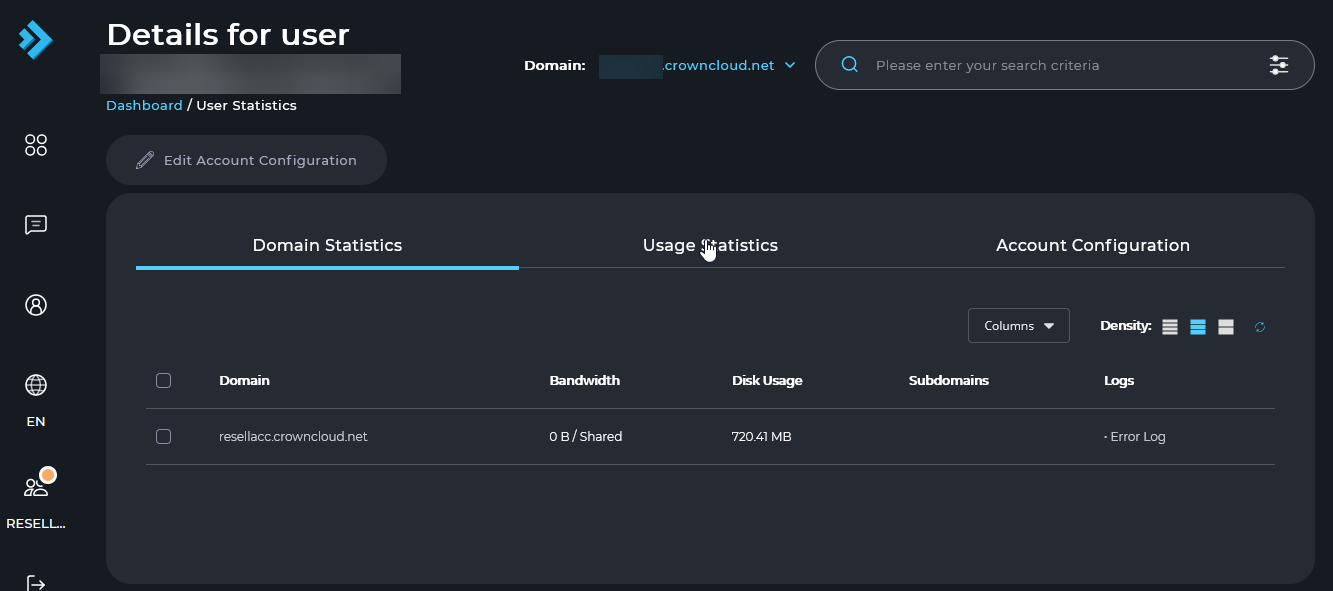
Select Usage Statistics
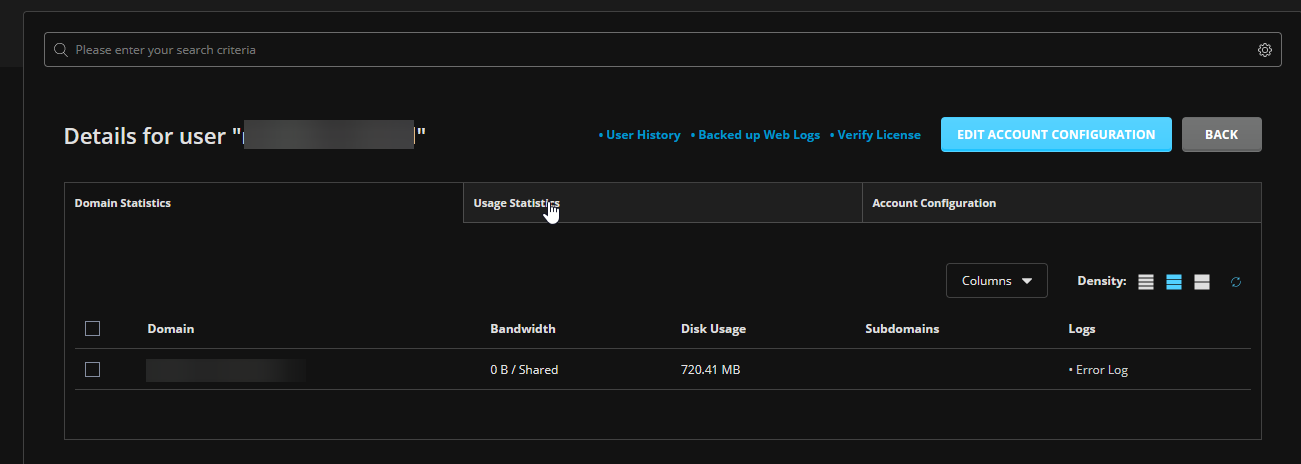
Select Usage Statistics.
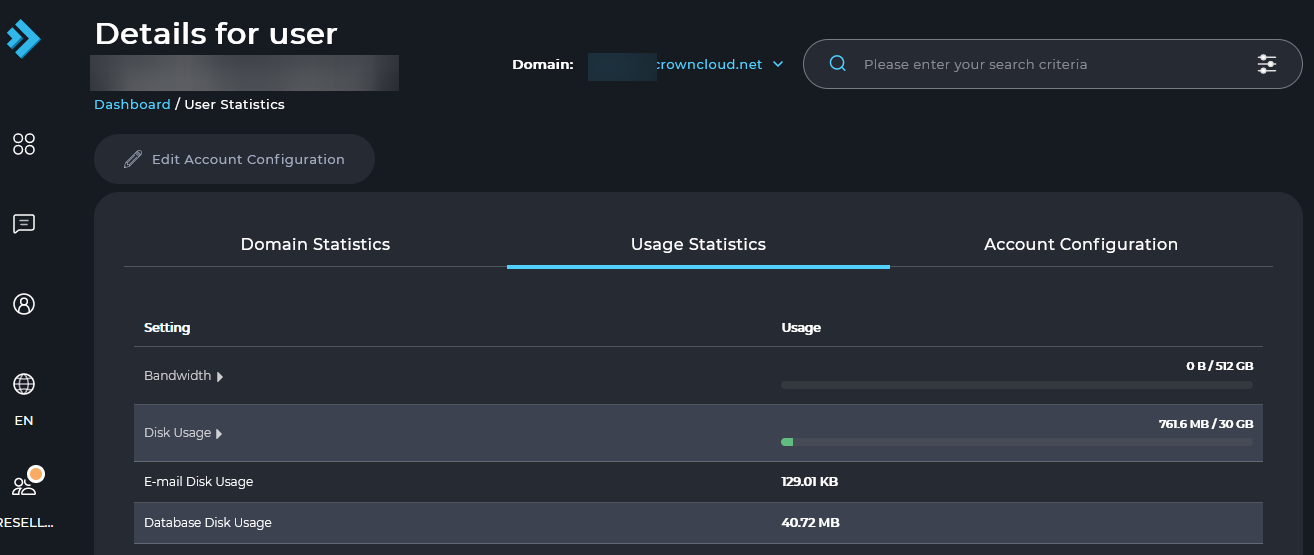
View the statistics
The Complete Usage Statistics page is displayed.
In the Standard Theme
Click here to show the steps
First, log in to the DirectAdmin Web Control Panel.
DirectAdmin VPS (Admin Level)
If you have a DirectAdmin VPS with us, which includes full root/admin access, you can use the Admin Level.
Open Complete Usage Statistics
Once logged in, select Complete Usage Statistics under System Info & Files.
View the statistics
The Complete Usage Statistics page is displayed.
Reseller/Shared Hosting (User or Reseller Level)
If you have a Reseller/Shared Hosting account with us based on DirectAdmin, you will have User Level or Reseller Level access.
Open Site Summary / Statistics / Logs
Select Site Summary / Statistics / Logs under System Info & Files.
Select Usage Statistics
Select Usage Statistics.
View the statistics
The Complete Usage Statistics page is displayed.