

How to Change Email Account Quota in DirectAdmin
The email quota sets how much disk space a single mailbox is allowed to use. When a mailbox reaches its quota it stops accepting new messages, and senders receive a bounce saying the recipient is over quota.
Quotas can be raised or lowered at any time from the DirectAdmin User level. The change applies immediately, without restarting any service or interrupting access to the mailbox.
This guide covers changing the storage quota of an existing email account.
DirectAdmin offers two interface themes: the Standard theme (the traditional interface) and the Refreshed theme (a newer, more modern interface). Steps for both are below. To switch themes, see How to Change Theme or Layout in DirectAdmin.
Requirements
- A DirectAdmin User account, or a Reseller or Admin account switched into the User level.
- An email account that already exists on the domain.
- Enough free disk space in the hosting package to support the new quota.
- The current usage of the mailbox, so the new quota is not set below what is already stored.
In the Refreshed Theme
Log in to DirectAdmin
Log in to the DirectAdmin panel.
Open E-Mail Accounts
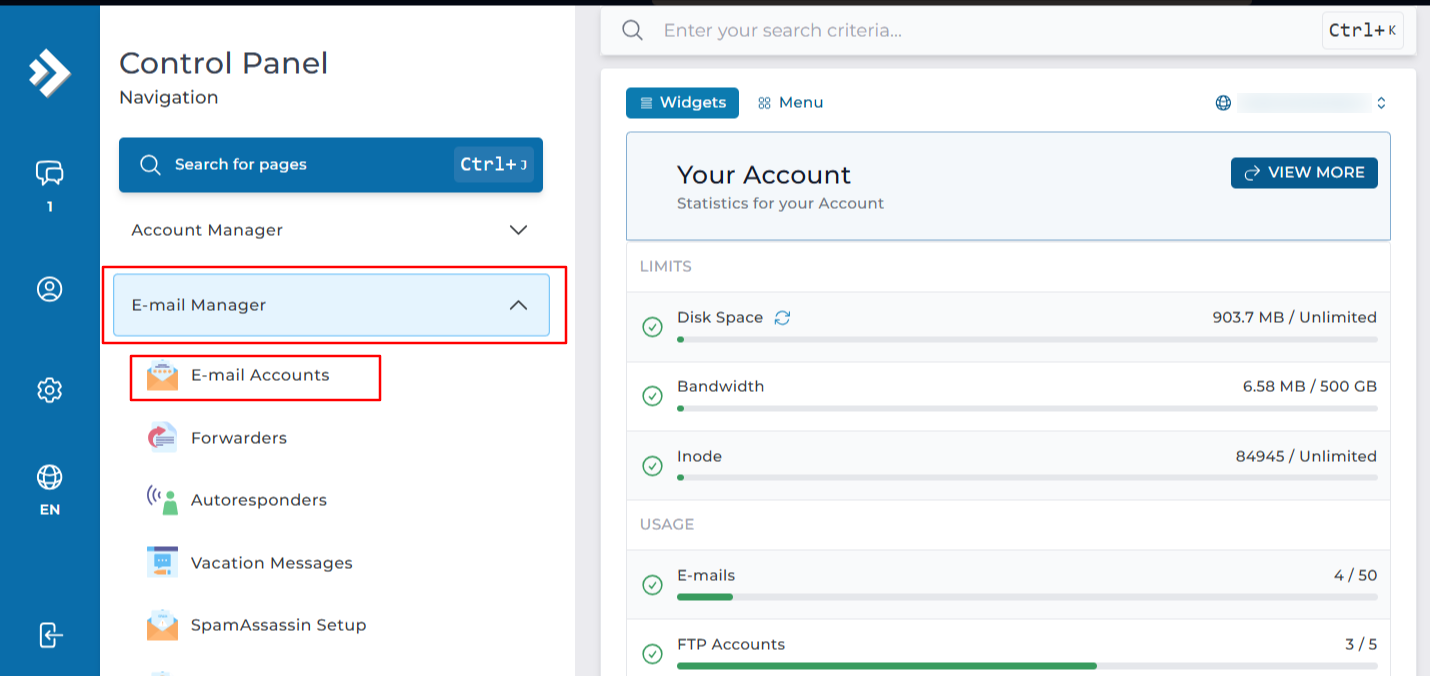
Click on E-Mail Accounts under E-Mail Manager. You can also type E-Mail Accounts in the navigation filter box to jump straight to the page.
Select the domain
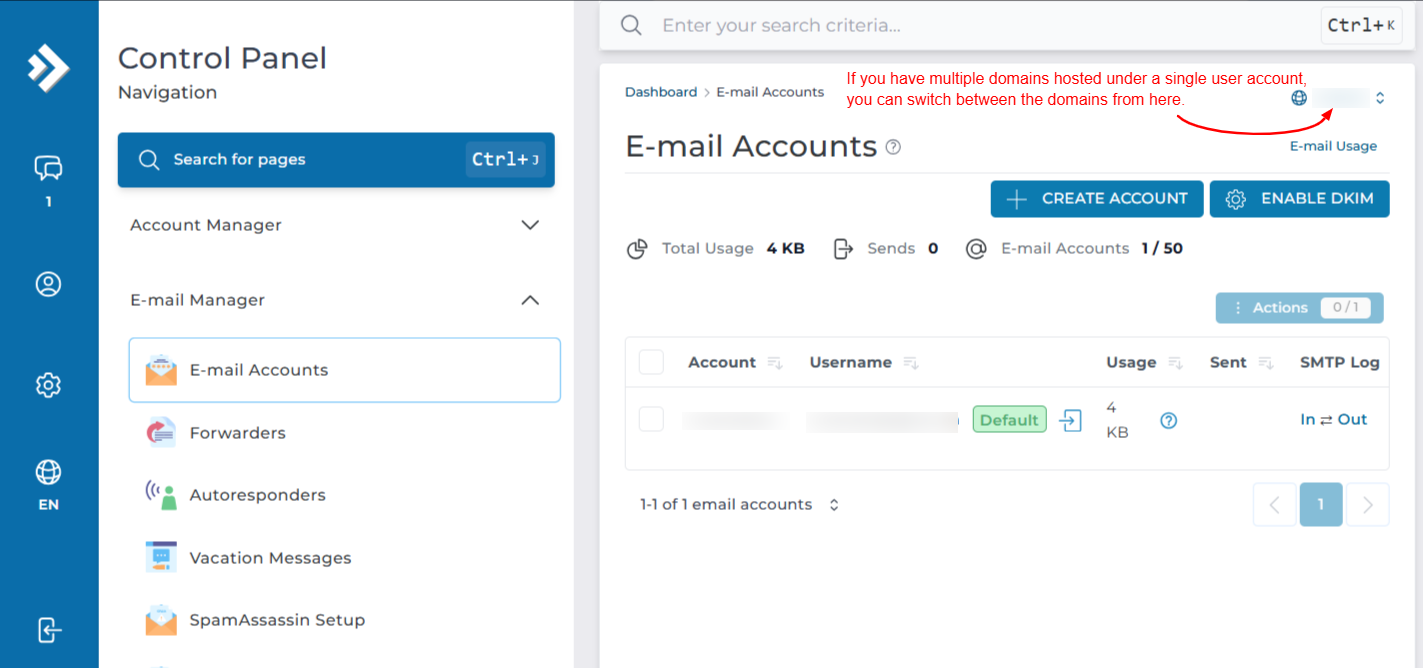
If your account holds more than one domain, check the domain shown at the top of the page and switch it if needed. The list only shows mailboxes belonging to the selected domain.
Open Change Limits
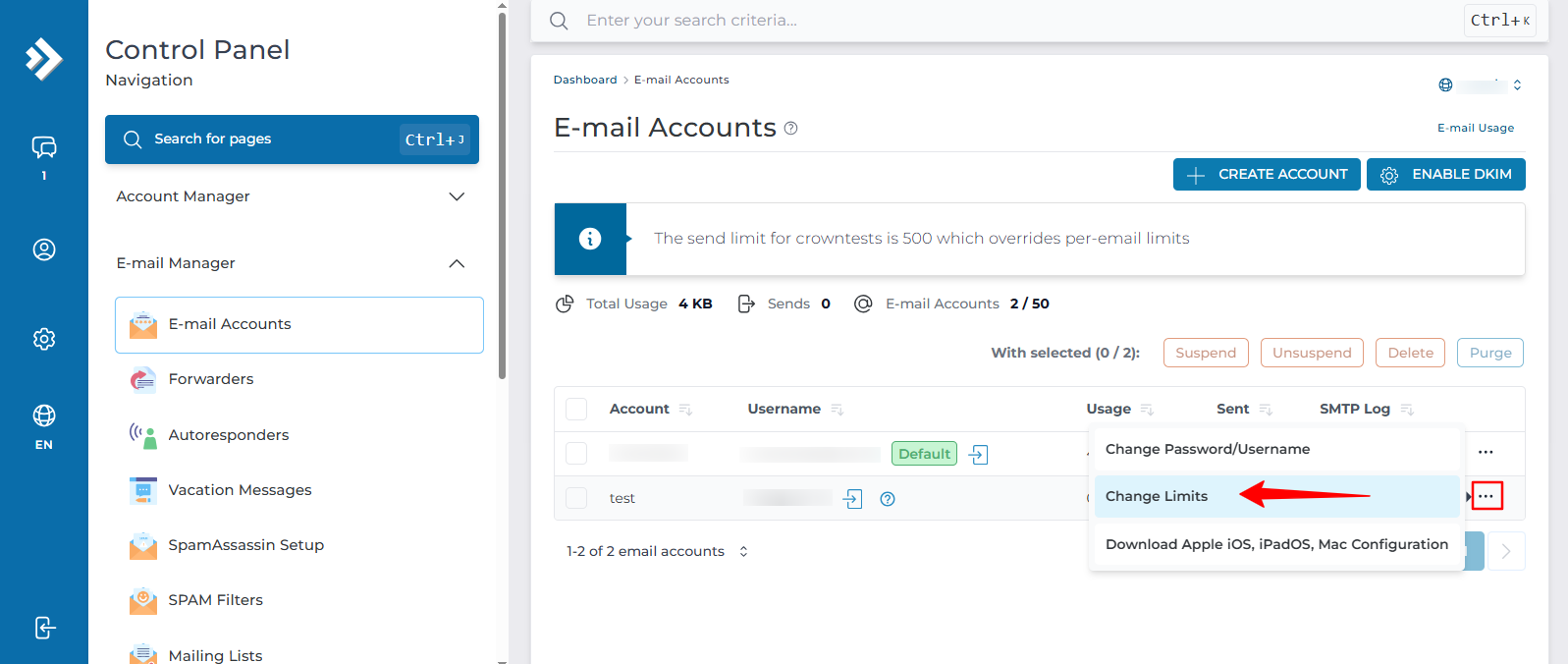
Find the email account in the list, click the ... icon on the right side of the row to expand its options, and click Change Limits.
Set the new quota
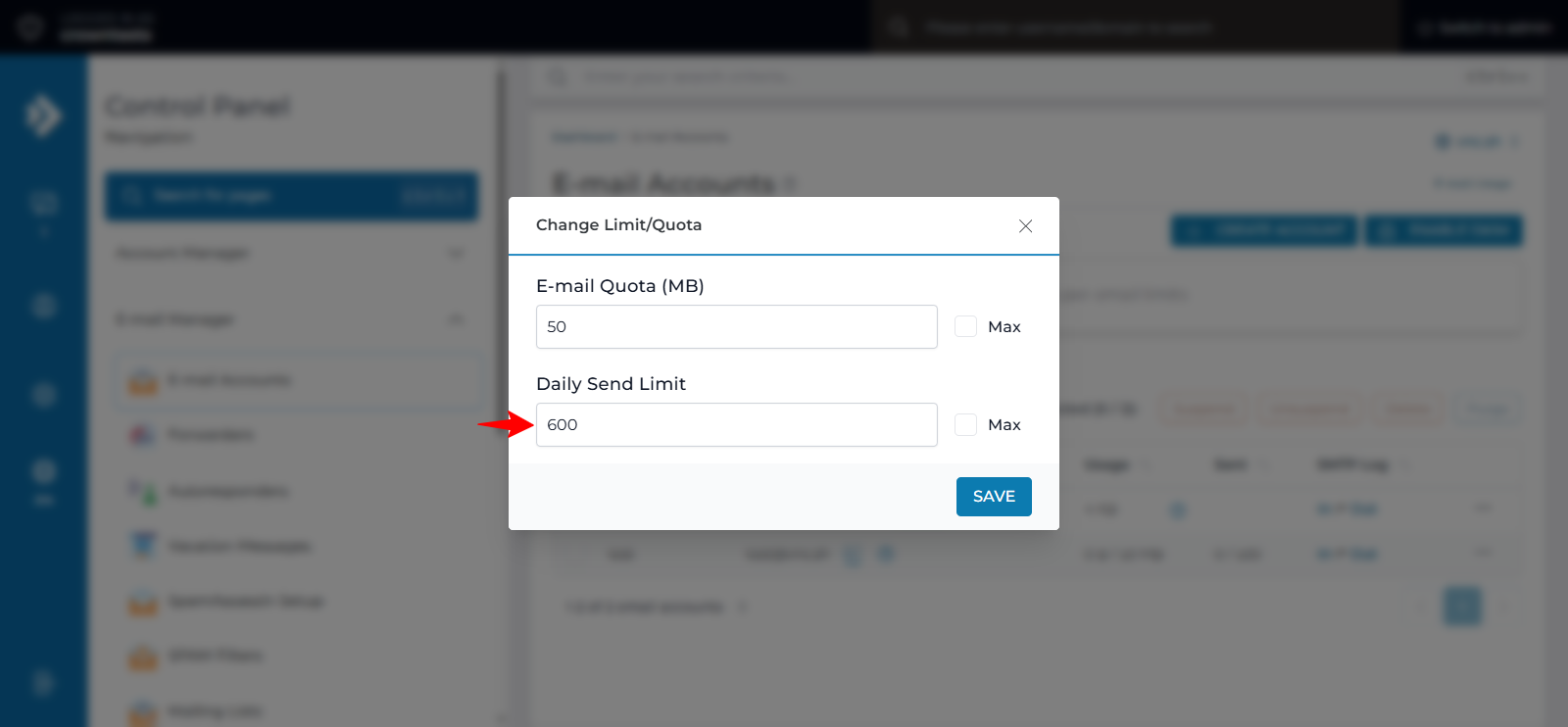
Set the new value in the E-Mail Quota (MB) field. The value is in MB, so enter 1024 for 1 GB or 5120 for 5 GB. Tick MAX to remove the per-mailbox limit.
Set the daily send limit (optional)
The Daily Send Limit field on the same form controls how many messages the account may send per day. Leave the field unchanged to use the default limit. To allow unlimited sending, select the MAX checkbox.
Save the changes
Click Save. The new quota is applied at once, and the Usage column updates to show the current usage against the new limit.
In the Standard Theme
Click here to show the steps
Log in to DirectAdmin
Log in to the DirectAdmin panel.
Open E-Mail Accounts
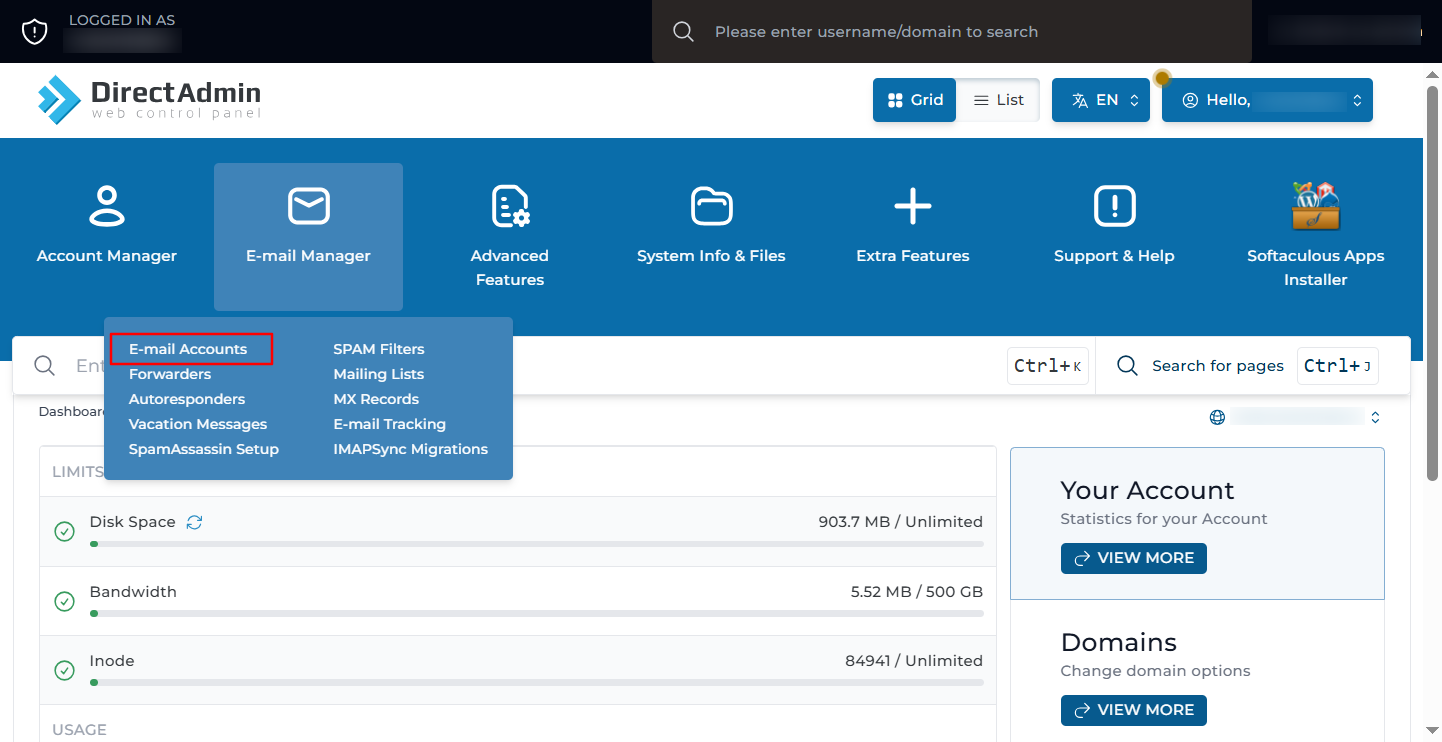
On the dashboard, go to E-Mail Manager and click E-Mail Accounts.
Find the account
The page lists every mailbox on the domain along with its current usage and quota. Locate the account you want to change.
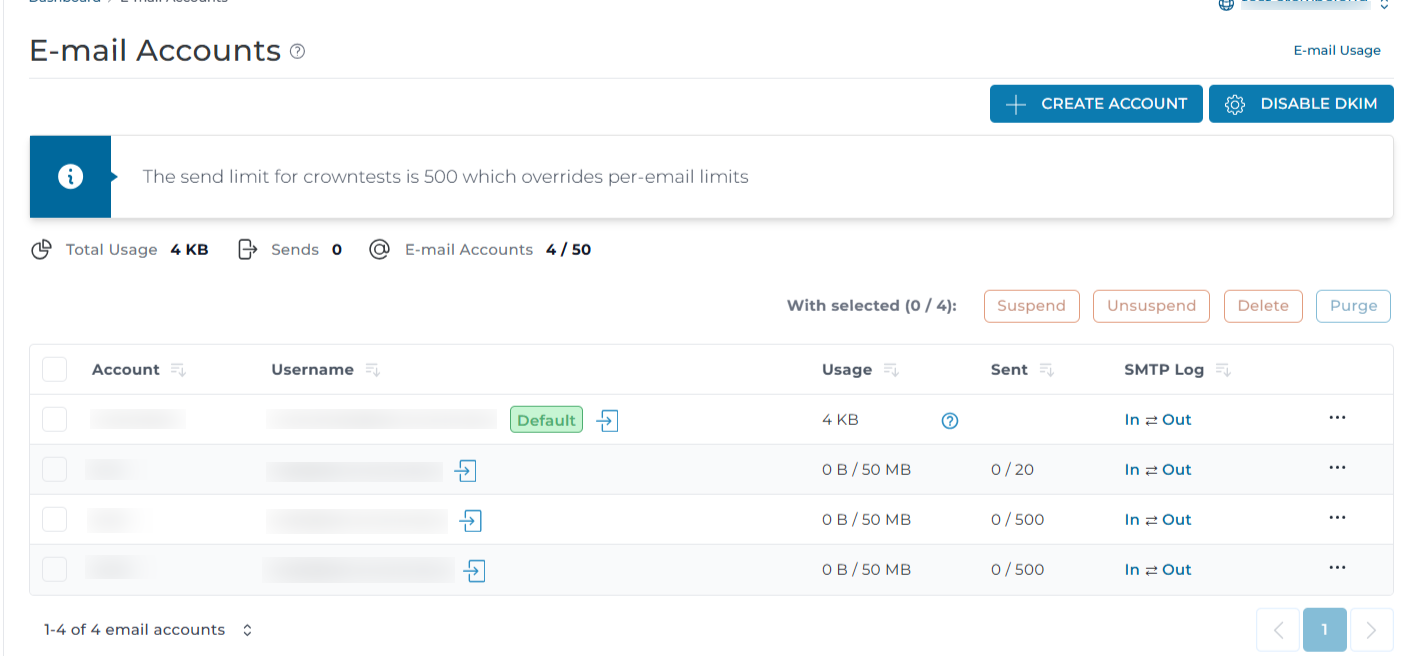
If you have multiple domains hosted under the same user account, the page opens with the main domain selected by default. Change the domain from the selector at the top of the page if the mailbox belongs to another domain.
Open Change Limits
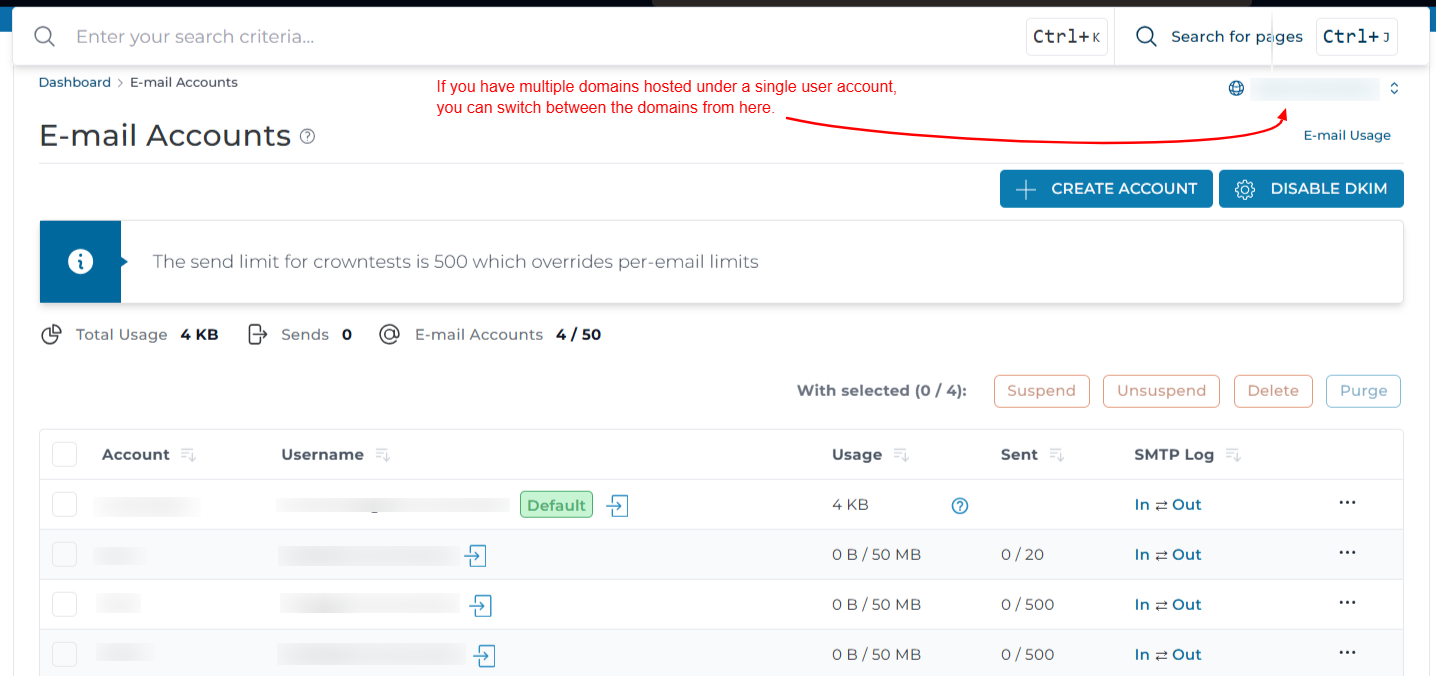
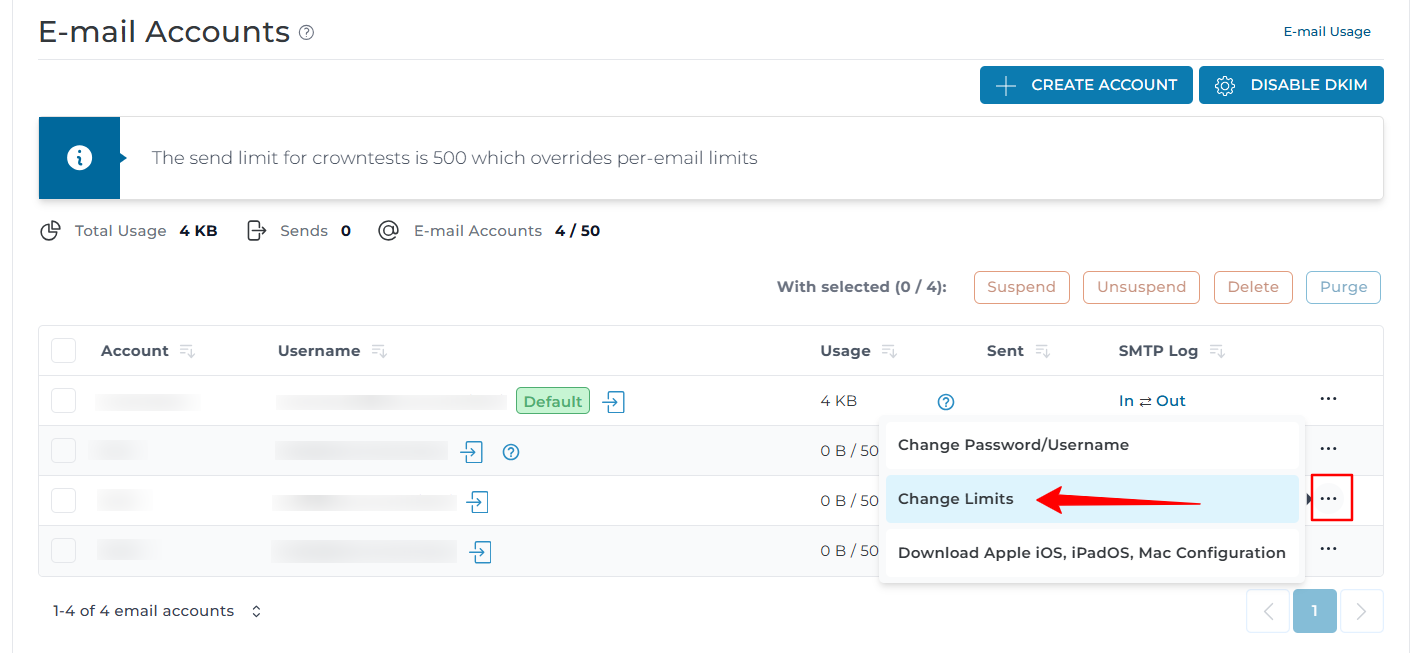
Click the ... icon on the right side of the account row to expand the available options, then click Change Limits.
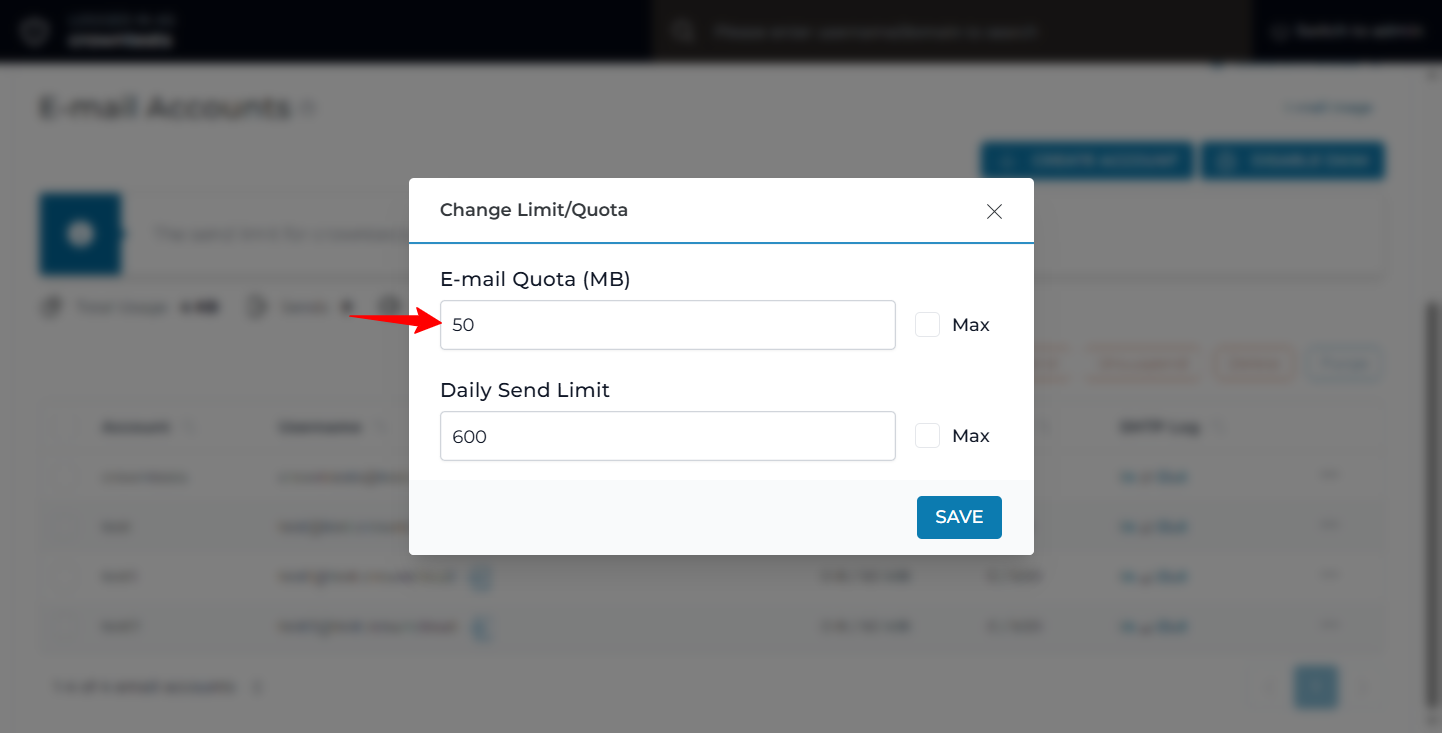
Set the new quota
Set the new value in the E-Mail Quota (MB) field. The value is in MB, so enter 1024 for 1 GB or 5120 for 5 GB. Tick MAX to remove the per-mailbox limit.
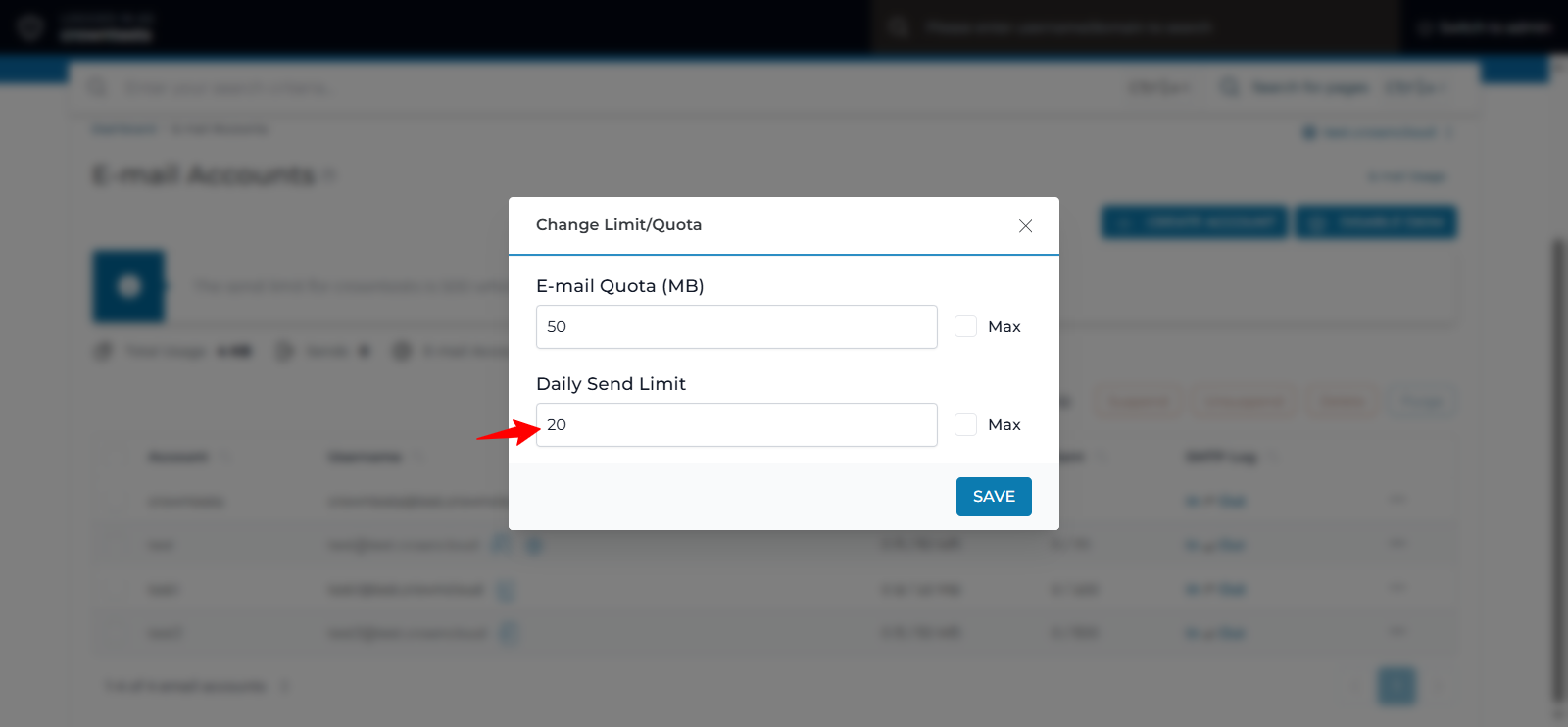
Set the daily send limit (optional)
The Daily Send Limit field on the same form controls how many messages the account may send per day. Leave the field unchanged to use the default limit. To allow unlimited sending, select the MAX checkbox.
Save the changes
Click Save. The updated quota appears in the account list immediately.
Common Quota Values
Verification
Check the Usage column on the E-Mail Accounts page. It shows current consumption against the new quota, for example 412 / 2048 MB.
If you have shell access, confirm the quota Dovecot is enforcing. Replace MAILBOX and YOUR_DOMAIN with the mailbox name and domain:
The output lists the storage limit and the current value in kilobytes and as a percentage.
Check the actual size of the mailbox on disk. Replace USERNAME with the DirectAdmin username:
Send a test message to the mailbox after raising a quota that was previously full, to confirm delivery has resumed.
Troubleshooting
Important Notes
- Lowering a quota below current usage does not delete any existing mail. The mailbox simply stops accepting new messages until usage falls under the limit.
- Mailbox storage counts towards the total disk usage of the hosting package. Setting every mailbox to unlimited does not create extra space, it only removes the per-mailbox ceiling.
- Trash and Junk folders count towards the quota. Emptying them is often faster than raising the limit.
- A full mailbox rejects incoming mail. The sender is notified, so mail is not lost silently, but delivery does not resume until space is available.
- Quota changes take effect immediately and do not require a service restart or a reconnection from the mail client.
Conclusion
The mailbox quota is now updated and enforced immediately. Review the Usage column periodically so that mailboxes approaching their limit can be cleared or raised before mail starts bouncing.