

How to Delete an Email Forwarder in DirectAdmin
An email forwarder can be removed at any time from the DirectAdmin User level. This is usually done when a destination address is no longer valid, when a role-based address is retired, or when a forwarder is being replaced by a real mailbox.
Removing a forwarder does not delete any mail. Nothing is stored on the server for a forwarder, so the only effect is that mail sent to the source address is no longer redirected.
This guide covers deleting an existing email forwarder, and changing its destination if the forwarder itself should stay in place.
DirectAdmin offers two interface themes: the Standard theme (the traditional interface) and the Refreshed theme (a newer, more modern interface). Steps for both are below. To switch themes, see How to Change Theme or Layout in DirectAdmin.
Requirements
- A DirectAdmin User account, or a Reseller or Admin account switched into the User level.
- An email forwarder that already exists on the domain.
- Confirmation that the source address is no longer in use, or a plan for where mail sent to it should go afterwards.
Before You Delete
- Check where the mail should go instead. Once the forwarder is gone, mail sent to the address is treated as an unknown recipient and handled by the catch-all setting for the domain.
- Confirm the address is not published. Role-based addresses such as
info@YOUR_DOMAINare often printed on websites, invoices, and business cards. Removing the forwarder means that mail stops reaching anyone. - Consider editing instead of deleting. If only the destination has changed, update the existing forwarder rather than removing it and creating a new one.
- Check for applications using the address. Contact forms and order notification systems sometimes send to a forwarder rather than a mailbox.
In the Refreshed Theme
Log in to DirectAdmin
Log in to the DirectAdmin panel.
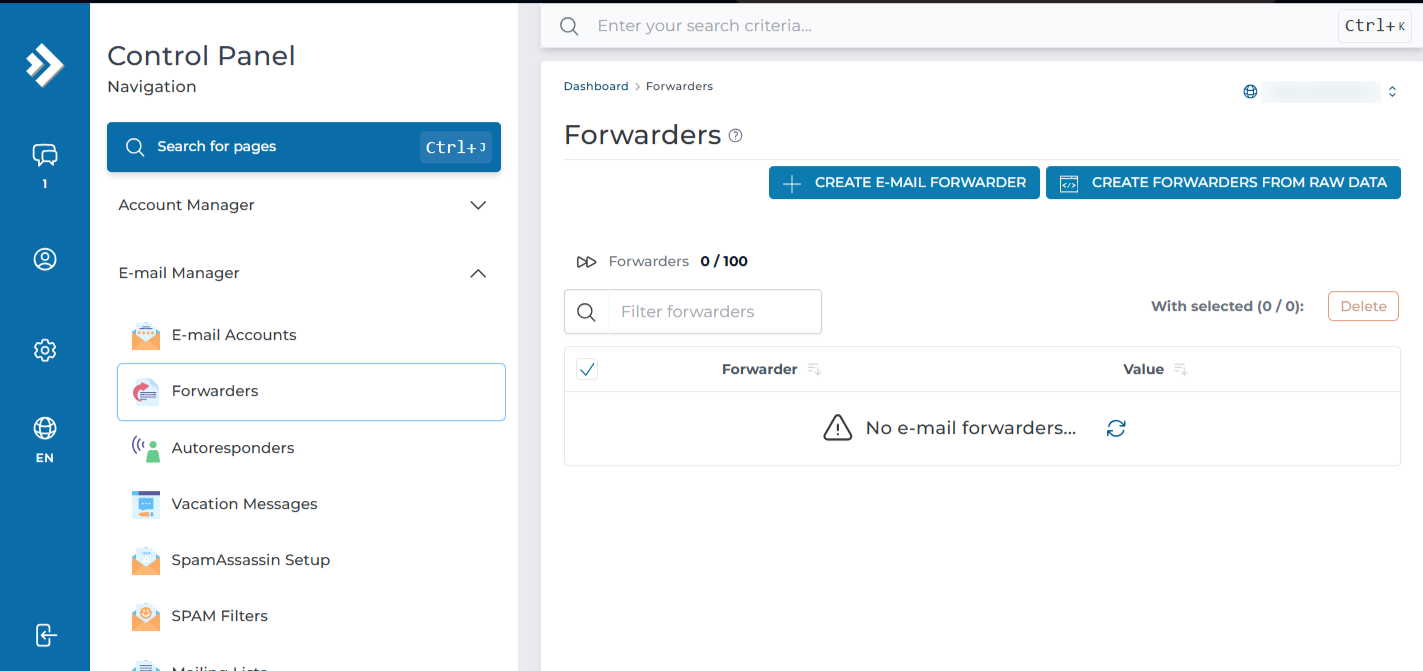
Open Forwarders
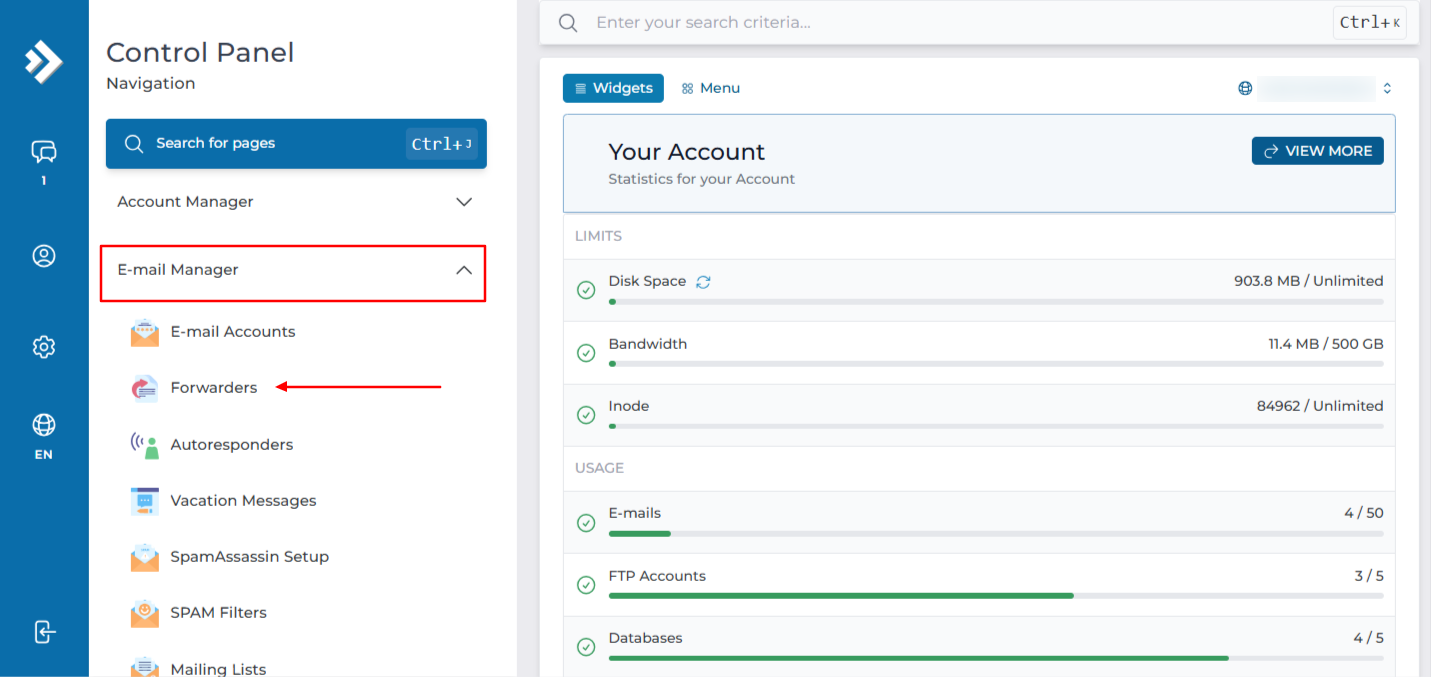
Click on Forwarders under E-Mail Manager. You can also type Forwarders in the navigation filter box to jump straight to the page.
Select the domain
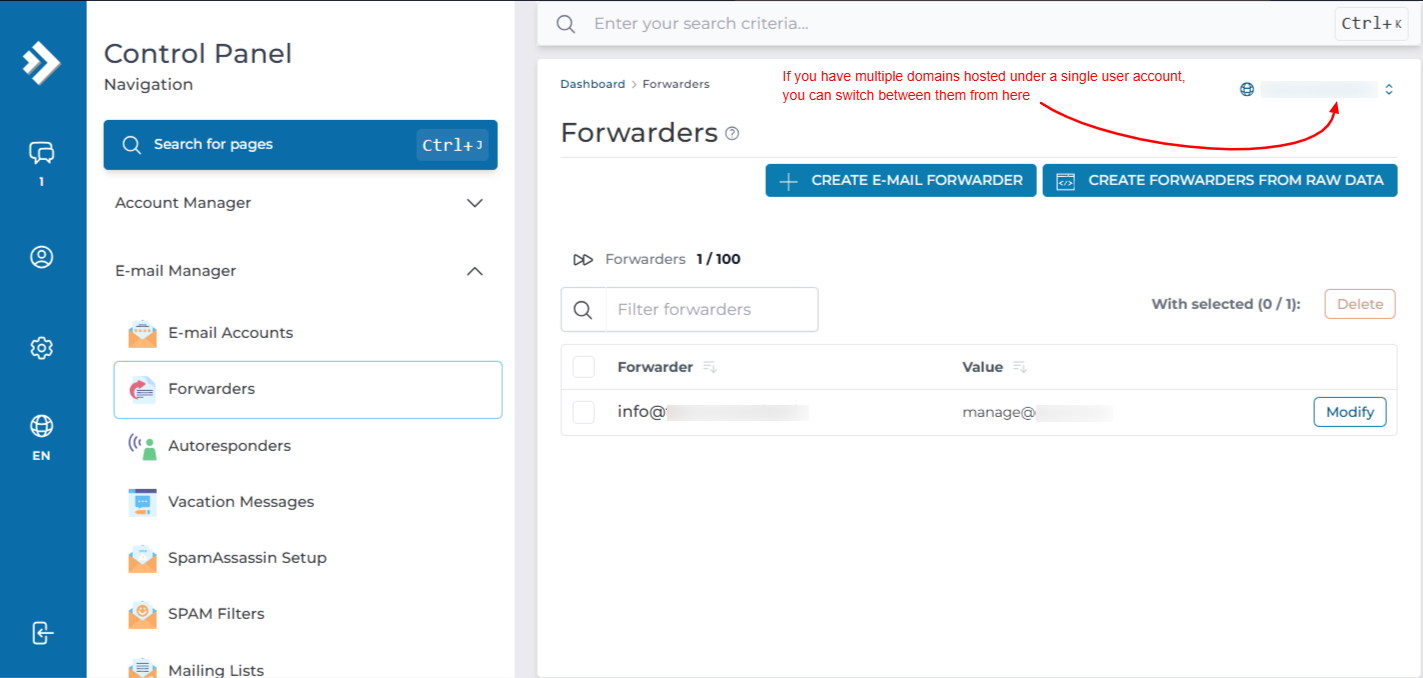
If your account holds more than one domain, check the domain shown at the top of the page and switch it if needed. The list only shows forwarders belonging to the selected domain.
Select the forwarder and click Delete
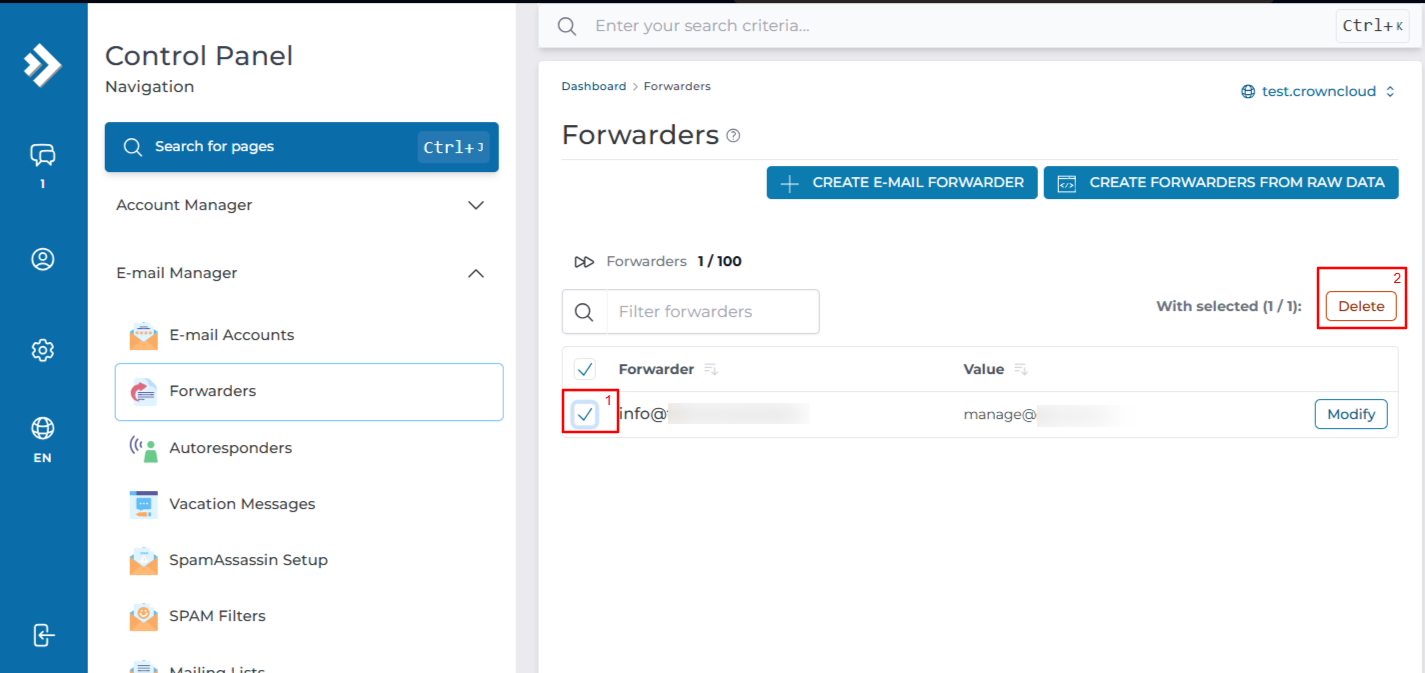
Tick the checkbox beside the forwarder you want to remove. You can select more than one to delete them together. An action bar appears above the list. Click Delete.
Confirm the deletion
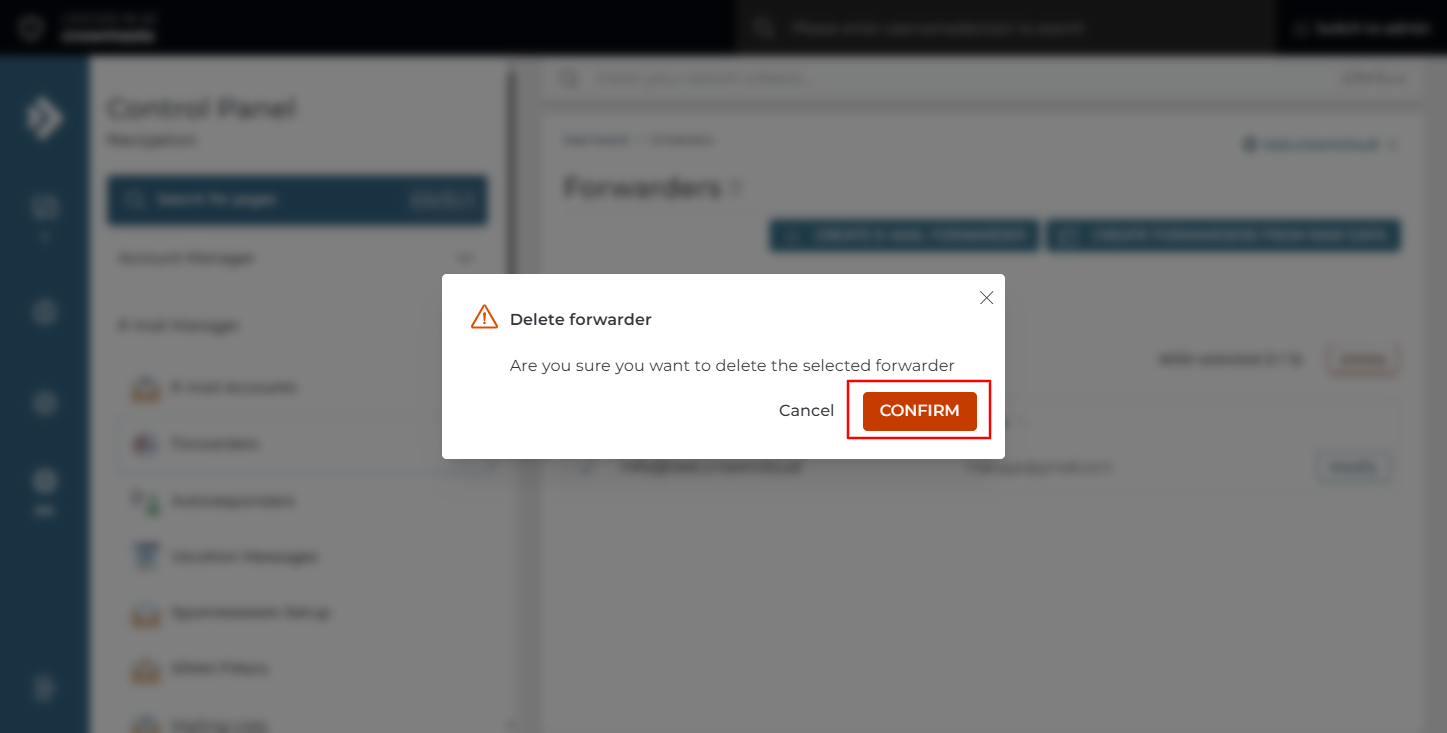
A confirmation dialog opens for the forwarders selected. Click Confirm.
Check the forwarder list
The forwarder is removed from the list and stops working immediately.
In the Standard Theme
Click here to show the steps
Log in to DirectAdmin
Log in to the DirectAdmin panel.
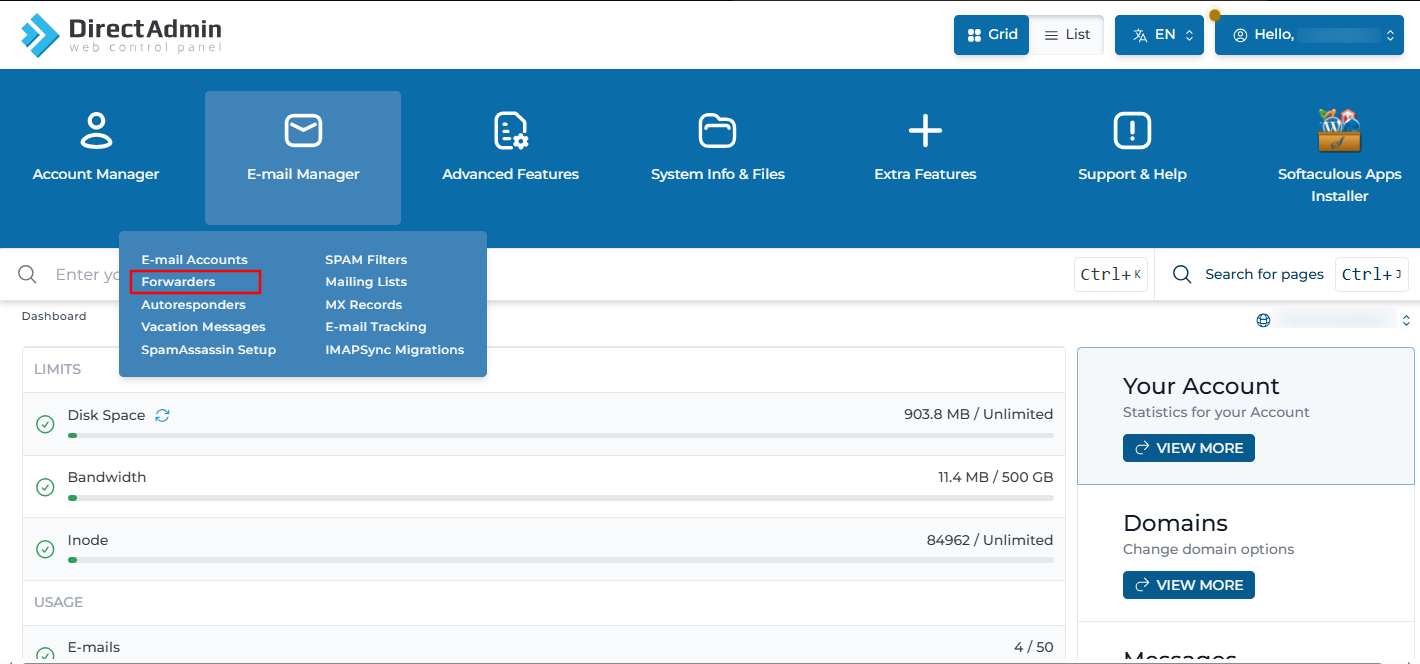
Open Forwarders
On the dashboard, go to E-Mail Manager and click Forwarders.
Find the forwarder
The page lists every forwarder on the domain along with its destination addresses. Locate the forwarder you want to remove.
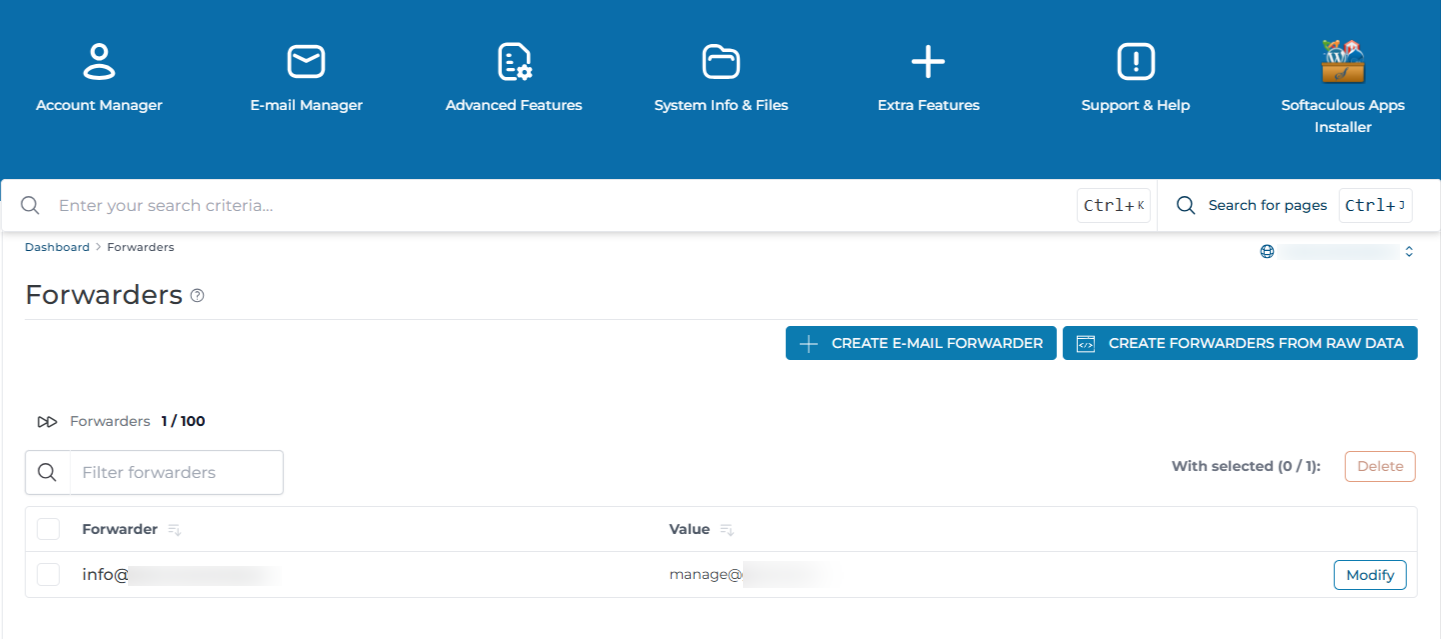
If you have multiple domains hosted under the same user account, the page opens with the main domain selected by default. Change the domain from the selector at the top of the page if the forwarder belongs to another domain.
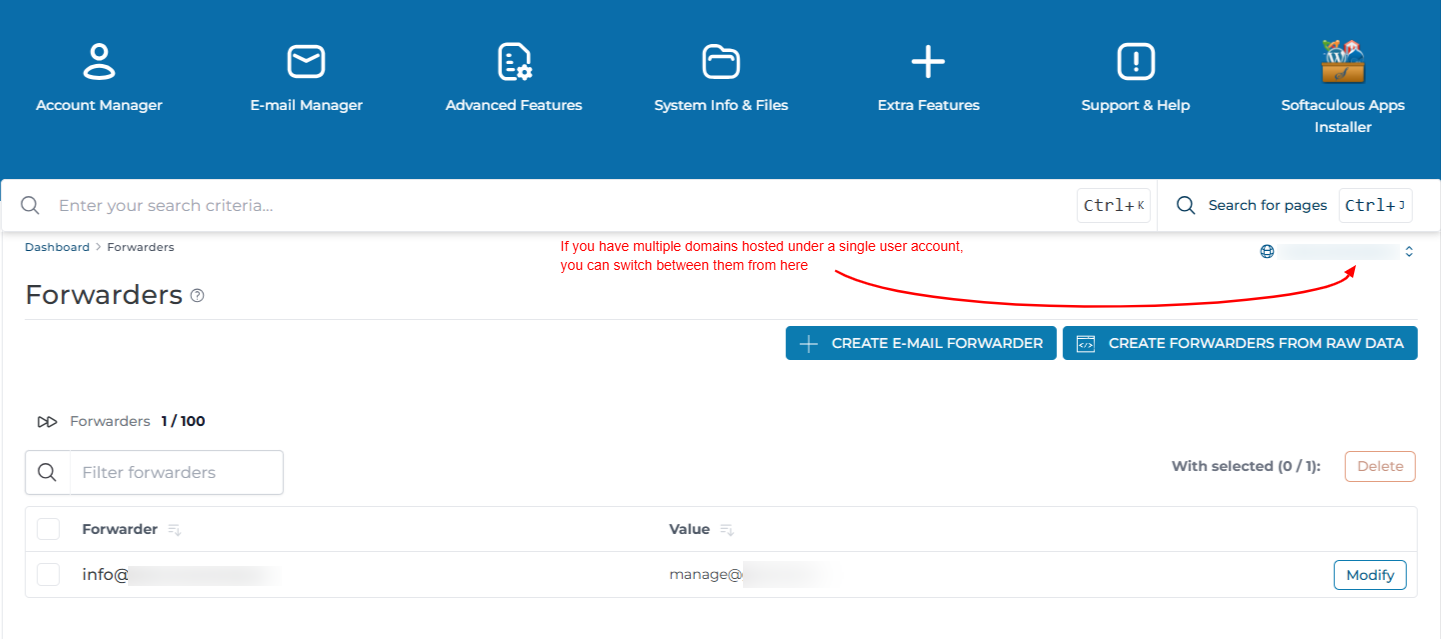
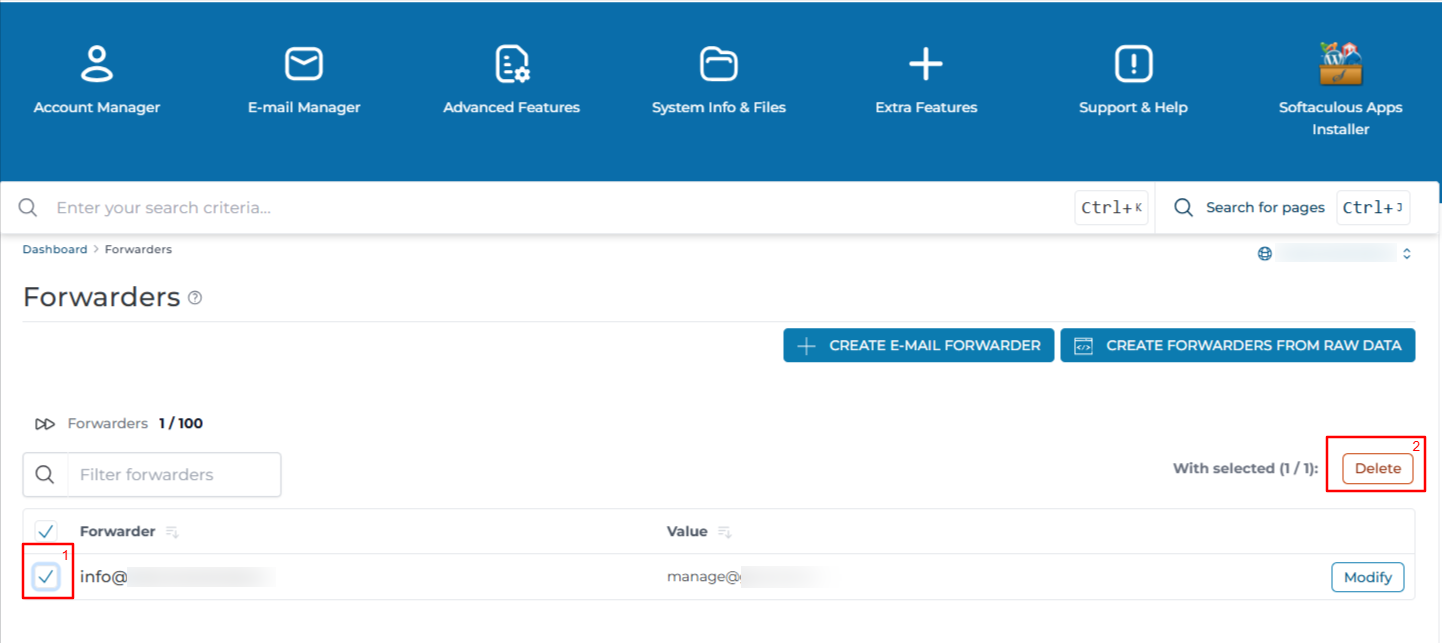
Select the forwarder and click Delete
Tick the checkbox beside the forwarder, then click Delete.
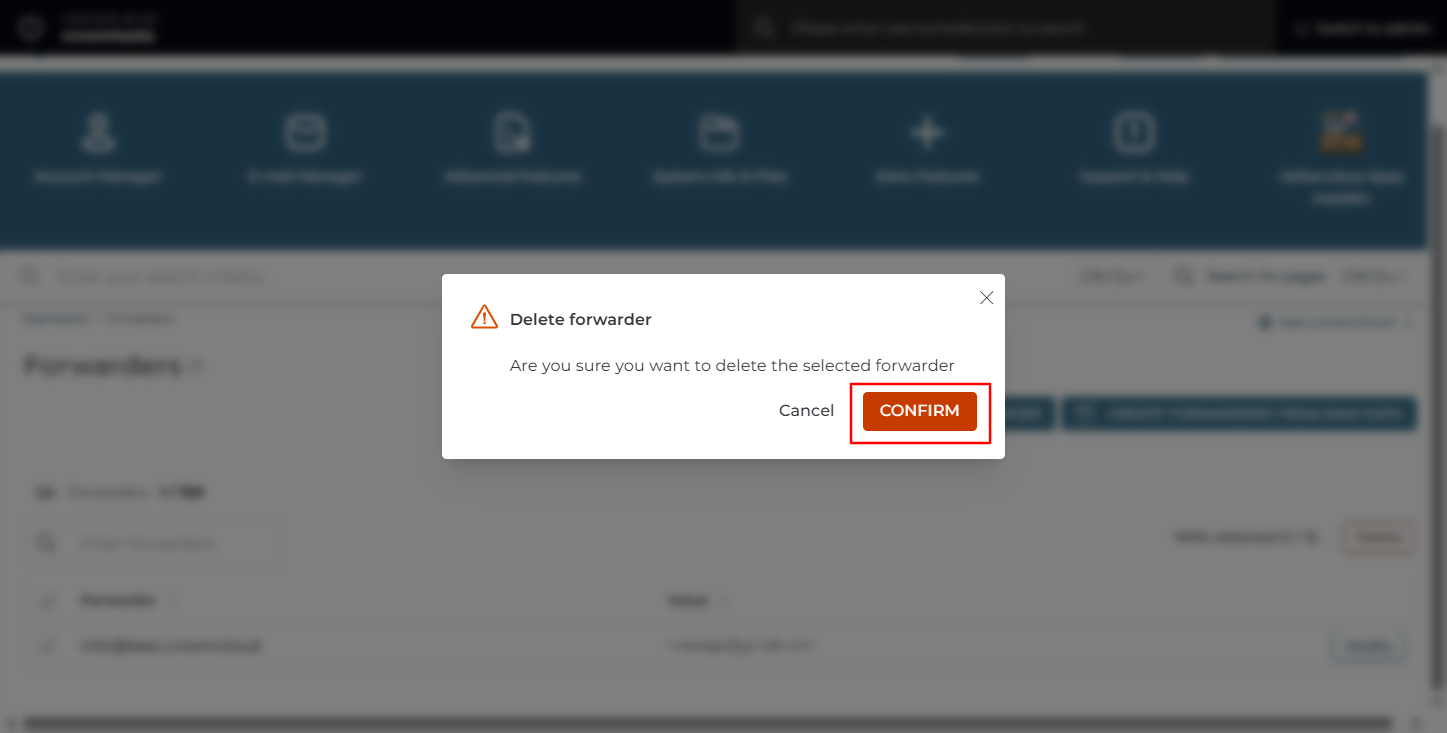
Confirm the deletion
Confirm the deletion when prompted.
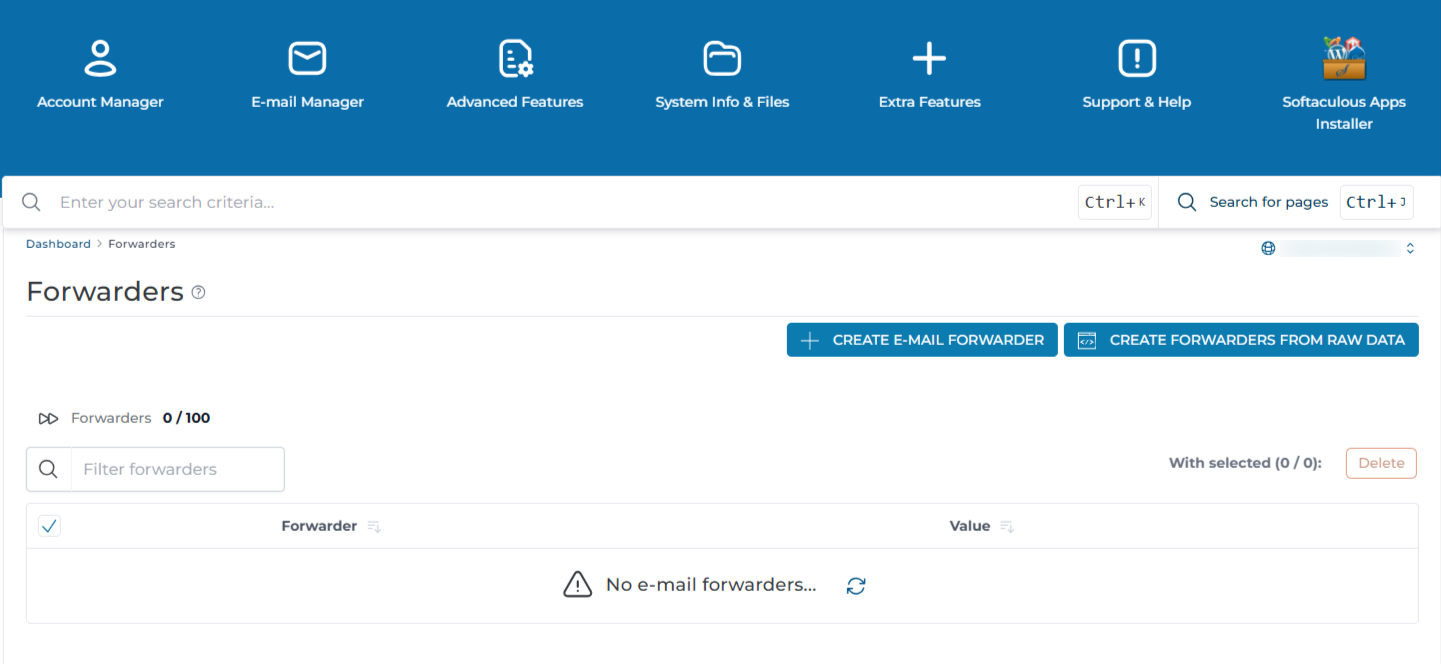
Check the forwarder list
The forwarder no longer appears in the list, and mail sent to that address is no longer redirected.
Changing the Destination Instead
If the source address is still needed and only the recipient has changed, edit the forwarder rather than deleting it:
- Go to E-Mail Manager > Forwarders.
- Click on the forwarder name in the list, or use the modify option on its row.
- Replace the address in the Destination Email field. Enter one address per line to deliver to several recipients.
- Click Save.
The source address keeps working throughout, so no mail is missed while the change is made.
Removing One Destination From a Forwarder
A forwarder can have several destinations. To stop mail reaching one of them while keeping the rest:
- Open the forwarder for editing.
- Delete only the line containing the address you no longer want.
- Click Save.
Deleting the forwarder entirely is only necessary when no destination should receive the mail any longer.
Verification
Send a test message from an outside account to the deleted forwarder address. What happens next depends on the catch-all setting for the domain:
- With the catch-all set to Fail, the sender receives a bounce saying the address does not exist.
- With the catch-all set to Address, the mail is delivered to the catch-all mailbox instead.
- With the catch-all set to Ignore, the mail is accepted and discarded with no notice to the sender.
If you have shell access, watch the mail log while the test is sent:
Confirm the entry has been removed from the alias file for the domain. Replace YOUR_DOMAIN and FORWARDER_NAME:
The command returns nothing once the forwarder is gone.
Troubleshooting
Important Notes
- Deleting a forwarder does not delete any mail. Forwarders do not store messages on the server.
- Messages already delivered to the destination mailbox stay where they are.
- A message sitting in the mail queue when the forwarder is deleted may still be delivered when the queue is next processed.
- After deletion the source address is free to be used again by a mailbox, autoresponder, or new forwarder.
- Deleting a forwarder does not affect the destination mailbox in any way.
- Changes take effect immediately and no service restart is required.
Conclusion
The email forwarder is now removed and mail sent to that address is no longer redirected. If the address is still published anywhere, create a mailbox or a replacement forwarder so that mail sent to it continues to reach someone.