

How to Install Laravel via Softaculous in DirectAdmin
DirectAdmin includes the Softaculous Apps Installer, which allows users to install applications like Laravel easily with a few clicks.
Install Laravel in DirectAdmin
Login to DirectAdmin
Open your browser and log in to the DirectAdmin panel using your credentials.
Locate Softaculous Apps Installer
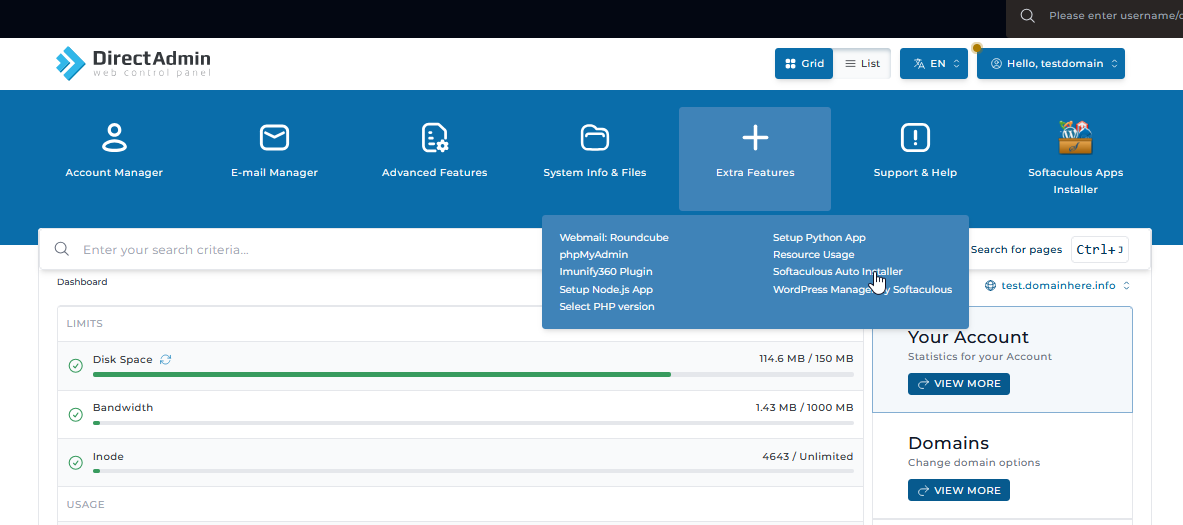
From the main dashboard, go to the top menu and click on Extra Features, then select Softaculous Apps Installer.
Select Laravel
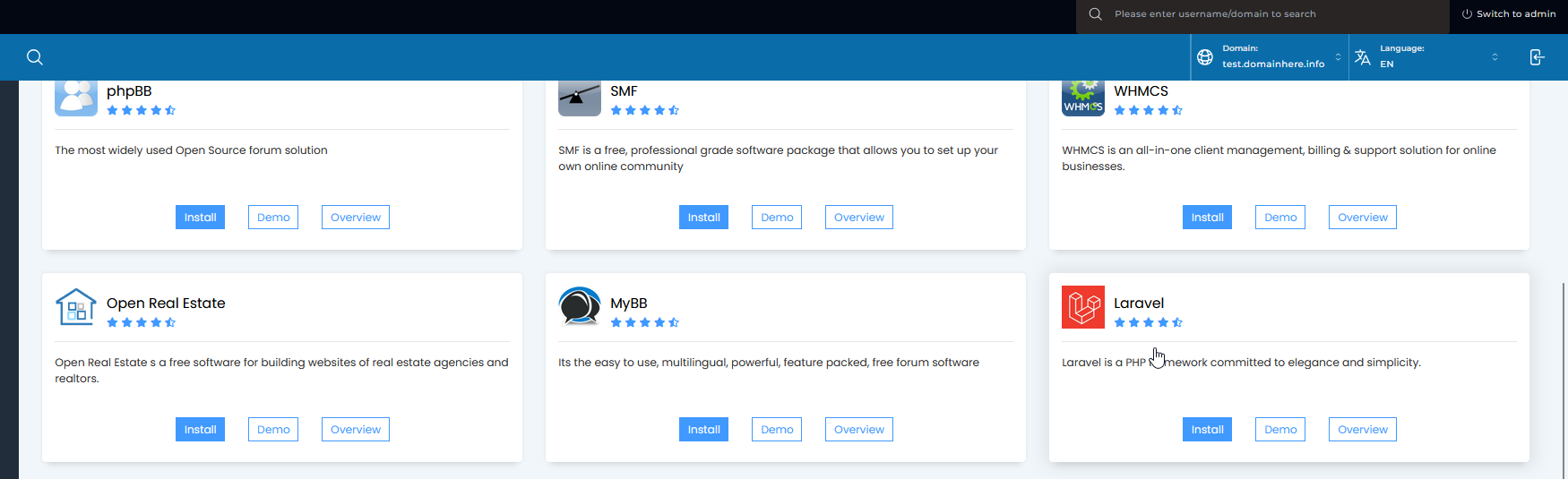
Inside Softaculous, search for Laravel or find it in the list and click on it.
Choose Installation Type
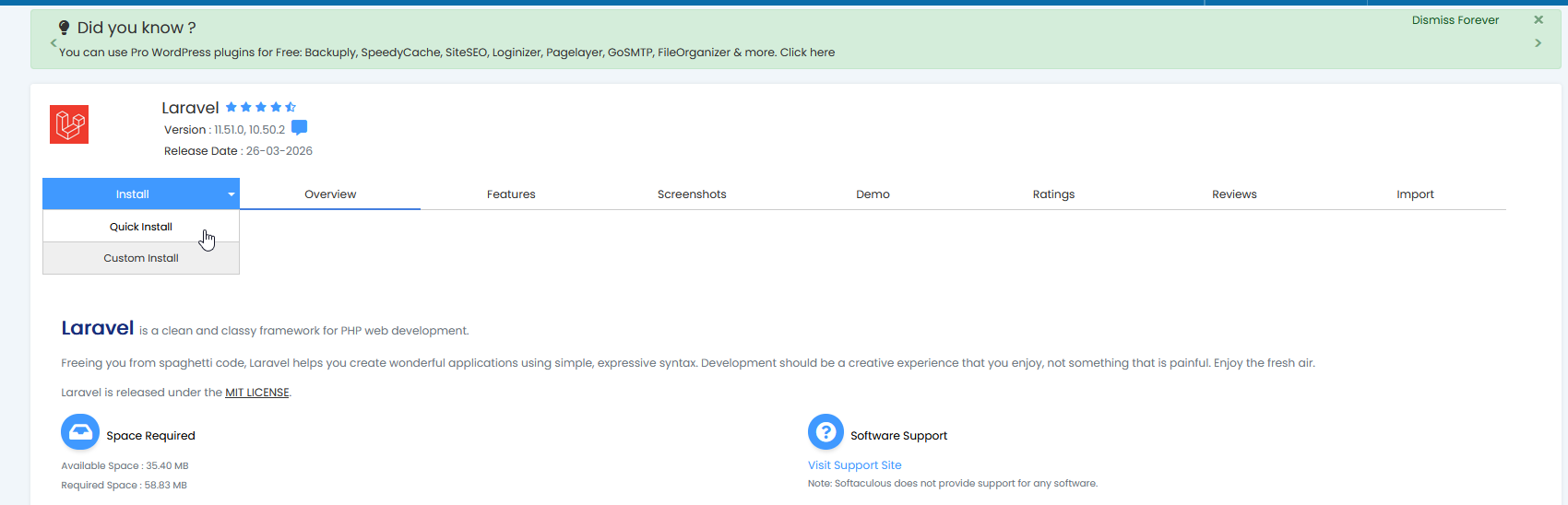
You will see two options:
-
Quick Install: This option installs Laravel with default settings. It is recommended for beginners or if you want a fast setup.
-
Custom Install: This option allows you to configure installation settings such as domain, directory, and database details as per your requirements.
Configure Installation (for Custom Install)
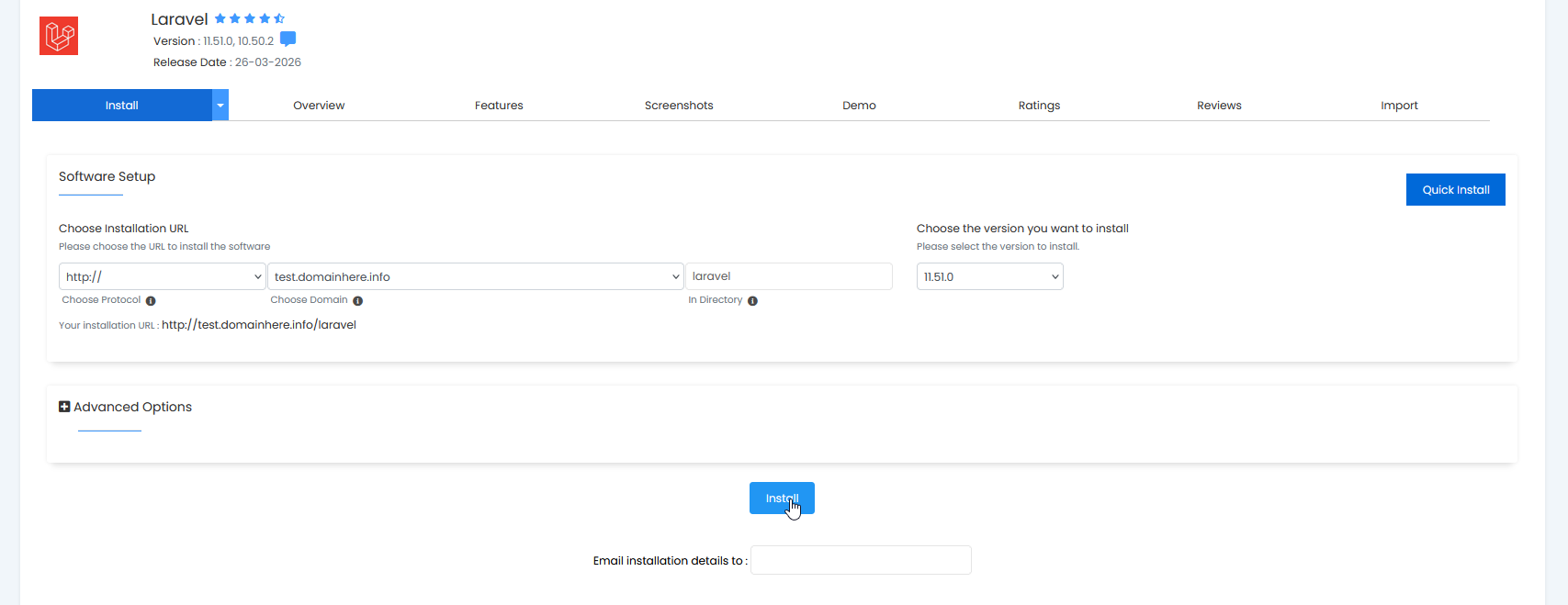
If you choose Custom Install, enter the following details:
- Choose Domain: Select the domain where you want to install Laravel
- In Directory: Leave empty to install in root or specify a folder name
- Database Name: Use default or enter a custom name
- Admin Email: Enter your email address
Install Laravel
Click on Install to proceed. Once completed, Laravel will be installed and ready to use.
You will also see the application URL after installation, which you can use to access your Laravel project.