How to Add Additional IPs in DirectAdmin
Info
If you are using the Standard theme in DirectAdmin, switch to the Refreshed theme by following How to Change Theme or Layout on DirectAdmin.
Add Additional IPs in Standard Theme
Click here to view Standard Theme instructions
Log in to DirectAdmin
Log in to your DirectAdmin control panel.
Open IP Management
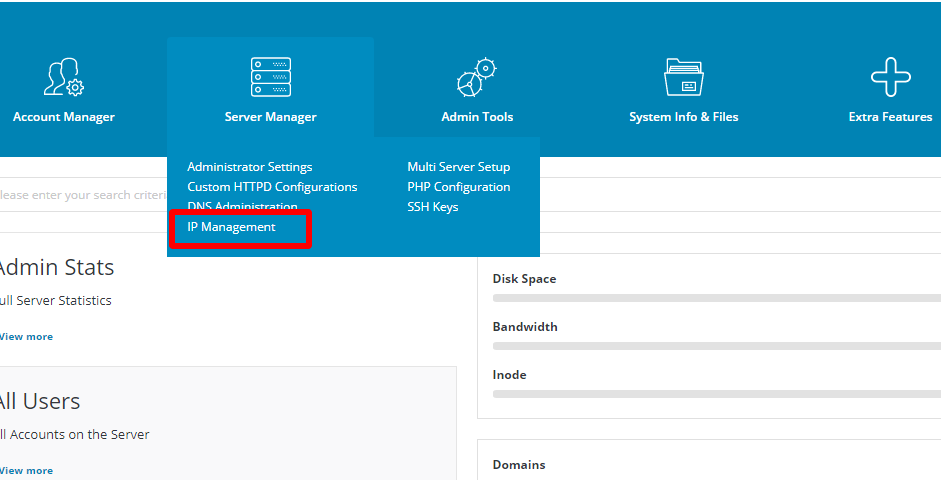
Under Server Management, click IP Management.
Add an IP Address
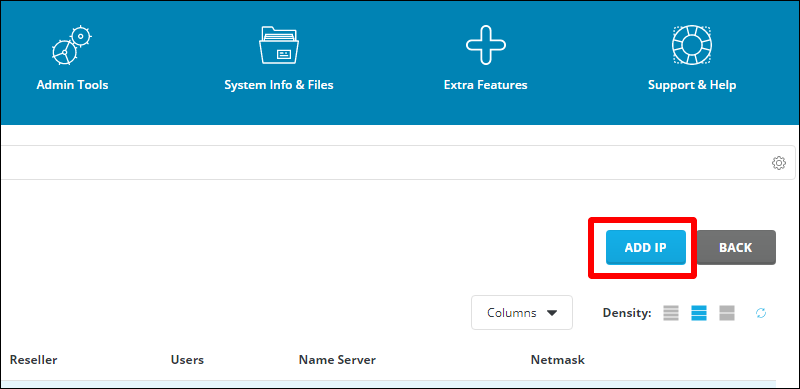
Click ADD IP.
Enter the IP Address
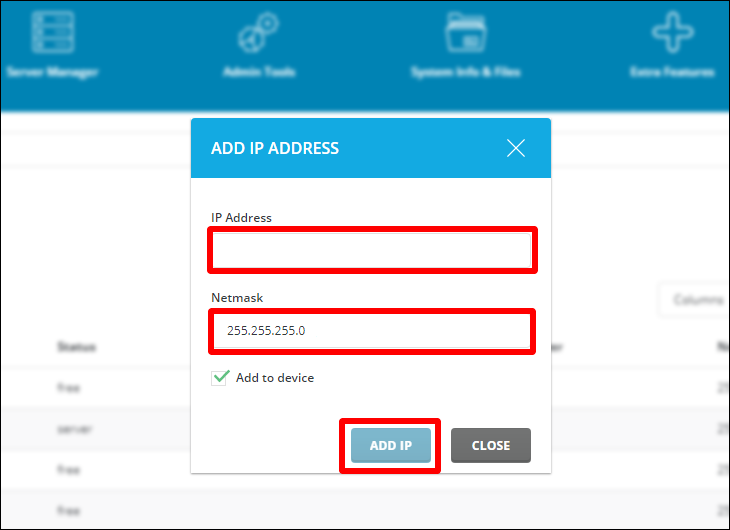
Enter the IP address and verify the netmask.
Select the IP Address
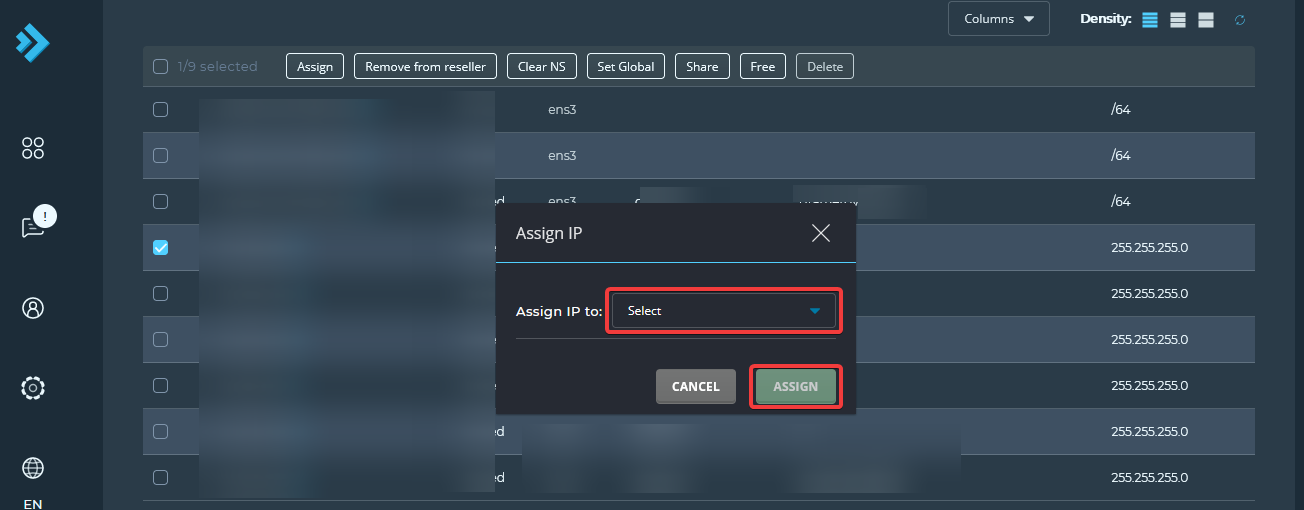
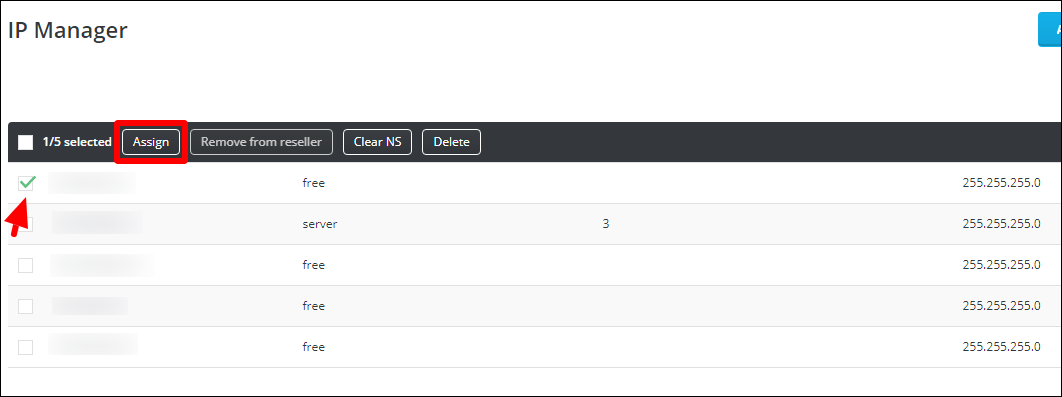
To assign the IP address to a reseller, select the IP address and click Assign.
Assign the IP Address to a Reseller
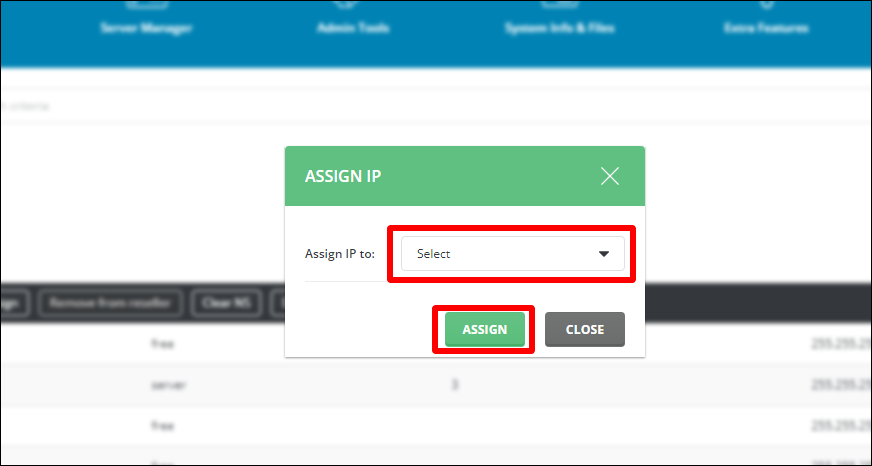
Select the reseller from the dropdown menu and click Assign.
Add Additional IPs in Refreshed Theme
Log in to DirectAdmin
Log in to your DirectAdmin control panel.
Open IP Management
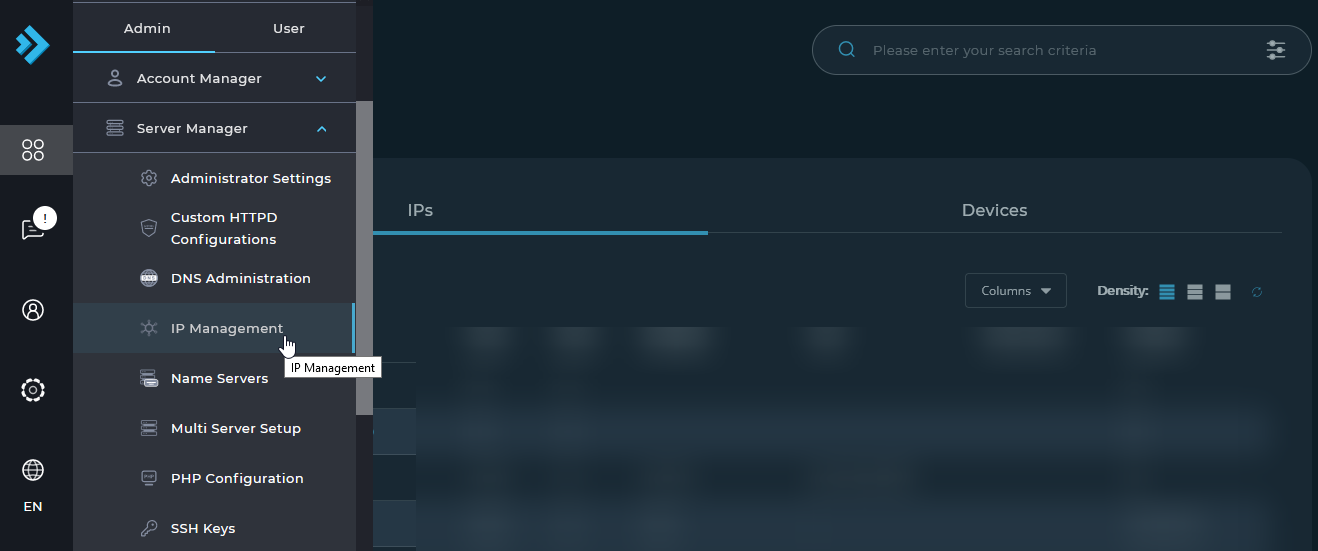
Click Menu, then select IP Management under Server Management.
Add an IP Address
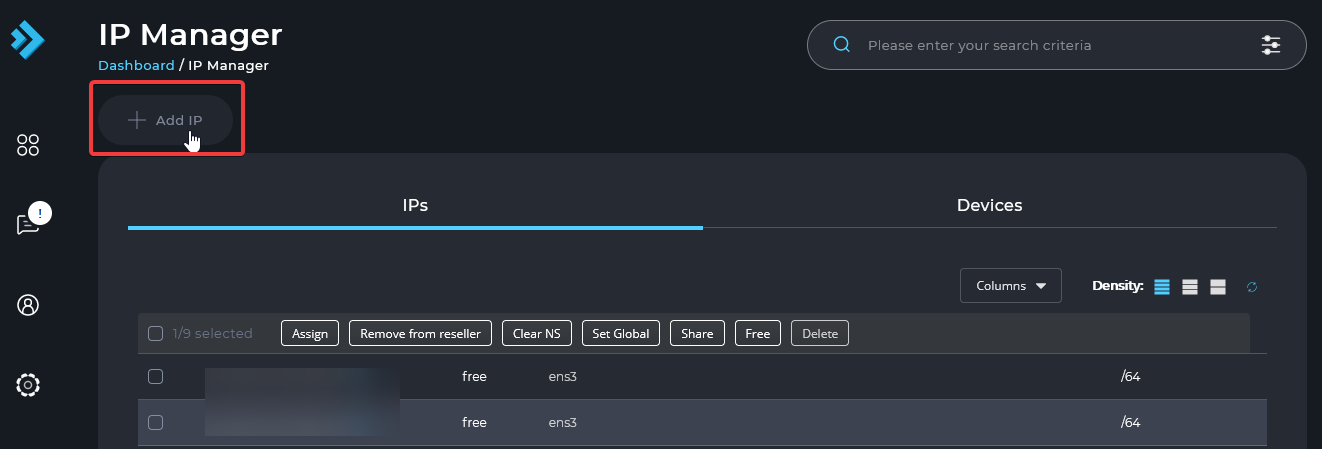
Click ADD IP.
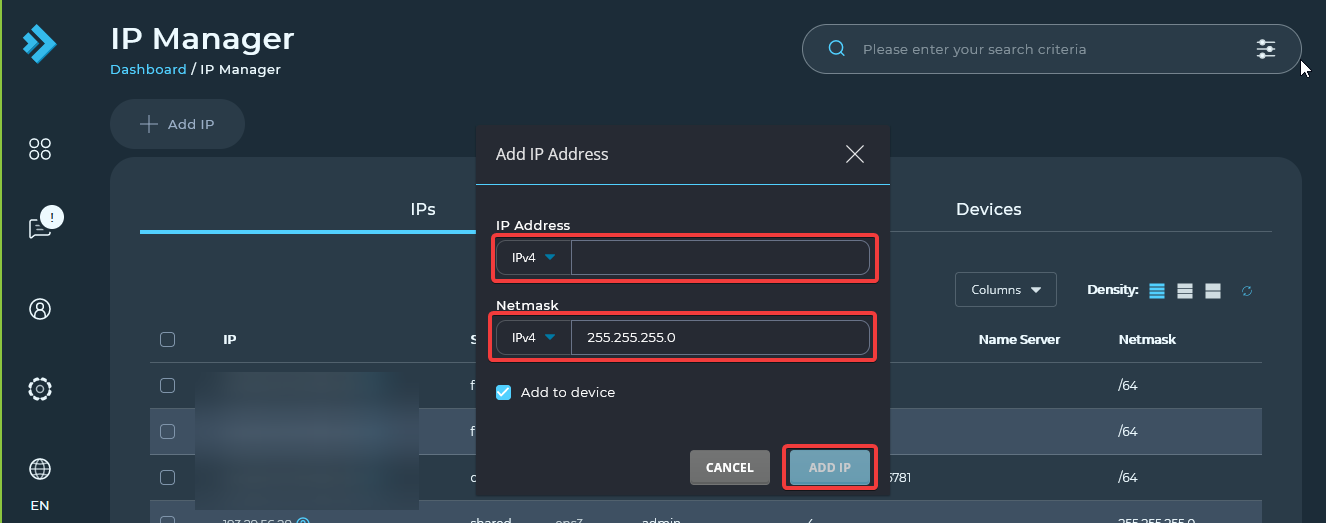
Enter the IP Address
Enter the IP address and verify the netmask.
Select the IP Address
To assign the IP address to a reseller, select the IP address and click Assign.
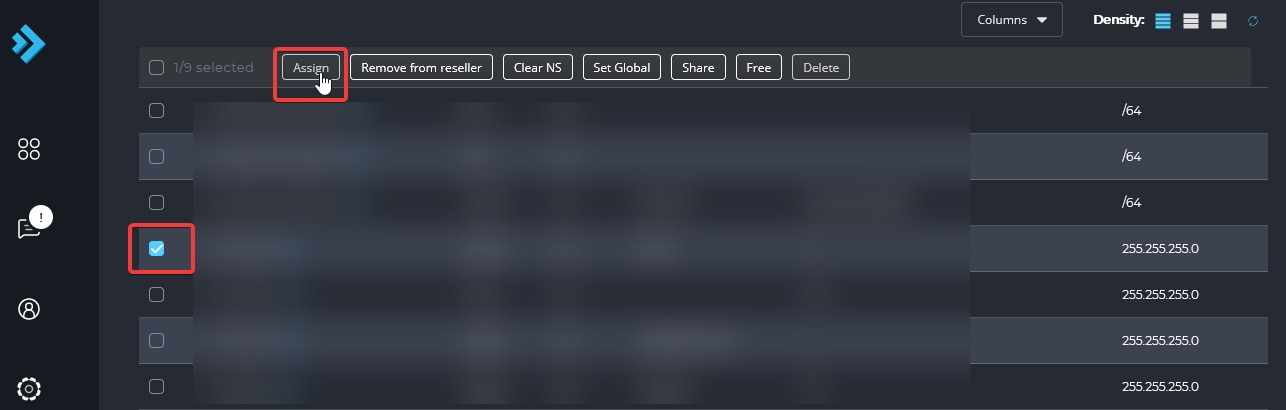
Assign the IP Address to a Reseller
Select the reseller from the dropdown menu and click Assign.