

How to Access Your FTP Account Using FileZilla or WinSCP
This guide walks you through connecting to your DirectAdmin FTP account using two popular FTP clients, FileZilla and WinSCP, so you can access your website files.
To create an FTP account in DirectAdmin first, see How to Create FTP Account under DirectAdmin.
For security reasons, CrownCloud uses a custom port (10500) for secure connections. If you are using our DirectAdmin hosting, we recommend SFTP on port 10500 for a secure, encrypted connection.
As an alternative, you can use FTP on port 21, but FTP is not encrypted.
FileZilla
Open FileZilla
Launch the FileZilla Client on your local system.
Open the Site Manager
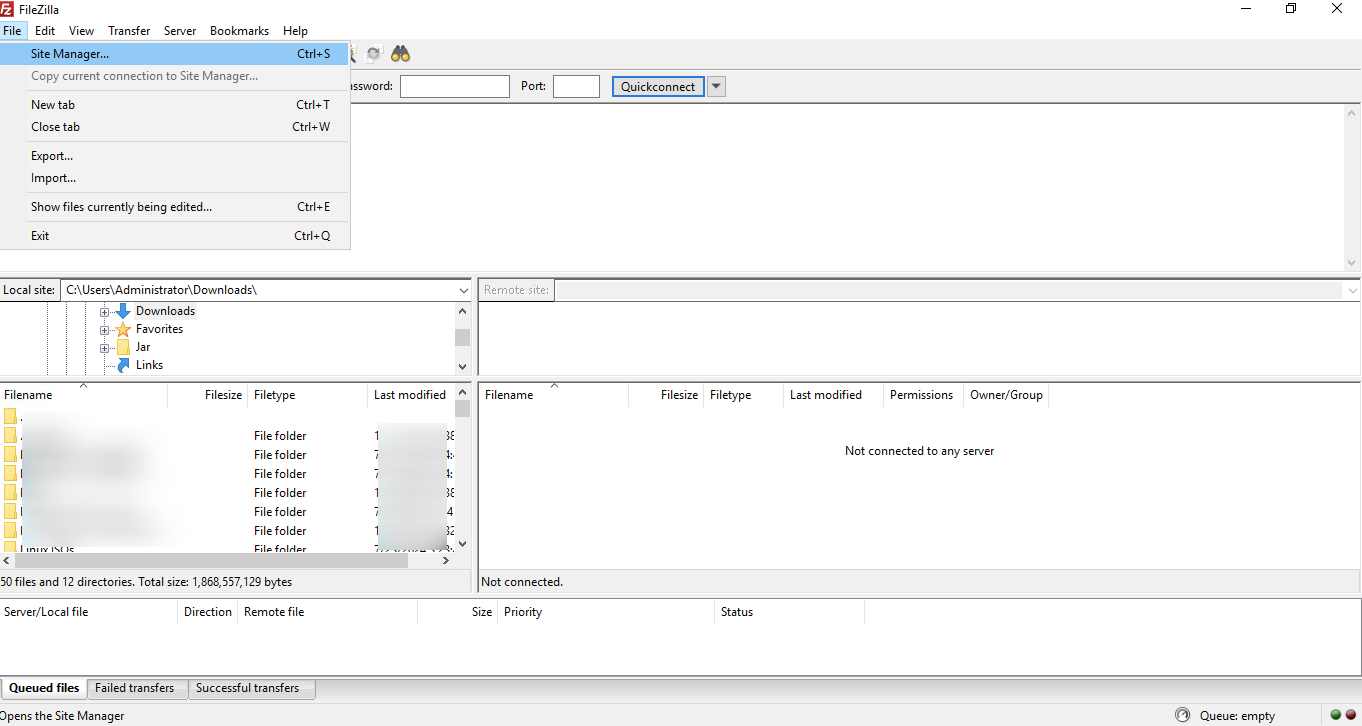
Go to the File menu (top left) and select Site Manager.
Create a new site
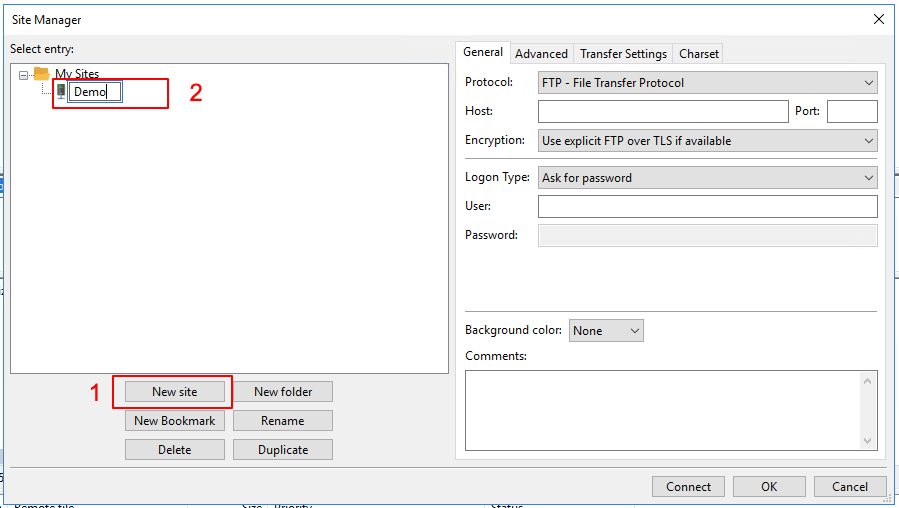
Click the New Site button in the bottom left corner, and give it a name, such as My Server or your domain name.
Enter your connection details
In the General tab, fill in the following:
Save and connect
Click Connect to connect immediately, or click OK to save the site for later.
Set default directories (optional)
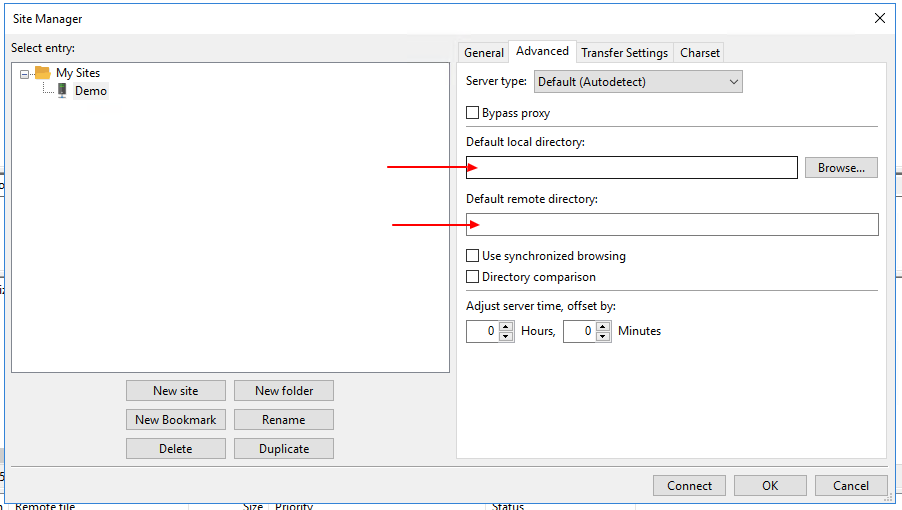
In the Advanced tab, you can specify:
- Default local directory: a folder on your computer.
- Default remote directory: a path on the server, for example
/public_html.
Transfer files
Once connected, you will see your local files on the left and your server files on the right. You can upload or download files by dragging them between the two panels.
WinSCP
Open WinSCP
Launch the WinSCP application on your local system.
Create a new connection
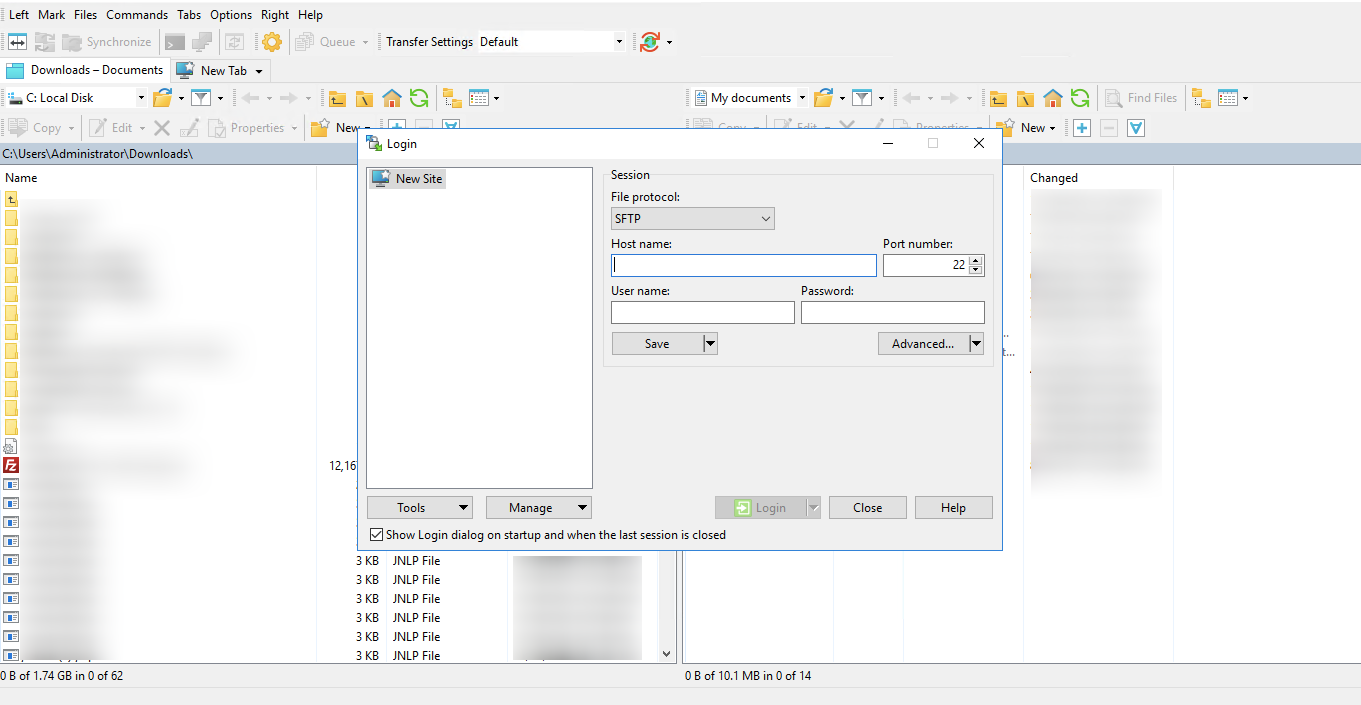
When the login window opens, click New Site in the left panel.
Enter your connection details
Fill in the following:
To use plain FTP instead, change File protocol to FTP – File Transfer Protocol and Port number to 21.
Save the connection (optional)
Click Save to store your login details for future use. You can give the connection a name such as My Website (SFTP). Tick Save password if you would like WinSCP to remember it.
Log in
Click Login to connect. If you are prompted about a host key, select Yes to trust and store it.
Transfer files
Once connected, you will see your local files on the left and your remote files on the right. You can transfer files by dragging and dropping between the panels.