

How to Access Webmail in DirectAdmin
Webmail provides browser access to a mailbox without installing or configuring any software. It is a convenient way to verify a new email account, read messages from another computer, or access email when a mail client is unavailable.
DirectAdmin servers commonly use Roundcube as the webmail application. Some servers may also offer SnappyMail or RainLoop, depending on the applications installed by the server administrator.
This guide covers different ways to access webmail and sign in to a mailbox.
Requirements
Before accessing webmail, make sure you have:
- An existing email account on the domain and its password.
- The full email address, such as
sales@YOUR_DOMAIN. The short username alone will not work. - A DirectAdmin user account if you want to use the one-click login from the control panel.
- A domain that resolves to the server, or the server hostname if DNS has not been pointed yet.
DirectAdmin Theme Information
DirectAdmin offers different interface themes. The Standard Theme uses the traditional interface, while the Refreshed Theme provides a newer layout.
To change the DirectAdmin theme, refer to How to Change Theme or Layout on DirectAdmin.
Access Webmail Directly
You do not need to log in to DirectAdmin to access webmail. Open one of the following addresses in your browser:
Replace YOUR_DOMAIN with your actual domain name.
Sign in using the full email address as the username and the mailbox password.
If the domain does not yet point to this server, use the server hostname instead:
Access Webmail in Standard Theme
If you are using the Standard Theme in DirectAdmin, follow these steps.
Click here to view Standard Theme instructions
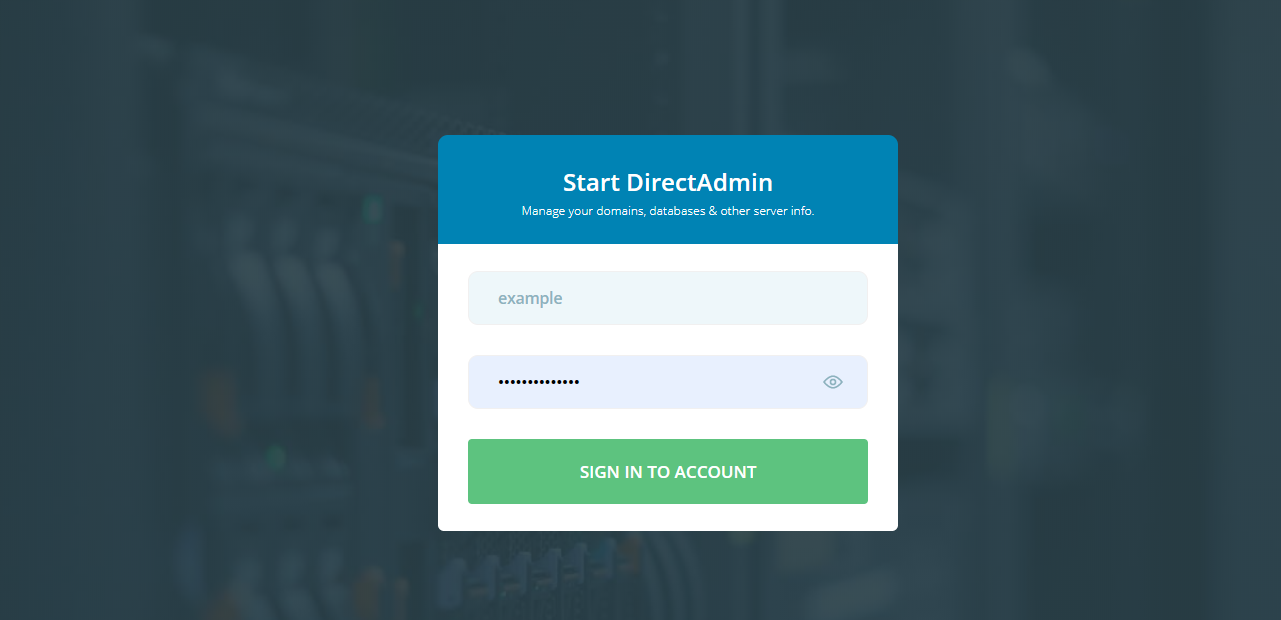
Log in to DirectAdmin
Log in to your DirectAdmin control panel.
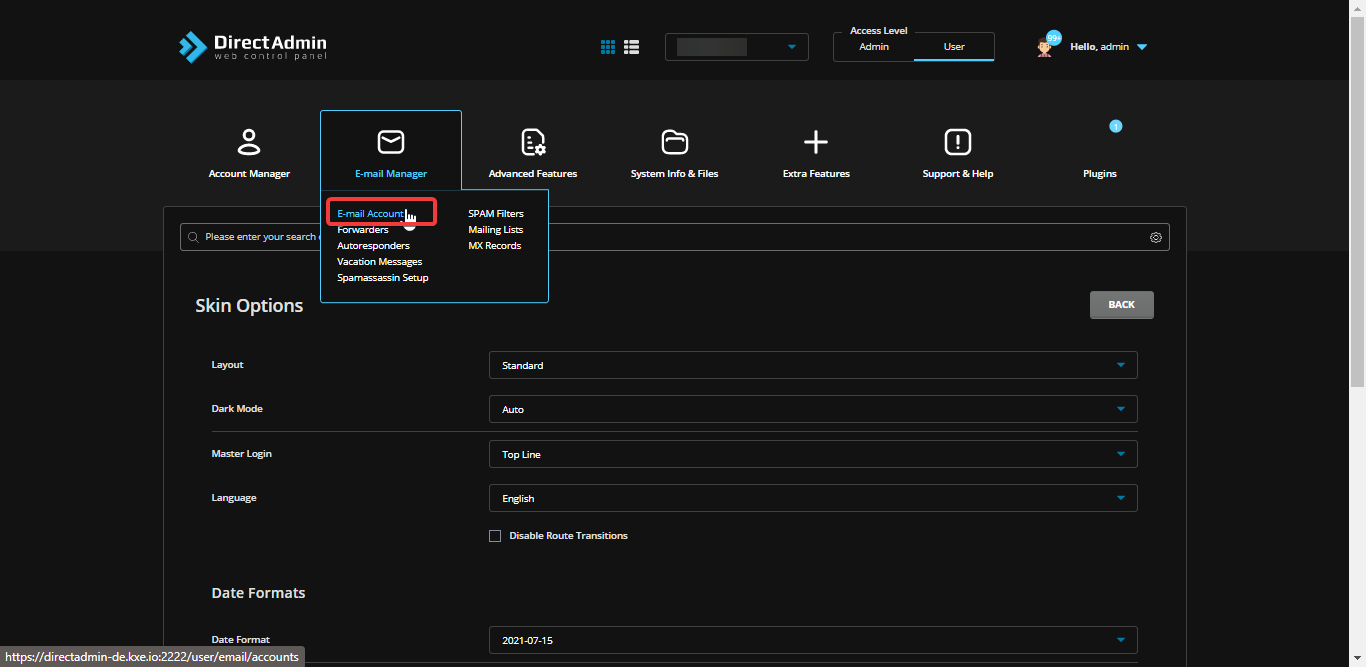
Open E-Mail Accounts
From the dashboard, navigate to E-Mail Manager → E-Mail Accounts.
Select the Domain
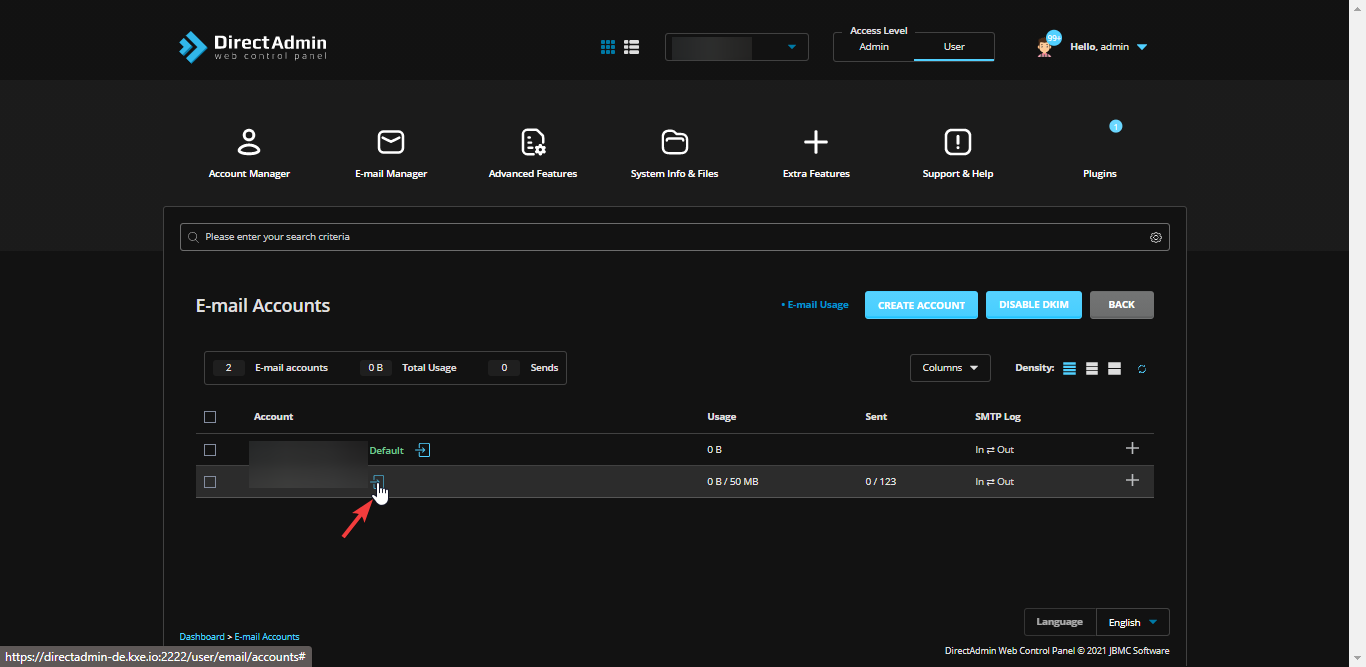
The page lists the email accounts associated with the selected domain.
If you have multiple domains under the same user account, the main domain is selected by default. Use the domain selector at the top of the page to choose the domain that contains the mailbox.
Log in to the Mailbox
Find the mailbox you want to access and click the Login button beside it.
DirectAdmin authenticates the session without asking for the mailbox password.
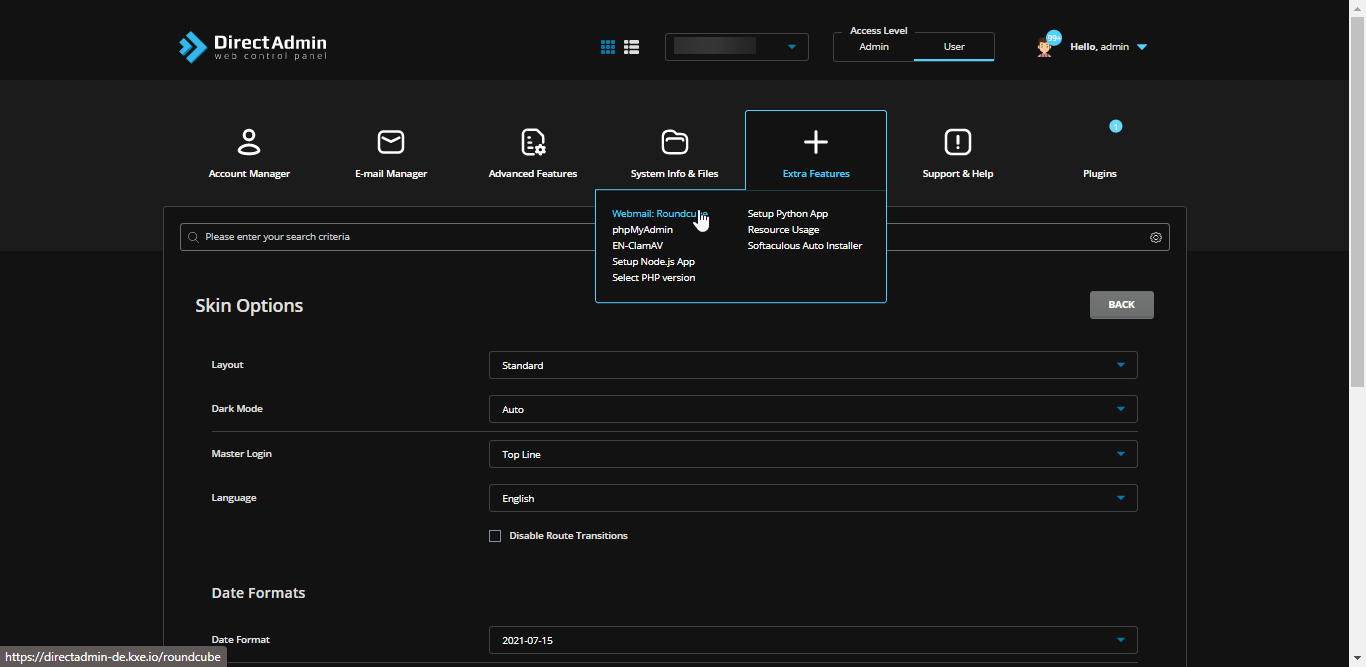
Verify Webmail Access
The webmail interface opens in a new tab with the selected mailbox's Inbox.

Access Webmail in Refreshed Theme
If you are using the Refreshed Theme in DirectAdmin, follow these steps.
Click here to view Refreshed Theme instructions
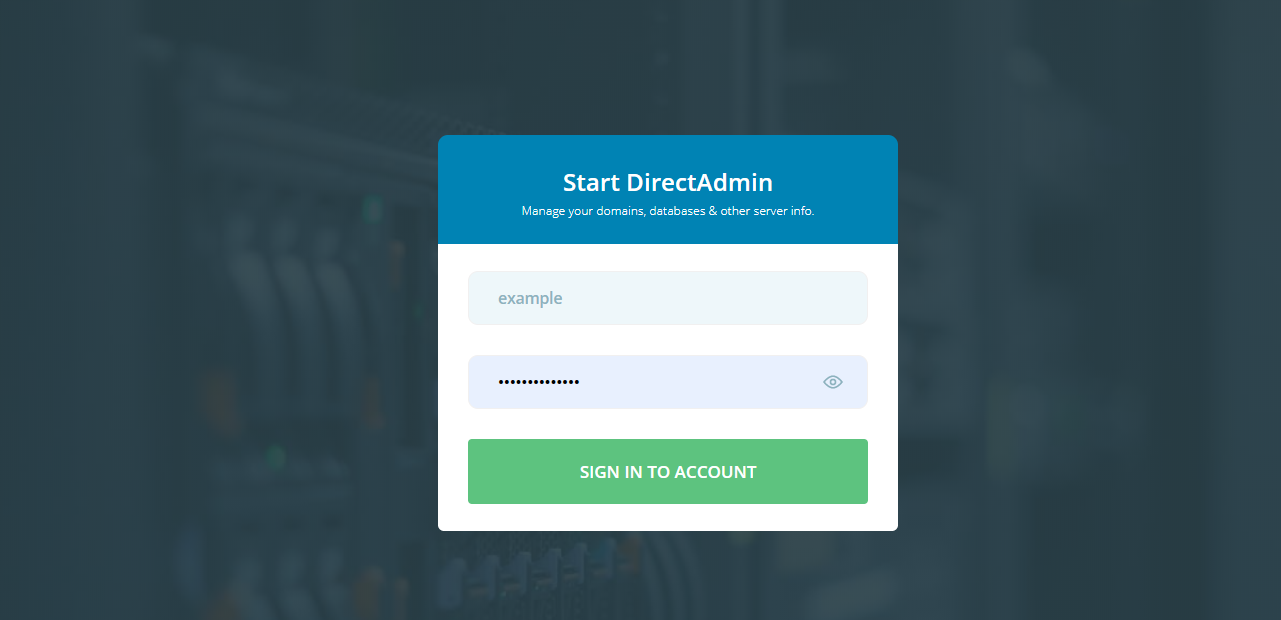
Log in to DirectAdmin
Log in to your DirectAdmin control panel.
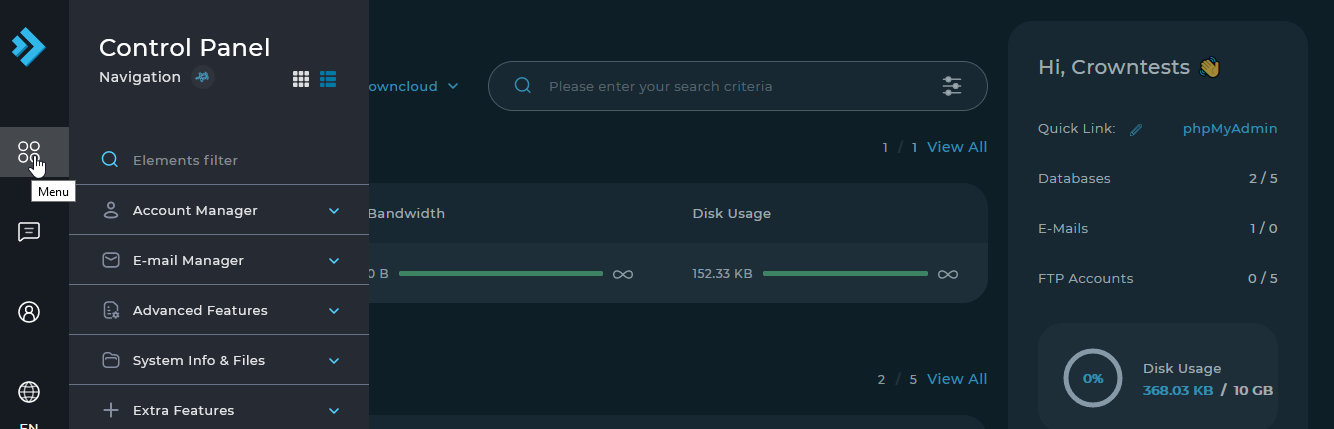
Open E-Mail Accounts
Under E-Mail Manager, click E-Mail Accounts.
You can also type E-Mail Accounts in the navigation filter box to find the page.
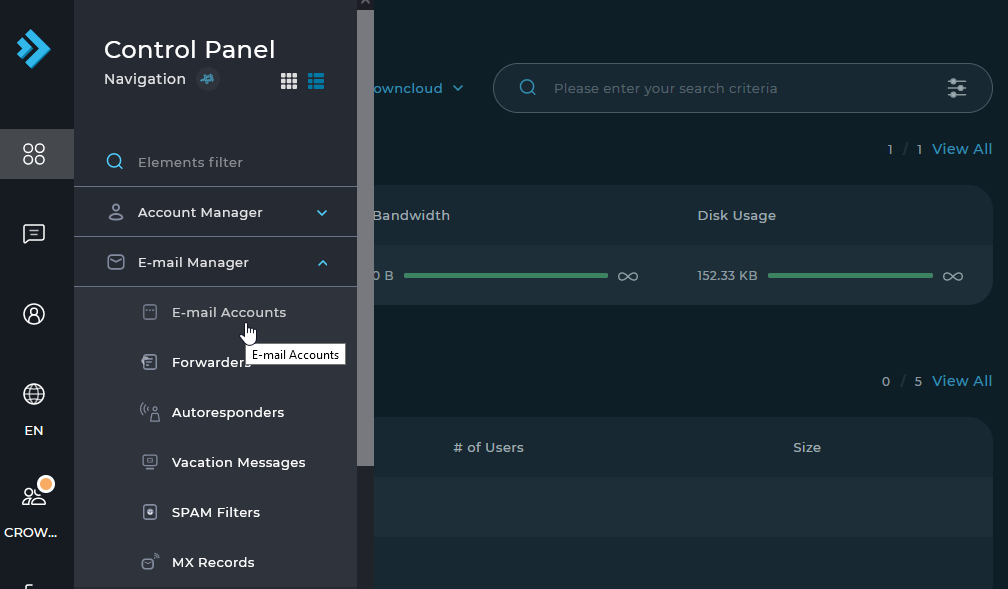
Select the Domain
If your account has multiple domains, check the domain displayed at the top of the page and switch it if needed. The list displays mailboxes belonging to the selected domain.
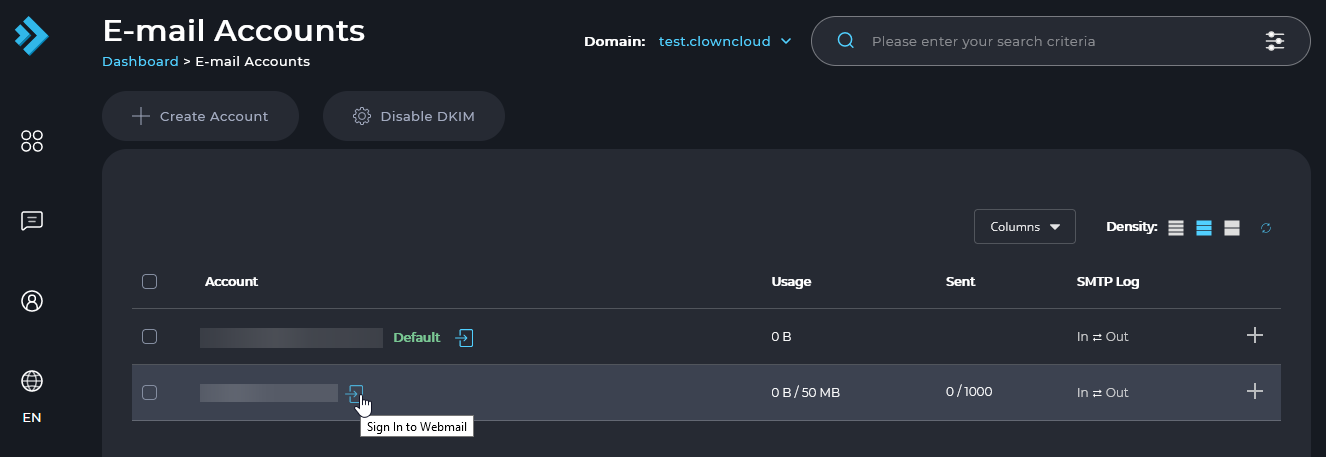
Log in to the Mailbox
Find the mailbox in the list and click its Login button.
DirectAdmin authenticates the session without requiring the mailbox password.
Verify Webmail Access
Webmail opens in a new tab, already signed in to the selected mailbox.
Using Webmail
Once signed in, you can use the following features:
- Compose: Write and send a new message.
- Folders: Access Inbox, Drafts, Sent, Junk, and Trash. Custom folders are visible in other mail clients connected to the same mailbox over IMAP.
- Settings → Identities: Set the display name shown to recipients and add an email signature.
- Settings → Preferences: Change the interface language, date format, and messages per page.
- Settings → Folders: Subscribe to folders so they appear in the folder list.
Mail read or deleted in webmail is reflected on devices connected through IMAP because messages are stored on the server. A POP3 client may already have downloaded and removed messages, so they might not appear in webmail.
Verification
Verify Mailbox Login
Sign in using the full email address and mailbox password. A successful login confirms that the mailbox exists and the password is correct.
Test Sending and Receiving
Send a message from webmail to an external email address and reply to it. This confirms that both sending and receiving are working.
Check Mail Logs
If you have shell access, monitor the mail log to check whether the webmail login attempt reached the server:
Verify DNS Resolution
Confirm that the domain resolves to this server before troubleshooting further. Replace YOUR_DOMAIN with your actual domain:
Troubleshooting
Important Notes
- The webmail username must always be the full email address, not just the short username.
- Webmail and mail clients access the same mailbox. Changes made in one are reflected in the other when IMAP is used.
- Mail stored in webmail counts towards the mailbox quota. Emptying Trash and Junk can free up space.
- Sign out and close the browser when using webmail on a shared or public computer.
- The installed webmail application is selected by the server administrator. Roundcube is commonly used with DirectAdmin, so menu names may differ if another application is installed.
- One-click login from DirectAdmin works only while you are signed in to the control panel. Users accessing webmail directly need the mailbox password.
Conclusion
You can access webmail directly through your browser or use the one-click login from the DirectAdmin email account list. Webmail is a convenient way to verify that a mailbox works before configuring it in Outlook, Thunderbird, or a mobile device.