

Setting Up Backups via SFTP in DirectAdmin
This guide is applicable only to our DirectAdmin VPS plans. If you have a DirectAdmin Shared Hosting or Reseller plan, backups are automatically handled by us.
SFTP (SSH File Transfer Protocol) backups in DirectAdmin provide a secure way to back up your hosting server's data, including websites, databases, and configuration files, to a remote server.
Requirements
Before proceeding, make sure you have:
- Root user access to the DirectAdmin server.
- Admin user access to the DirectAdmin panel.
Configure SFTP Backup Scripts
Log in to the DirectAdmin server
Log in to your DirectAdmin server using your root credentials.
Navigate to the Custom Scripts directory
Change your current directory to the DirectAdmin Custom Scripts directory:
Clone the SFTP backup repository
Clone the following GitHub repository:
Copy the PHP scripts
Copy the required PHP scripts into the Custom Scripts directory:
Set file permissions and ownership
Set the required file permissions and change the ownership of the scripts:
Configure Backups in DirectAdmin
Log in to DirectAdmin
Log in to the DirectAdmin panel using your Admin user credentials.
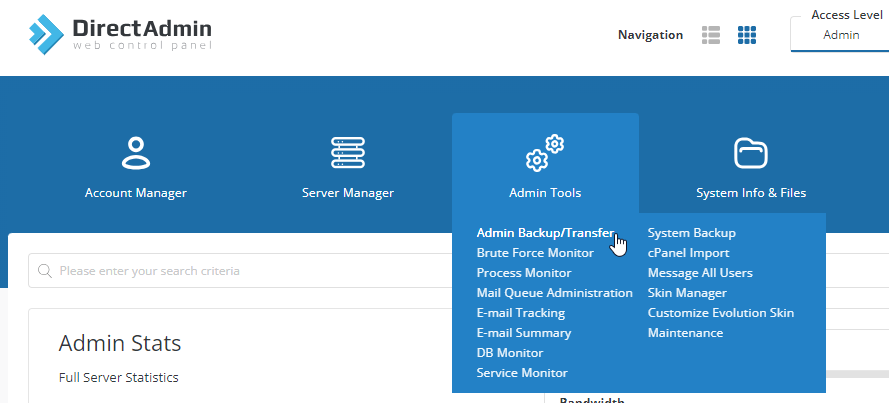
Navigate to Admin Tools → Admin Backup/Transfer.
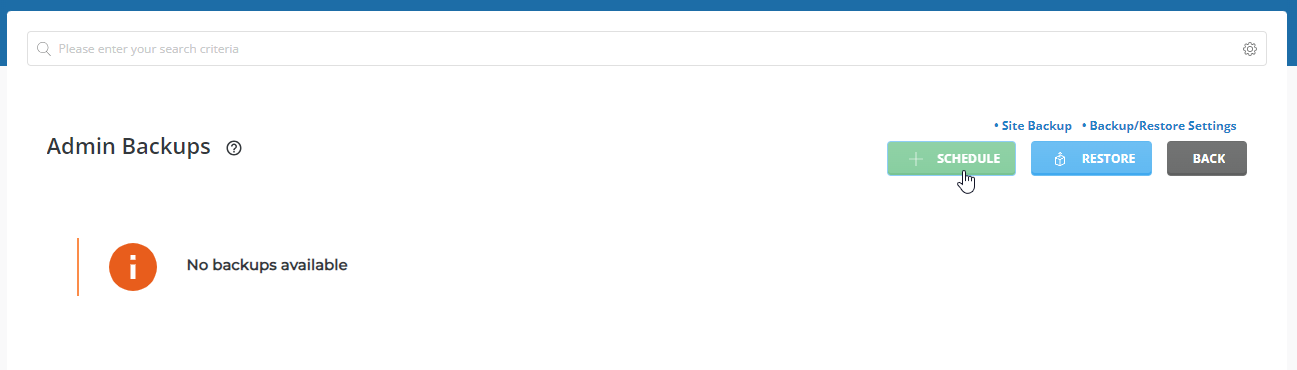
Open the backup scheduling page
Click Schedule to configure a backup.
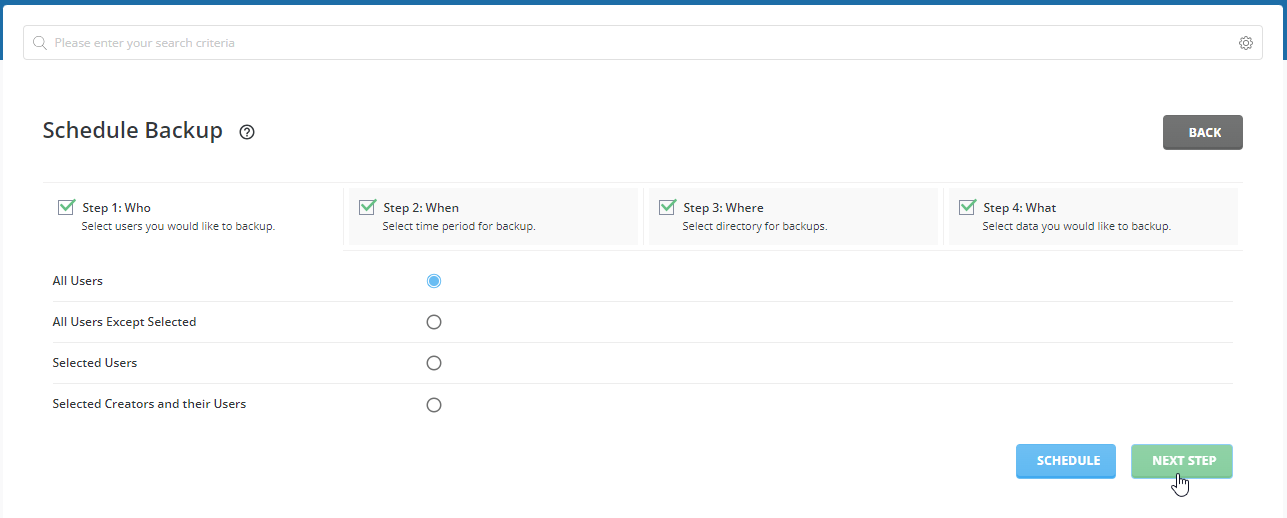
Select users to back up
Select All Users or choose specific users you want to back up.
Click Next to continue.
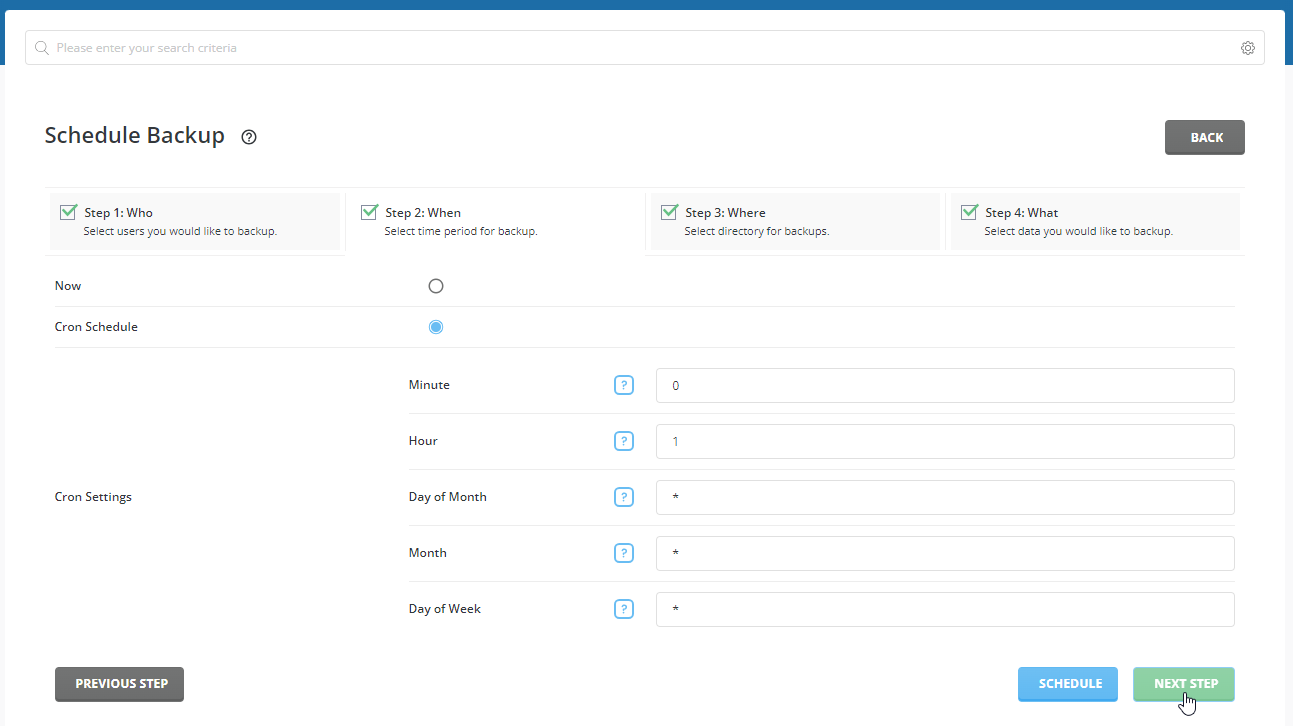
Configure the backup schedule
Choose Now to create a one-time backup immediately, or select Cron Scheduling to configure recurring backups at a specific time.
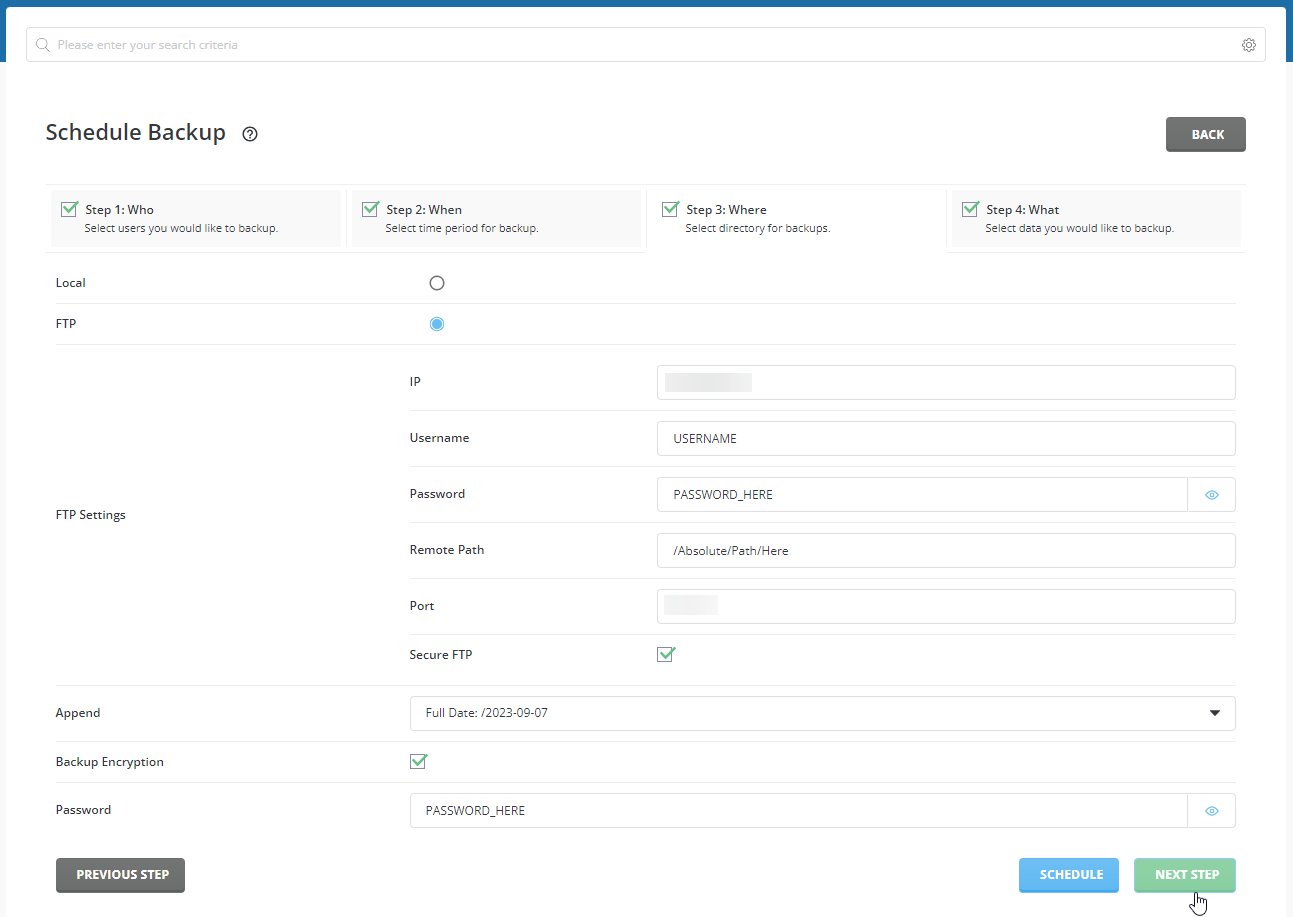
Configure the backup destination
Choose where to store the backup. You can select a local destination or a remote server.
For SFTP backups, select the FTP option and enter the destination details:
- IP: Remote server IP address.
- Username: Remote server username.
- Password: Remote server password.
- Path: Destination directory on the remote server.
- SSH Port: Remote server SSH port.
Make sure to select the Secure FTP option.
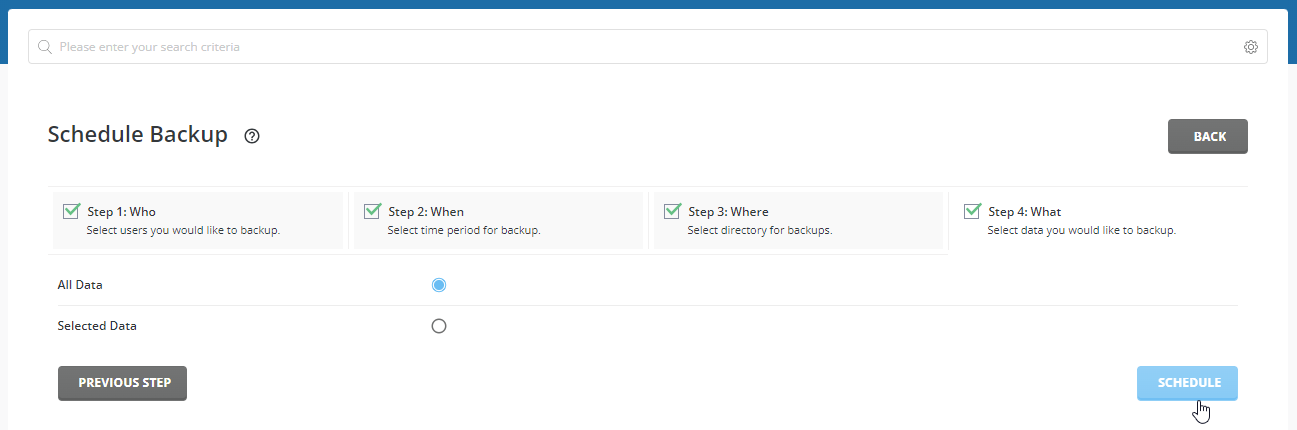
Select backup data and schedule
Select the data you want to back up. Usually, you can select All Data.
Click Schedule to save the backup configuration.
For recurring backups, choose a suitable cron schedule and ensure the remote server has sufficient storage space.