

How to Select PHP Version in DirectAdmin
This guide shows you how to select a PHP version for your domain in DirectAdmin.
If you are using the Standard theme on DirectAdmin, expand the Standard theme section below and follow those steps. To switch to the Refreshed theme, see How to change theme or layout on DirectAdmin.
Requirements
- Access to DirectAdmin.
- A domain added to your DirectAdmin account.
- PHP enabled for the domain.
In the Refreshed Theme
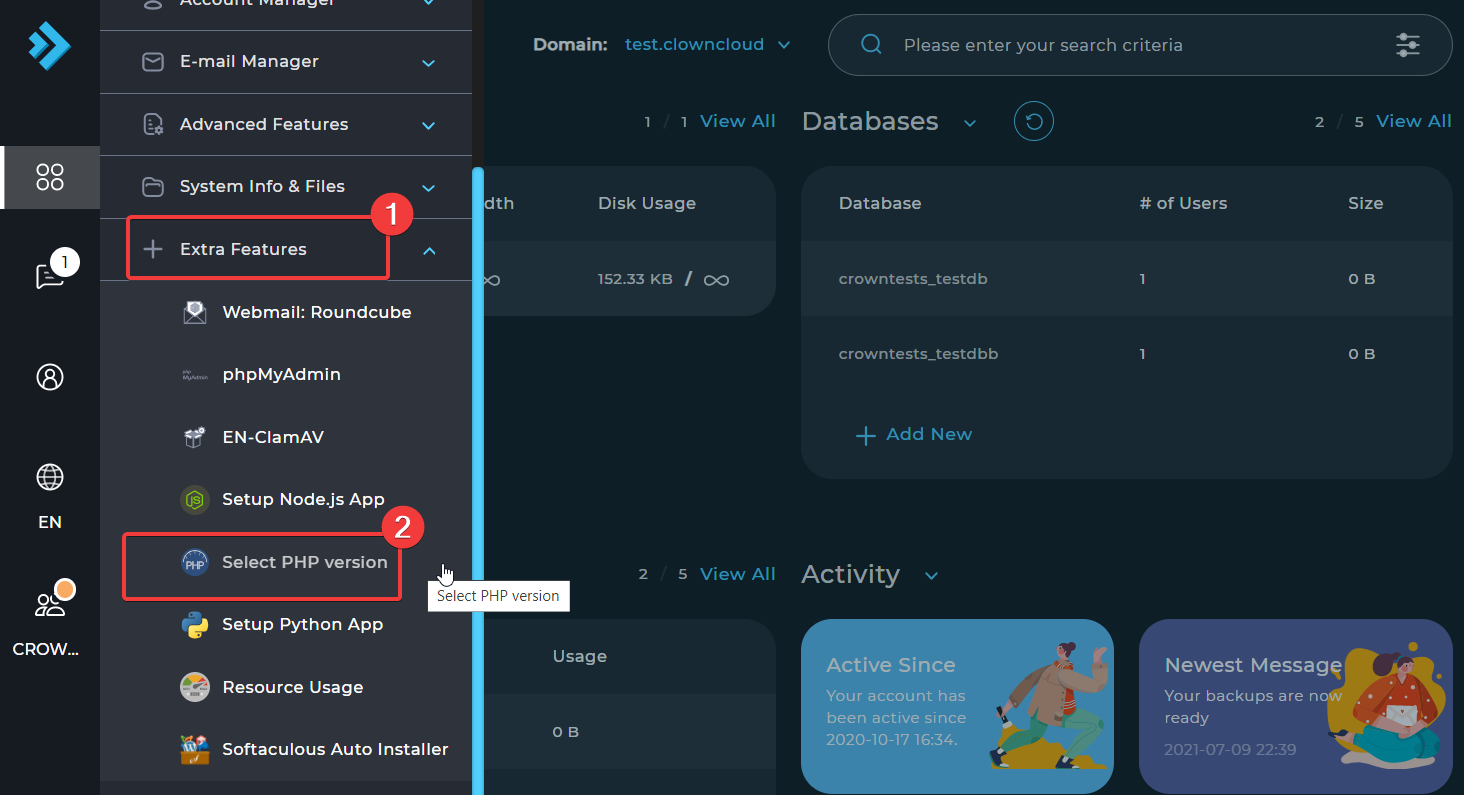
Open Select PHP Version
Click on the Select PHP Version option under Extra Features.
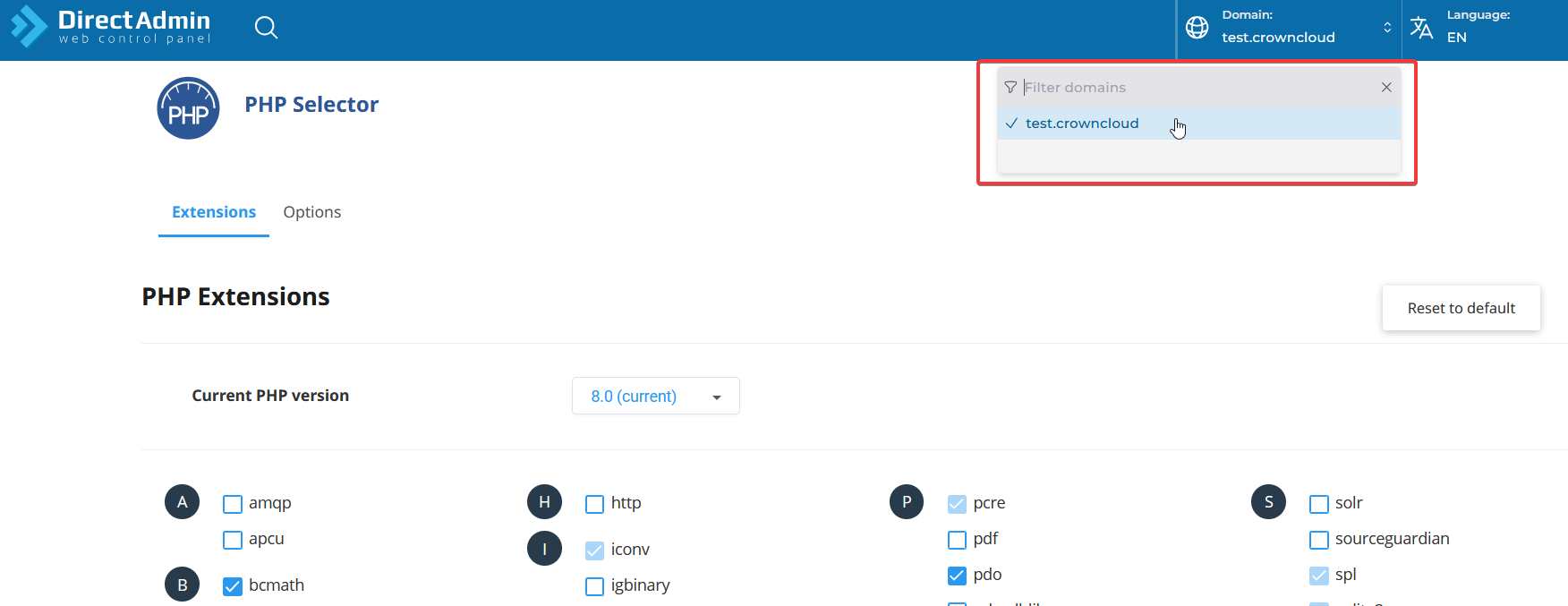
Choose the domain
In the Domain section, scroll down to view and select the list of domains.
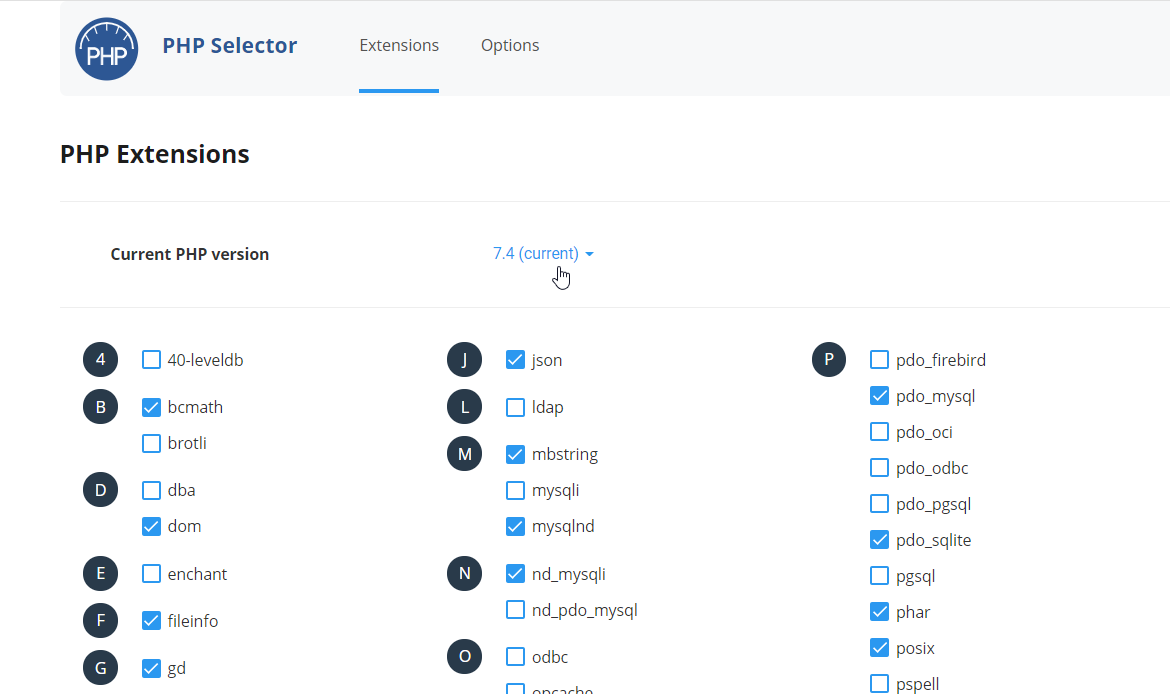
Open the PHP version dropdown
Click on the PHP version dropdown button.
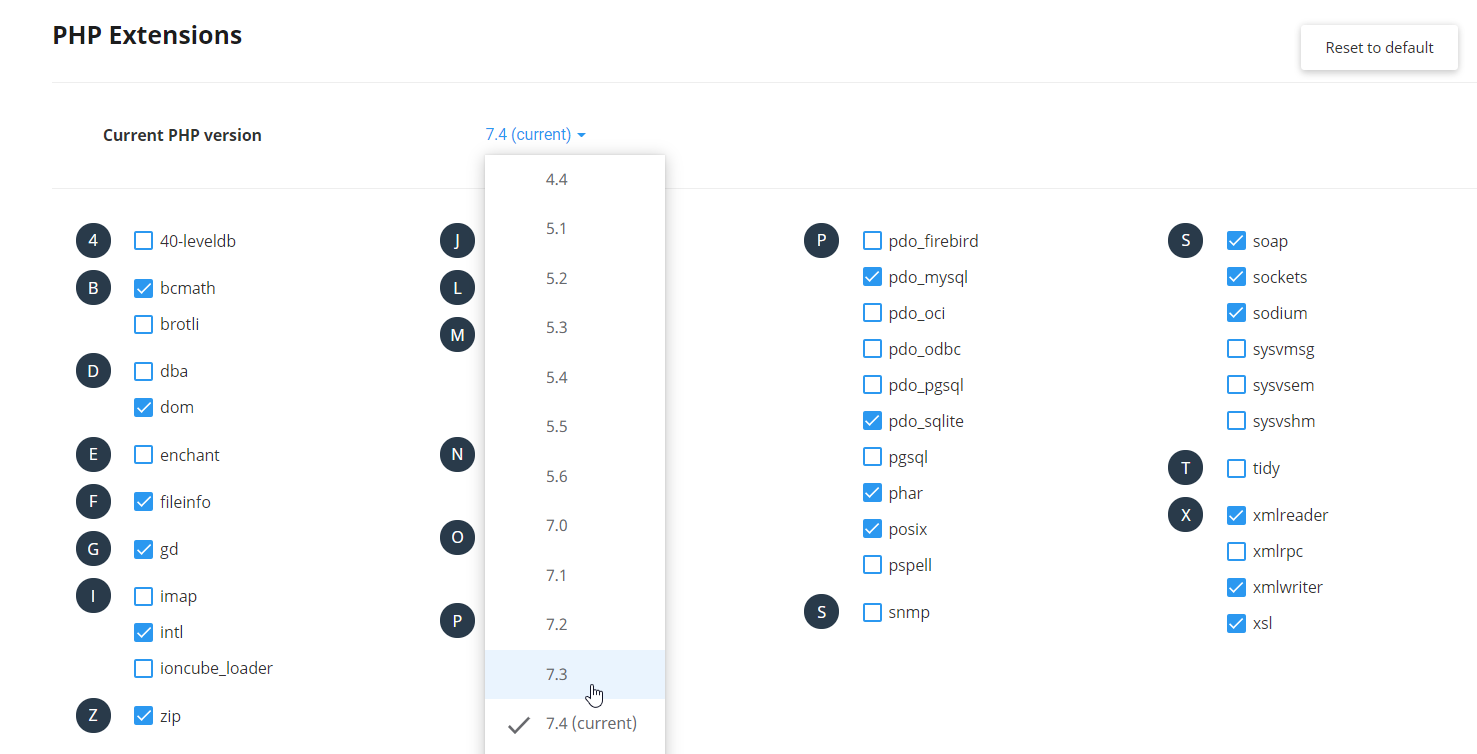
Select the PHP version
Select the PHP version you want to set for your website.
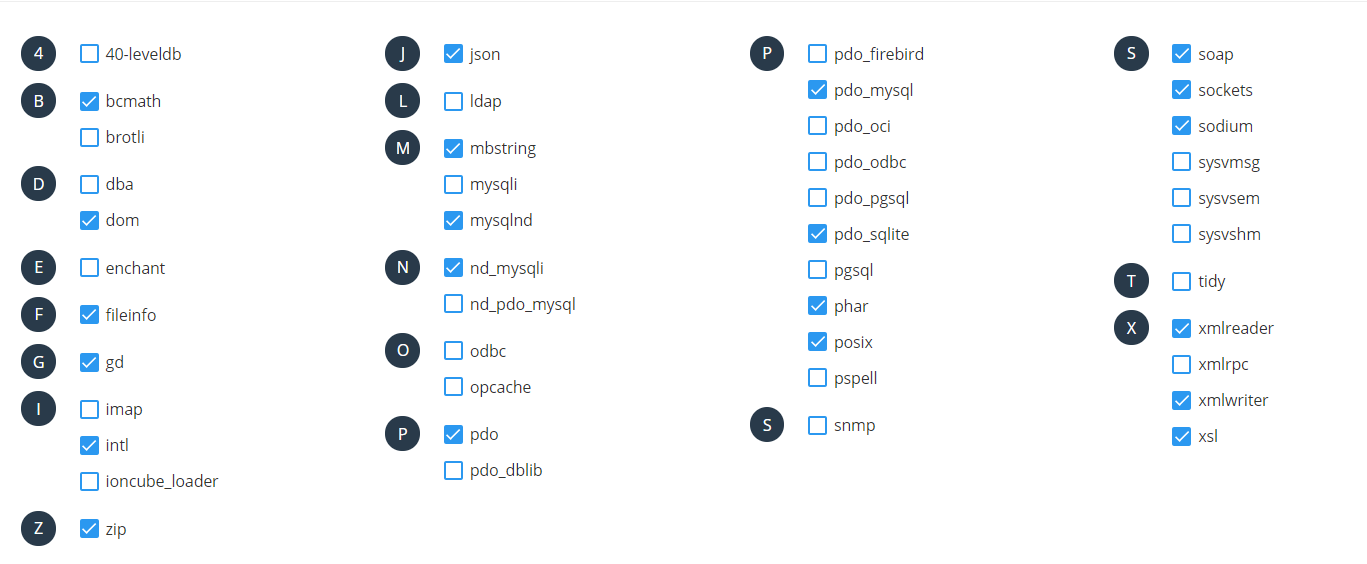
Enable PHP modules (optional)
If you want to enable PHP Modules, select the modules you need. They are enabled automatically.
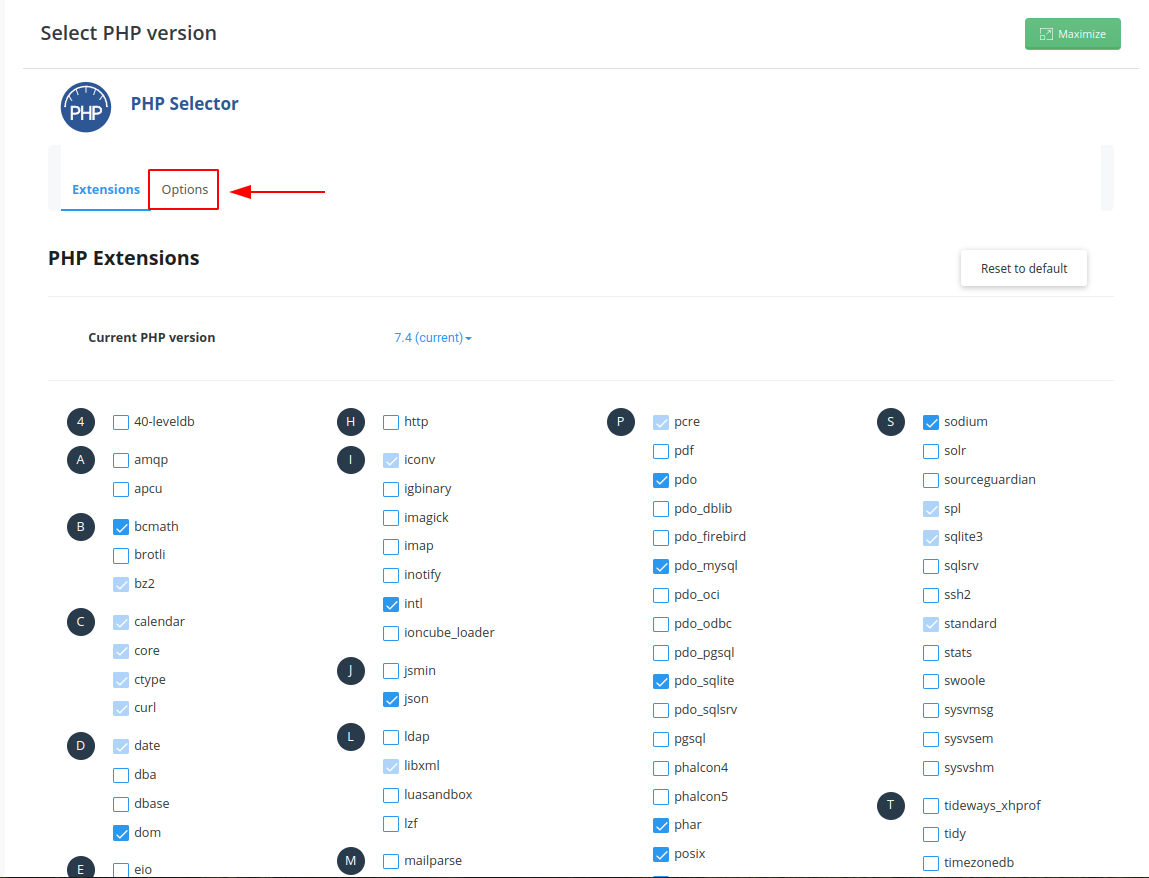
Check the PHP options (optional)
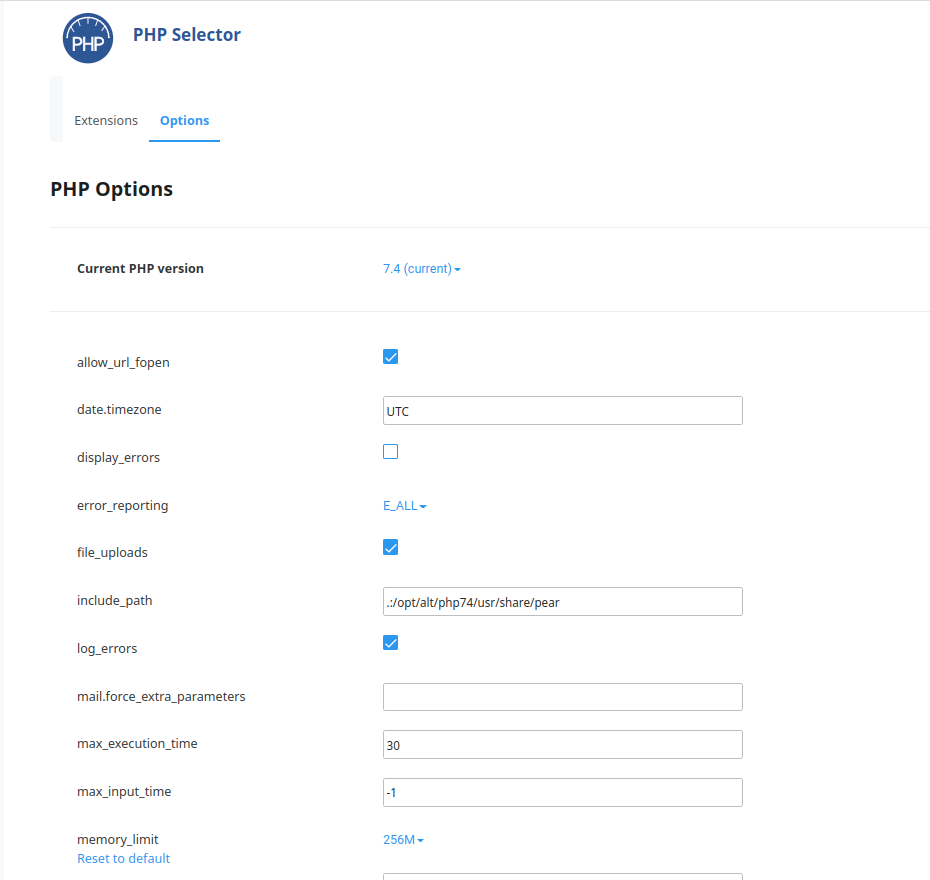
Review the PHP options.
Adjust the variables as required.
In the Standard Theme
Click here to show the steps
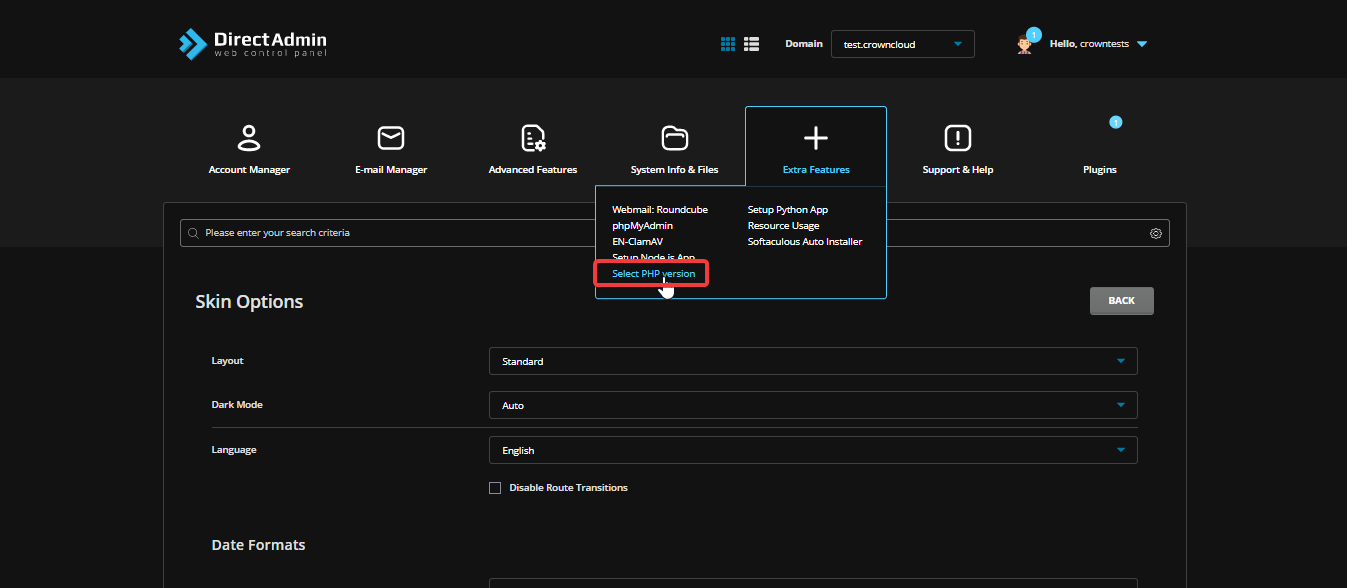
Open Select PHP Version
Click on the Select PHP Version option under Extra Features.
Choose the domain
In the Domain section, scroll down to view and select the list of domains.
Open the PHP version dropdown
Click on the PHP version dropdown button.
Select the PHP version
Select the PHP version you want to set for your website.
Enable PHP modules (optional)
If you want to enable PHP Modules, select the modules you need. They are enabled automatically.
Check the PHP options (optional)
Review the PHP options.
Adjust the variables as required.
Conclusion
You have successfully selected the PHP version and configured the required PHP options for your domain in DirectAdmin.