How to Enable Two-Step Authentication (2FA) in DirectAdmin
If you are using the Standard theme on DirectAdmin, switch to the Refreshed theme as shown in How to change theme or layout on DirectAdmin.
In the Refreshed Theme
Log in to DirectAdmin
Log in to your DirectAdmin panel.
Open Two-Step Authentication
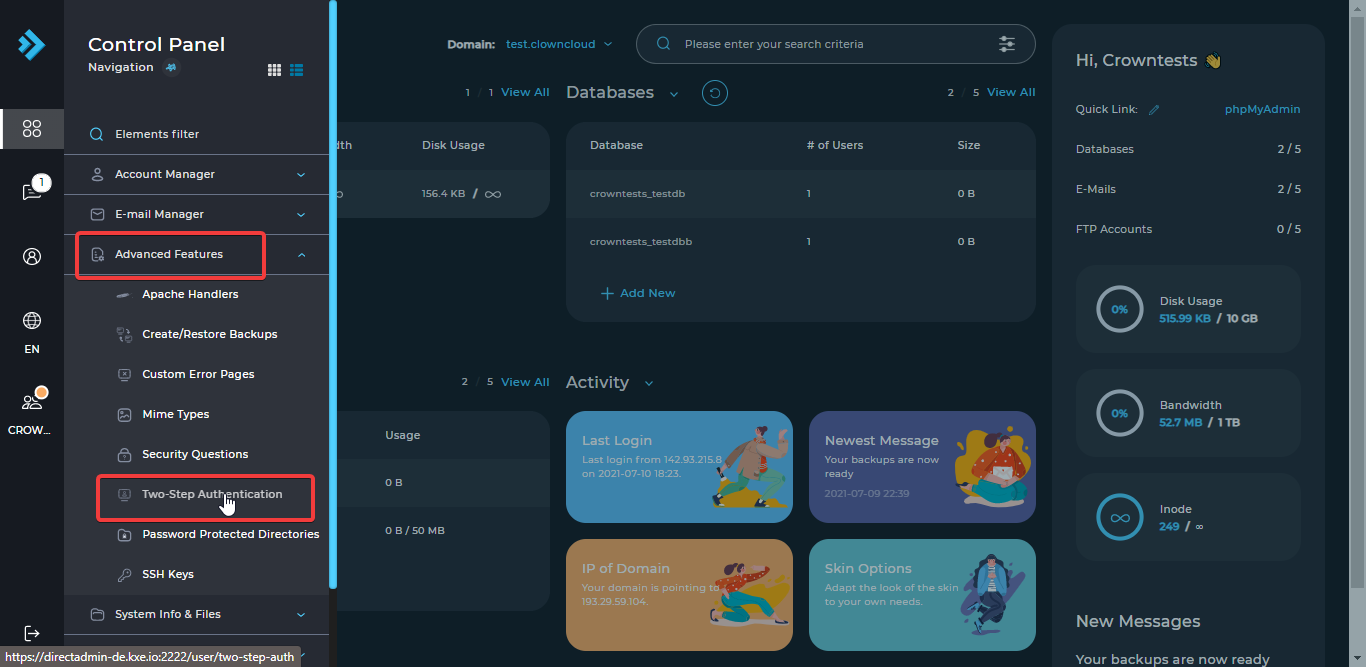
Click the Two-Step Authentication button under Advanced Features.
Generate a secret
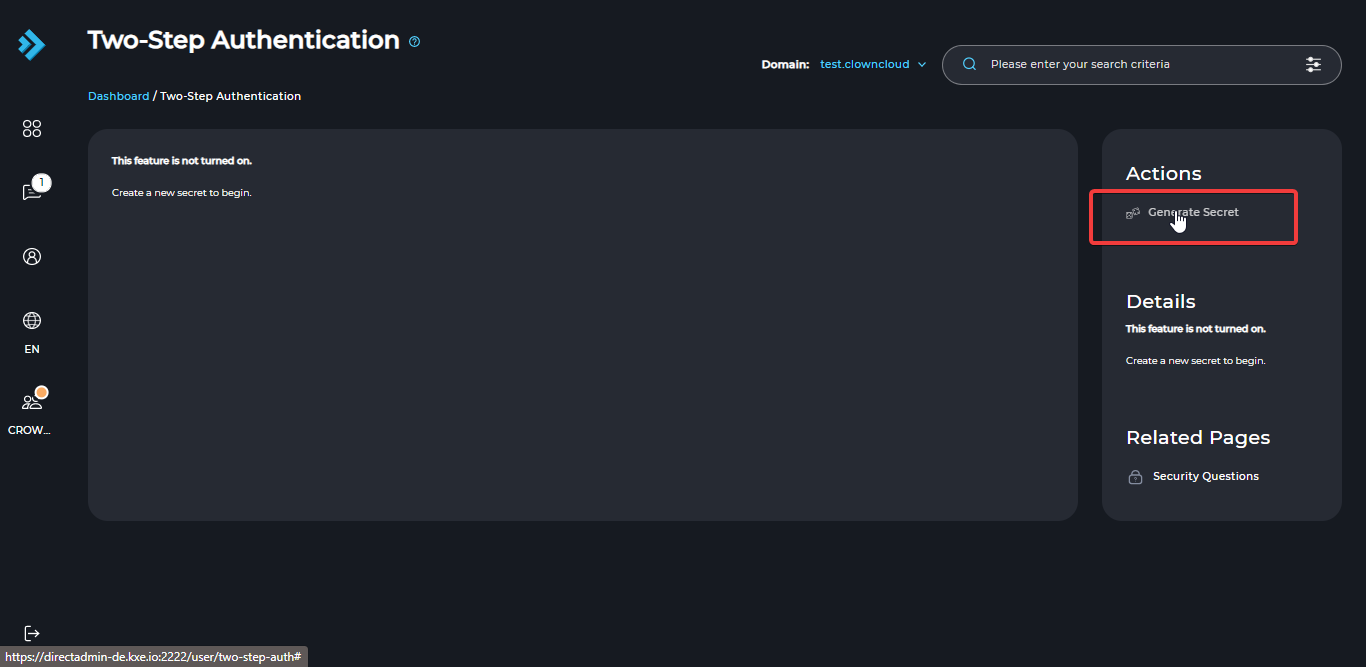
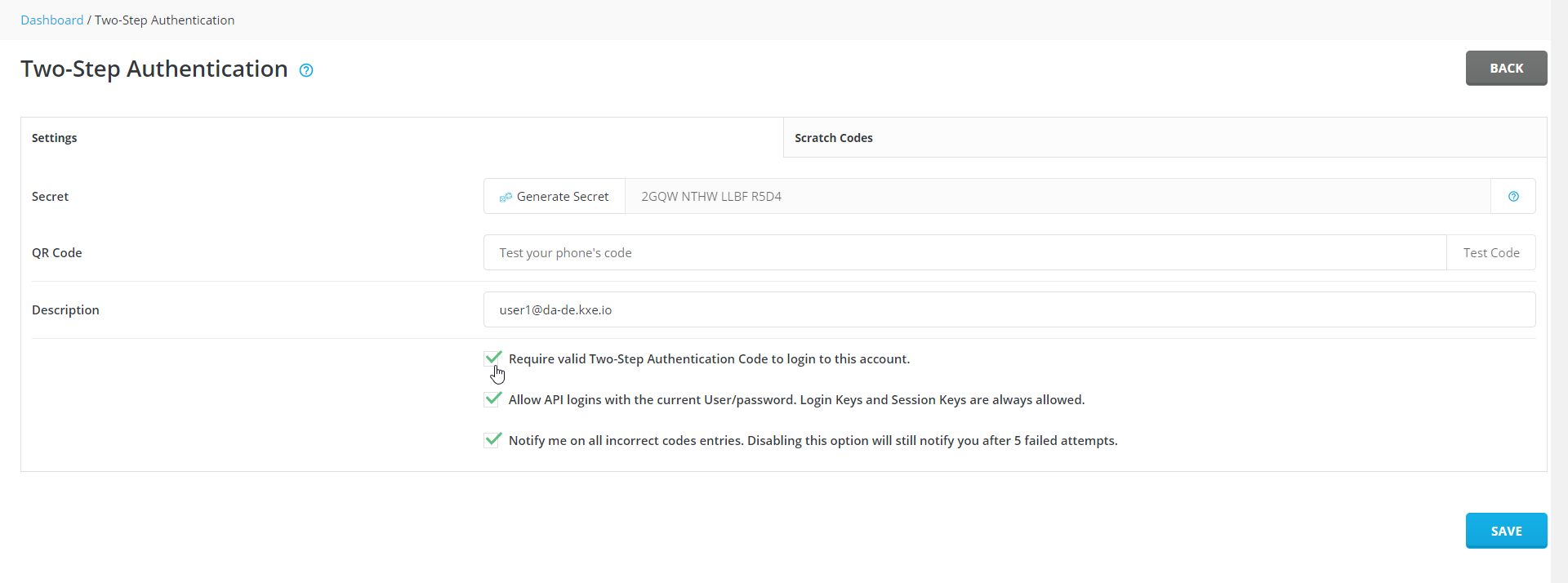
Click Generate Secret.
Add the secret to your authentication app
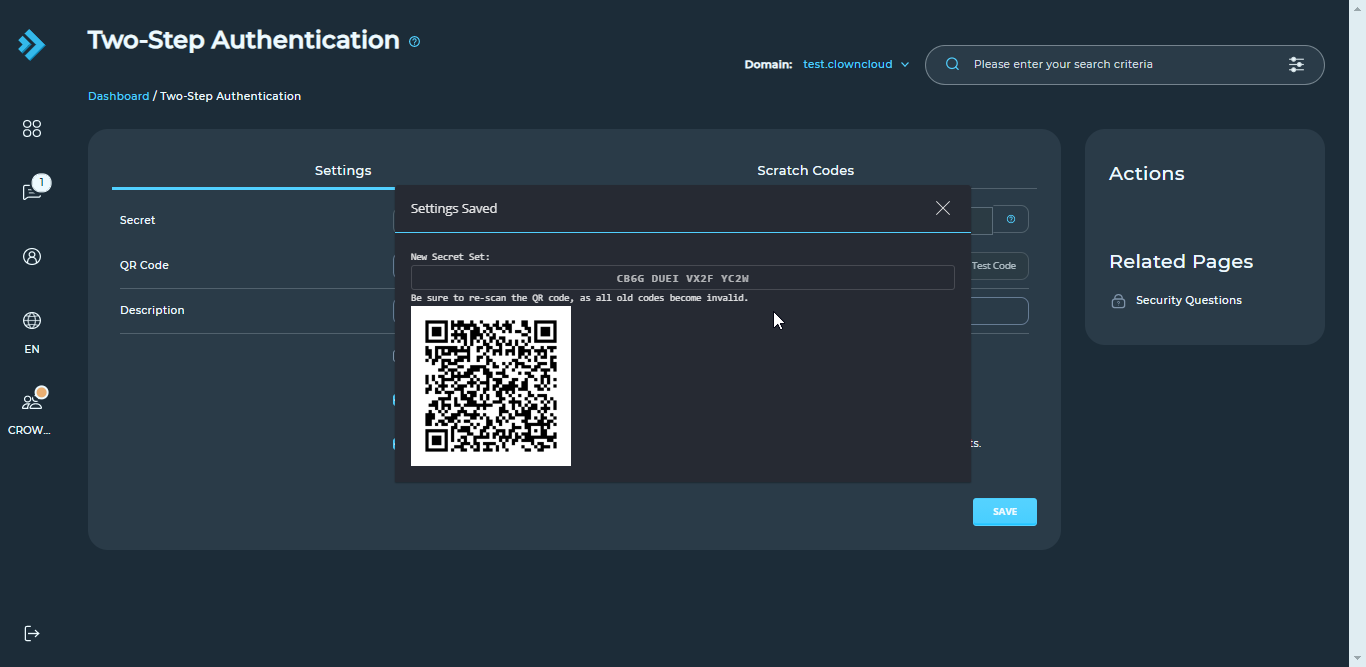
Enter the code displayed, or scan the QR code, in your authentication app. Then click the X button.
Require the code at login
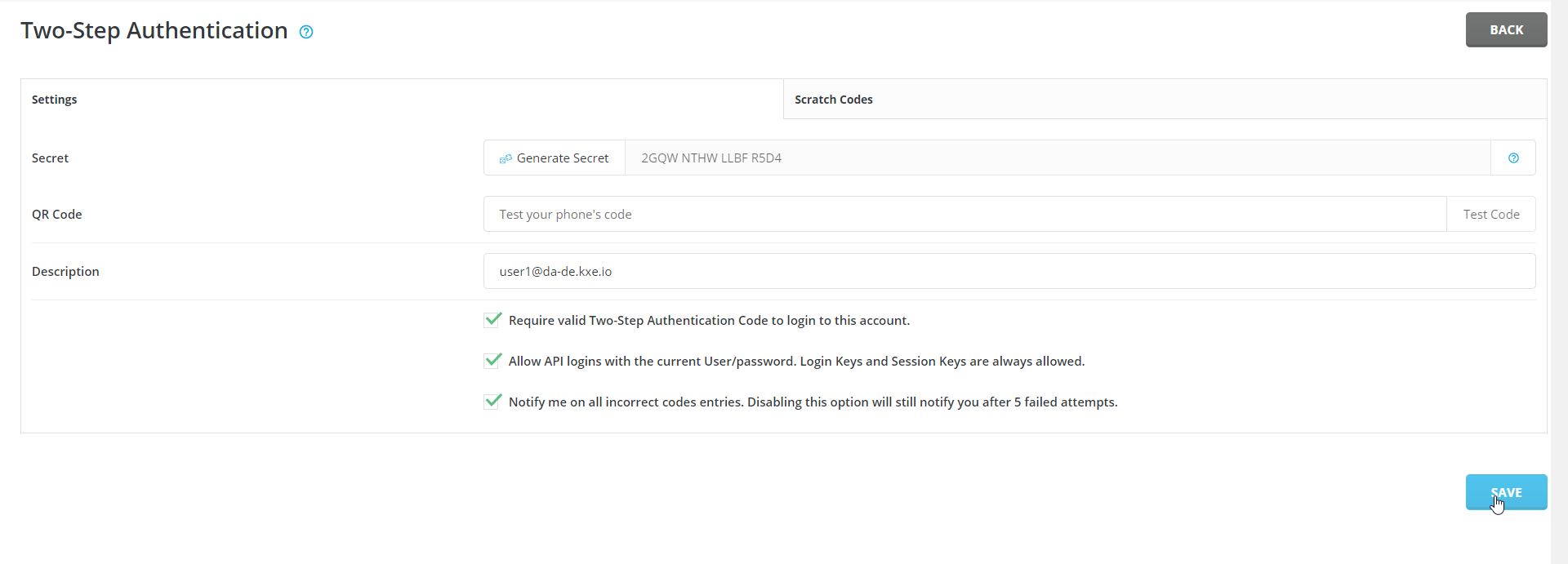
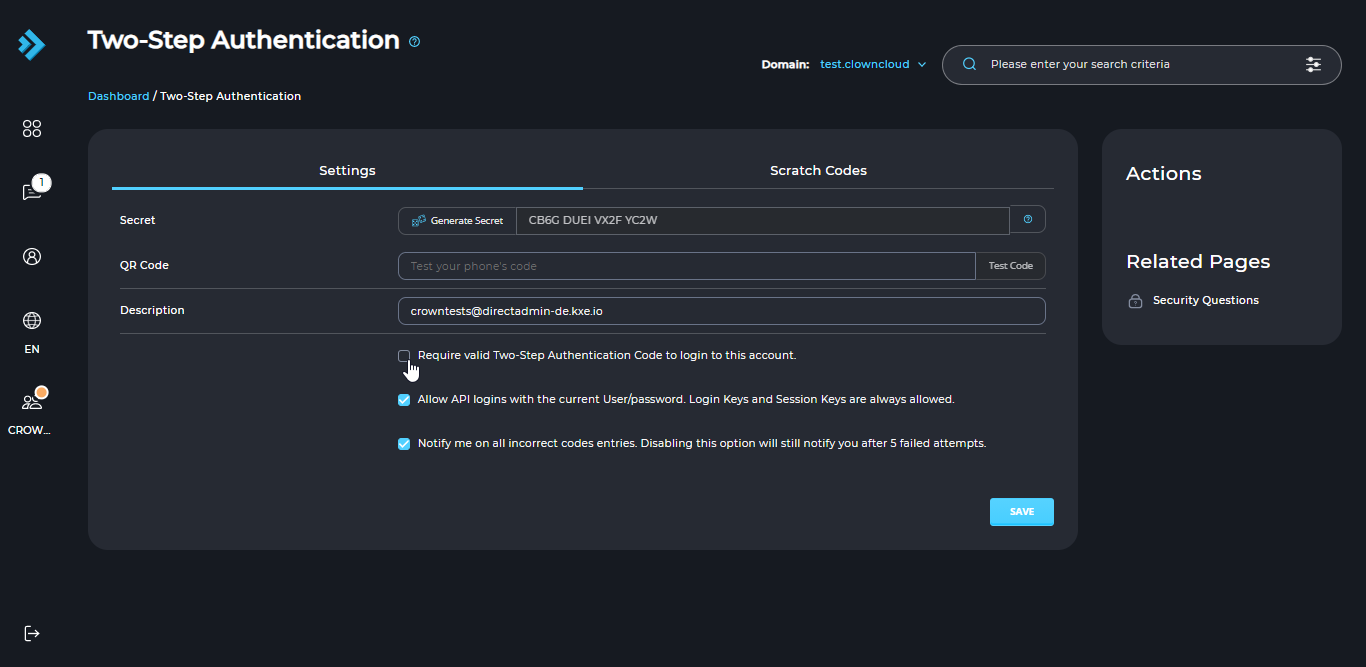
Tick the box Require valid Two-Step Authentication Code to login to this account.
Save the settings
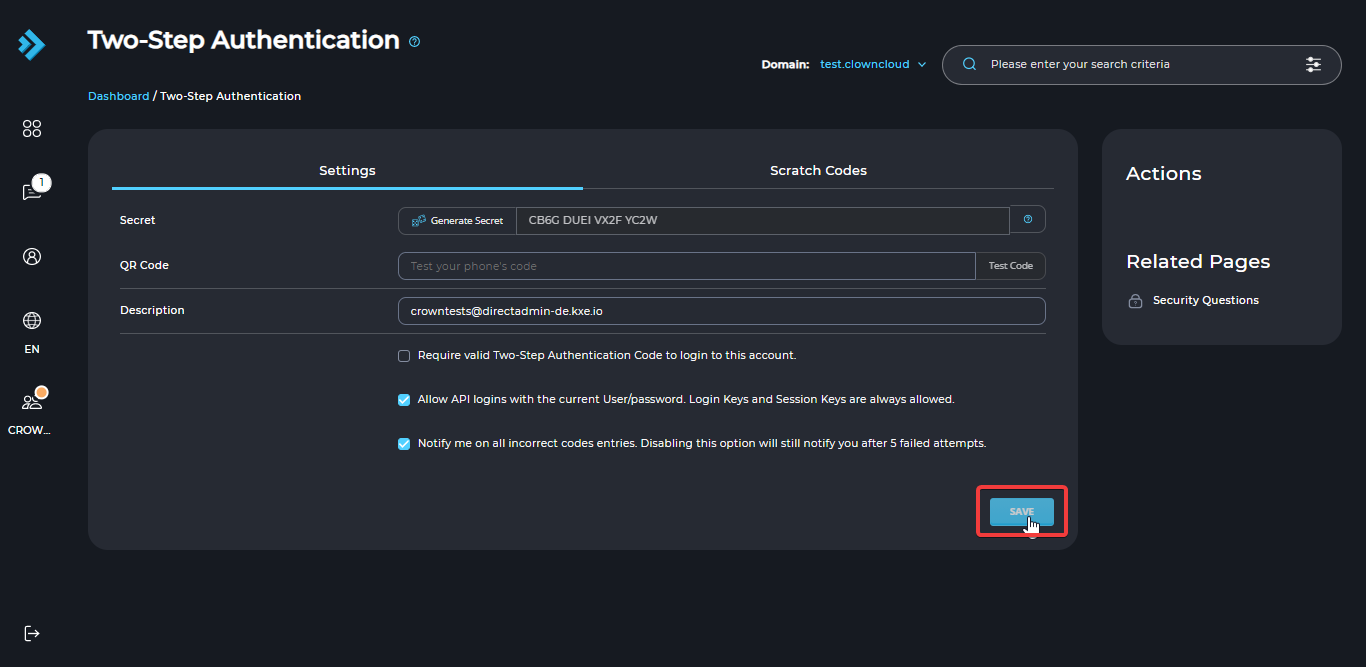
Click Save to enable Two-Step Authentication (2FA) in DirectAdmin.
In the Standard Theme
Click here to show the steps
Log in to DirectAdmin
Log in to your DirectAdmin panel.
Open Two-Step Authentication
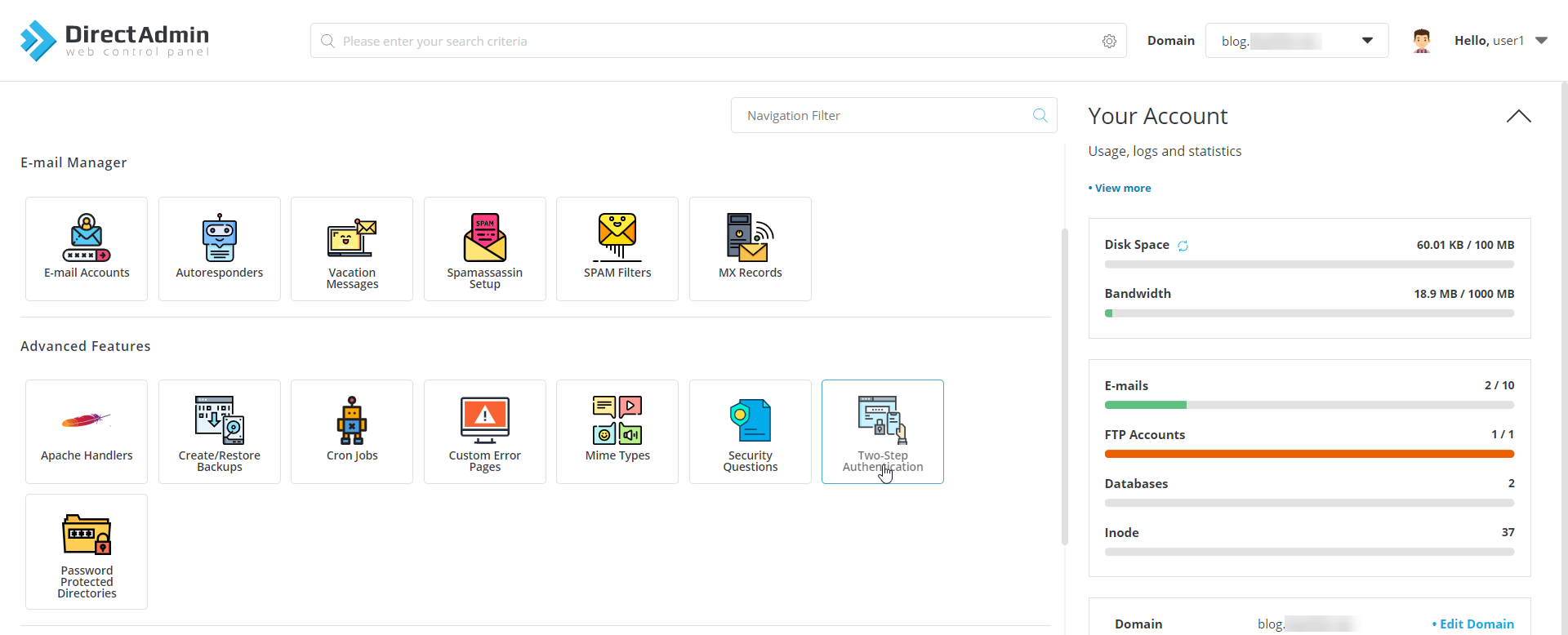
Click the Two-Step Authentication button under Advanced Features.
Generate a secret
Click Generate Secret.

Add the secret to your authentication app
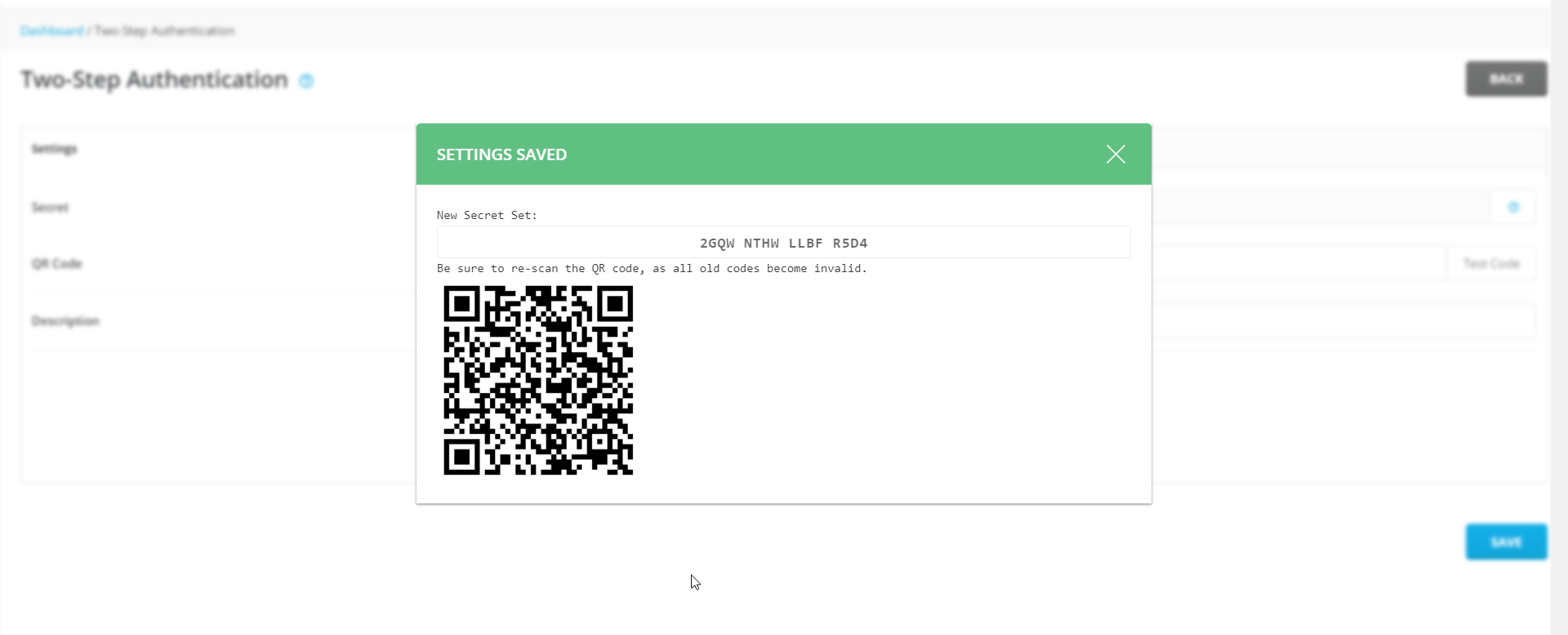
Enter the code displayed, or scan the QR code, in your authentication app. Then click the X button.
Require the code at login
Tick the box Require valid Two-Step Authentication Code to login to this account.
Save the settings
Click Save to enable Two-Step Authentication (2FA) in DirectAdmin.