

How to Generate Backups and Restore in DirectAdmin
To use the same theme (Standard theme) as shown in the below guide, change to Refreshed theme as shown here.
Scroll down for the Refreshed theme.
In Standard Theme
Creating Backup
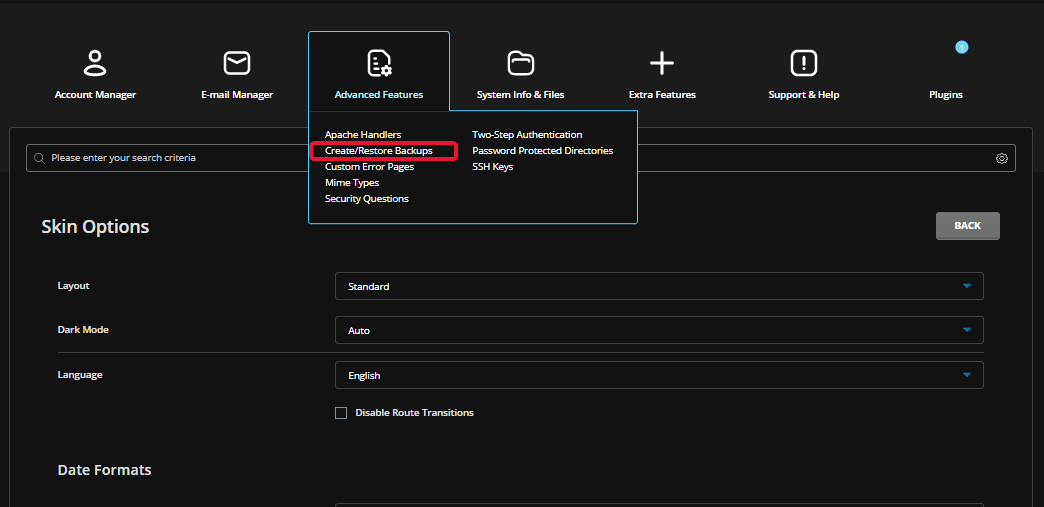
Open Create/Restore Backup
Login to DirectAdmin, click on Create/Restore Backup option in Your Account section.
Select items and create the backup
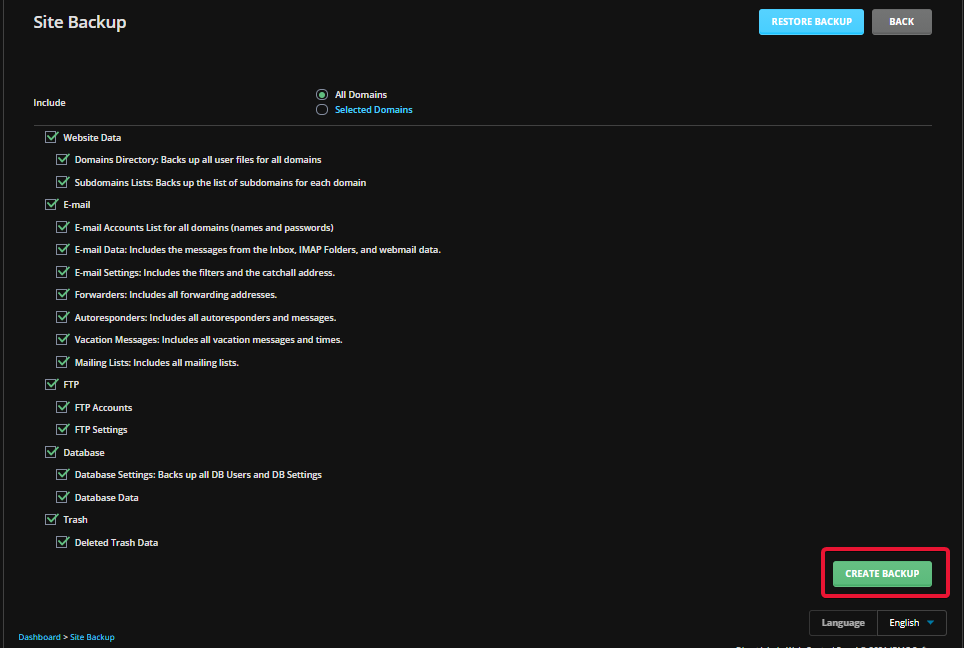
Select the items which you wish to backup and click Create Backup.
Wait for completion
The backup will be added to process queue and you will receive an email once it’s completed.
Restoring from Backup
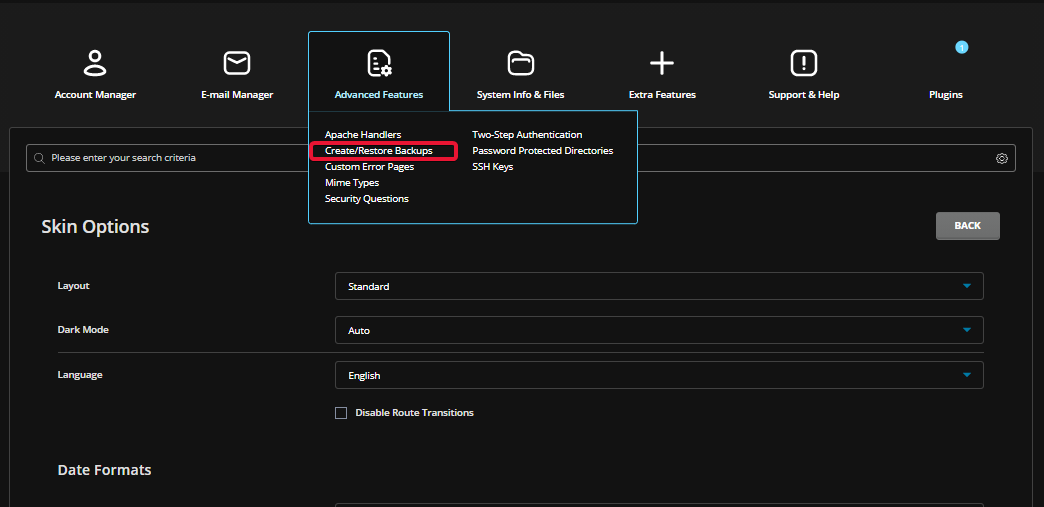
Open Create/Restore Backup
Click on Create/Restore Backup option.
Select the backup file
Select the available backup file to restore the backup.
Select items and restore
Select the backup items and click Restore Selected Items to restore the backup.
In Refreshed Theme
Creating Backup
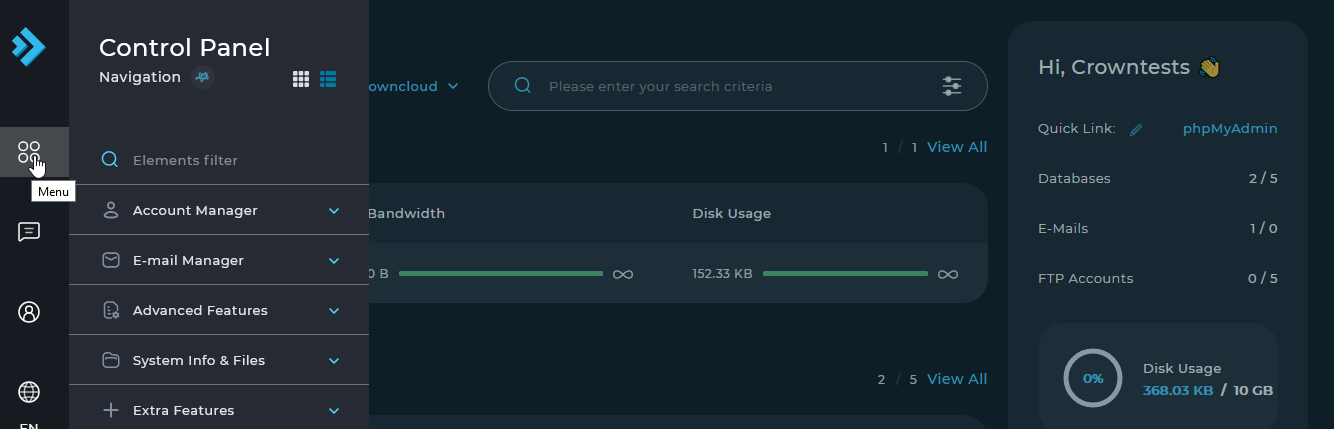
Open the menu
Login to DirectAdmin Web Control Panel. Then select Menu in left sidebar.
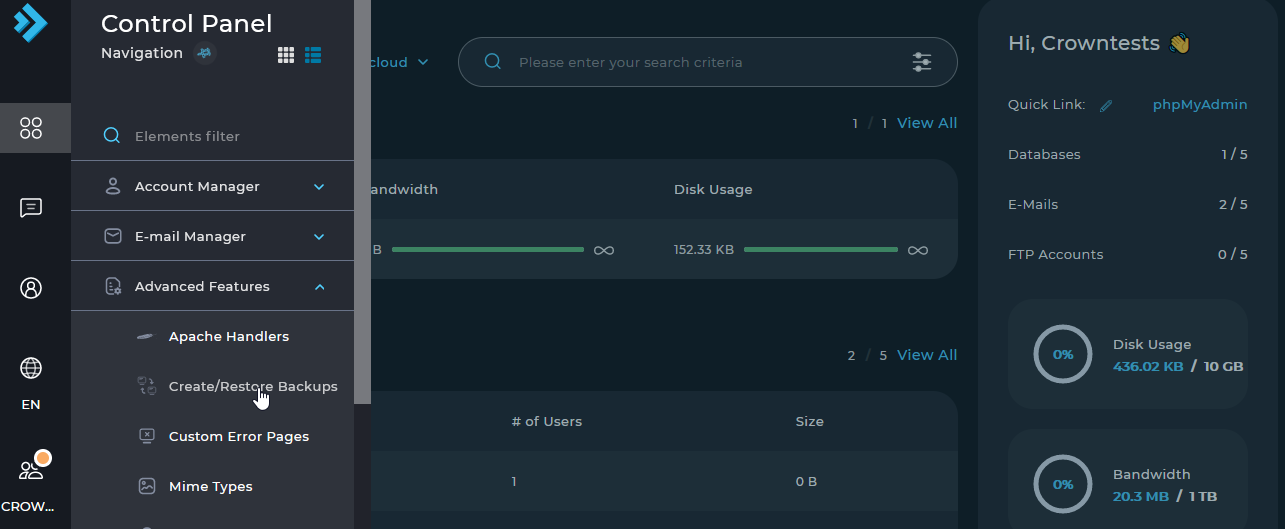
Open Create/Restore Backups
Then select Advanced Features → Create/Restore Backups.
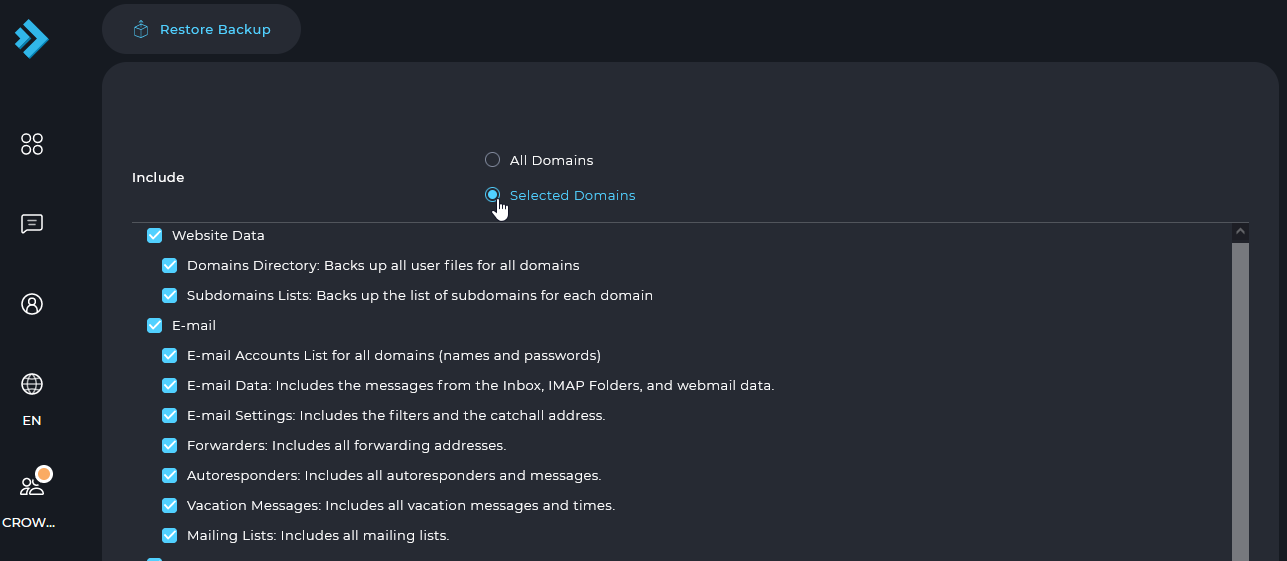
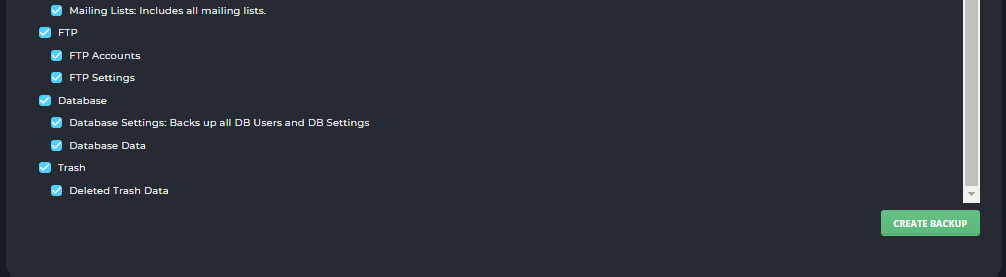
Select items and create the backup
Select the items which you wish to backup and click Create Backup.
Wait for completion
The backup will be added to process queue and you will receive an email once it’s completed.
Restoring from Backup
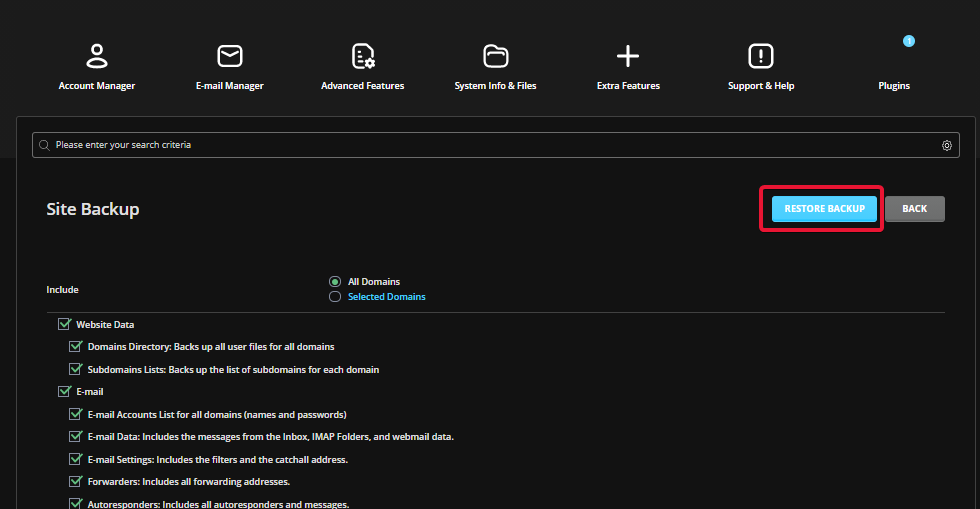
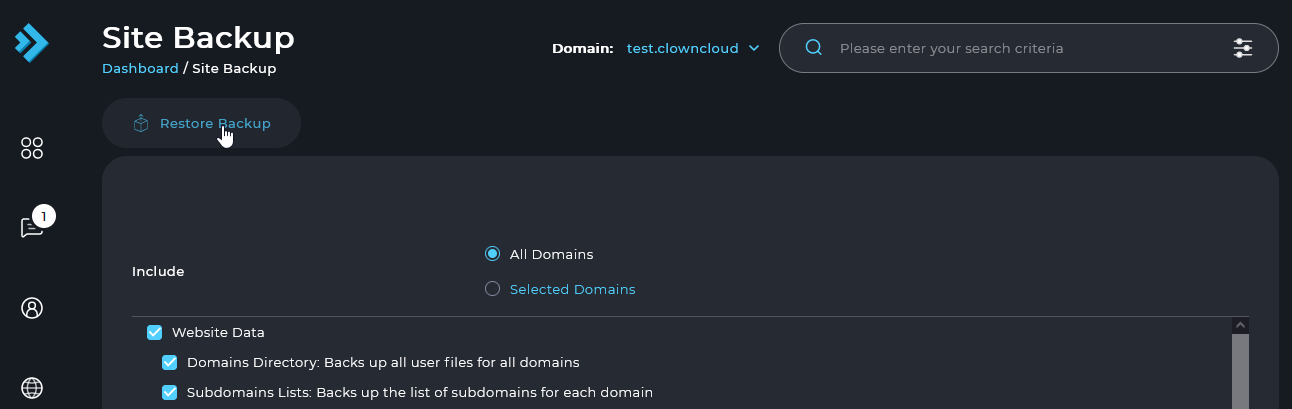
Open Restore Backup
Click on Restore Backup option.
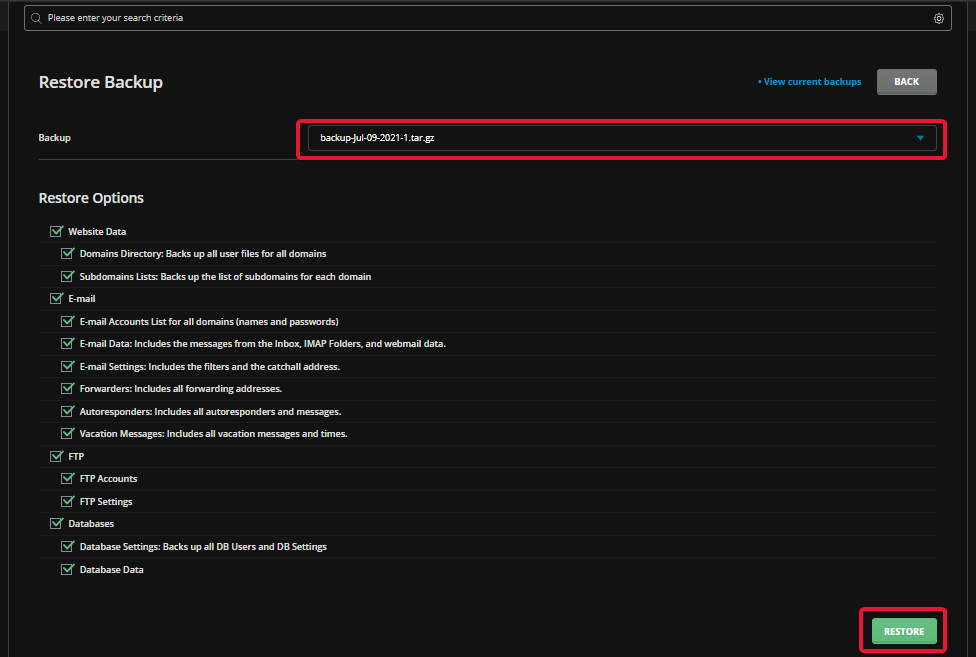
Select the backup file
Select the available backup file to restore the backup.
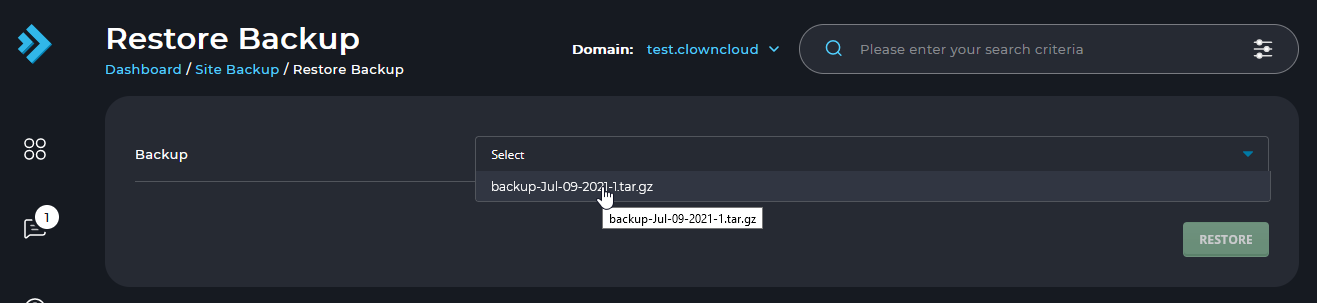
Select items and restore
Select the backup items and click Restore Selected Items to restore the backup.
