

Modify User Account Settings
This guide helps DirectAdmin resellers modify the account settings of an existing user.
If you are using the Standard theme on DirectAdmin, switch to the Refreshed theme as shown in How to change theme or layout on DirectAdmin.
If you have not created a user yet, follow the instructions in Create a user under a reseller account.
In the Refreshed Theme
Log in to DirectAdmin
Log in to the DirectAdmin panel as a reseller.
Select the user
Click on List Users and select the Username you would like to modify.
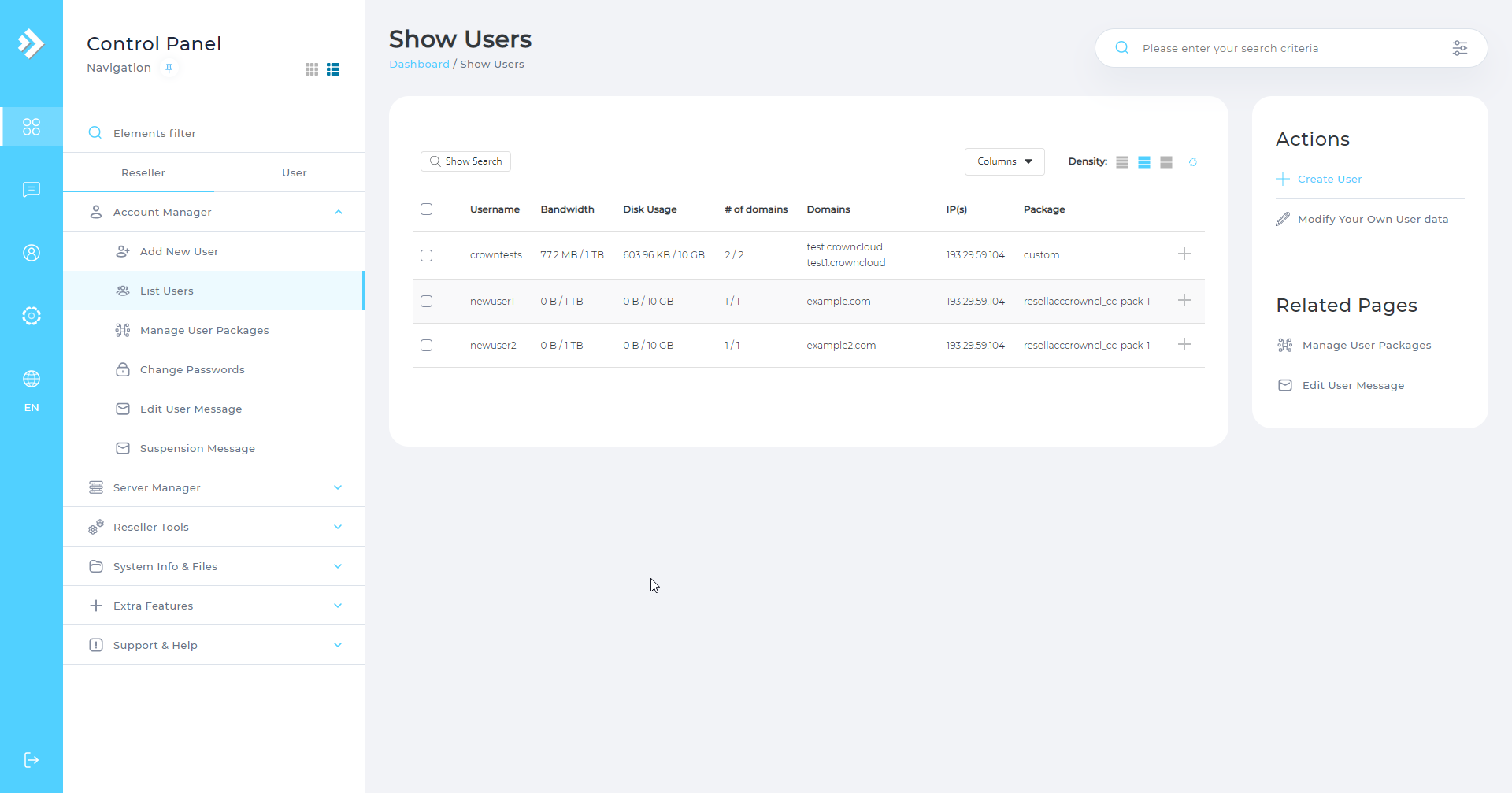
Open the Modify tab
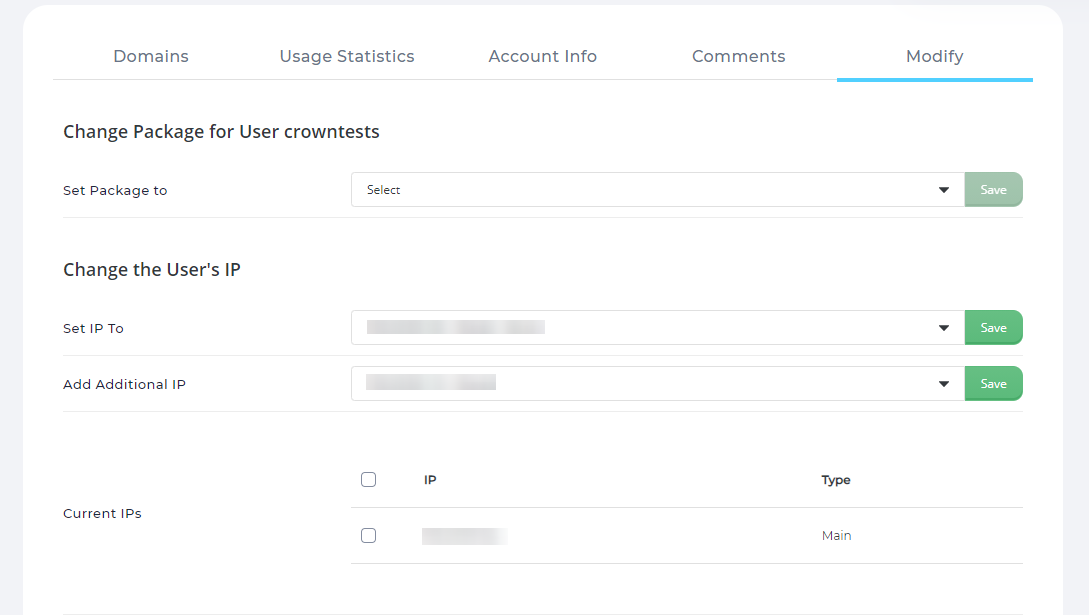
Navigate to the Modify tab. Here you can modify user settings related to:
- User Packages
- User IP
- User Settings
User Packages: set the user's package from a list of defined packages, which applies default settings and features.
User IP: set the default main IP and additional IPs for the user.
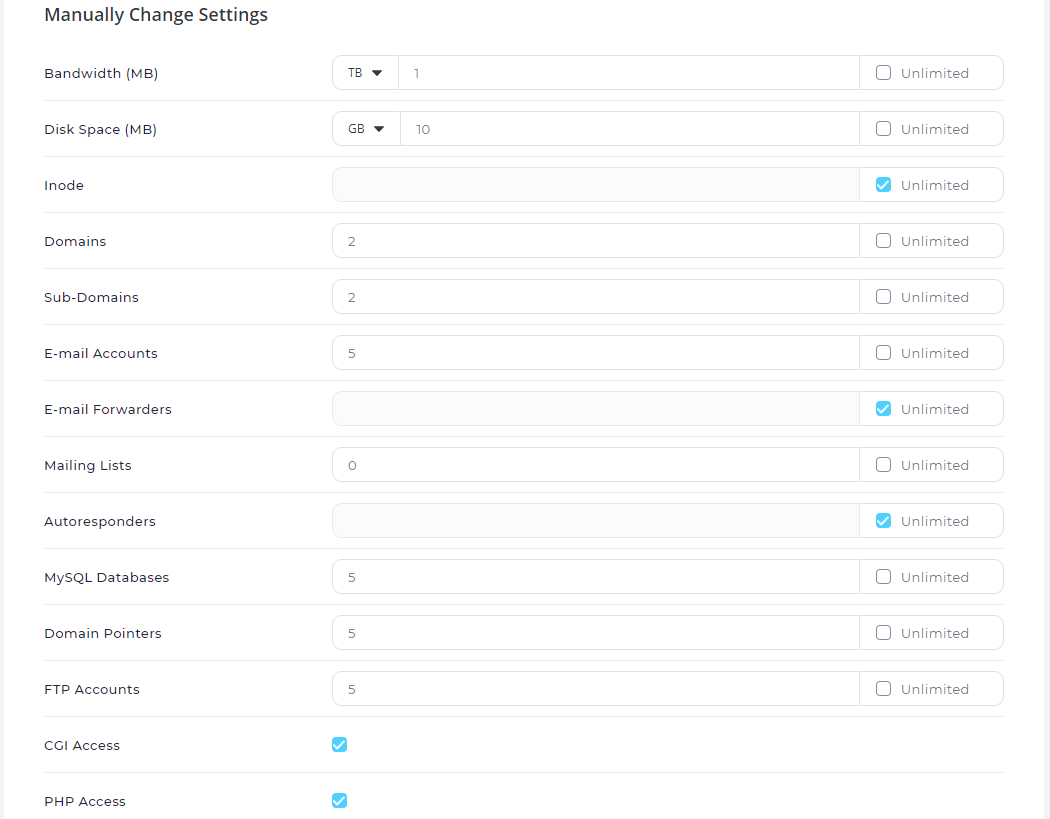
User Settings: modify settings such as Bandwidth, Disk, Domains, Sub-domains, Email, FTP and so on.
In the Standard Theme
Click here to show the steps
Log in to DirectAdmin
Log in to the DirectAdmin panel as a reseller.
Select the user
Click on List Users and select the Username you would like to modify.
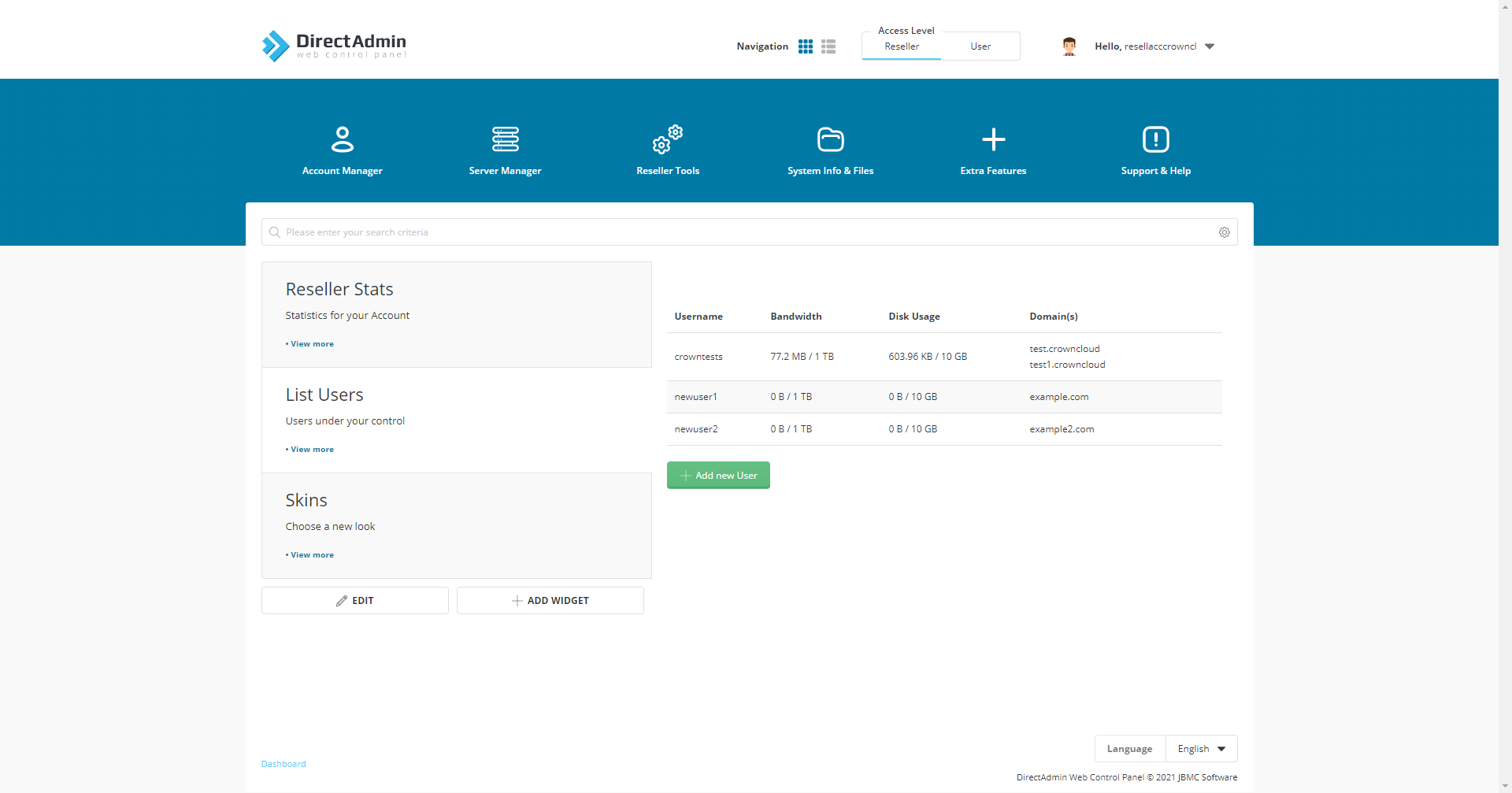
Open the Modify tab
Navigate to the Modify tab. Here you can modify user settings related to:
- User Packages
- User IP
- User Settings
User Packages: set the user's package from a list of defined packages, which applies default settings and features.
User IP: set the default main IP and additional IPs for the user.
User Settings: modify settings such as Bandwidth, Disk, Domains, Sub-domains, Email, FTP and so on.