

How to Install WordPress via Softaculous in DirectAdmin
DirectAdmin includes the Softaculous Apps Installer, which allows users to install WordPress quickly and easily with just a few clicks.
Install WordPress in DirectAdmin
Login to DirectAdmin
Open your browser and log in to the DirectAdmin control panel using your credentials.
Locate Softaculous Apps Installer
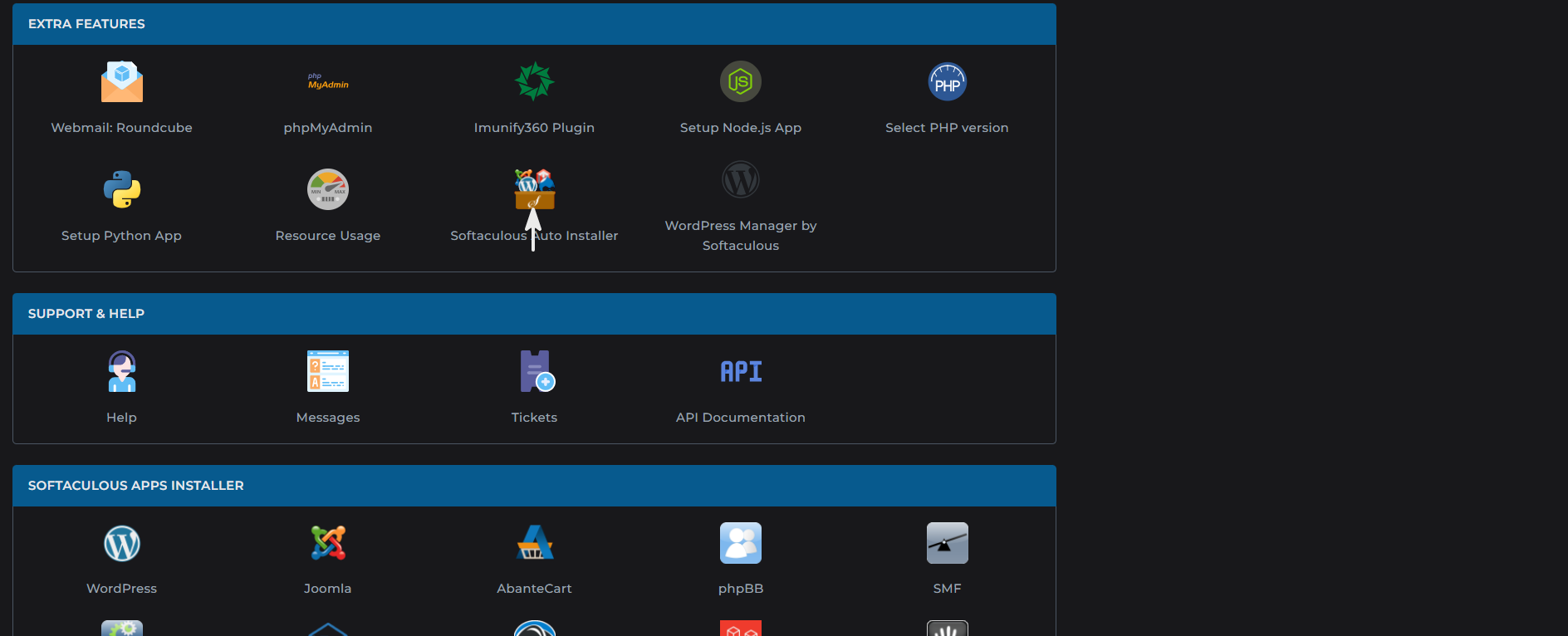
From the main dashboard, go to the top menu and click on Extra Features, then select Softaculous Apps Installer.
Click on WordPress
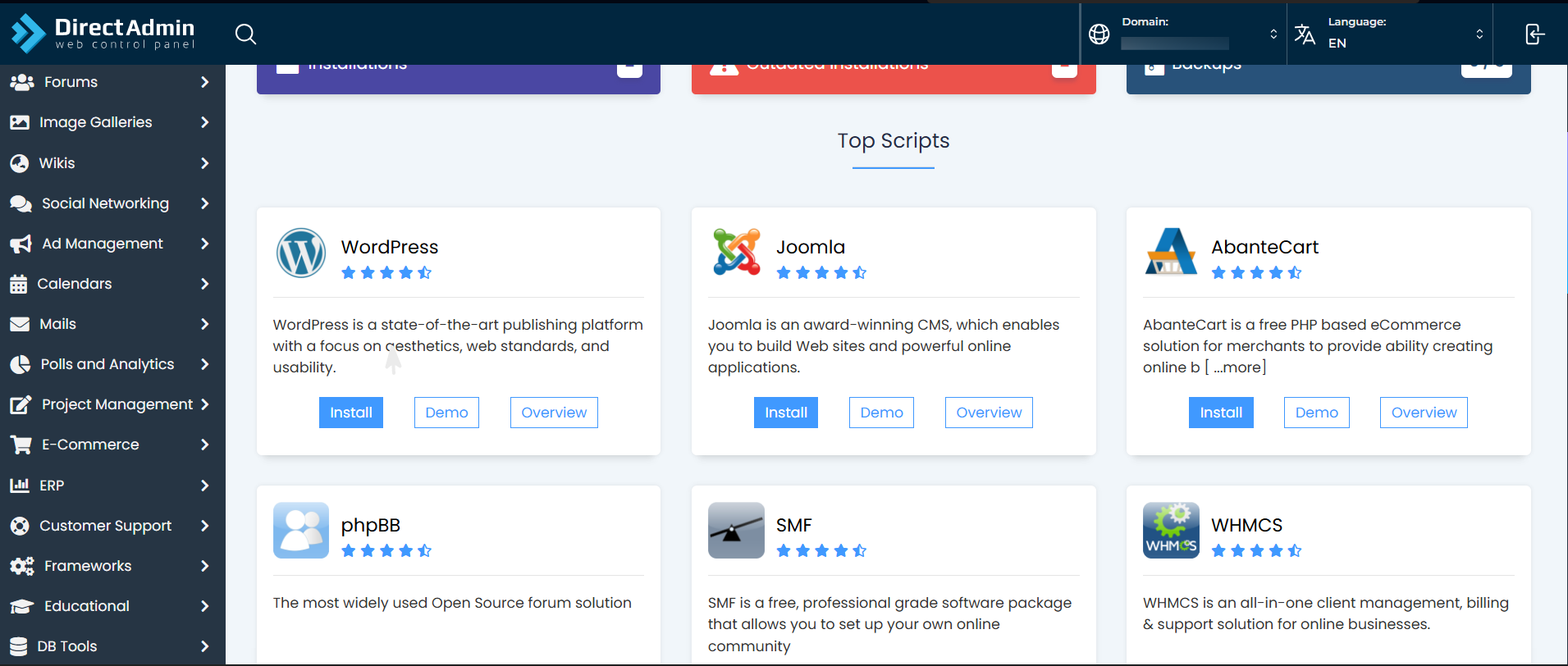
Inside Softaculous, search for WordPress or find it under the Blogs category and click on it.
Choose Installation Type
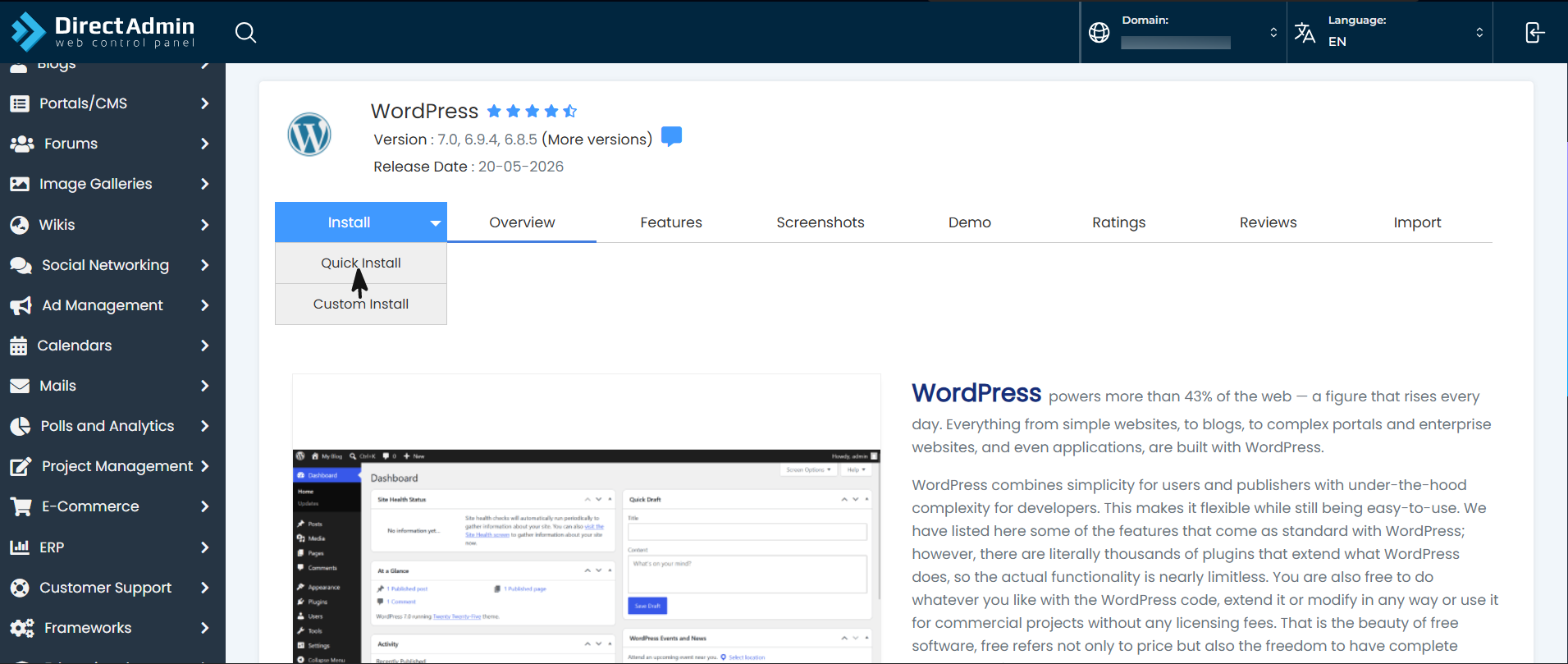
You will see two options:
-
Quick Install: This option installs WordPress with the default settings. It is recommended for beginners or if you want a quick installation.
-
Custom Install: This option allows you to customize the installation settings such as the domain, installation directory, site name, administrator account, and database settings.
Configure Installation (for Custom Install)
If you choose Custom Install, configure the following settings:
- Choose Domain: Select the domain where you want to install WordPress.
- In Directory: Leave this field empty to install WordPress in the domain root, or specify a directory name (for example,
blog) to install it in a subdirectory. - Site Name: Enter the name of your website.
- Site Description: Enter a short description for your website.
- Admin Username: Enter the administrator username.
- Admin Password: Enter a strong password for the administrator account.
- Admin Email: Enter a valid email address for the administrator account.
- Database Name: Use the default value or specify a custom database name.
Install WordPress
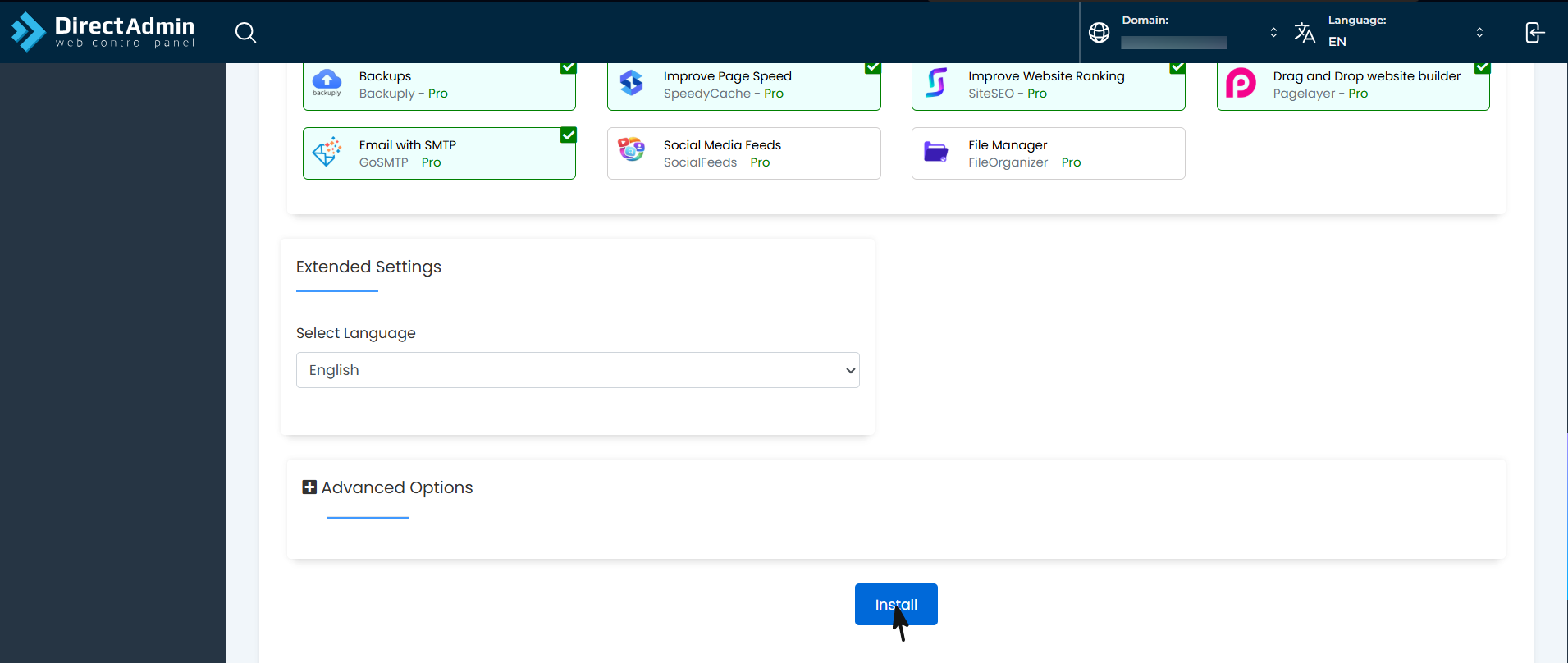
Review the installation settings and click on Install to begin the installation process.
Once the installation is complete, Softaculous will display the following information:
- Website URL
- WordPress Admin URL
You can access the WordPress administration panel using:
https://yourdomain.com/wp-admin
Log in with the administrator username and password you configured during the installation.
Your WordPress website is now ready, and you can begin installing themes, plugins, and creating content.