

How to Delete an Email Account in DirectAdmin
Deleting an email account removes the mailbox and every message stored in it from the server. This is normally done when a member of staff leaves, when an address is no longer used, or when a mailbox was created by mistake.
The deletion is permanent. DirectAdmin does not keep a copy of the mail, and there is no undo option in the panel. If the mail may be needed later, back it up first or suspend the account instead.
This guide covers deleting an existing email account from the User level of DirectAdmin.
DirectAdmin offers two interface themes: the Standard theme (the traditional interface) and the Refreshed theme (a newer, more modern interface). Steps for both are below. To switch themes, see How to Change Theme or Layout in DirectAdmin.
Requirements
- A DirectAdmin User account, or a Reseller or Admin account switched into the User level.
- The email account you intend to remove, confirmed by its full address.
- A backup of any mail that must be kept, taken before the deletion.
- Confirmation that no website form, script, or application is still sending through the account.
Before You Delete
Work through these points first, because none of them can be done after the mailbox is gone:
- Save the mail. Connect the mailbox in a mail client over IMAP and copy the folders to a local archive, or export them from webmail.
- Redirect the address if it is still in use. After deletion, mail sent to the address is treated as an unknown recipient. Creating a forwarder with the same name sends it to a colleague instead.
- Check for applications using the account. Contact forms, order notifications, and monitoring scripts often send through a mailbox. They will stop working once it is removed.
- Consider suspending instead. Suspending stops mail delivery and login while keeping the stored messages, and can be reversed at any time.
In the Refreshed Theme
Log in to DirectAdmin
Log in to the DirectAdmin panel.
Open E-Mail Accounts
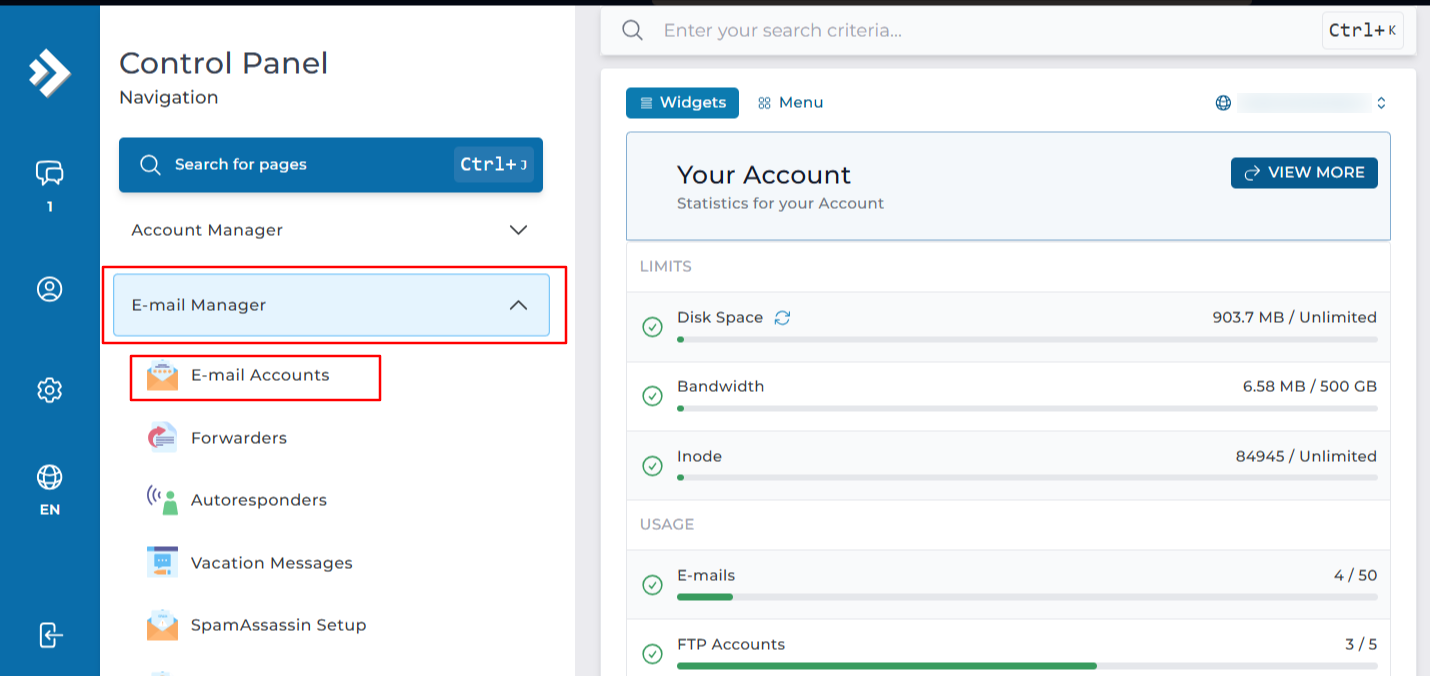
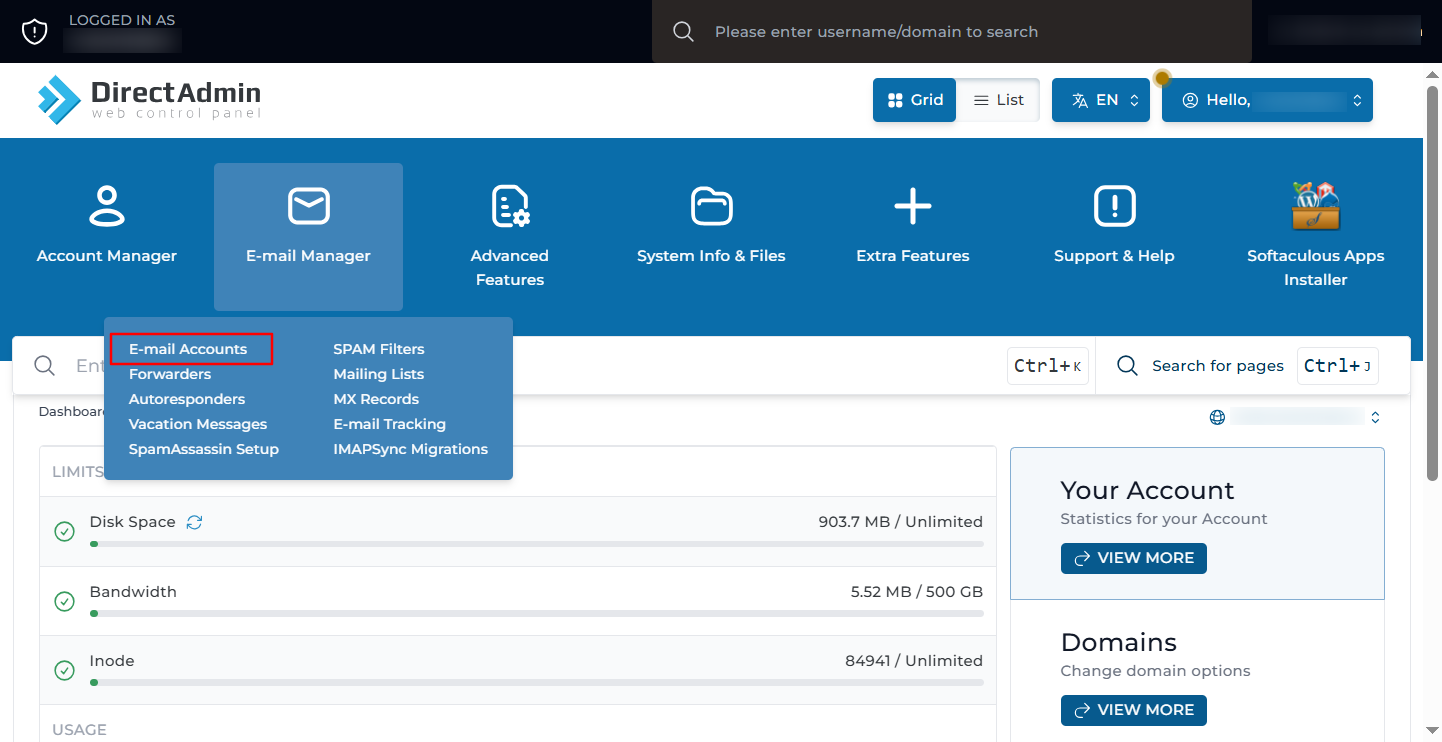
Click on E-Mail Accounts under E-Mail Manager. You can also type E-Mail Accounts in the navigation filter box to jump straight to the page.
Select the domain
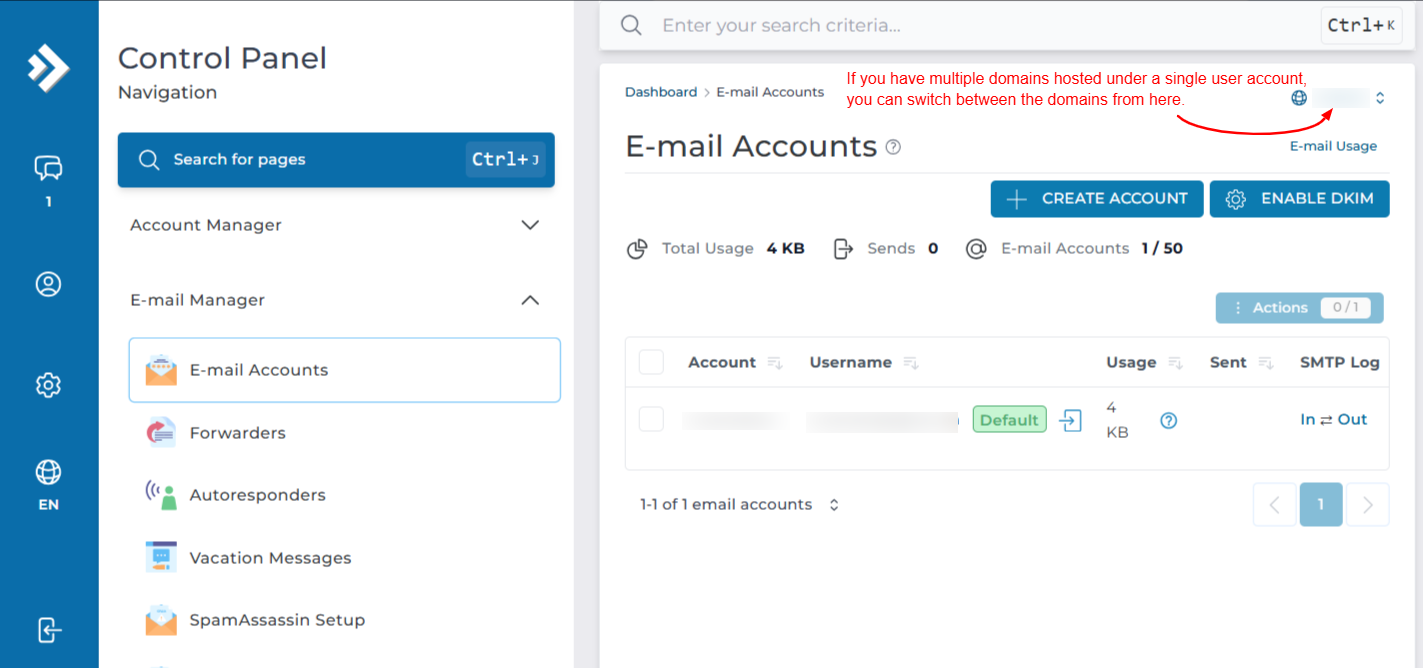
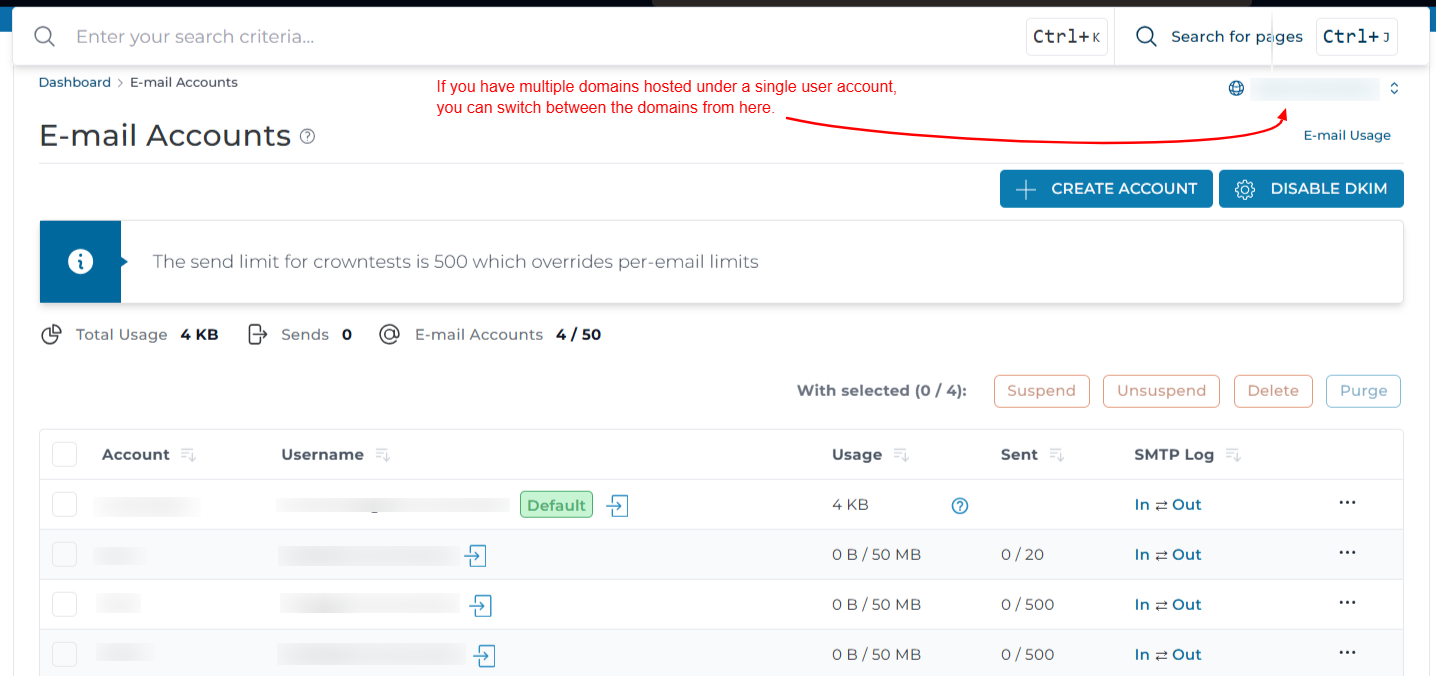
If your account holds more than one domain, check the domain shown at the top of the page and switch it if needed. The list only shows mailboxes belonging to the selected domain.
Select the account and click Delete
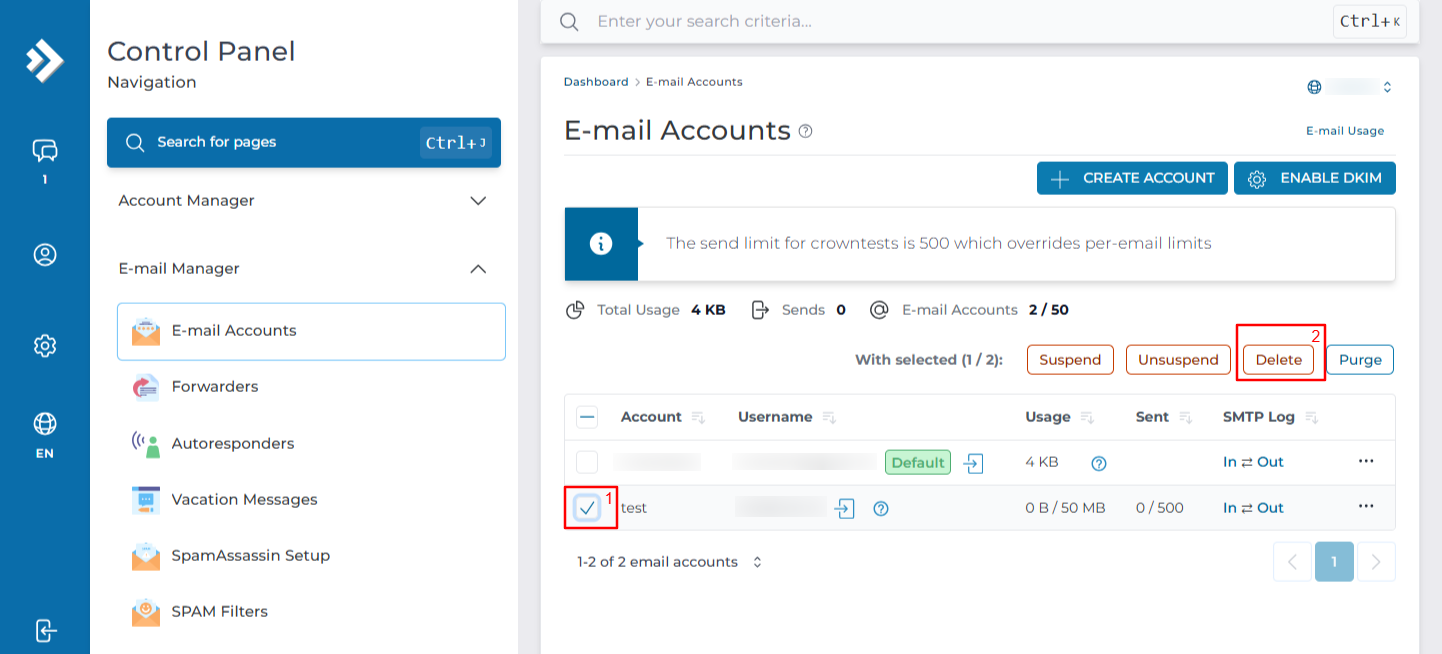
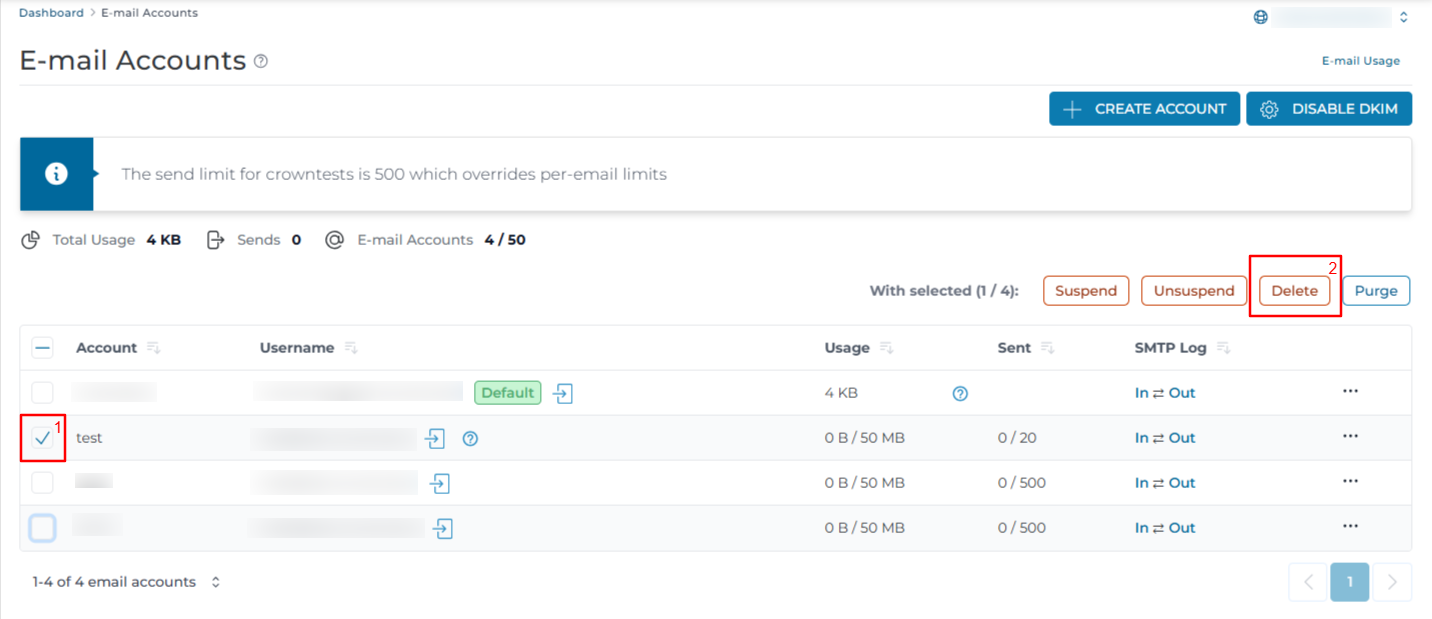
Tick the checkbox beside the email account you want to delete. You can select more than one account to remove them together. An action bar appears above the list. Click Delete.
Confirm the deletion
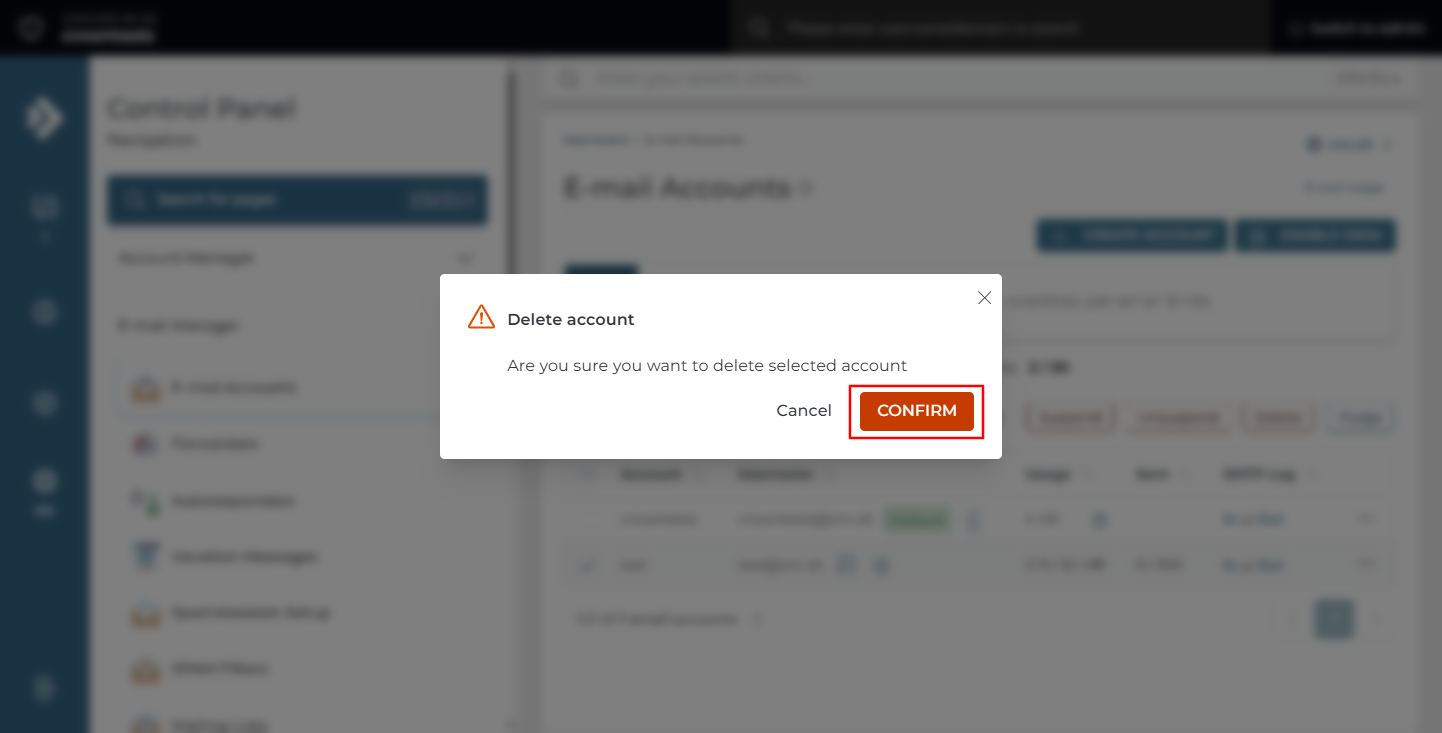
A confirmation dialog opens showing the accounts selected. Check the list carefully, then confirm.
Check the account list
The mailbox and all of its mail are removed, and the account disappears from the list. The disk space it used is released back to the hosting package.
In the Standard Theme
Click here to show the steps
Log in to DirectAdmin
Log in to the DirectAdmin panel.
Open E-Mail Accounts
On the dashboard, go to E-Mail Manager and click E-Mail Accounts.
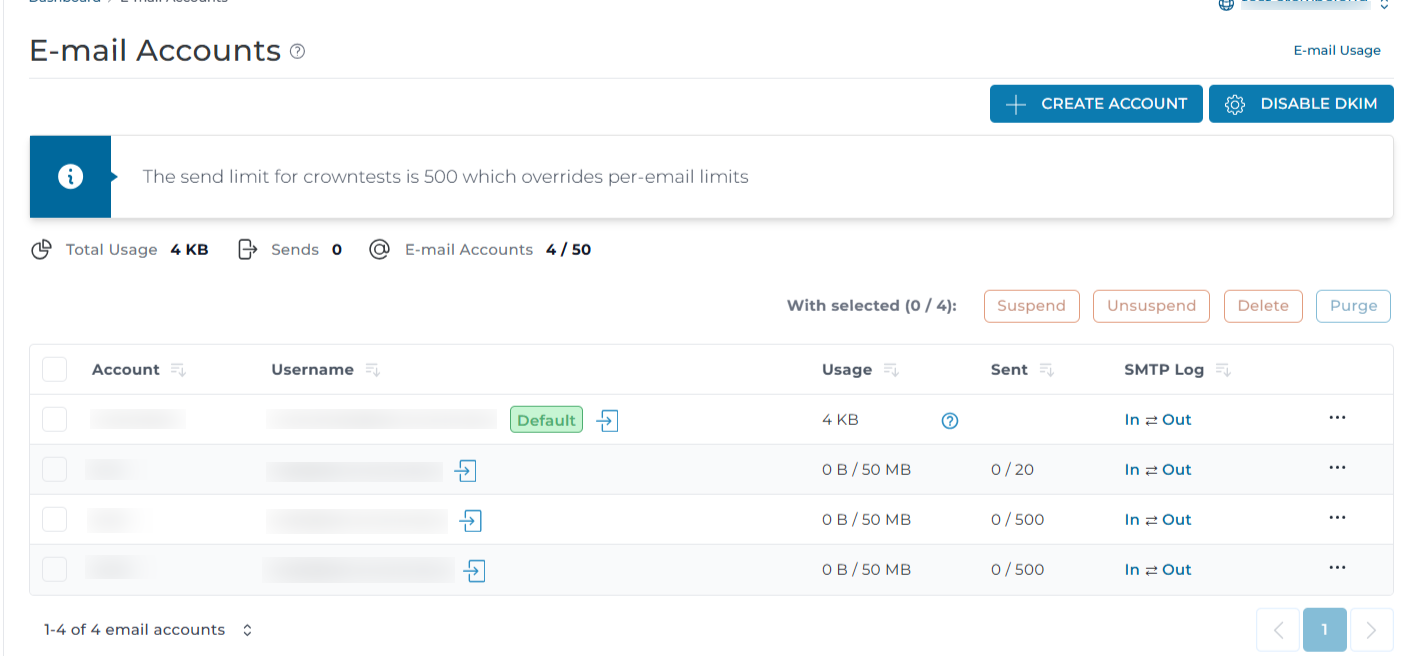
Find the account
The page lists every mailbox on the domain. Locate the account you want to remove.
If you have multiple domains hosted under the same user account, the page opens with the main domain selected by default. Change the domain from the selector at the top of the page if the mailbox belongs to another domain.
Select the account and click Delete
Tick the checkbox beside the account, then click Delete.
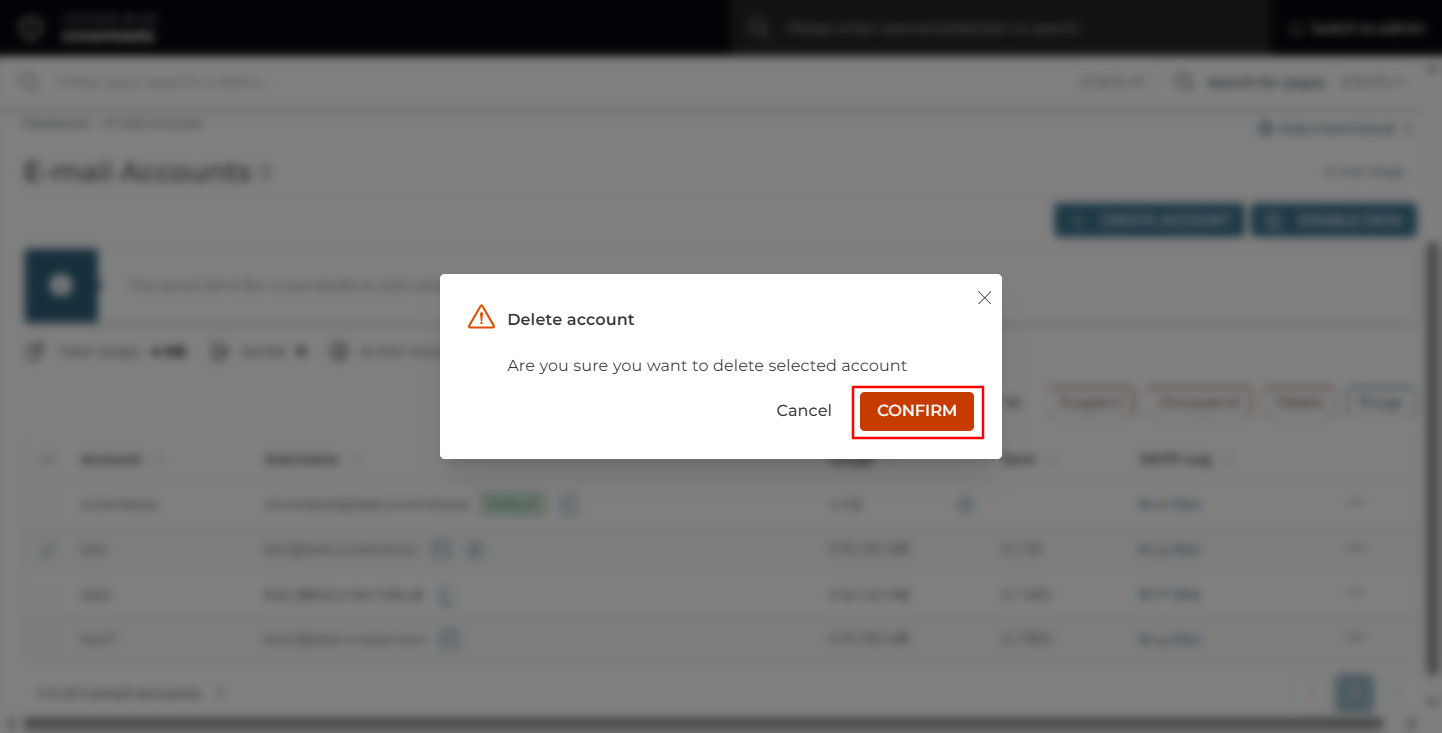
Confirm the deletion
Confirm the deletion when prompted. The mailbox and all of its stored mail are removed from the server.
Check the account list
The account no longer appears in the list.
Suspending Instead of Deleting
If the address only needs to be taken out of use temporarily, suspend it rather than deleting it:
- Go to E-Mail Manager > E-Mail Accounts.
- Tick the checkbox beside the account.
- Click Suspend in the action bar.
A suspended account cannot be logged into and does not accept new mail, but the stored messages remain intact. Click Unsuspend to bring it back. Suspended mailboxes still count towards the account disk usage.
Verification
Confirm the account no longer appears in the list on the E-Mail Accounts page.
Try signing in to webmail with the deleted address. The login should fail:
If you have shell access, confirm the mailbox directory has been removed. Replace USERNAME, YOUR_DOMAIN, and MAILBOX with the DirectAdmin username, the domain, and the mailbox name:
The command returns nothing when the mailbox is gone.
Confirm the space has been released:
Send a test message to the deleted address from an outside account. What happens depends on the catch-all setting for the domain: with Fail the sender receives a bounce, and with Address the mail is delivered to the catch-all mailbox instead.
Troubleshooting
Important Notes
- Deletion is permanent. All mail stored in the mailbox is removed from the server and cannot be recovered through DirectAdmin.
- The default mailbox that matches your DirectAdmin username cannot be deleted. Suspending it is the only way to disable it.
- Deleting a mailbox does not remove forwarders, autoresponders, or vacation messages that share the address. Check those pages separately and clean them up.
- Once the mailbox is gone, mail sent to the address is handled by the catch-all setting for the domain.
- Recovery is only possible from a server-level backup, if the hosting plan includes one and the backup predates the deletion.
- Deleting several accounts at once is possible by ticking multiple checkboxes. Review the confirmation dialog carefully before proceeding.
Conclusion
The email account and its stored mail are now removed and the disk space is released back to the hosting package. If the address may be needed again, use Suspend rather than Delete, and create a forwarder if mail sent to the old address still needs to reach someone.