How to Create a Database in DirectAdmin
If you are using the Standard Theme in DirectAdmin, switch to the Refreshed Theme by following How to Change Theme or Layout on DirectAdmin
In the Standard Theme
Click here to show the steps
Log in to DirectAdmin
Log in to the DirectAdmin control panel.
Open MySQL Management
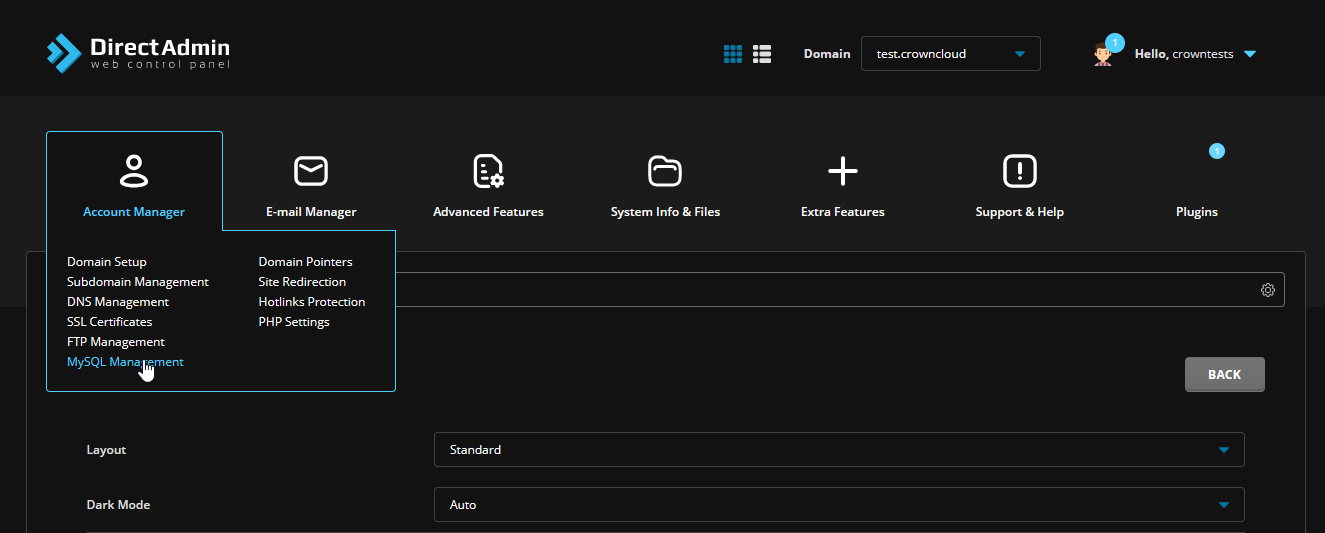
Navigate to Account Manager → MySQL Management.
Create a new database
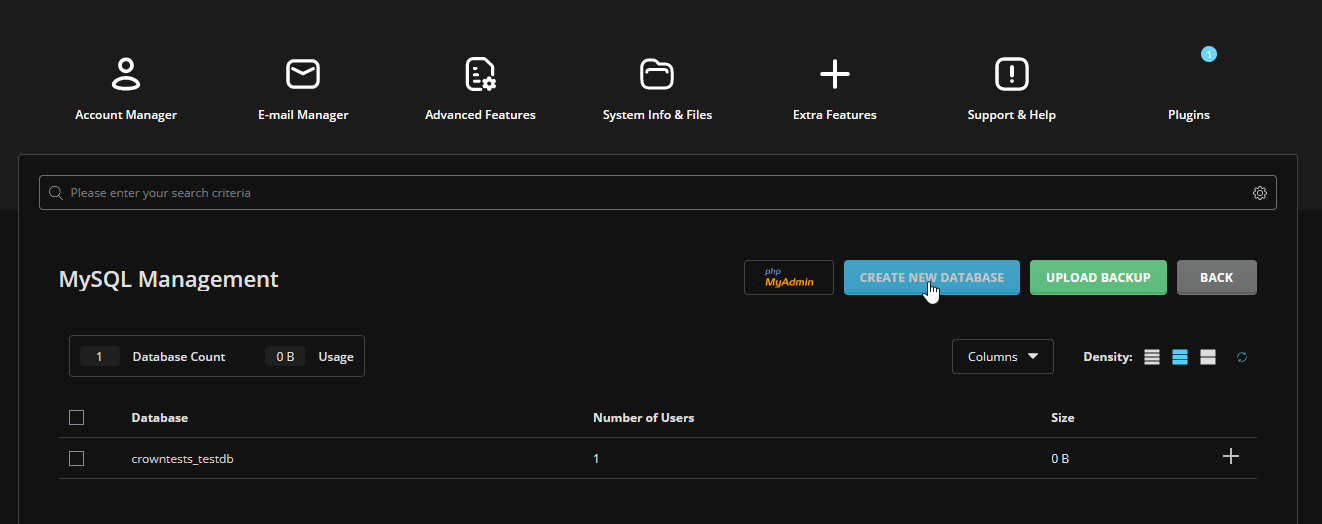
Click Create New Database.
Enter database details
Set the database name, username, and password.
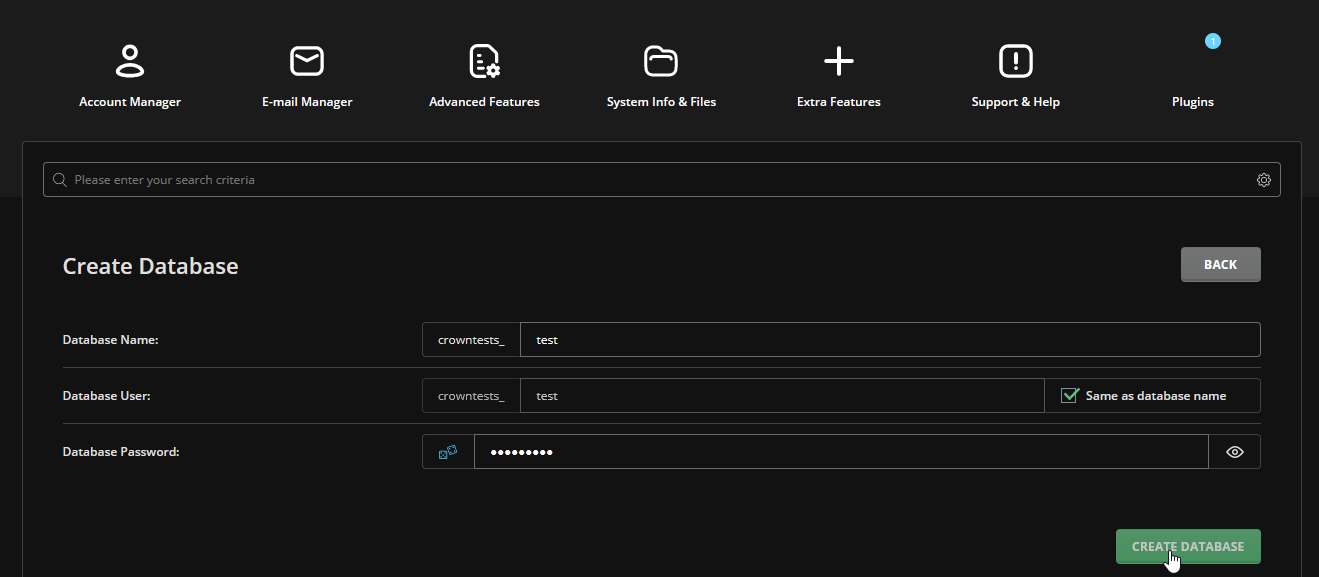
The following details are required:
- Database Name: The name assigned to the database. You will need this when configuring your application to connect to MySQL. For example,
mydatabaseordatabase1. - Database User: The username used to authenticate access to the database. For example,
dbuseroruser1. - Database Password: The password used to authenticate access to the database. We recommend using a strong password.
Click Create Database to create the database.
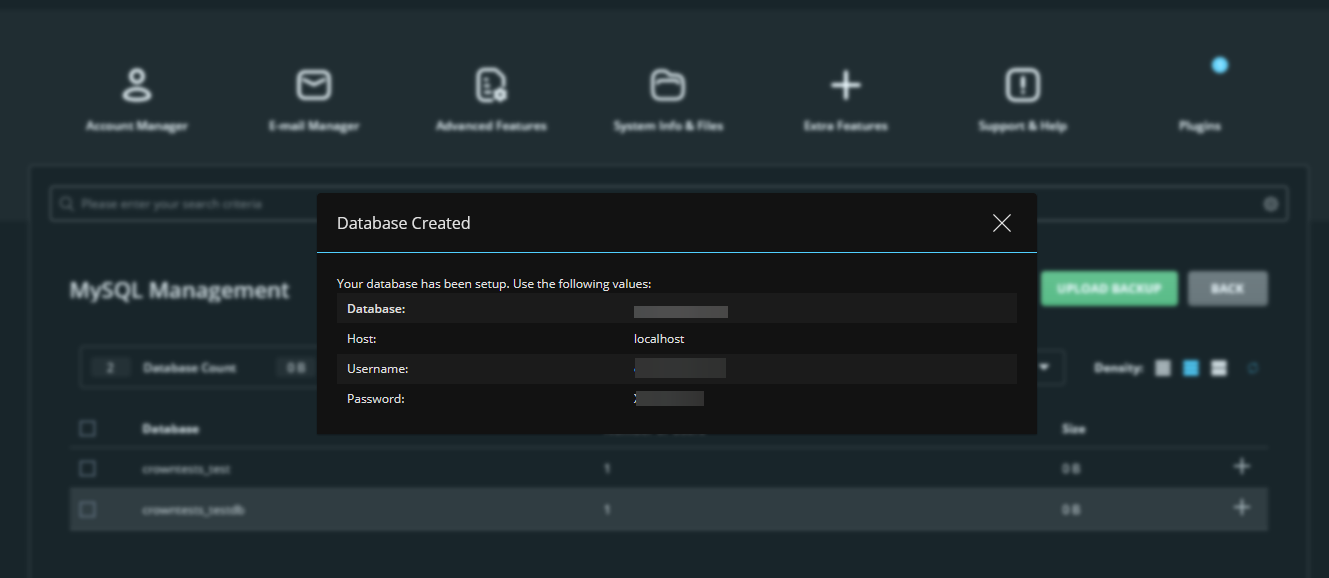
View database details
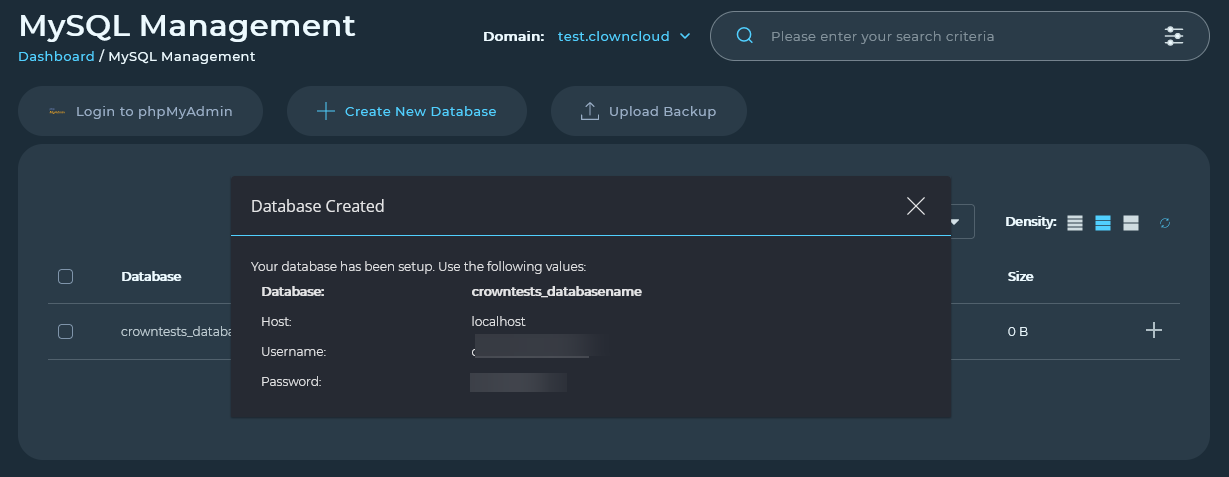
Once the database is created, DirectAdmin displays the details of the newly created database account.
In the Refreshed Theme
Log in to DirectAdmin
Log in to the DirectAdmin control panel.
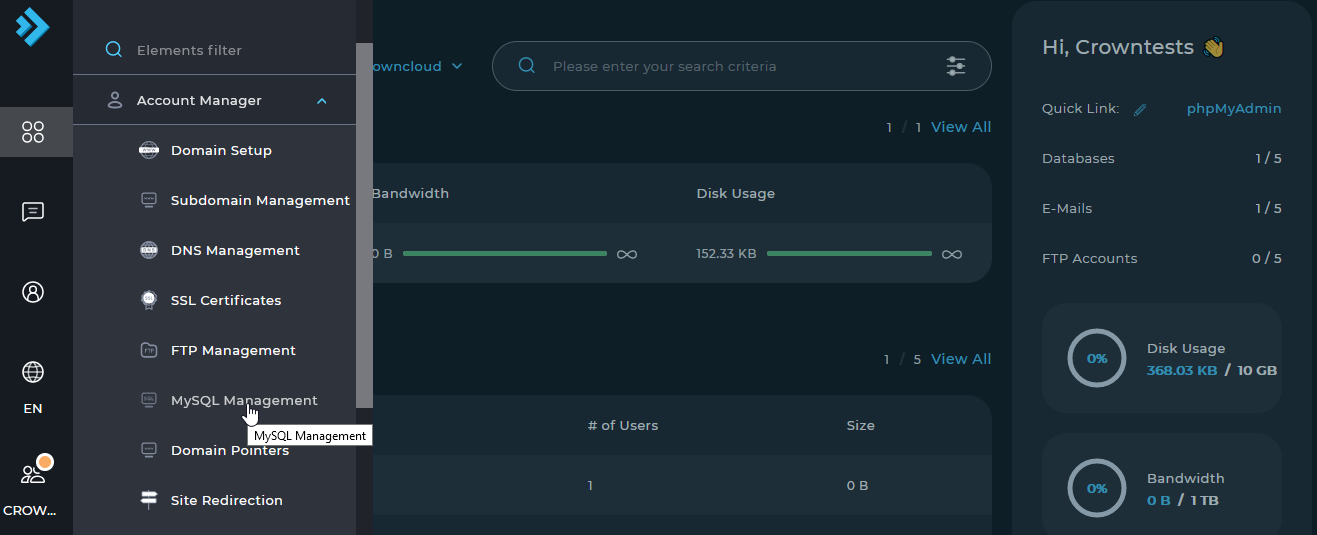
Open MySQL Management
Navigate to Account Manager → MySQL Management.
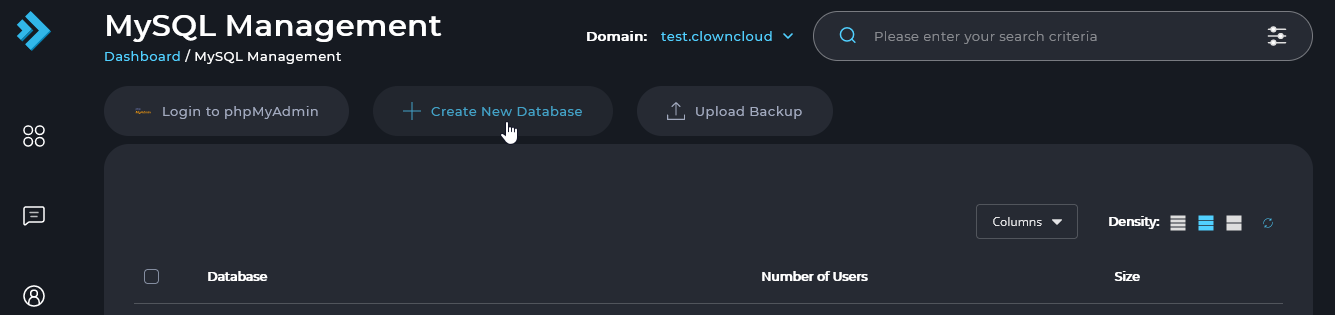
Create a new database
Click Create New Database.
Enter database details
Set the database name, username, and password.
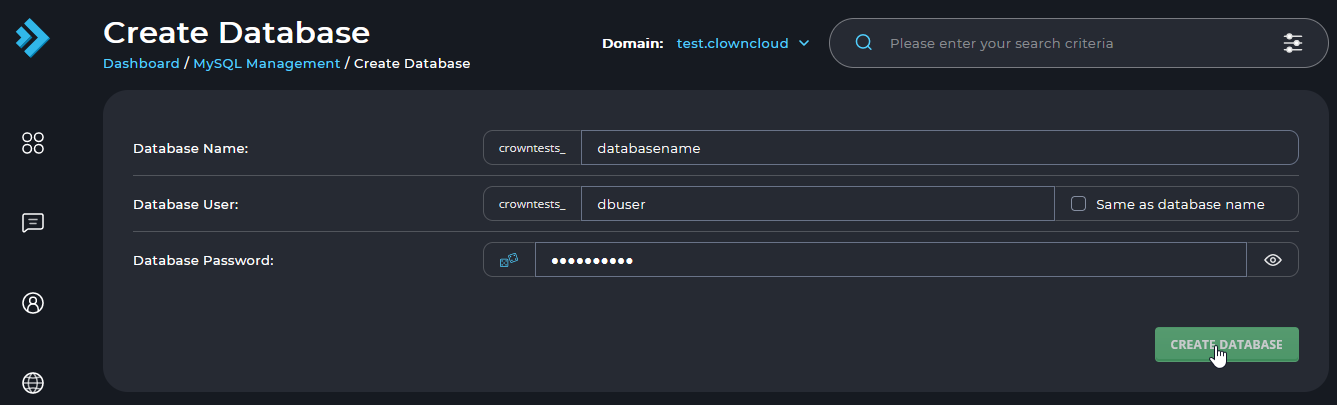
The following details are required:
- Database Name: The name assigned to the database. You will need this when configuring your application to connect to MySQL. For example,
mydatabaseordatabase1. - Database User: The username used to authenticate access to the database. For example,
dbuseroruser1. - Database Password: The password used to authenticate access to the database. We recommend using a strong password.
Click Create Database to create the database.
View database details
Once the database is created, DirectAdmin displays the details of the newly created database account.