

How to Create and Manage a Database in DirectAdmin
Databases in DirectAdmin are commonly used by WordPress, Joomla, other CMS platforms, and custom applications.
Creating and managing databases in DirectAdmin is straightforward. This guide explains how to create a database, change a database user's password, upload an existing database backup, and delete a database.
You will need User Level access to your DirectAdmin account.
If you are using the Standard Theme in DirectAdmin, switch to the Refreshed Theme by following How to Change Theme or Layout on DirectAdmin
In the Standard Theme
Click here to show the steps
Create Database
Log in to DirectAdmin
Log in to the DirectAdmin control panel as a user.
Navigate to Account Manager → MySQL Management.
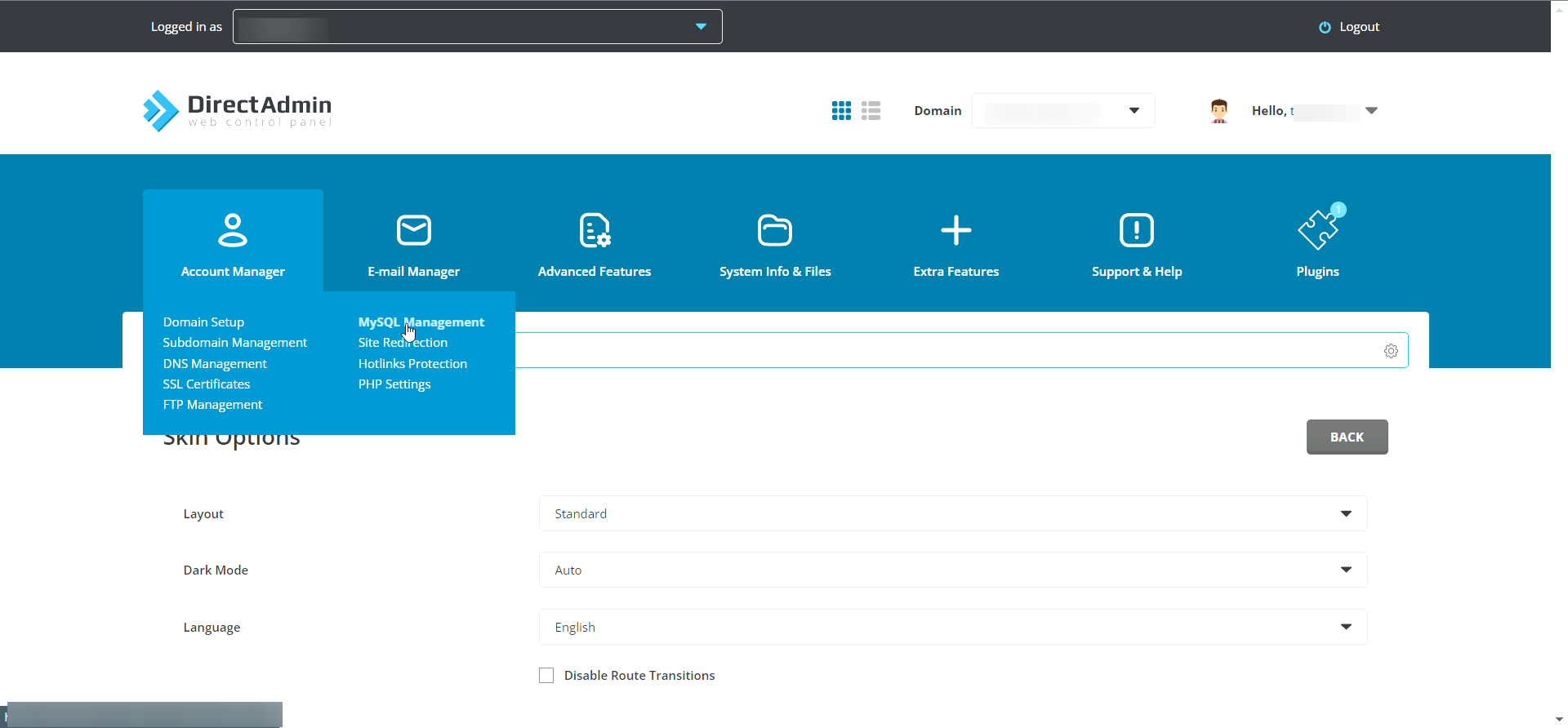
Open Create New Database
On the right sidebar, click Create New Database to start creating a database.
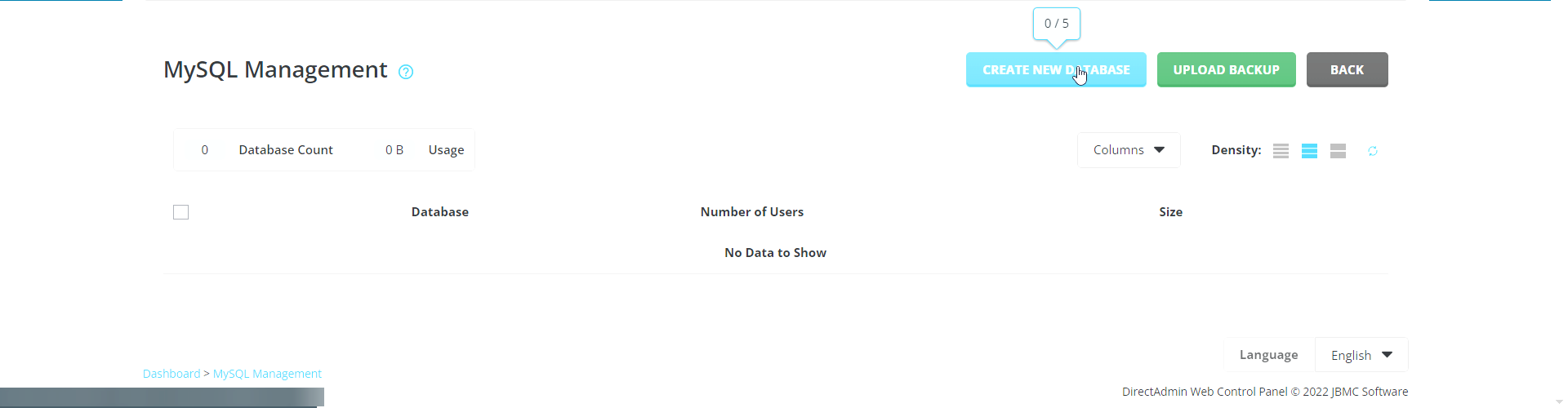
Enter database details
Enter the database name, username, and password.
The following details are required:
- Database Name: The name assigned to the database. You will need this when configuring your application to connect to MySQL. For example,
site_nameorwordpress_db. - Database User and Password: These credentials are used to authenticate access to the database. For example,
site_name_userorwordpress_db_user.
Click Create Database to create the database.
View database details
DirectAdmin will display the details of the newly created database account.
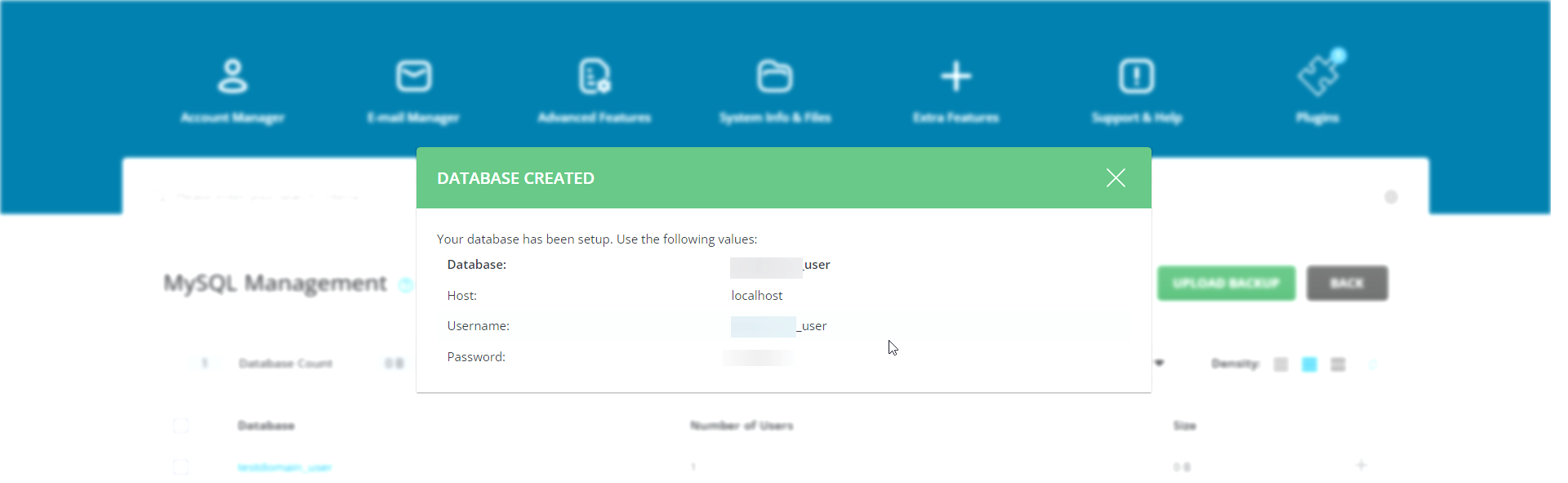
Change Database User Password
Open MySQL Management
Log in to DirectAdmin as a User and navigate to Account Manager → MySQL Management.
Select the database
Select the database for which you want to change the password.
DirectAdmin will display a list of usernames associated with the database.
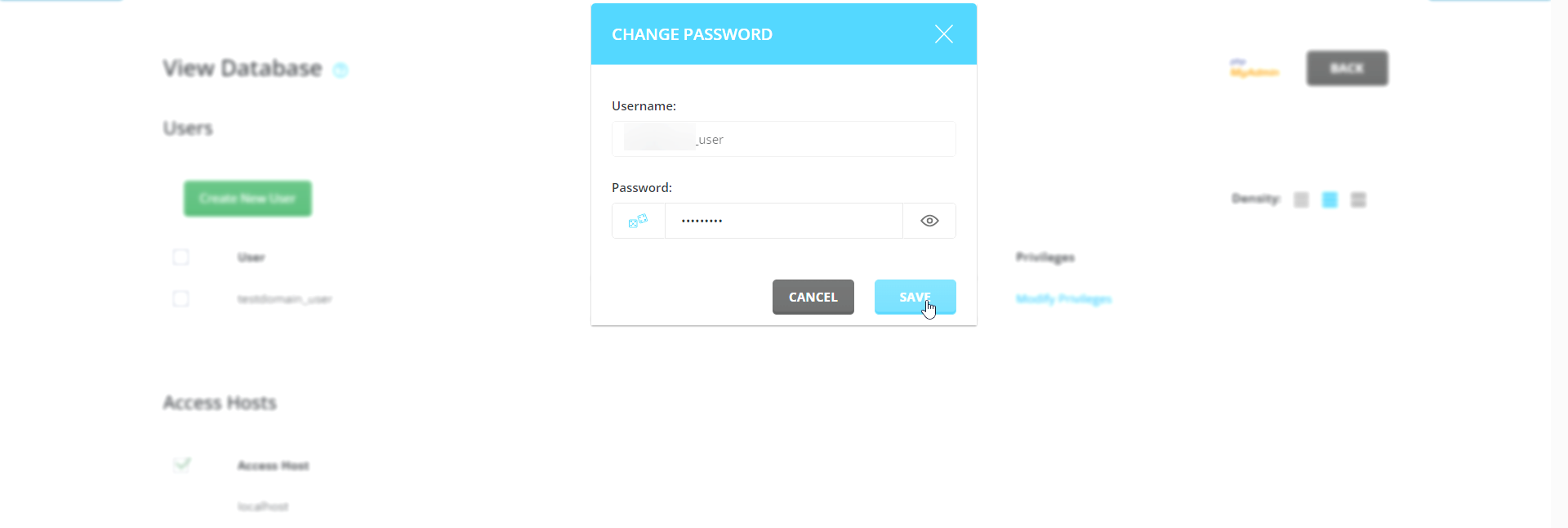
Open the password change option
Click Change Password next to the database user whose password you want to change.
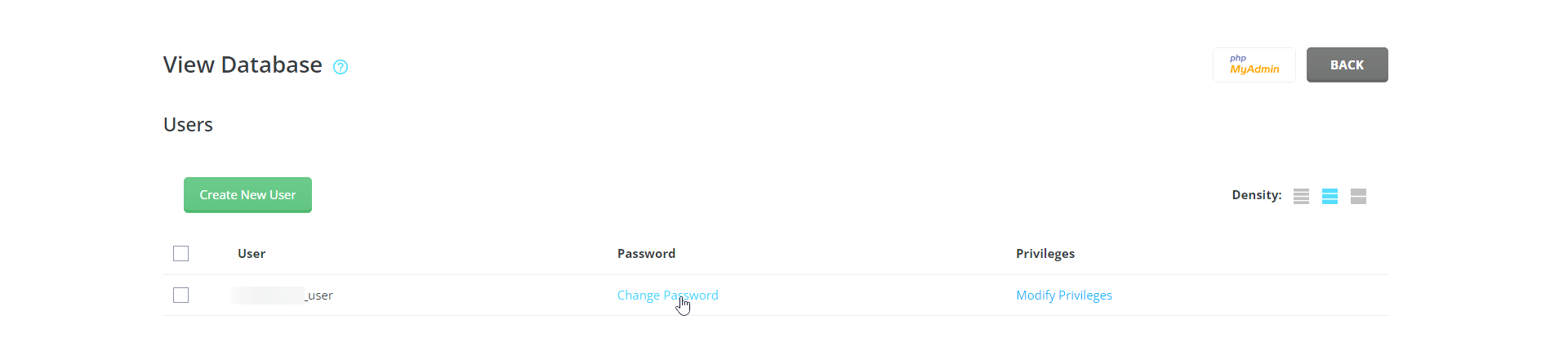
Set the new password
Enter the new password in the dialog box and click Save.
Upload Database Backup
Open MySQL Management
Log in to DirectAdmin as a User and navigate to Account Manager → MySQL Management.
Create the database
Before uploading a database backup, you must first create the destination database.
Refer to the Create Database section of this guide for instructions.
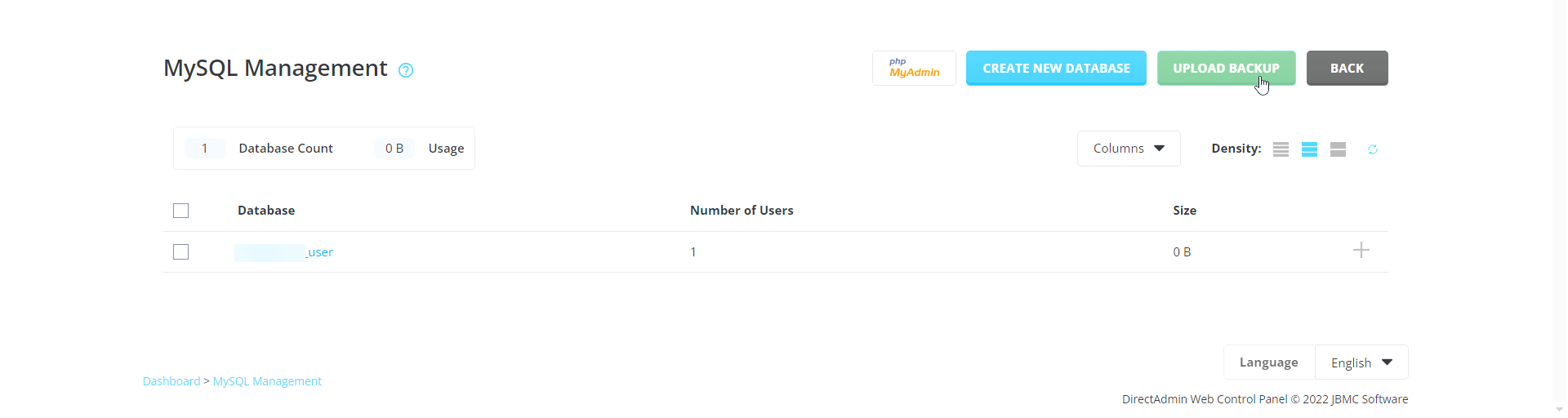
Open Upload Backup
Once the database is created, click Upload Backup on the right sidebar.
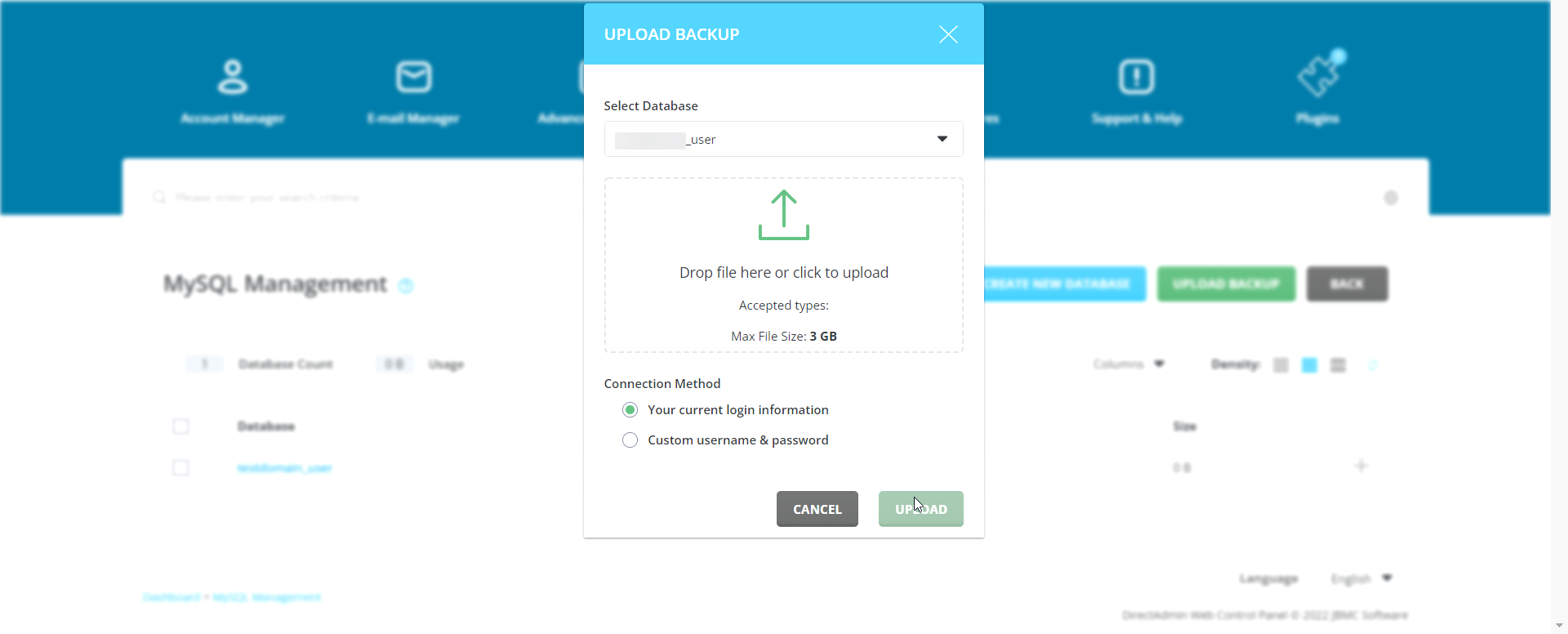
Upload the backup file
Select the database name from the dropdown menu and drag and drop the backup file into the upload area.
The database backup file must be in .sql format.
Delete Database
Open MySQL Management
Log in to DirectAdmin as a User and navigate to Account Manager → MySQL Management.
Select the database
Select the checkbox beside the database name you want to delete.
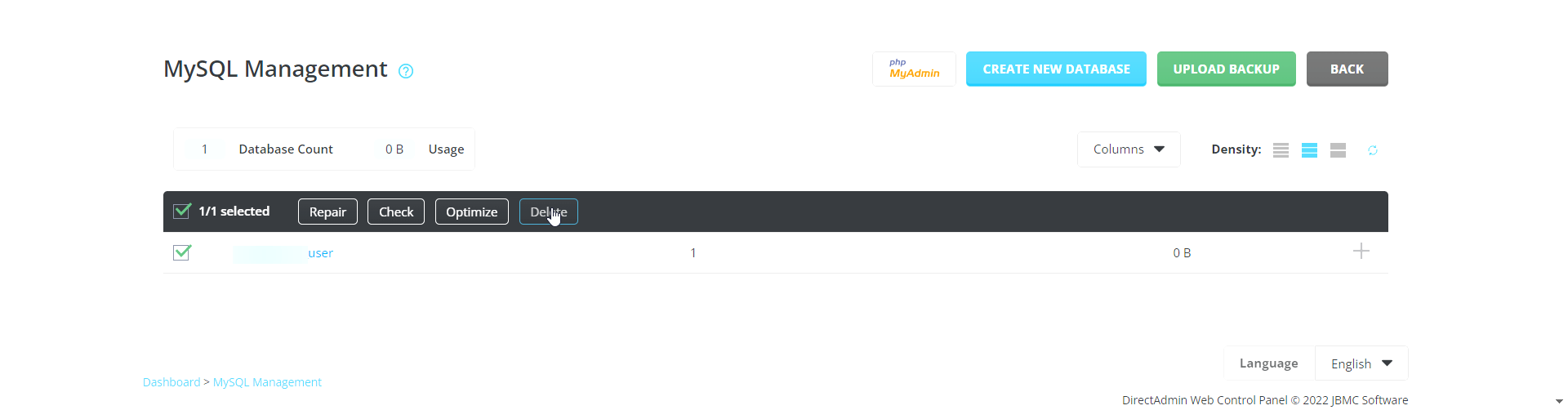
Delete the database
From the available options, click Delete.
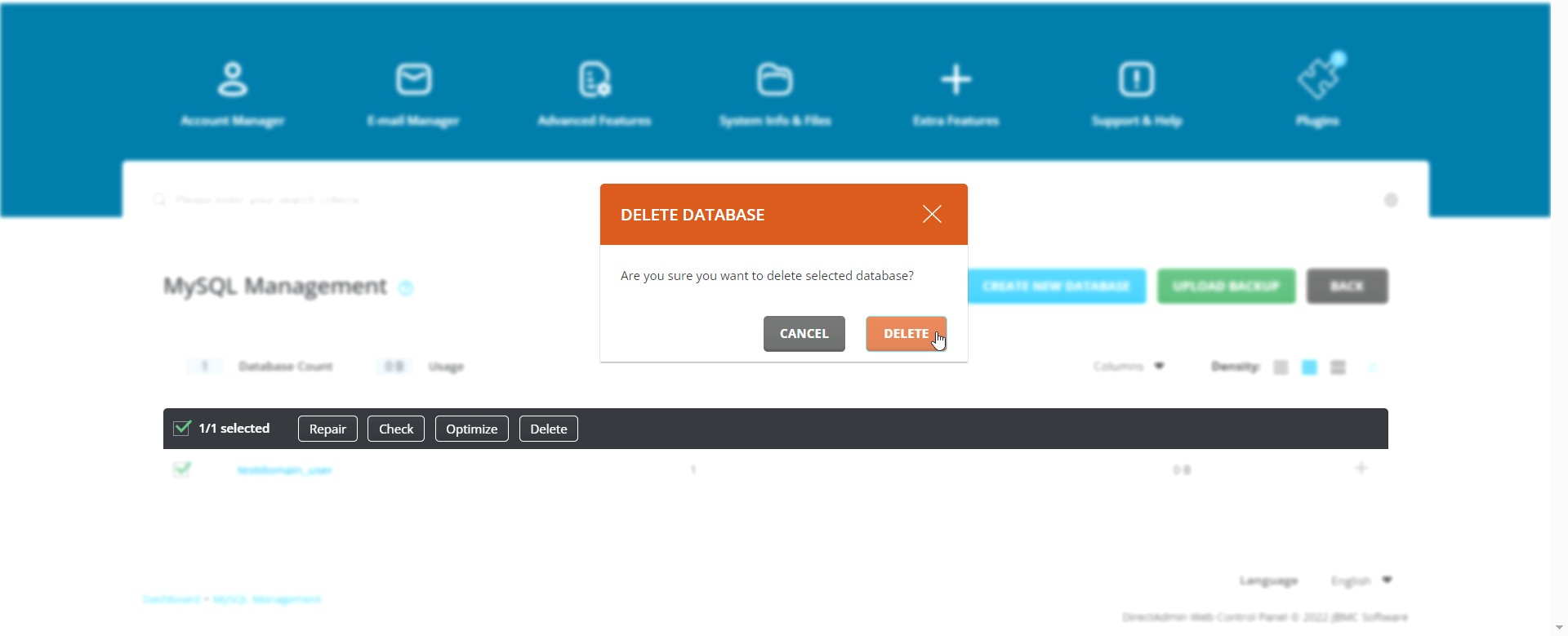
Confirm deletion
A confirmation dialog will appear. Click Delete again to confirm the action.
In the Refreshed Theme
Create Database
Log in to DirectAdmin
Log in to the DirectAdmin control panel as a user.
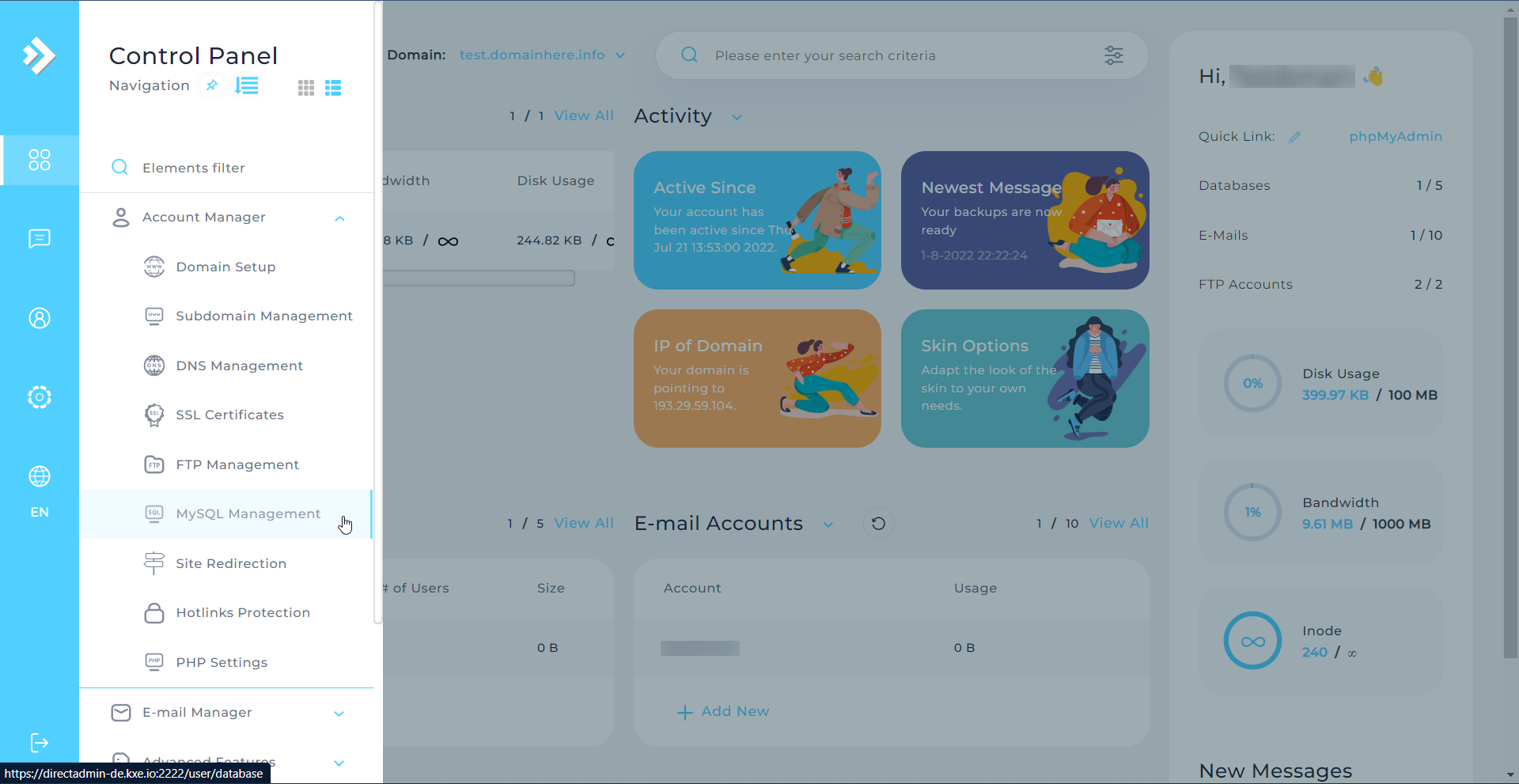
Navigate to Account Manager → MySQL Management.
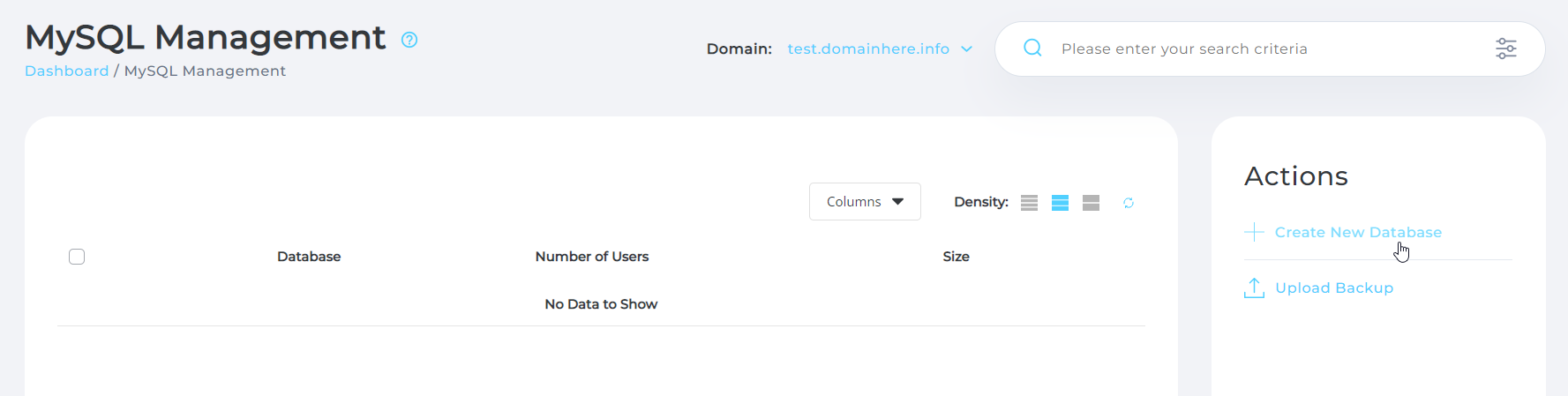
Open Create New Database
On the right sidebar, click Create New Database to start creating a database.
Enter database details
Enter the database name, username, and password.
The following details are required:
- Database Name: The name assigned to the database. You will need this when configuring your application to connect to MySQL. For example,
site_nameorwordpress_db. - Database User and Password: These credentials are used to authenticate access to the database. For example,
site_name_userorwordpress_db_user.
Click Create Database to create the database.
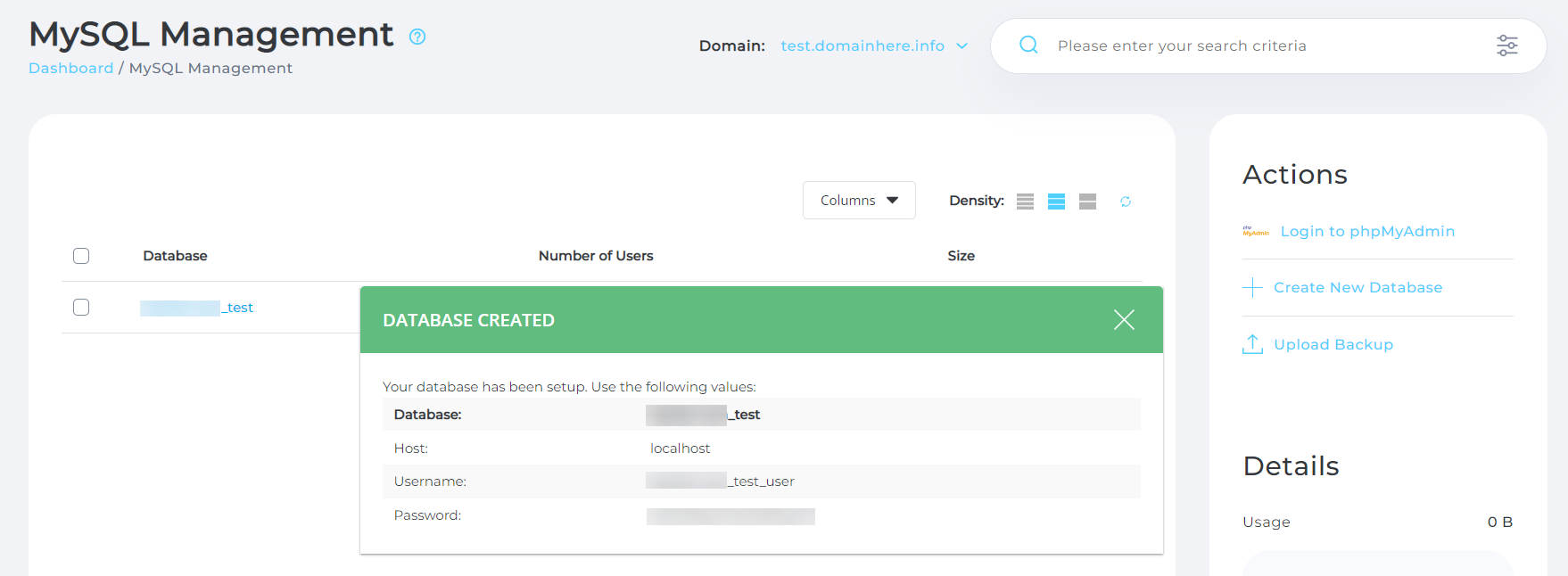
View database details
DirectAdmin will display the details of the newly created database account.
Change Database User Password
Open MySQL Management
Log in to DirectAdmin as a User and navigate to Account Manager → MySQL Management.
Select the database
Select the database for which you want to change the password.
DirectAdmin will display a list of usernames associated with the database.
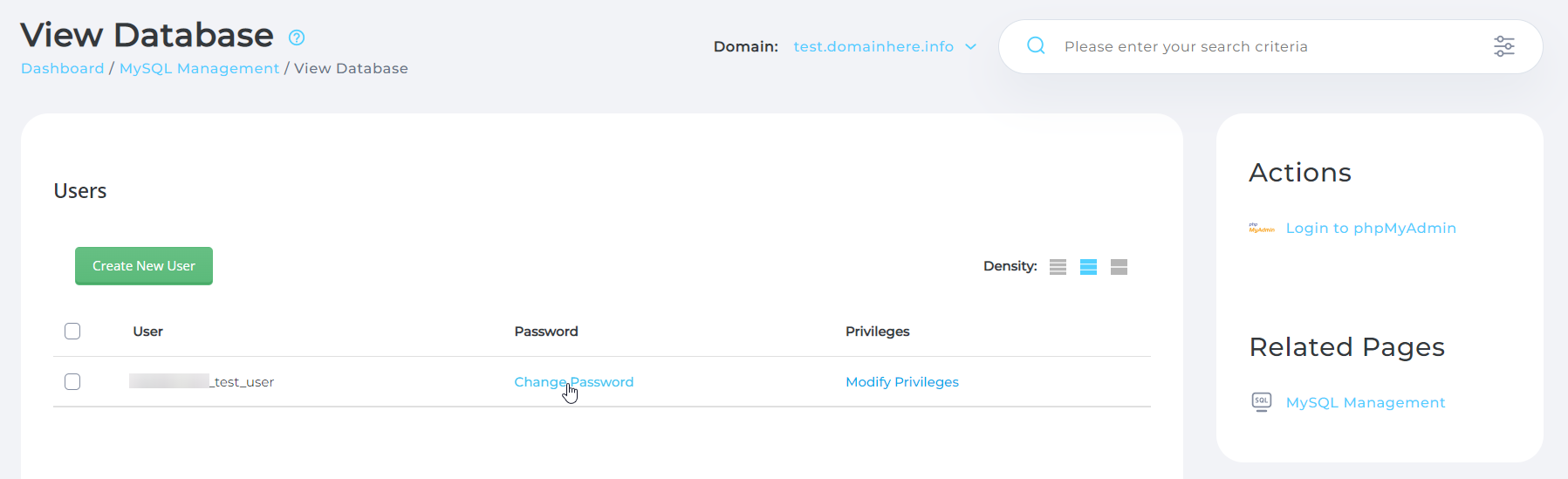
Open the password change option
Click Change Password next to the database user whose password you want to change.
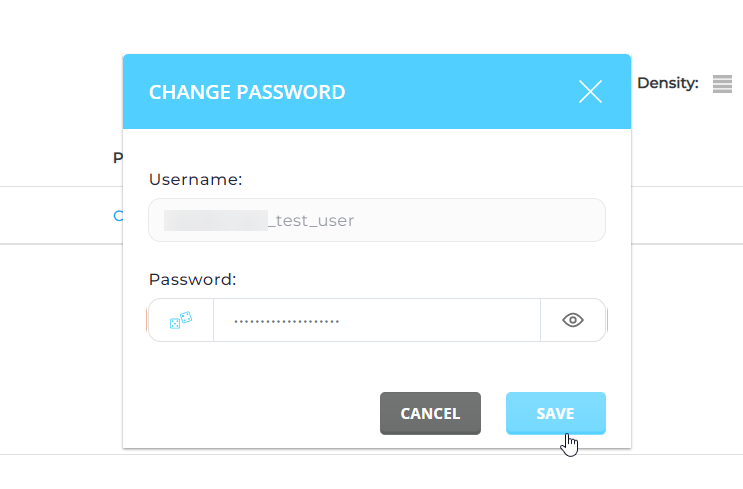
Set the new password
Enter the new password in the dialog box and click Save.
Upload Database Backup
Open MySQL Management
Log in to DirectAdmin as a User and navigate to Account Manager → MySQL Management.
Create the database
Before uploading a database backup, you must first create the destination database.
Refer to the Create Database section of this guide for instructions.
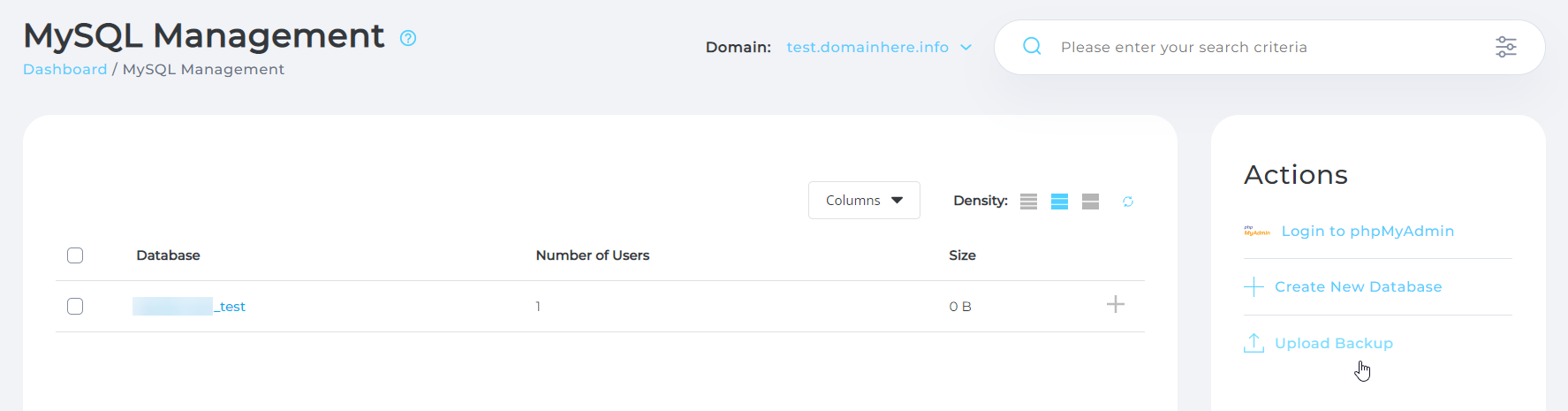
Open Upload Backup
Once the database is created, click Upload Backup on the right sidebar.
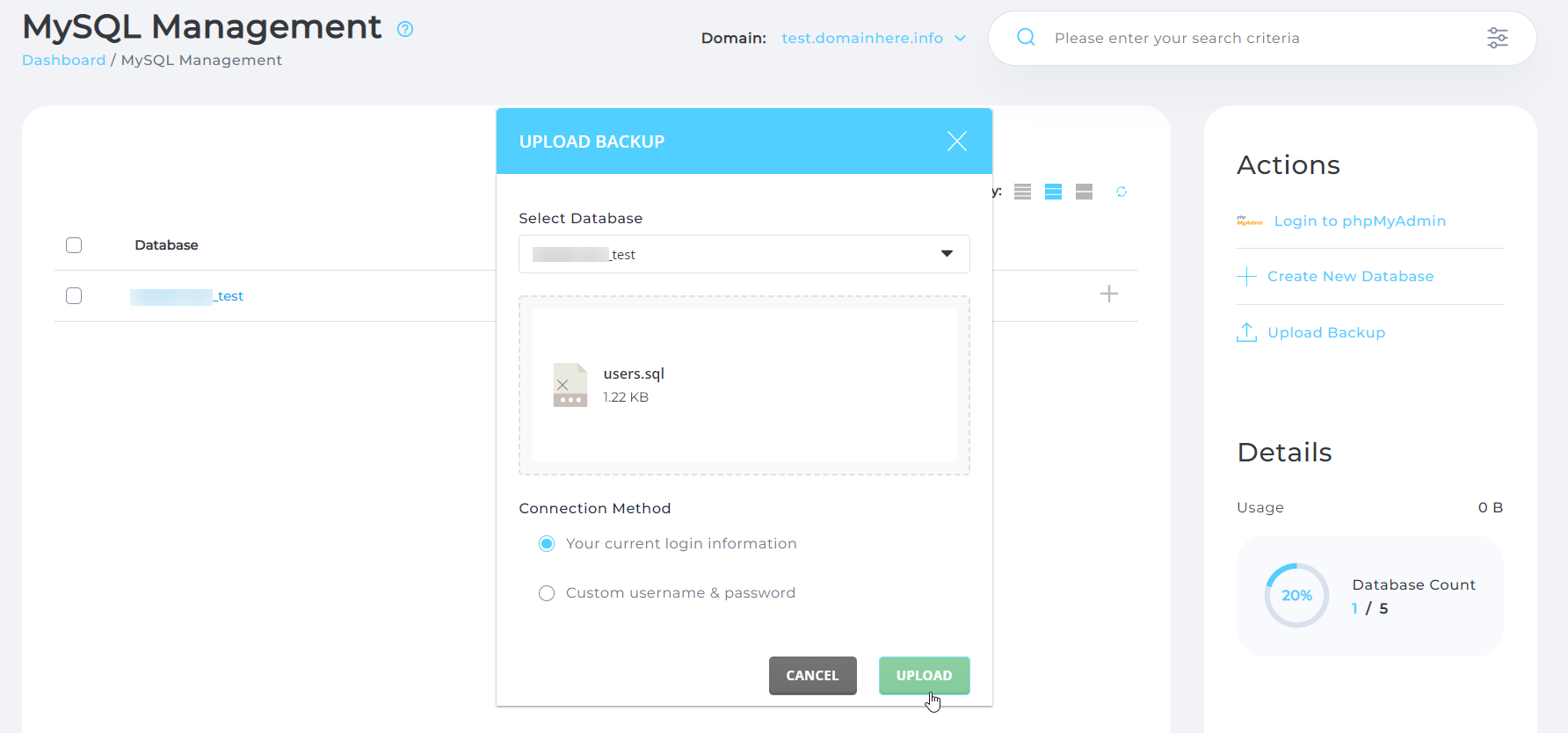
Upload the backup file
Select the database name from the dropdown menu and drag and drop the backup file into the upload area.
The database backup file must be in .sql format.
Delete Database
Open MySQL Management
Log in to DirectAdmin as a User and navigate to Account Manager → MySQL Management.
Select the database
Select the checkbox beside the database name you want to delete.
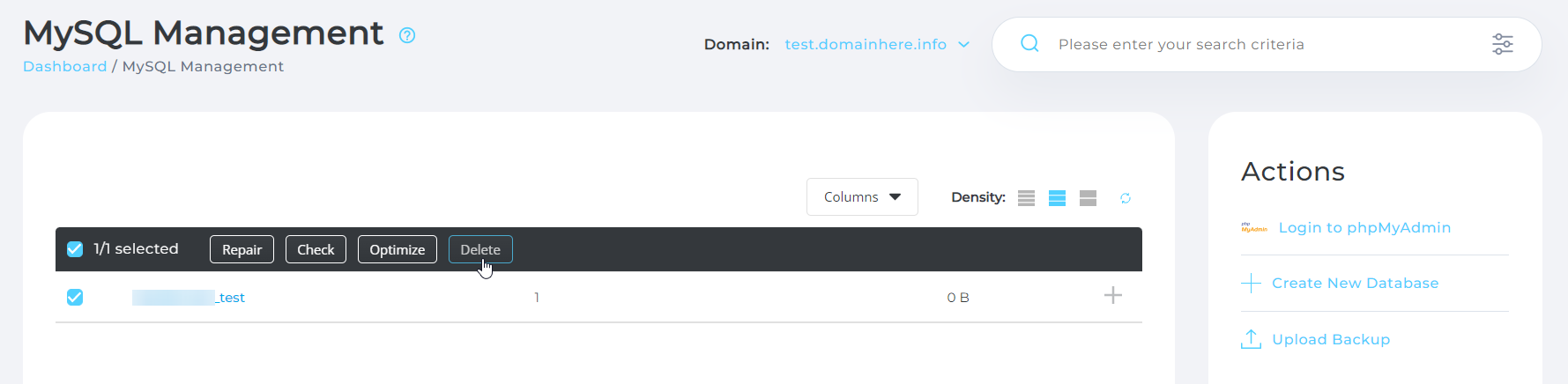
Delete the database
From the available options, click Delete.
Confirm deletion
A confirmation dialog will appear. Click Delete again to confirm the action.
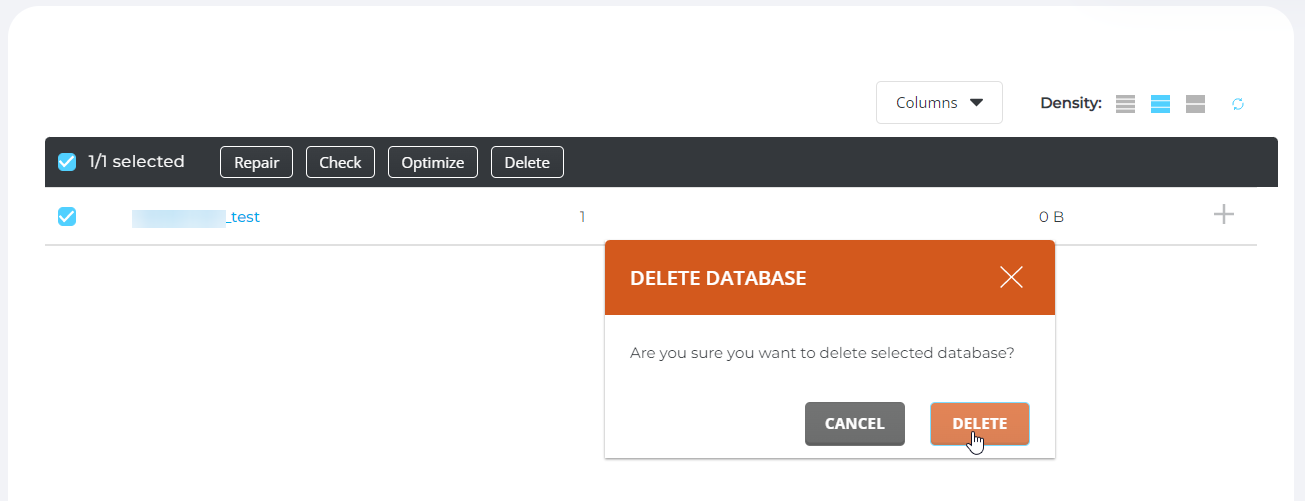
Deleting a database permanently removes its data. Make sure you have a backup before proceeding.
This concludes the guide to creating and managing databases in DirectAdmin.
If you have any questions or issues, please open a Support Ticket, and our team will assist you.