How to Manage Autoresponders in DirectAdmin
If you are using the Standard theme on DirectAdmin, expand the Standard theme section below and follow those steps. To switch to the Refreshed theme, see How to change theme or layout on DirectAdmin.
In the Refreshed Theme
Add an Autoresponder
Log in to DirectAdmin
Log in to your DirectAdmin account.
Open Autoresponders
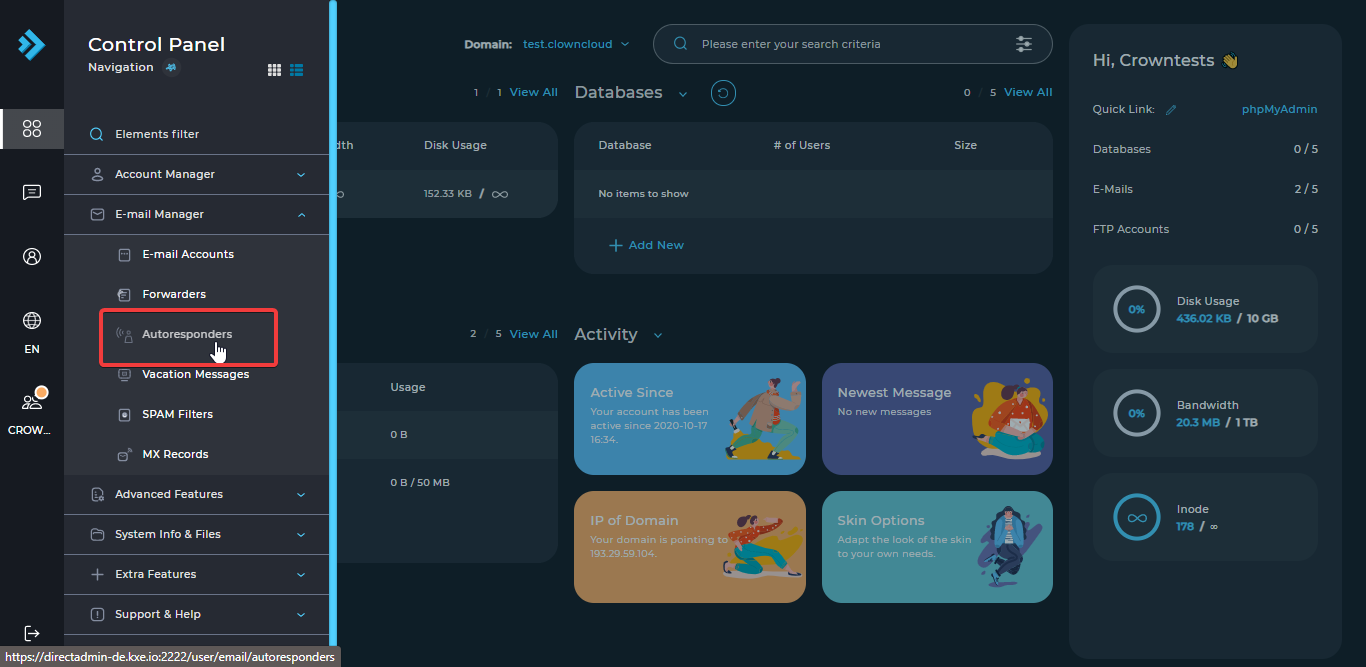
Select Menu in the navbar and click on Autoresponders under E-Mail Manager.
Click Create Autoresponder
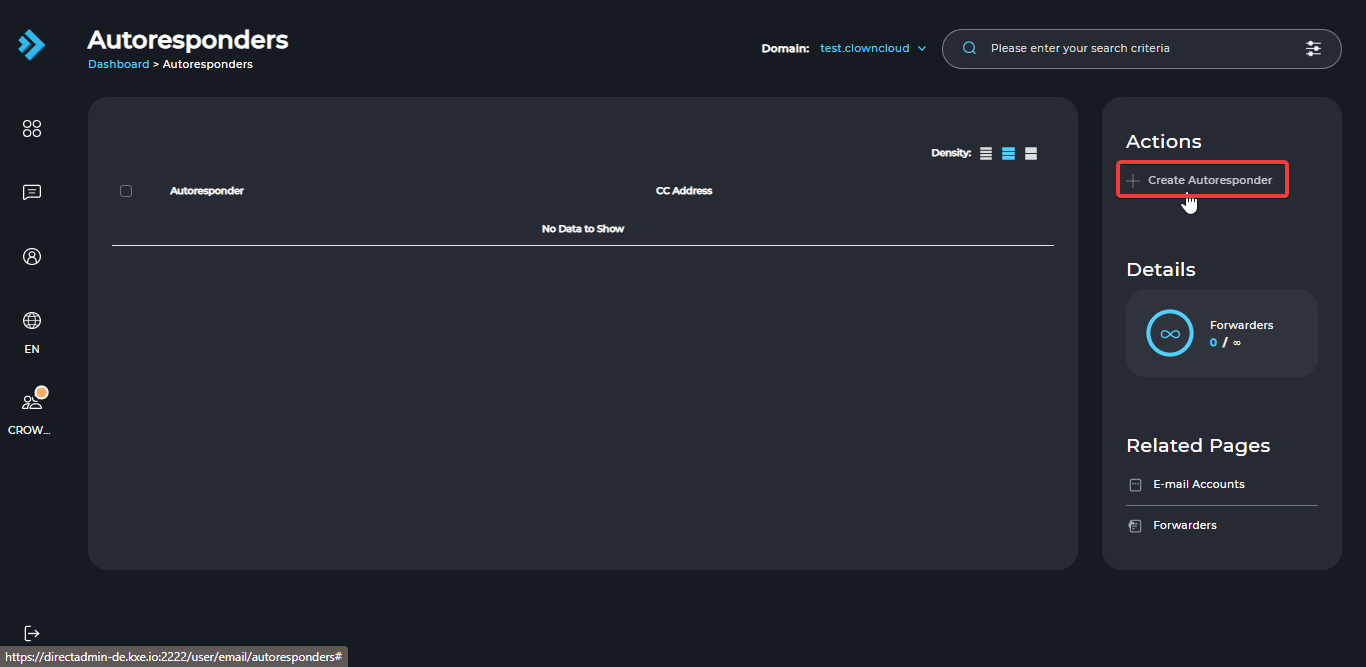
Click the Create Autoresponder button.
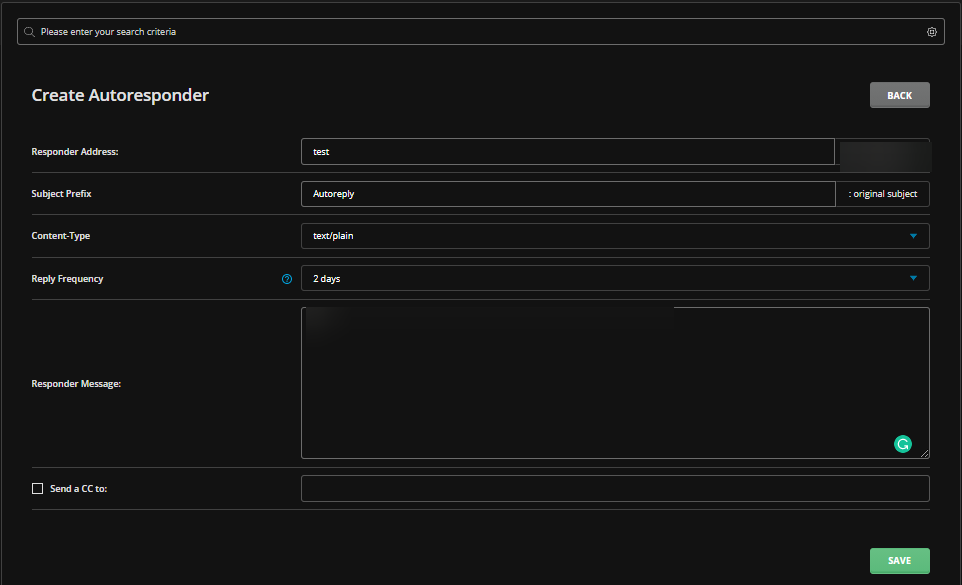
Fill in the details
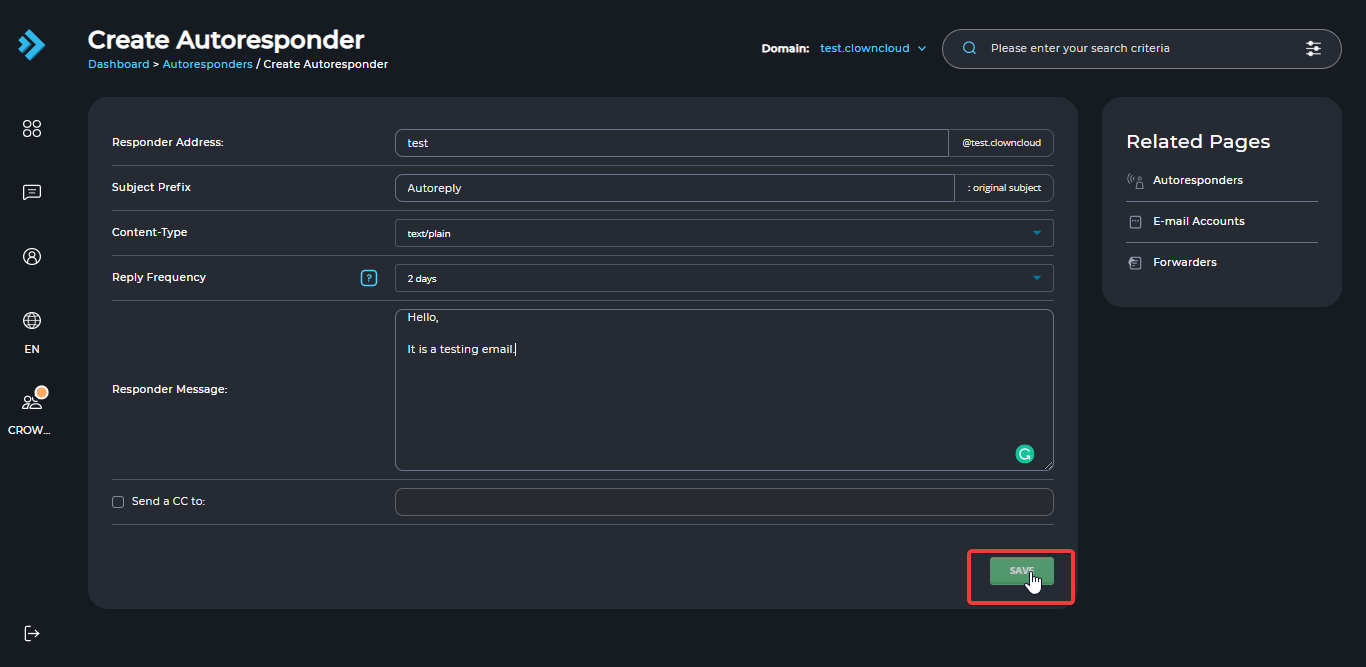
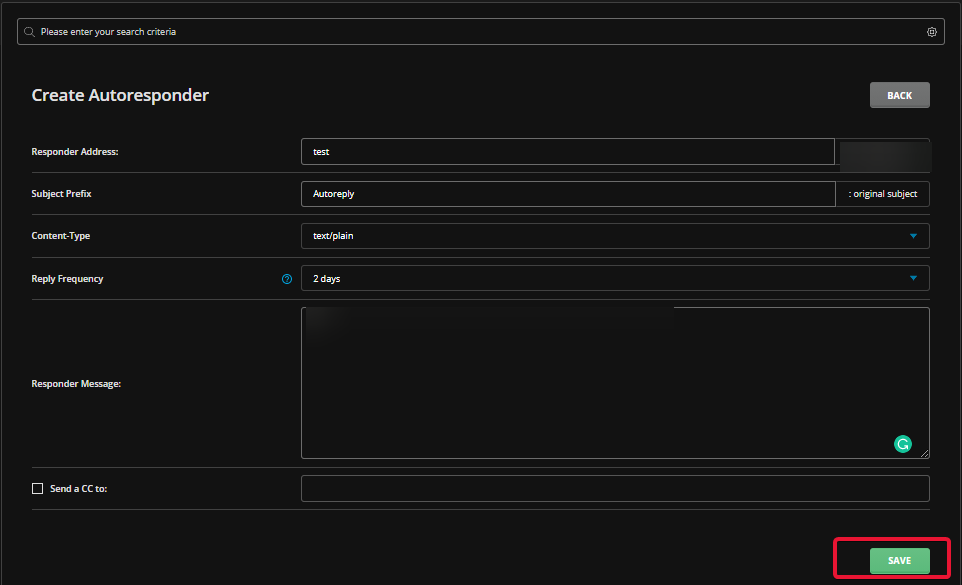
Fill in the details and click Save.
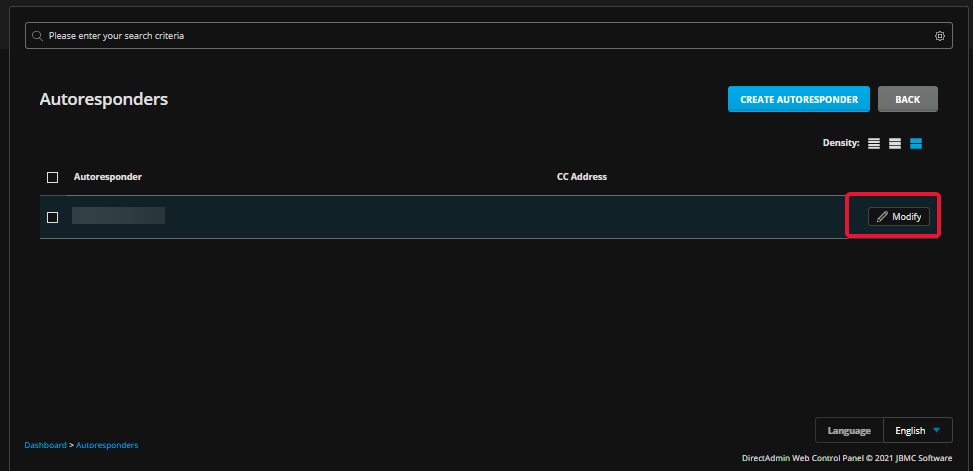
Modify an Autoresponder
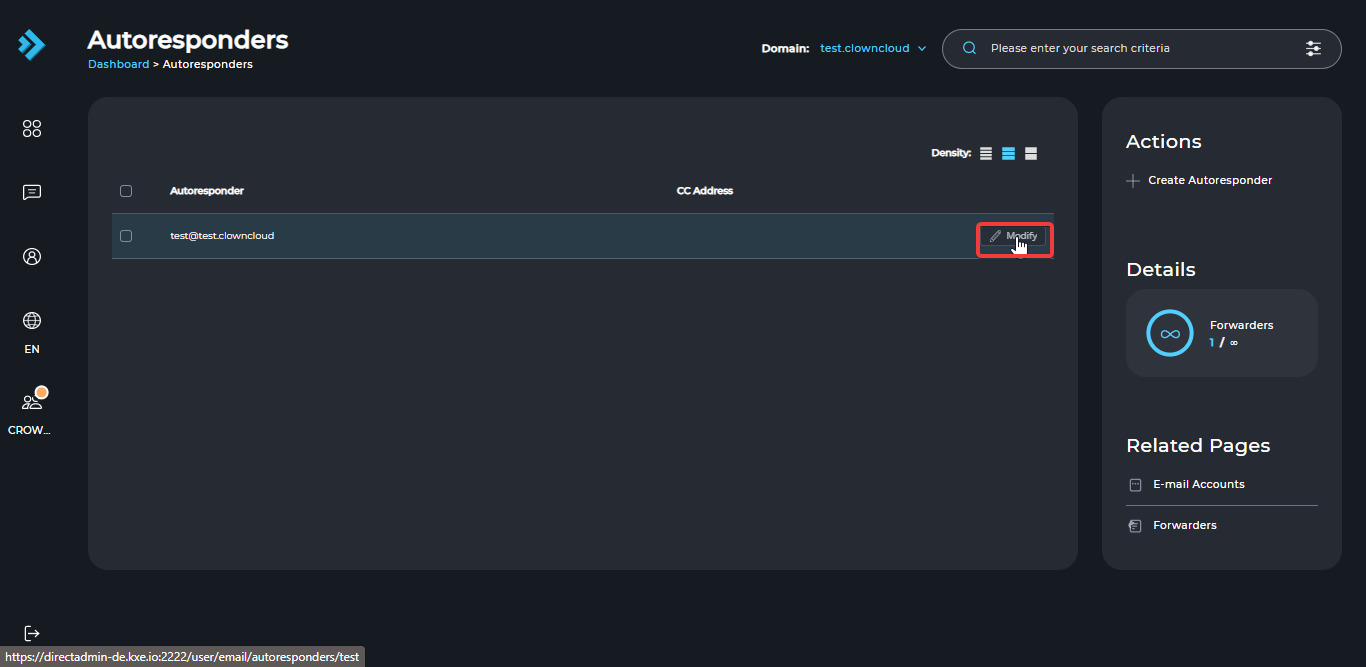
To modify an autoresponder, click the Modify button next to it.
Remove an Autoresponder
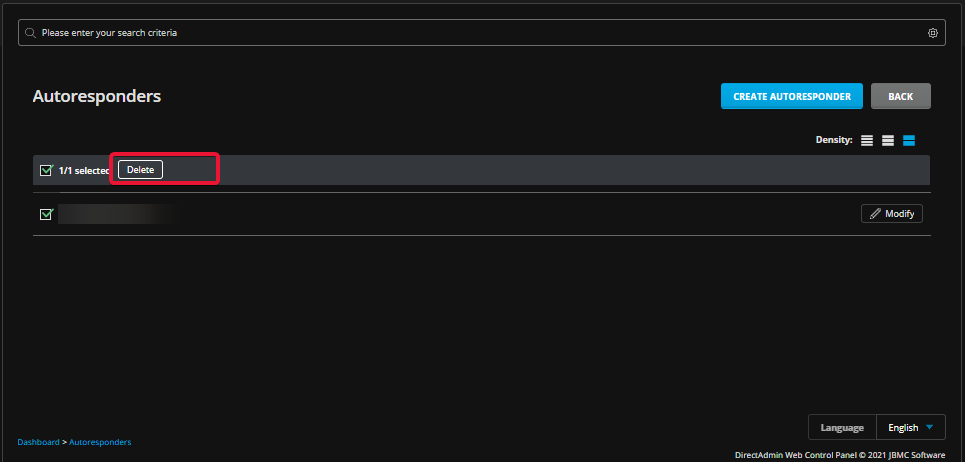
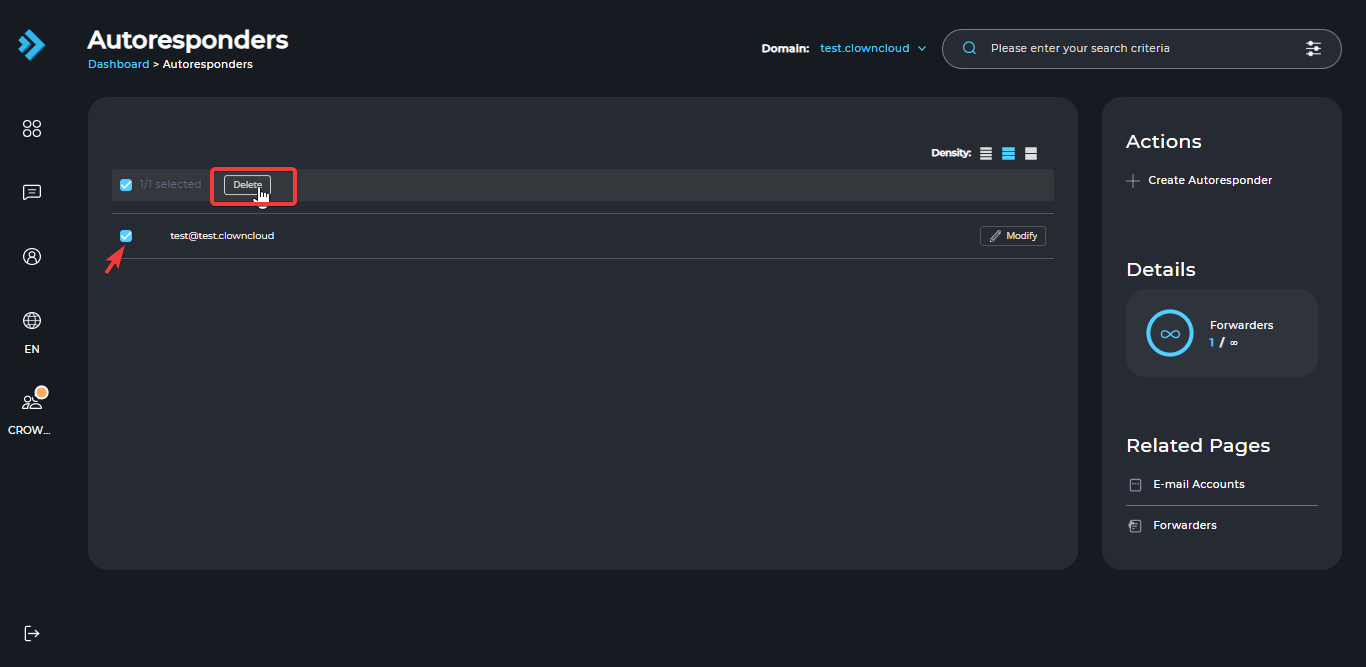
To delete an autoresponder, select it and click the Delete button.
In the Standard Theme
Click here to show the steps
Add an Autoresponder
Log in to DirectAdmin
Log in to your DirectAdmin account.
Open Autoresponders
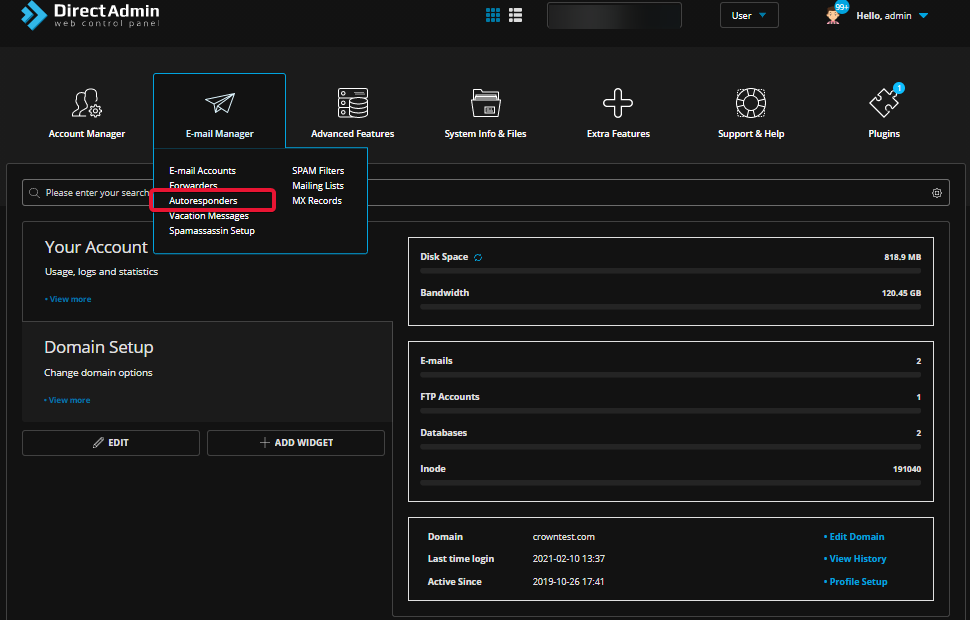
Click on Autoresponders under E-Mail Manager.
Click Create Autoresponder
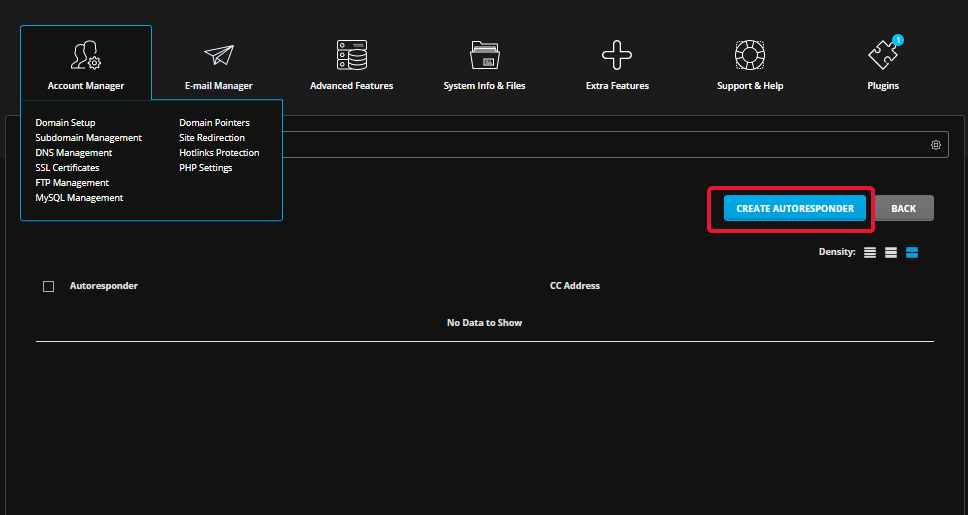
Click the Create Autoresponder button.
Fill in the details
Enter the details below.
Save the autoresponder
Click Save.
Modify an Autoresponder
To modify an autoresponder, click the Modify button next to it.
Remove an Autoresponder
To delete an autoresponder, select it and click the Delete button.