How to Enable Let's Encrypt in DirectAdmin
This guide describes the old method of setting up an SSL certificate. Please refer to the new guide instead.
If you are using the Standard theme on DirectAdmin, switch to the Refreshed theme as shown in How to change theme or layout on DirectAdmin.
In the Refreshed Theme
Log in to DirectAdmin
Log in to the DirectAdmin Web Control Panel.
Open the Menu
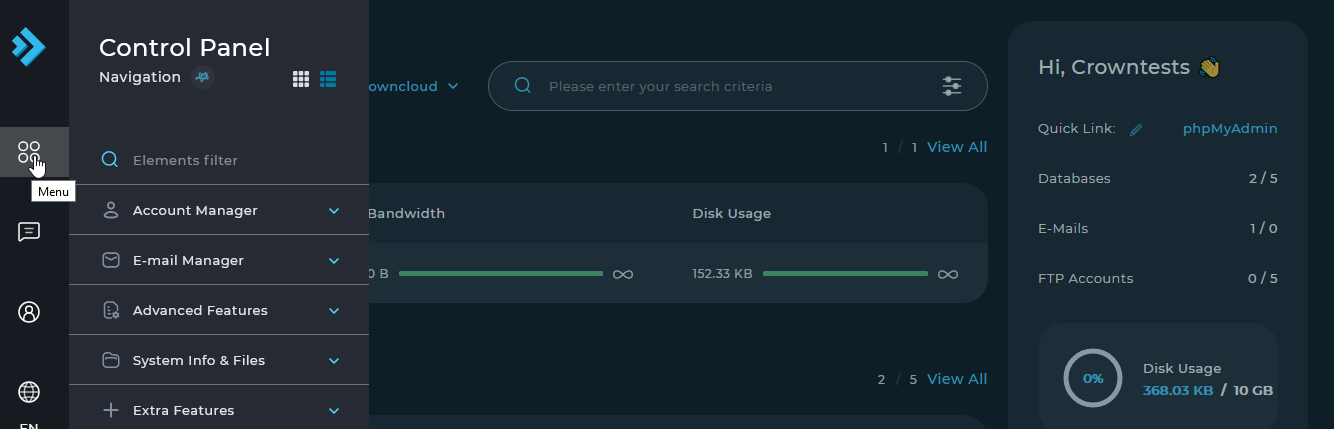
Select Menu in the left sidebar.
Open SSL Certificates
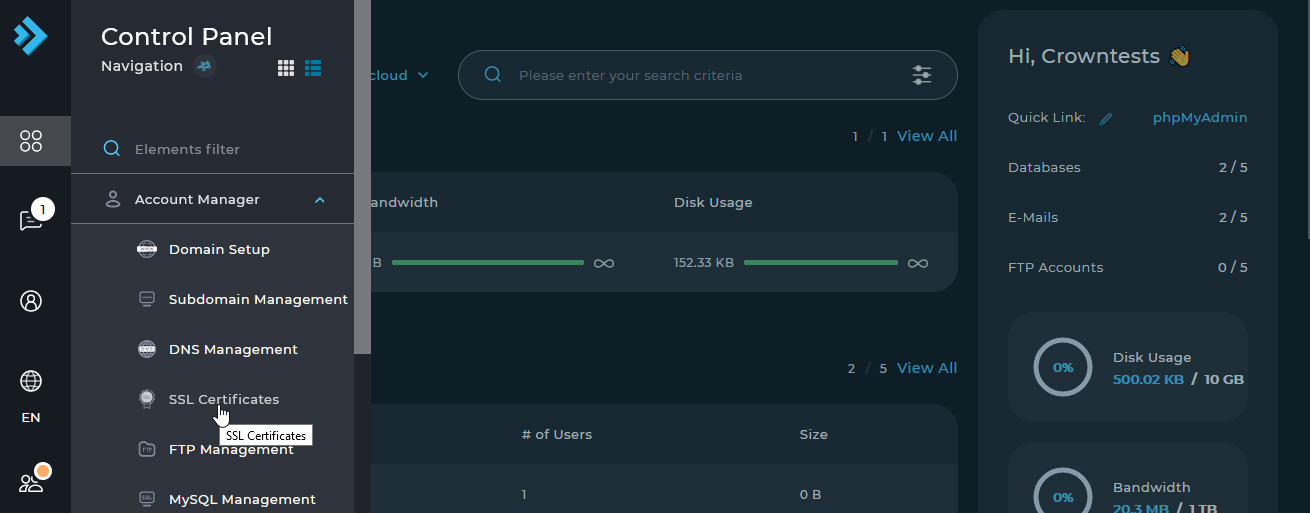
Select Account Manager > SSL Certificates.
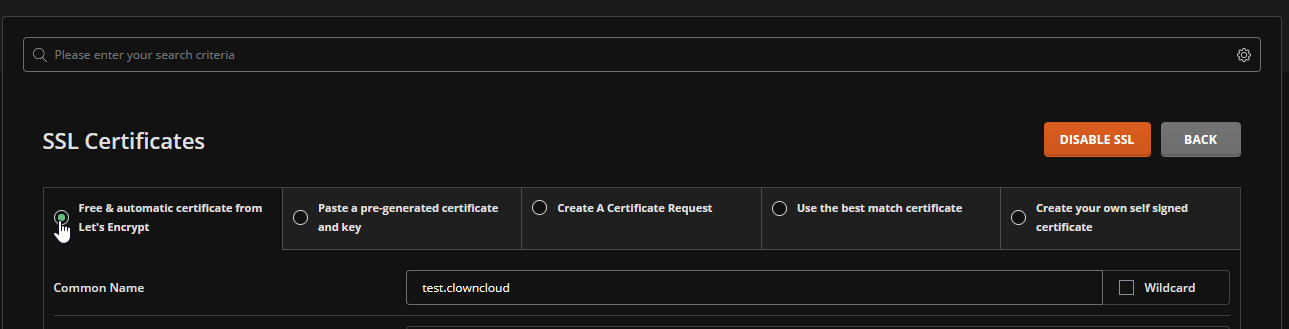
Choose the Let's Encrypt certificate
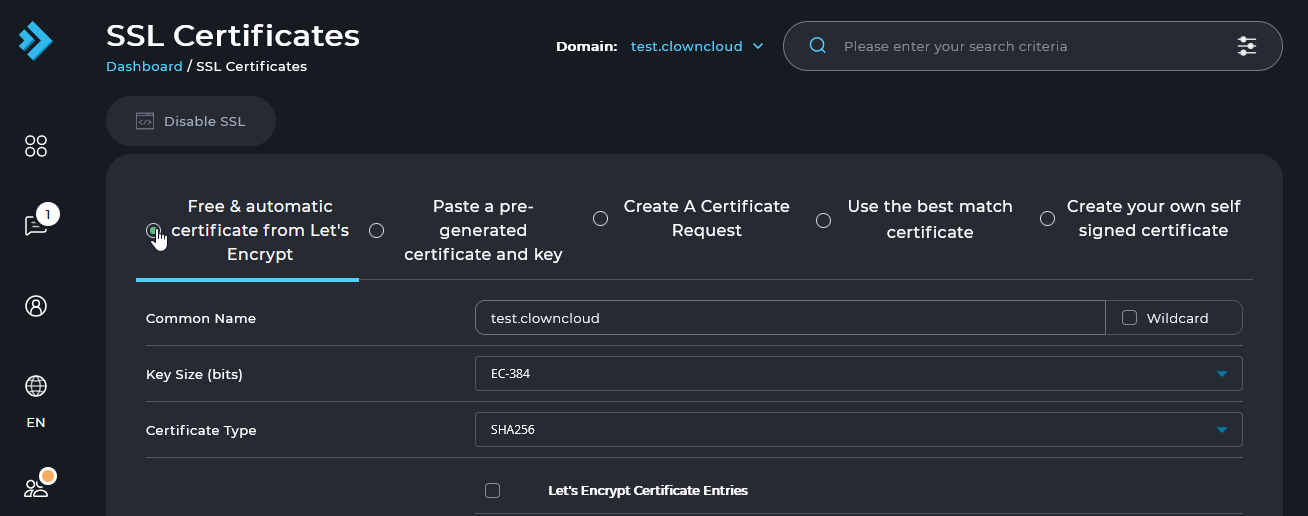
Select Free & automatic certificate from Let's Encrypt.
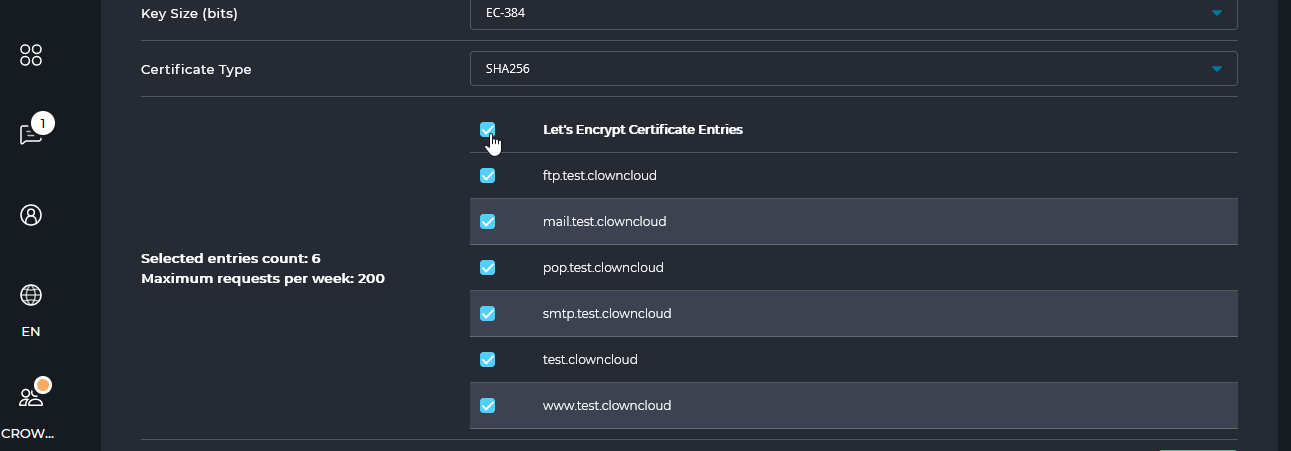
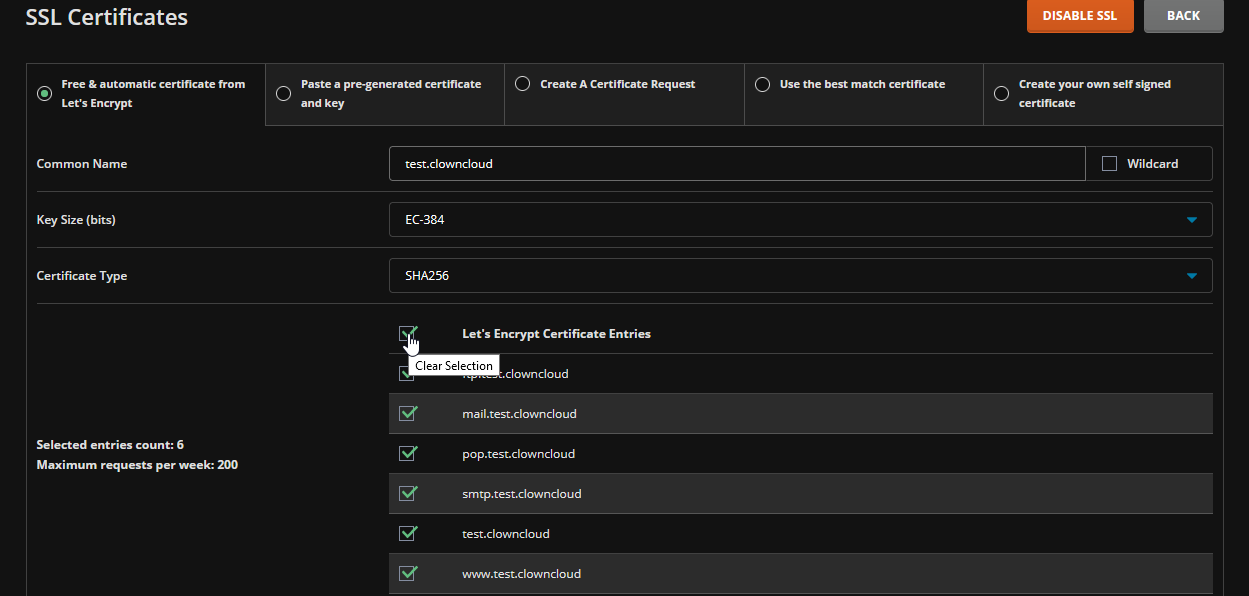
Select the certificate entries
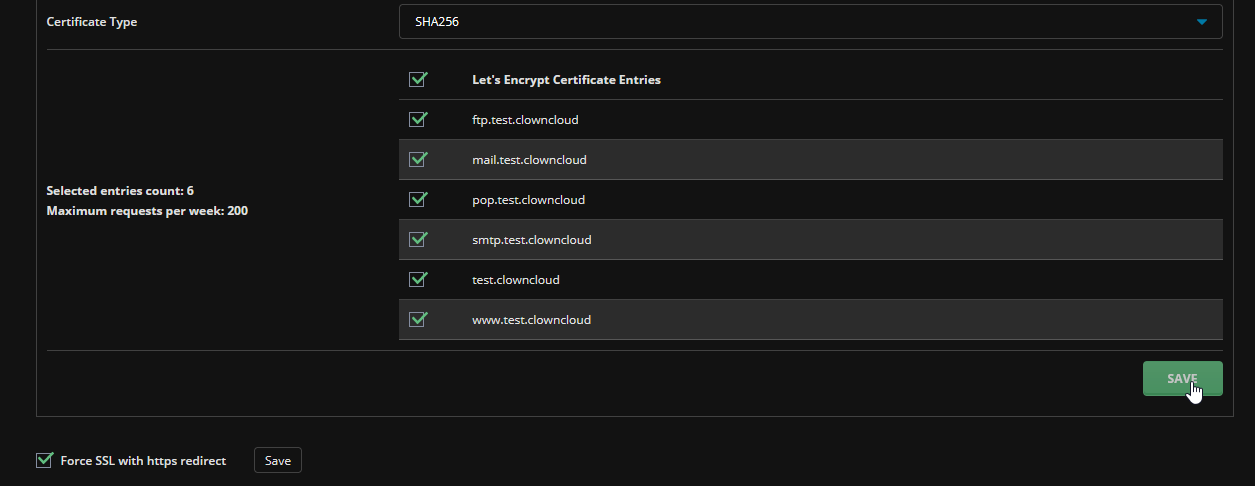
Select Let's Encrypt Certificate Entries.
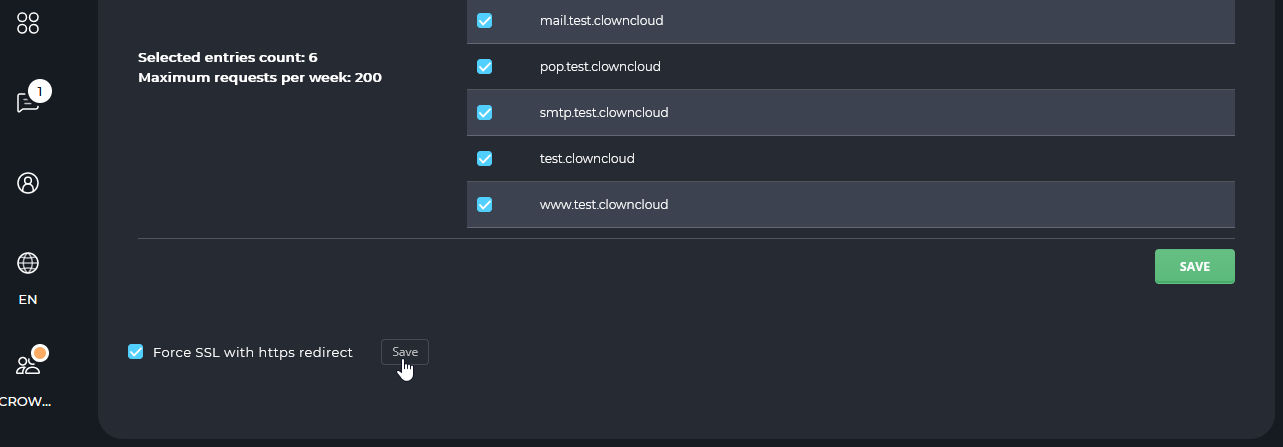
Force SSL
Select Force SSL with https redirect and click the Save button.
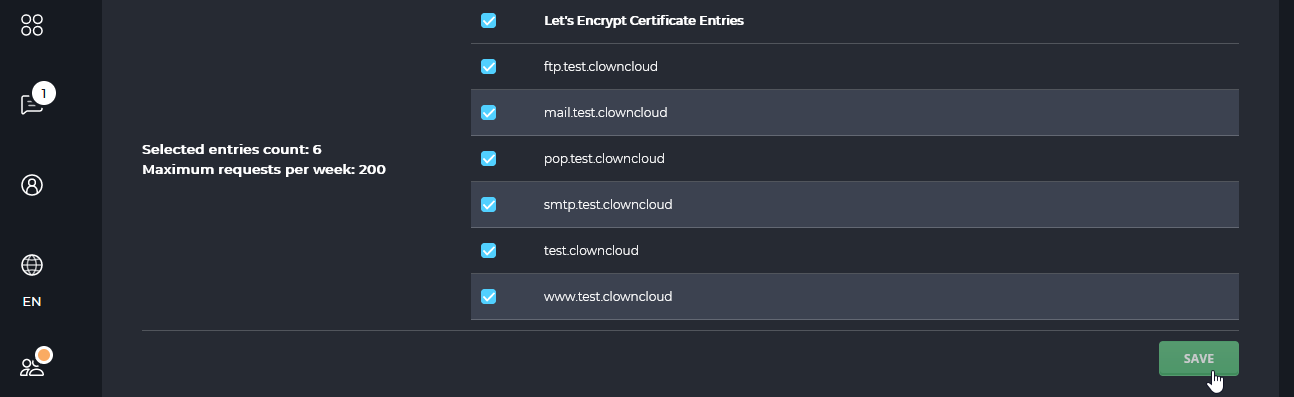
Save the certificate
Click the green Save button.
In the Standard Theme
Click here to show the steps
Log in to DirectAdmin
Log in to the DirectAdmin Web Control Panel.
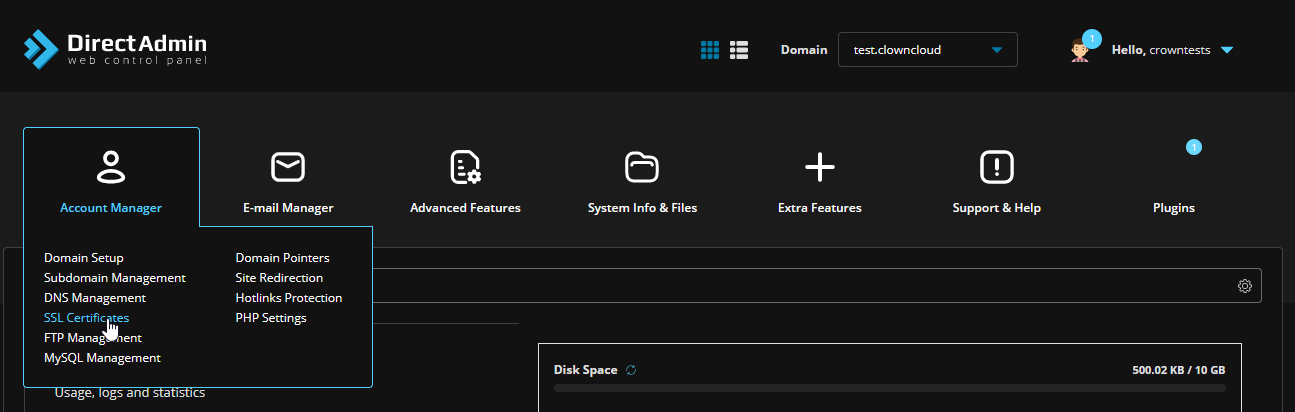
Open SSL Certificates
Navigate to Account Manager and select SSL Certificates.
Choose the Let's Encrypt certificate
Select Free & automatic certificate from Let's Encrypt.
Select the certificate entries
Select Let's Encrypt Certificate Entries.
Force SSL
Select Force SSL with https redirect and click the Save button.
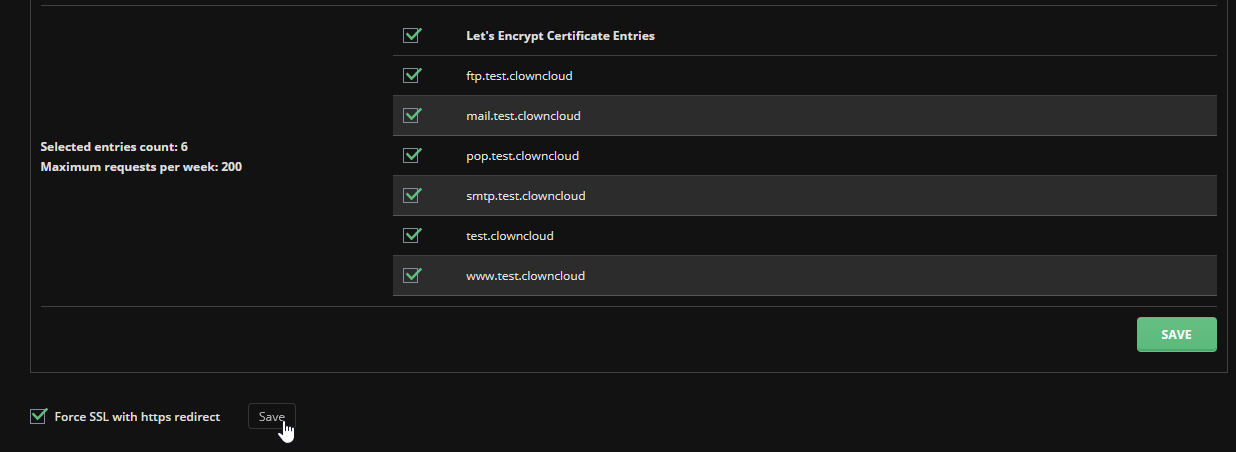
Save the certificate
Click the green Save button.