

How to Access File Manager in DirectAdmin
If you are using the Standard theme on DirectAdmin, expand the Standard theme section below and follow those steps. To switch to the Refreshed theme, see How to change theme or layout on DirectAdmin.
In the Refreshed Theme
Log in to DirectAdmin
Log in to the DirectAdmin Web Panel.
Open File Manager
Navigate to File Manager by clicking on System Info & Files.
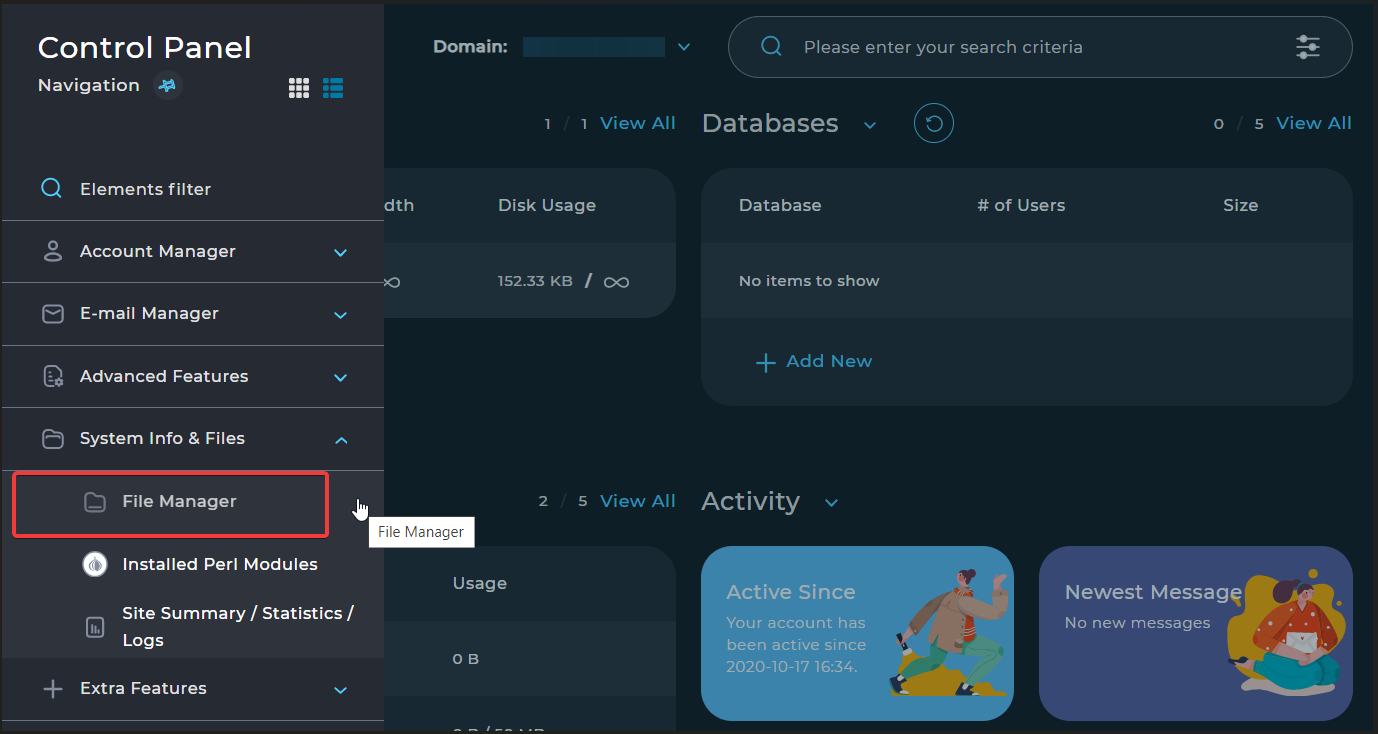
Use File Manager
The File Manager window opens.
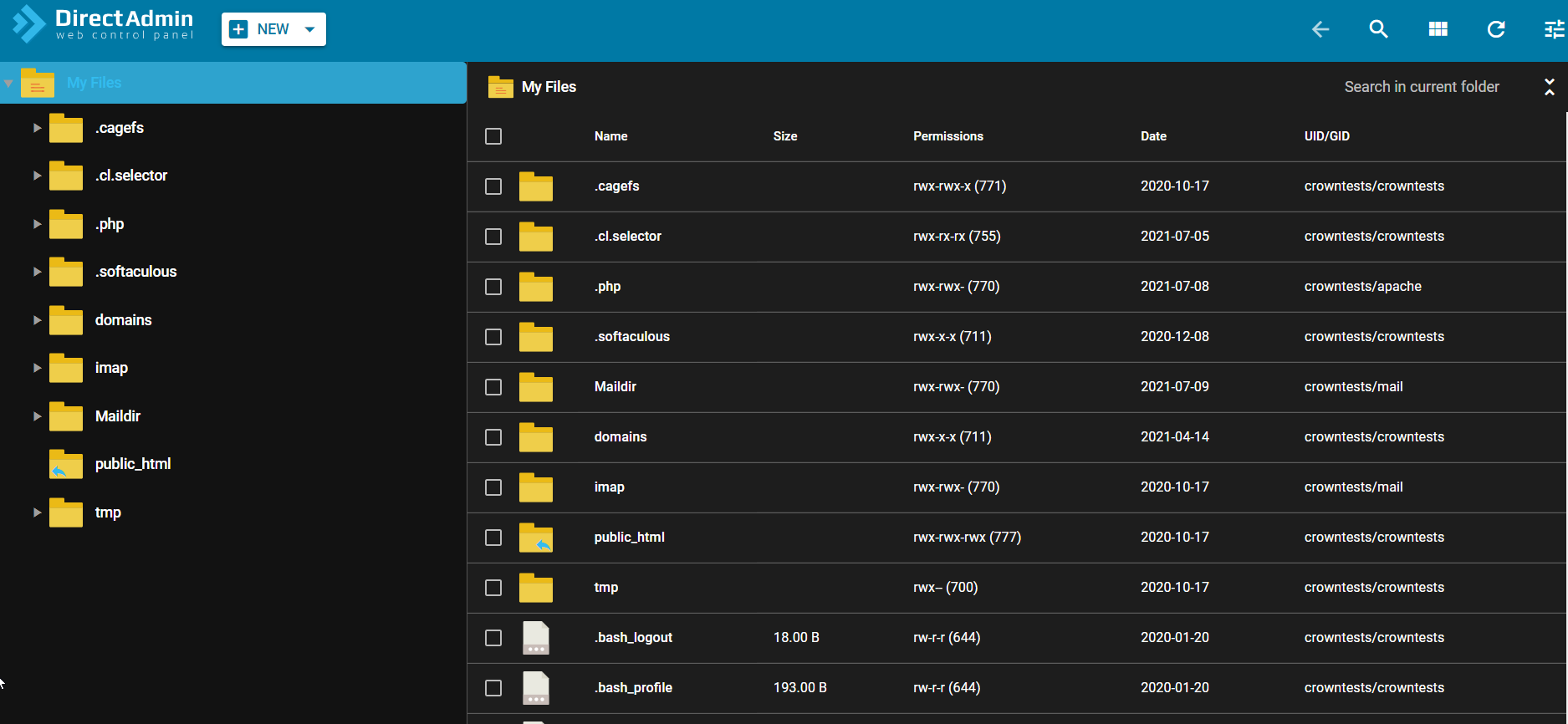
You can modify the files in your account by uploading, creating, renaming, deleting, setting permissions and more in File Manager. Your website files are located in the public_html folder.
In the Standard Theme
Click here to show the steps
Log in to DirectAdmin
Log in to the DirectAdmin panel.
Open File Manager
Navigate to File Manager by clicking on System Info & Files.
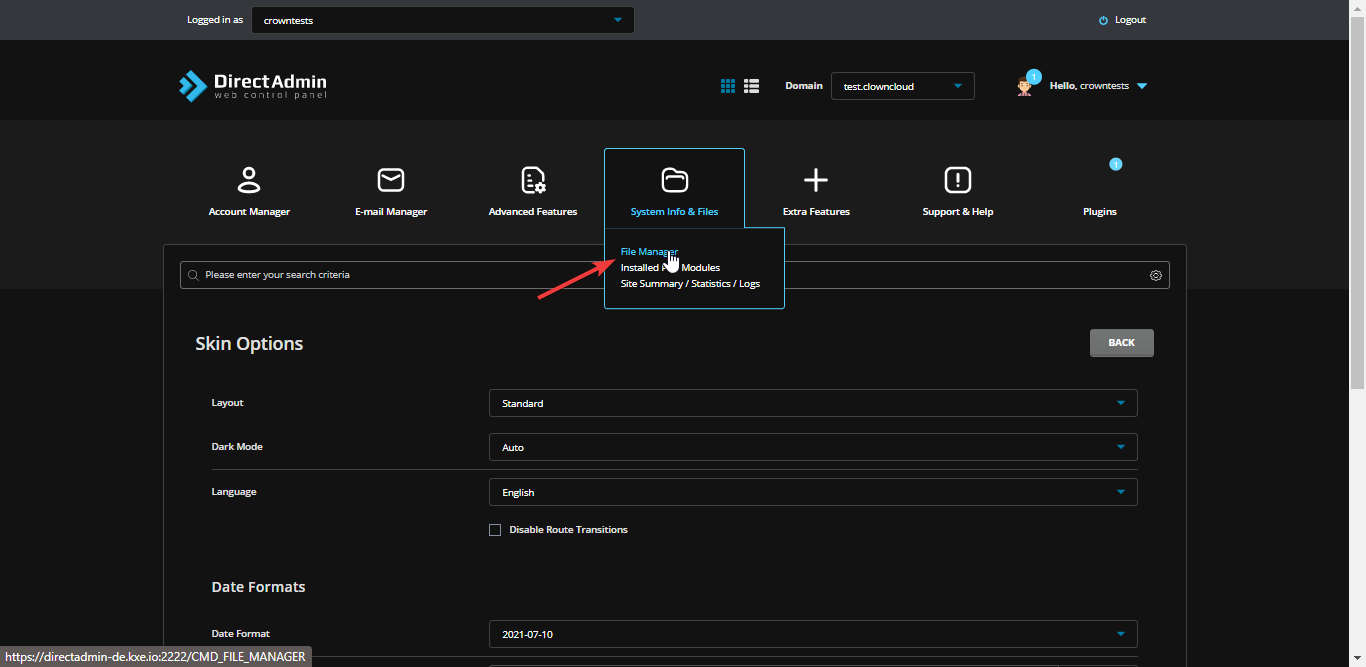
Use File Manager
The File Manager window opens.
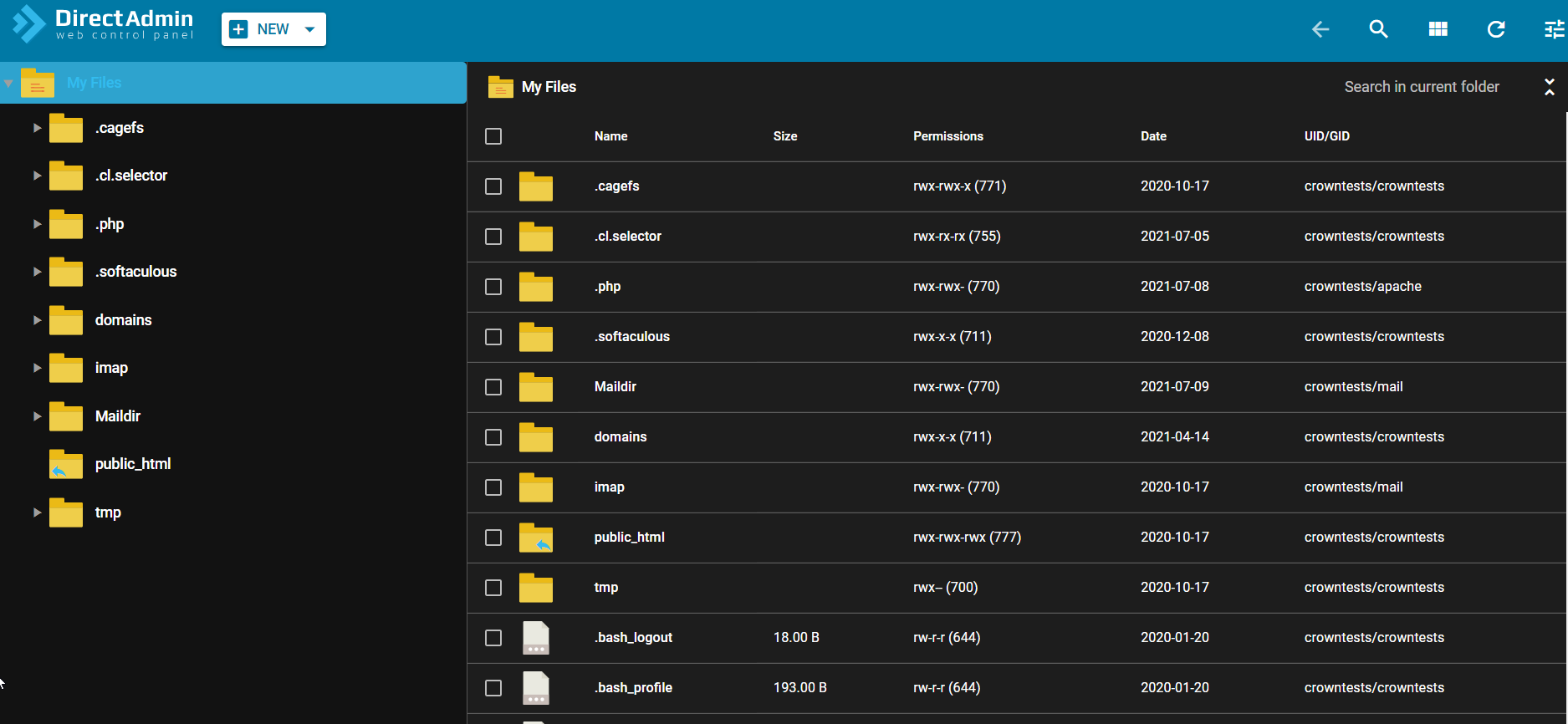
You can modify the files in your account by uploading, creating, renaming, deleting, setting permissions and more in File Manager. Your website files are located in the public_html folder.