

How to Create an Email Forwarder in DirectAdmin
An email forwarder redirects mail sent to one address on your domain to a different address. It does not create a mailbox and it does not use any disk space of its own, because nothing is stored on the server.
Forwarders are commonly used for role-based addresses such as info@YOUR_DOMAIN or sales@YOUR_DOMAIN, where mail needs to reach a person or a team without a separate mailbox being maintained for it.
This guide covers creating an email forwarder from the User level of DirectAdmin.
DirectAdmin offers two interface themes: the Standard theme (the traditional interface) and the Refreshed theme (a newer, more modern interface). Steps for both are below. To switch themes, see How to Change Theme or Layout in DirectAdmin.
Requirements
- A DirectAdmin User account, or a Reseller or Admin account switched into the User level.
- The domain already added under Account Manager > Domain Setup.
- MX records for the domain pointing to the mail server.
- The destination address or addresses that should receive the forwarded mail.
- A source name that is not already used by a mailbox, autoresponder, or mailing list on the same domain.
In the Refreshed Theme
Log in to DirectAdmin
Log in to the DirectAdmin panel.
Open Forwarders
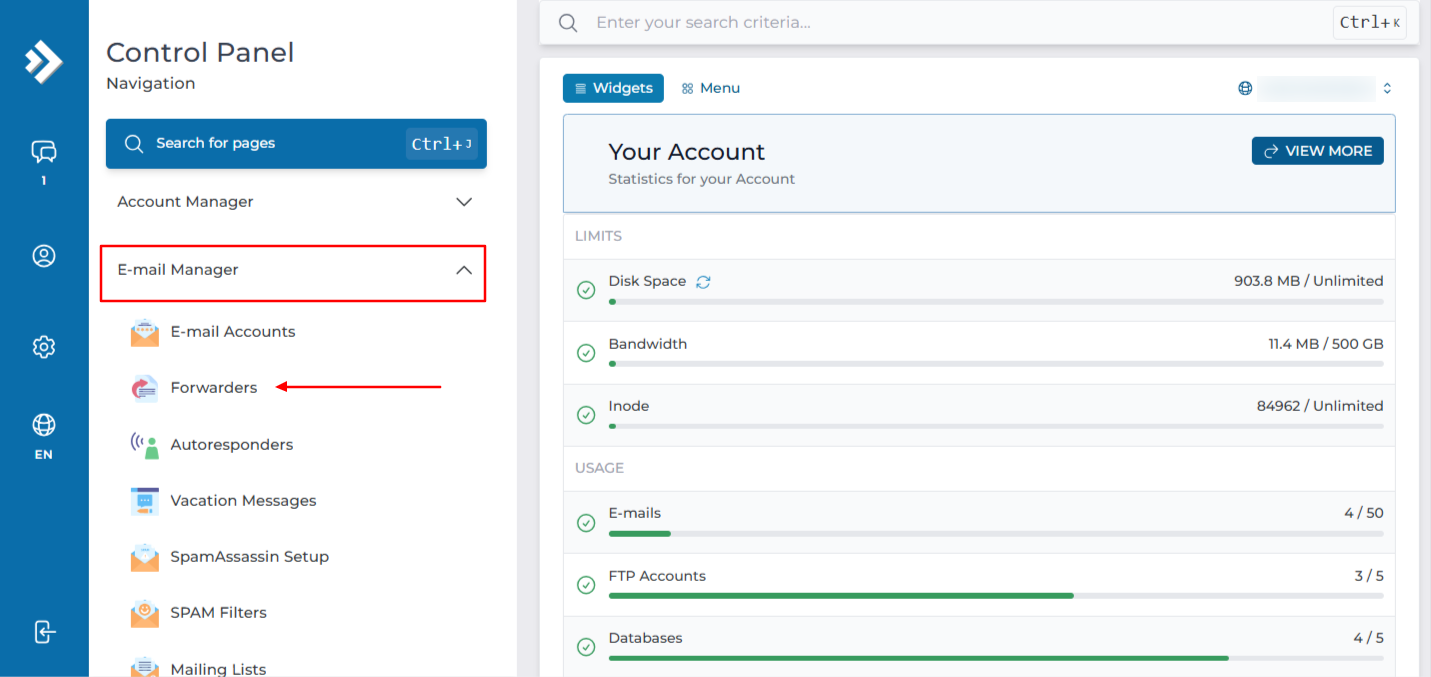
Click on Forwarders under E-Mail Manager. You can also type Forwarders in the navigation filter box to jump straight to the page.
Select the domain
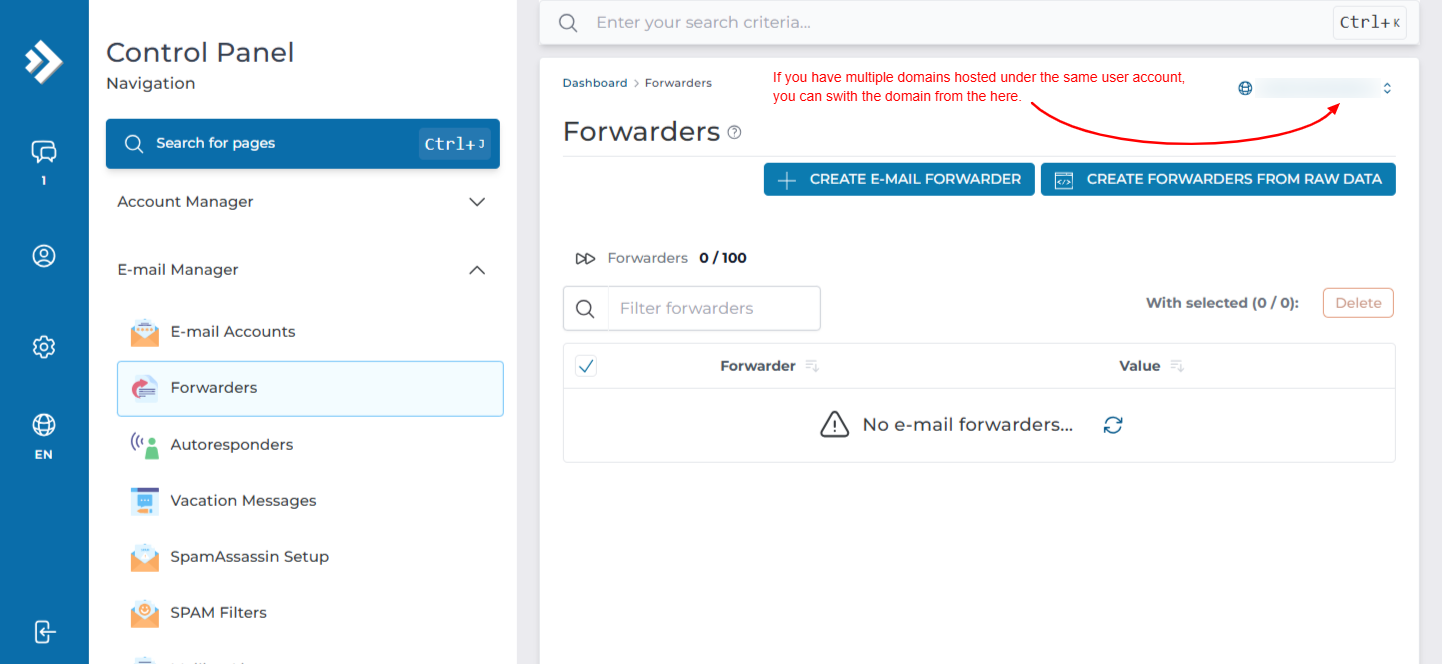
If your account holds more than one domain, check the domain shown at the top of the page and switch it if needed. The forwarder is created on the domain selected here.
Click Create E-Mail Forwarder
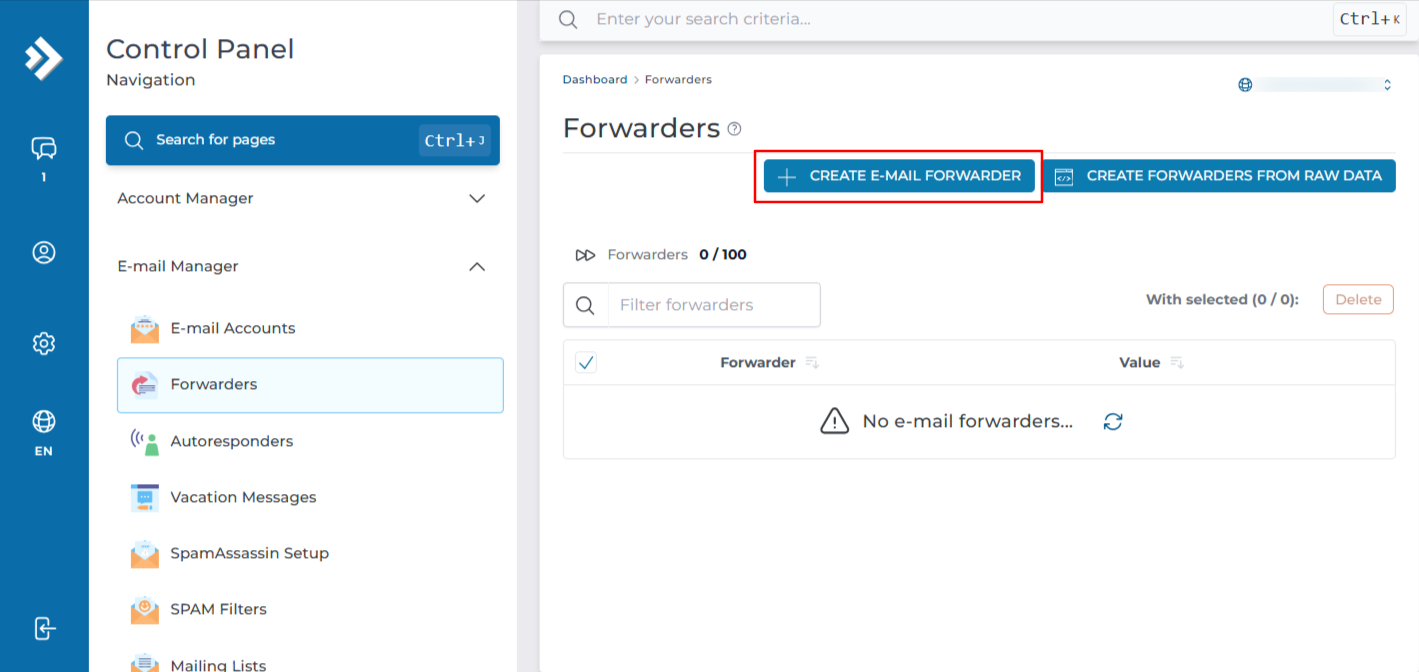
Click on Create E-Mail Forwarder.
Fill in the forwarder details
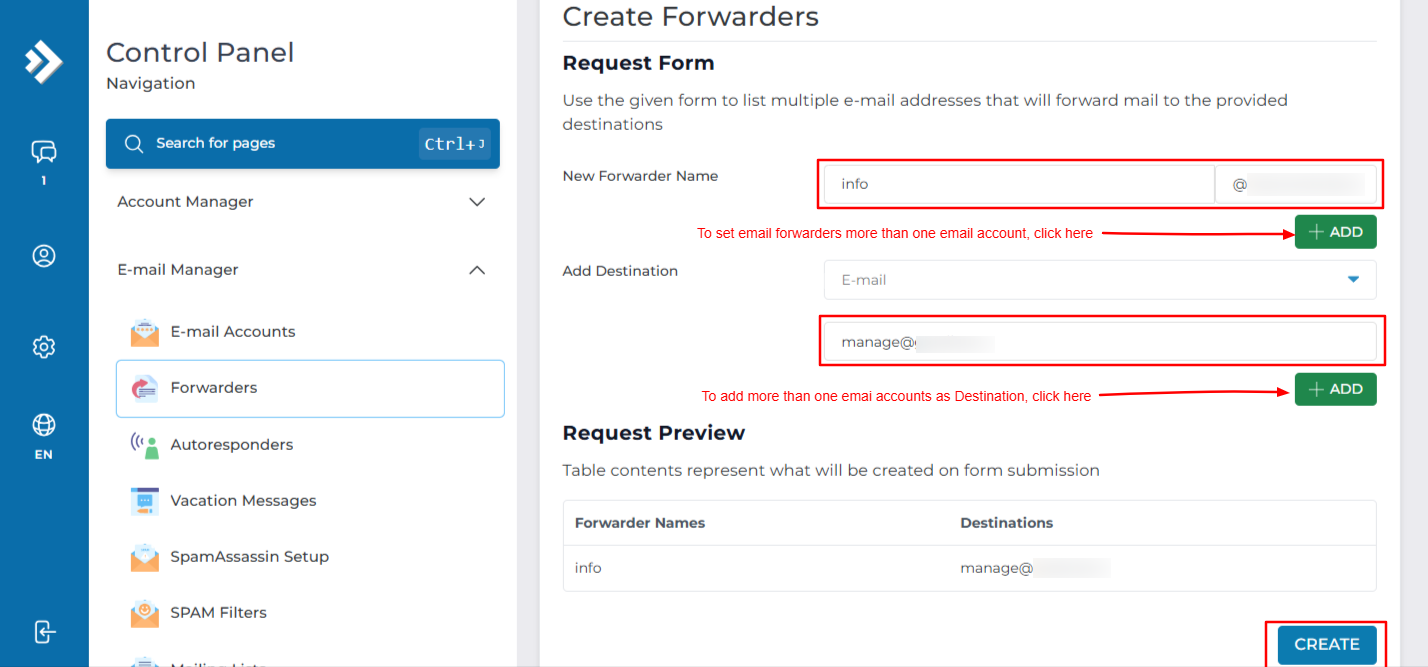
Fill in the forwarder details:
- New Forwarder Name: the part before the
@on your domain, such asinfo. This is the address people will write to. - Add Destination: the full address that should receive the mail, such as
manager@YOUR_DOMAINor an external address.
Under Add Destination, a dropdown menu offers these options:
- E-mail: forward the received email to another email address.
- Pipe: pass the email to a program or script for processing.
:blackhole:accepts the email but discards it without delivering it anywhere.:fail:rejects the email and returns a delivery failure message to the sender.
For a normal email forwarder, select E-mail.
Create the forwarder
Click Create. The forwarder is created and listed on the page, showing the source address and its destinations. It starts working straight away.
In the Standard Theme
Click here to show the steps
Log in to DirectAdmin
Log in to the DirectAdmin panel.
Open Forwarders
On the dashboard, go to E-Mail Manager and click Forwarders.
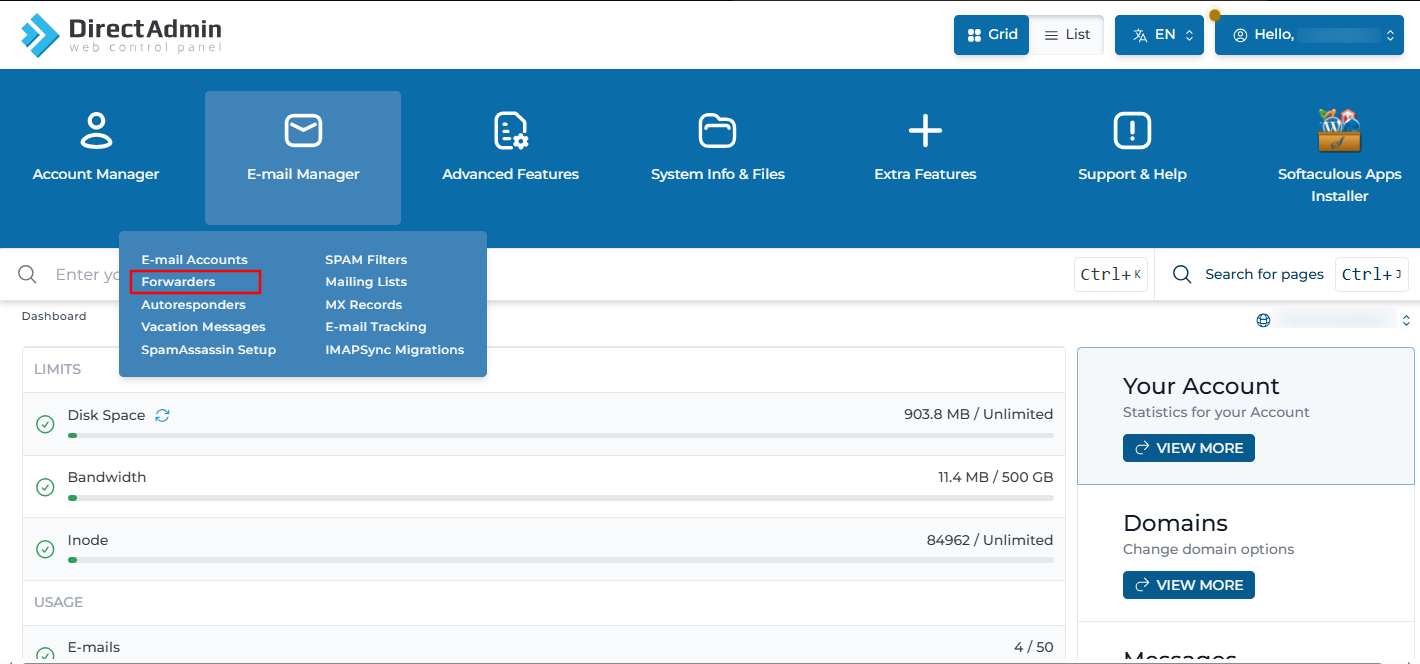
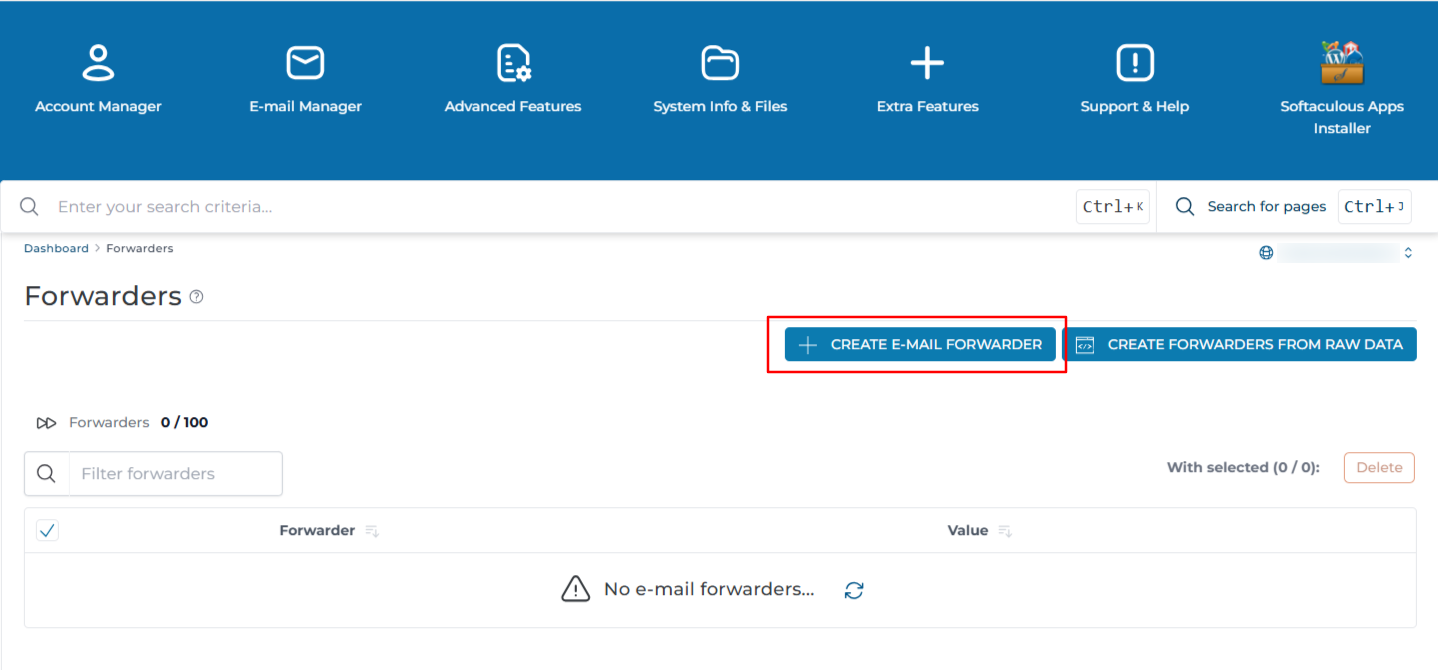
Click Create E-Mail Forwarder
Click on Create E-Mail Forwarder at the top of the page.
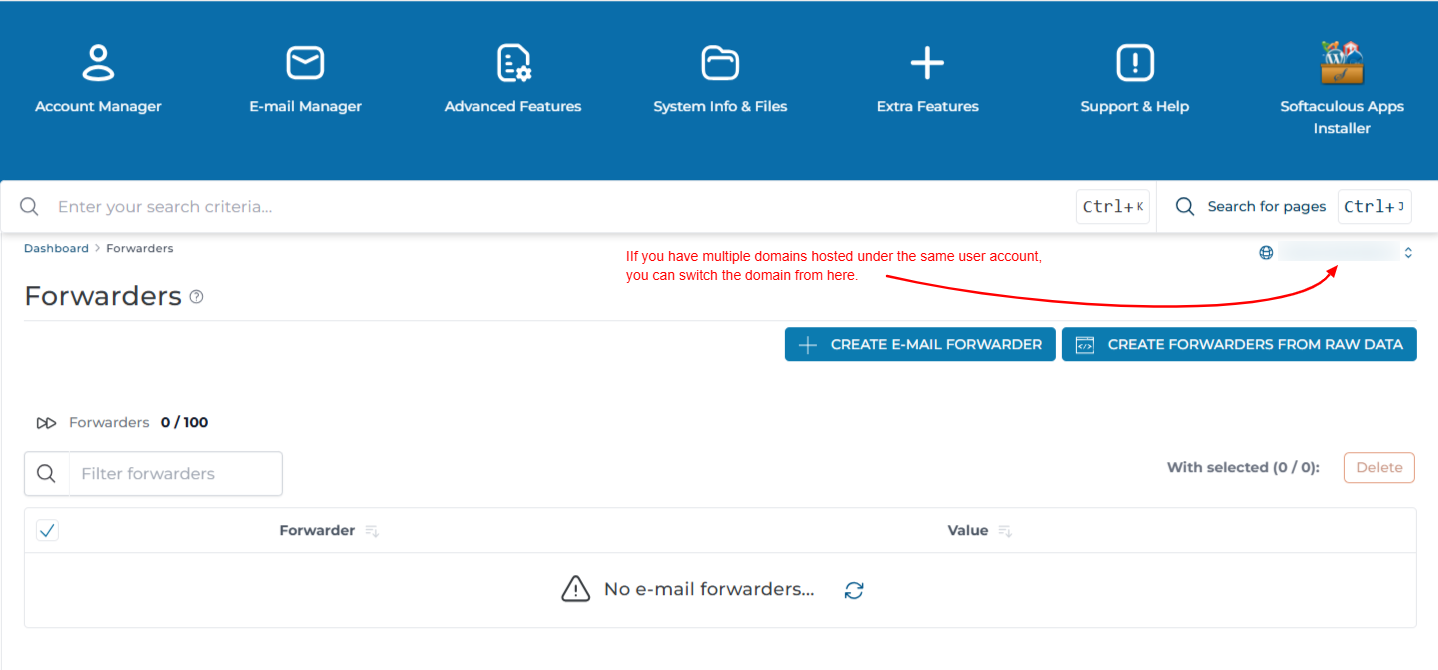
If you have multiple domains hosted under the same user account, the page opens with the main domain selected by default. Change the domain from the selector at the top of the page before creating the forwarder.
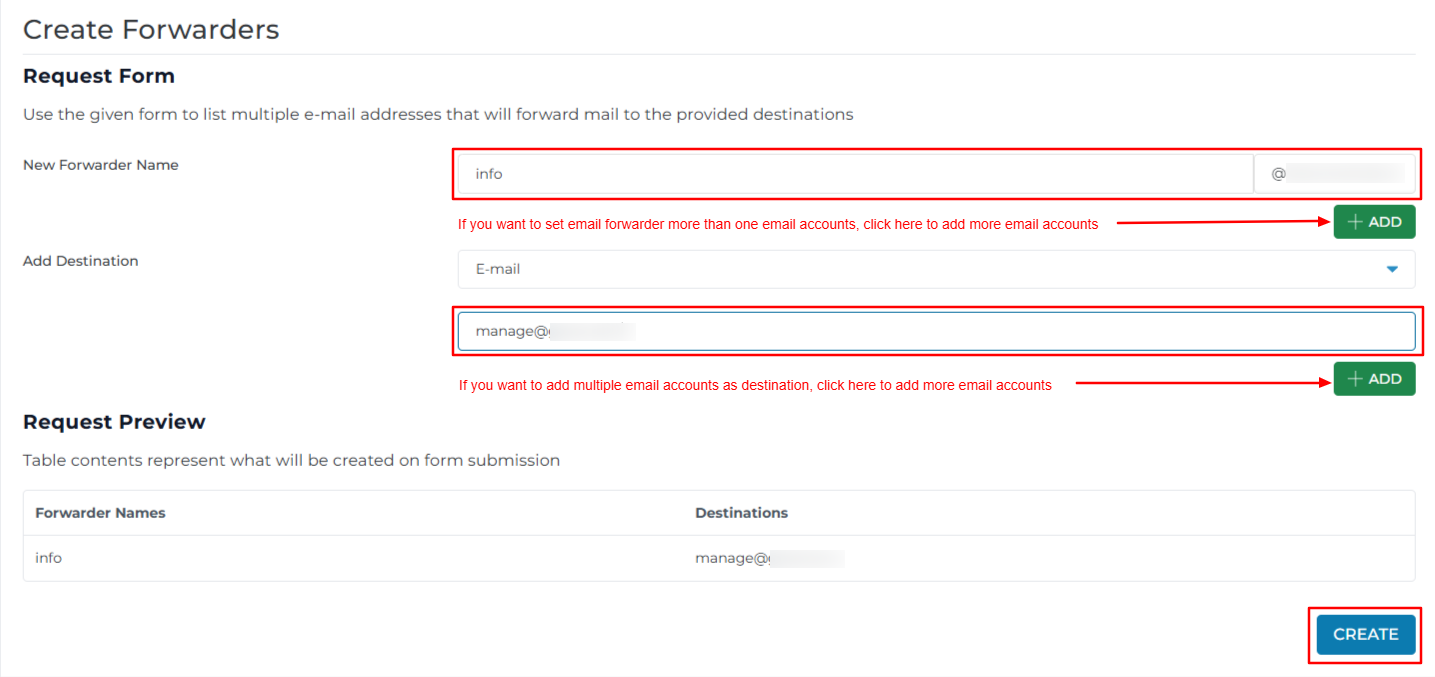
Fill in the forwarder details
Fill in the forwarder details:
- New Forwarder Name: the part before the
@on your domain, such asinfo. This is the address people will write to. - Add Destination: the full address that should receive the mail, such as
manager@YOUR_DOMAINor an external address.
Under Add Destination, a dropdown menu offers these options:
- E-mail: forward the received email to another email address.
- Pipe: pass the email to a program or script for processing.
:blackhole:accepts the email but discards it without delivering it anywhere.:fail:rejects the email and returns a delivery failure message to the sender.
For a normal email forwarder, select E-mail.
Create the forwarder
Click Create. The forwarder is active immediately and appears in the list.
Keeping a Local Copy
A forwarder on its own does not store anything on the server. If you also want a copy kept in a mailbox on your domain:
-
Create the mailbox first, for example
info@YOUR_DOMAIN, as described in the guide for creating an email account. -
Create a forwarder with the same name,
info. -
In the destination field, list both the local mailbox and the external address, one per line:
Mail is then delivered to the local mailbox and forwarded to the external address at the same time. Remember that the local copy counts towards the mailbox quota.
Using a Forwarder as an Alias
DirectAdmin does not have a separate alias tool at User level. To give an existing mailbox a second address, create a forwarder whose destination is that mailbox.
For example, a forwarder named accounts pointing to office@YOUR_DOMAIN delivers everything sent to accounts@YOUR_DOMAIN into the office@YOUR_DOMAIN inbox, with no extra disk space used.
To reply from the alias address, add it as an extra identity in the mail client. In Roundcube this is under Settings > Identities > Create.
Verification
Send a test message from an outside account to the forwarder address and confirm it arrives at the destination.
If you have shell access, watch the mail log while the test message is sent:
A forwarded message appears in the log with the original recipient followed by the destination address.
Confirm the forwarder is recorded on the server. Replace YOUR_DOMAIN as needed:
Check that the MX records point to this server if mail never reaches the forwarder at all:
Troubleshooting
Important Notes
- A forwarder does not create a mailbox and does not store mail on the server, so it uses no disk space unless a local address is included as a destination.
- A forwarder name cannot be shared with a mailbox, autoresponder, or mailing list on the same domain.
- Forwarding to large providers such as Gmail, Outlook.com, or Yahoo can cause delivery failures, because the forwarded message still carries the original sender's SPF and DKIM details. Collecting mail into a local mailbox over IMAP is more reliable.
- Forwarded spam still counts against the sending reputation of your server. Avoid forwarding addresses that receive a high volume of spam.
- Changes take effect immediately. No service restart is required.
- Deleting the destination mailbox does not remove the forwarder. Check the forwarder list separately when cleaning up accounts.
Conclusion
The email forwarder is now active and mail sent to the source address is delivered to the destinations you listed. Use forwarders for role-based addresses and aliases where a full mailbox is not needed, and prefer local delivery with IMAP collection when the destination is a large external provider.